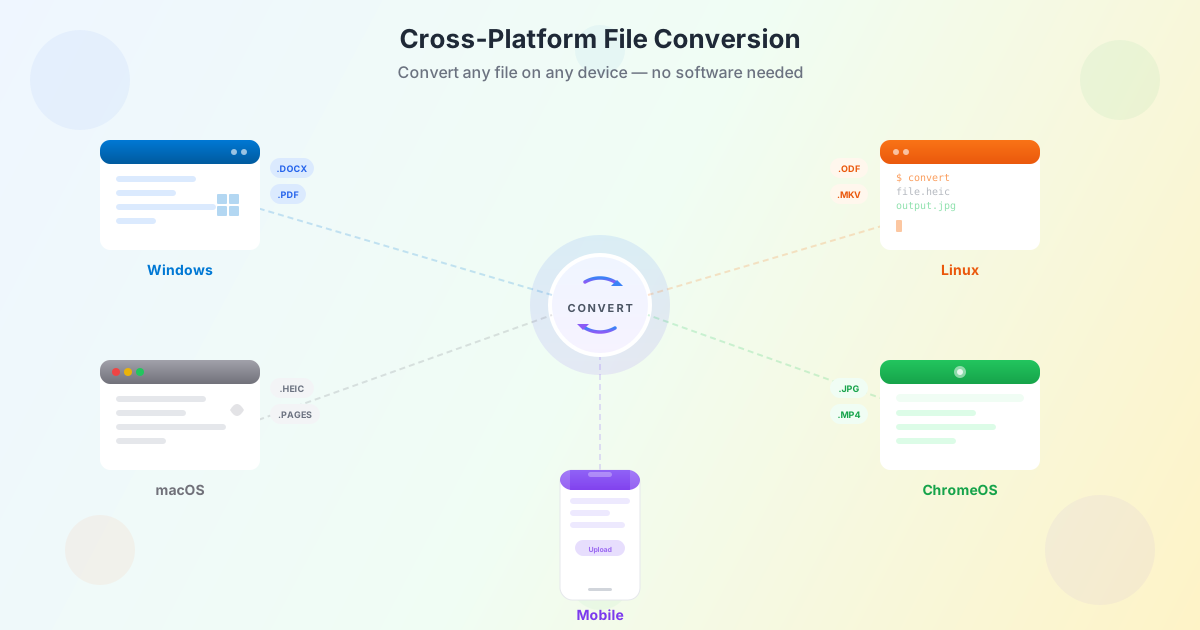
Every operating system has its own preferred file formats. Apple uses HEIC for photos and Pages for documents. Microsoft relies on DOCX and XLSX. Linux users work with ODF formats and MKV video containers. When files cross platform boundaries, things break: a photo from an iPhone will not open on a Windows PC, a Keynote presentation will not play on a Linux laptop, and a video encoded in HEVC might refuse to run on an older Android phone. Cross-platform file conversion eliminates these barriers. You can convert files on any device — without installing specialized software — using a browser-based tool.
The Platform Compatibility Problem
Format incompatibility is not a niche problem. It affects anyone who uses more than one device or shares files with people on different operating systems. The issue stems from the fact that hardware manufacturers and software companies develop proprietary formats optimized for their ecosystems. These formats work perfectly within their home platform but create friction everywhere else.
The problem grows worse as people use multiple devices daily. A typical workflow might involve taking a photo on an iPhone, editing a document on a Windows desktop at work, reviewing a spreadsheet on a Chromebook, and watching a video on a Linux media server at home. Each transition between platforms introduces potential format conflicts that slow you down or block your work entirely.
Apple Formats on Windows and Linux
Apple devices create files in several formats that other operating systems cannot handle natively. Understanding these formats and their alternatives helps you prepare for cross-platform sharing.
HEIC Photos: iPhone's Default Format
Every iPhone running iOS 11 or later captures photos in HEIC (High Efficiency Image Container) format by default. HEIC delivers excellent compression — files are roughly 50% smaller than equivalent JPEGs — while supporting advanced features like 16-bit color depth and HDR. The problem is that Windows requires a separate codec extension from the Microsoft Store, many Linux image viewers do not support HEIC, and countless websites and applications still reject this format entirely.
To convert HEIC to JPG on Windows or any other platform, use an online HEIC to JPG converter that runs in any browser. This approach works on every operating system because the conversion happens server-side — your device only needs a web browser. The converted JPG files open universally on Windows, Linux, Android, Chromebooks, and every other platform without any additional software.
Pages Documents: Apple's Word Processor Format
Apple Pages is a capable word processor that comes preinstalled on every Mac and iPad. However, Pages documents use a proprietary format (.pages) that Microsoft Word cannot open and most Windows or Linux applications do not recognize. If someone sends you a Pages file and you use Windows, you are stuck unless you have access to iCloud.com or a conversion tool.
Opening a Pages file on Windows means turning it into DOCX or PDF first. The reliable route is the sender's own app: in Pages, use Export To and pick Word or PDF, or open the file on iCloud.com and export it there. Numbers spreadsheets are the one iWork format we convert ourselves — Numbers to Excel turns a .numbers file into an XLSX workbook that Excel, Google Sheets and LibreOffice Calc all read.
Keynote Presentations
Keynote is Apple's presentation software, and its files (.key) are incompatible with PowerPoint on Windows or Impress on Linux. This creates serious problems in business and academic environments where presentations need to work across multiple systems. Export the deck as PowerPoint from Keynote itself, or from iCloud.com when you have no Mac at hand; a PPTX then opens anywhere, and PPT to PPTX is there for the older PowerPoint files that turn up alongside it.
HEVC Video: The Codec Compatibility Issue
Apple devices record video in HEVC (H.265) format by default, which provides better compression than the older H.264 codec. While HEVC support has improved across platforms, many Windows media players, older Android devices, and web browsers still struggle with playback. Converting HEVC videos to MP4 with H.264 encoding ensures universal compatibility across all video players and platforms.
Windows Formats on Mac and Linux
While Microsoft Office formats (DOCX, XLSX, PPTX) have become a de facto standard, certain Windows-specific scenarios still create cross-platform challenges.
Legacy Microsoft Formats
Older .doc, .xls, and .ppt files from legacy Windows systems sometimes display incorrectly on Mac or Linux. Complex formatting, embedded macros, and custom fonts may not survive the transition. Converting these legacy documents to modern formats or PDF ensures consistent rendering across platforms. Our PDF to Word converter handles both directions — converting PDF documents into editable Word format and vice versa — making it easy to switch between shareable and editable formats regardless of your operating system.
Windows-Specific Media Formats
WMV (Windows Media Video) and WMA (Windows Media Audio) files were designed for Windows Media Player and often fail to play on Mac or Linux without additional codecs. AVI containers with Microsoft-specific codecs create similar problems. Converting these to universally supported formats like MP4 or MP3 resolves playback issues on every platform.
Linux and Open-Source Format Challenges
Linux users face a different set of challenges. While Linux distributions excel at handling open formats like ODF, OGG, and WebM, receiving files from Windows or Mac users often requires conversion. ODF documents (.odt, .ods) render perfectly on LibreOffice but may lose formatting when opened in Microsoft Office. MKV video files, while technically superior, are not natively supported by all Windows media players or Apple devices.
The solution works both ways. Linux users can convert received DOCX files to ODF for local editing, or convert their ODF documents to DOCX before sending to Windows or Mac colleagues. For video, converting MKV to MP4 creates files that play on every device without codec hunting.
Browser-Based Conversion: No Software Required
The traditional approach to cross-platform file conversion involved downloading and installing dedicated software for each format. This created its own compatibility problems: the conversion software itself might not be available for your operating system. An online file converter eliminates this circular problem entirely.
A browser-based converter works on any device with a modern web browser. There is nothing to download, nothing to install, and no compatibility to worry about. The same tool that converts your HEIC photos on a Windows desktop also works on your Linux laptop, your Chromebook at school, and your iPad on the couch. File conversion without installing software means you are productive immediately, even on devices where you do not have administrator privileges to install applications.
How Browser-Based Conversion Works
When you upload a file to an online converter, the processing happens on dedicated servers rather than your local device. This has several practical advantages:
- Device independence: The server handles the heavy processing, so even a basic smartphone or older laptop can convert large files
- No storage requirements: You do not need gigabytes of conversion software on your device
- Always current: The converter supports the latest formats automatically, without requiring updates on your end
- Consistent results: Regardless of your device or operating system, the conversion output is identical
Privacy and Security Considerations
When using any online converter, your files are transmitted to a server for processing. Reputable conversion services use encrypted connections (HTTPS) and publish their retention periods in writing, so you can check what happens to a file before you send it. For everyday documents that is a sensible trade: you get a tool that works on any device, without installing anything, from a service whose handling of your data is written down rather than implied.
Mobile Conversion: Smartphones and Tablets
Mobile devices present unique conversion challenges. App stores offer format-specific conversion apps, but each app handles only a narrow range of formats, takes up storage space, and may include intrusive ads or in-app purchases. A browser-based approach gives you a single tool that handles all conversions from your phone's web browser.
On iOS, you might receive a DOCX file that you need to review but lack Microsoft Word. On Android, a friend might send a HEIC photo that your gallery app cannot display. In both cases, opening an online image converter or document converter in your mobile browser solves the problem instantly without installing anything.
Mobile browser-based conversion is especially valuable for quick tasks: converting a single photo format, transforming a document for email sharing, or preparing a file for upload to a service that requires a specific format. The entire process takes seconds and uses minimal mobile data since only the individual file is transmitted.
Chromebook Conversion: Working Within ChromeOS
Chromebooks run ChromeOS, which is designed primarily around the Chrome browser and web applications. Traditional desktop software cannot run on Chromebooks (with limited exceptions through Linux beta or Android apps). This makes browser-based file conversion particularly important for Chromebook users.
Converting files on a Chromebook works identically to any other platform: open the converter in Chrome, upload your file, and download the result. Whether you need to convert a PDF to an editable Word document, transform images between formats, or process video files, the browser handles everything. This is one area where Chromebooks actually have an advantage — because everything is browser-based by design, there is no friction between the device's capabilities and the conversion tool.
Students and educators who rely on Chromebooks benefit enormously from cross-platform conversion. Assignments saved as Pages documents, photos in HEIC format from an iPhone, and videos recorded in proprietary formats can all be converted to universally compatible formats directly from the Chromebook without requesting IT support or switching devices.
Common Cross-Platform Conversion Scenarios
Here are the most frequent situations where cross-platform file conversion saves time and eliminates frustration:
Photo Sharing Between iPhone and Windows
This is arguably the single most common cross-platform format issue. Millions of iPhone users share HEIC photos with Windows users daily. The HEIC to JPG converter handles this in seconds. Upload the HEIC file, download a universally compatible JPG. Batch conversion handles entire photo albums when you need to transfer a vacation's worth of pictures.
Document Exchange Between Office Suites
Teams using different office suites (Microsoft Office, Google Workspace, LibreOffice, Apple iWork) need a common format for collaboration. PDF serves as the universal read-only format, while DOCX has become the standard for editable documents. Converting between these formats — PDF to Word for editing, Word to PDF for sharing — bridges the gap between any combination of office applications and operating systems.
Video Playback Across Devices
Video format compatibility varies widely. A video recorded on an iPhone (HEVC/MOV) might not play on a Windows PC, an Android TV, or a Linux media center. Converting to MP4 with H.264 encoding creates a file that plays on virtually every device manufactured in the last decade. The video converter handles format translation while preserving quality.
Image Format Standardization
Web developers, designers, and content creators regularly need to convert images between formats for different platforms. WebP images for websites, JPG for email, PNG for graphics with transparency, SVG for scalable icons — each platform and use case has optimal formats. An image format converter that works from any browser simplifies this workflow regardless of your operating system.
Supported Platforms and Browsers
Browser-based file conversion works on any platform that supports a modern web browser. This includes:
- Windows (10, 11) — Chrome, Firefox, Edge, Opera
- macOS (Ventura, Sonoma, Sequoia) — Safari, Chrome, Firefox
- Linux (Ubuntu, Fedora, Arch, Mint) — Firefox, Chrome, Chromium
- ChromeOS — Chrome (built-in)
- iOS (iPhone, iPad) — Safari, Chrome
- Android — Chrome, Firefox, Samsung Internet
- iPadOS — Safari, Chrome Any device with internet access and a browser released in the last five years can convert files without compatibility concerns. This universality is the core advantage of the browser-based approach — the conversion tool itself is never the compatibility bottleneck.
Tips for Smooth Cross-Platform File Sharing
Beyond conversion, these practices minimize cross-platform format conflicts:
- Default to universal formats: When creating files you plan to share, choose widely supported formats. PDF for documents, JPG or PNG for images, MP4 for video, MP3 for audio
- Check before sending: Consider whether the recipient's platform can open your file. If unsure, convert to a universal format first
- Use font-safe documents: Fonts that exist on one platform may be missing on another. Embed fonts in documents or use system-universal fonts like Arial, Times New Roman, or Calibri
- Test on the target platform: If a document or presentation must look perfect, verify it on the actual platform where it will be viewed
- Keep originals: Always retain your original files. Conversion creates a copy in a new format, so your source file remains intact for future needs
Conclusion
Cross-platform file conversion is an everyday necessity in a world where people switch between iPhones, Windows PCs, Chromebooks, Linux laptops, and Android tablets throughout a single day. Format incompatibilities between these platforms — HEIC photos that will not open on Windows, Pages documents that Windows cannot read, HEVC videos that refuse to play on Linux — create friction that slows down communication and productivity.
A browser-based converter solves all of these problems with a single, universal tool. No software to install, no platform restrictions, no codec packs to hunt down. Whether you are converting files on a Chromebook at school, a Windows workstation at the office, or an iPhone on the bus, the process is identical: upload, convert, download.
Explore the full range of conversion tools to handle any format on any device.