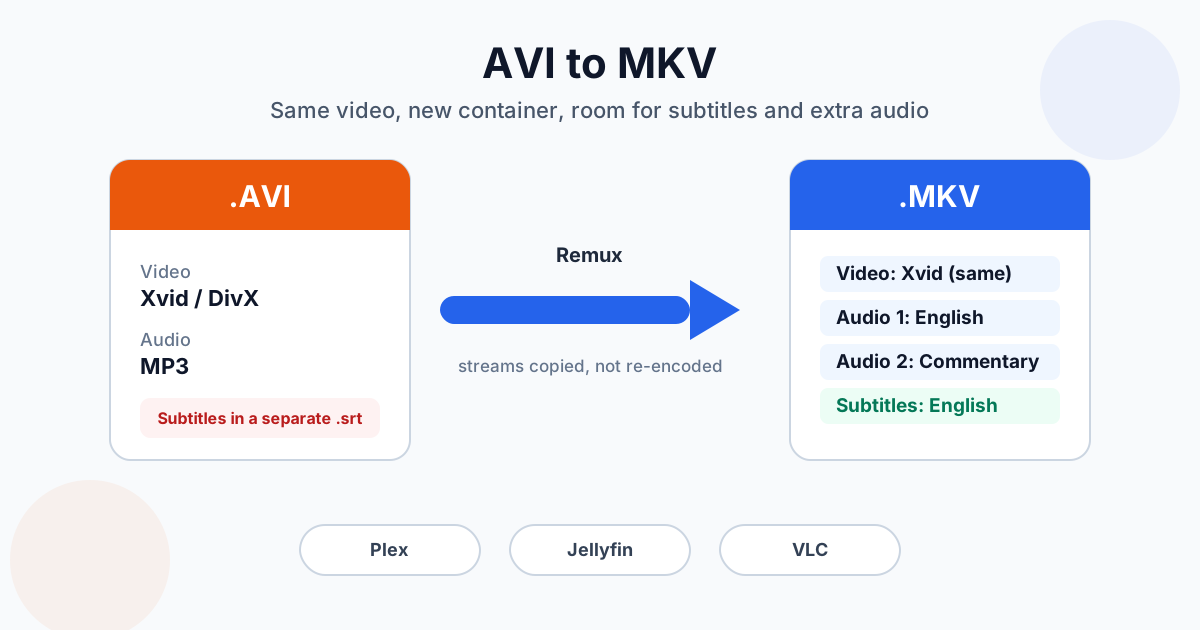
You can convert AVI to MKV in two ways. A remux copies the existing video and audio into a Matroska container without touching them. It's lossless, takes seconds, and lets you add subtitles and extra audio tracks. A re-encode turns the video into H.264, which makes the file smaller and friendlier to TVs, but it's a new lossy copy. For a library of old DivX and Xvid files, remux. For a few files that have to play on a picky device, re-encode.
For a remux, upload the files to the AVI to MKV converter, or use MKVToolNix or FFmpeg. Re-encoding to H.264 is worth it only when a TV can't play the old codec, a case covered below. Both remux routes are below, plus how to attach subtitles, batch a whole folder and name things so Plex or Jellyfin recognise them.
Why Move an Old AVI Library to MKV?
AVI dates from 1992, and it shows. It still plays, but it can't hold the things a modern library wants:
| Feature | AVI | MKV |
|---|---|---|
| Subtitles inside the file | No standard way; you keep a separate .srt next to it | Yes, as many text or image tracks as you like, each with a language tag |
| Several audio tracks | Possible, but many players ignore all but the first | Yes, with language, name and "default" flags |
| Chapters | No | Yes |
| Titles, languages, cover art | Very limited | Yes |
| Modern codecs (H.265, AV1, Opus) | Poorly | Yes |
| Open specification | Microsoft format | Open, royalty-free |
The practical wins are simple. The subtitles travel with the movie instead of getting lost when you copy one file. A dubbed and an original soundtrack live in one file. Media servers read the language tags and pick the right track automatically.
What MKV doesn't do: improve the picture. A 640×352 Xvid rip from 2006 is still a 640×352 Xvid rip in an MKV. The container changes, the video doesn't.
Remux vs Re-encode: What We Measured
We made a 2-minute test AVI of the kind that filled hard drives in the 2000s: 640×352 Xvid video at 1 Mbps with 128 kbps MP3 audio. Then we converted it both ways with FFmpeg on an Intel i9-13900K:
| Method | Result | Size | Time | Picture vs the AVI (SSIM) |
|---|---|---|---|---|
| Original AVI | Xvid + MP3 | 17.4 MB | — | — |
Remux to MKV (-c copy) | Xvid + MP3, untouched | 17.2 MB | 0.06 s | 1.000 (identical) |
| Remux + subtitles + second audio track | Xvid + 2 × MP3 + SRT | 18.7 MB | 0.06 s | 1.000 (identical) |
| Re-encode to MKV (H.264 at a high-quality setting + AAC 128 kbps) | H.264 + AAC | 14.0 MB | 2.8 s | 0.990 |
What this tells you:
- A remux is effectively free. It took a fraction of a second, and the video is bit-for-bit the same. The MKV was even a little smaller than the AVI, because Matroska's packaging is leaner
- A re-encode trades a tiny bit of fidelity for size and compatibility. 0.990 is well past the point where anyone can see a difference on normal footage, and the file shrank by a fifth. But it's a copy of a copy, and it took about 45 times longer than the remux
On a 2-minute clip, 2.8 seconds doesn't matter. On a 300-film library, it's the difference between a coffee break and running the computer for days.
How to Convert AVI to MKV Online
- Open the AVI to MKV converter
- Drag in your .avi files. Several files go into a queue and convert one after another
- Download each MKV, or grab them all with Download all as ZIP
What the online converter does: it remuxes. Xvid, DivX and H.264 video and MP3, AC-3 and PCM audio are copied into the MKV unchanged, like the remux row in the table above; other video, such as old MS-MPEG4 or Cinepak, is re-encoded to H.264 and other audio to AAC. That's the quick route for a library. When the file has to play on a TV or streaming stick that doesn't handle DivX or Xvid, use AVI to MP4, which re-encodes them to H.264.
What it doesn't do: attach subtitles. Extra audio tracks are kept: when we uploaded an AVI with two audio tracks, the MKV came back with both. To add subtitles or name the tracks, use the desktop route below.
Limits: 100 MB per file without an account (500 MB on Premium, 1 GB on Premium Plus). Conversion is free without sign-up, with a daily limit. A video conversion uses a bigger share of it than a document does, so a guest can convert about five videos a day. Files are sent over an encrypted (HTTPS) connection, and their handling is described in the privacy policy.
How to Remux AVI to MKV Without Re-encoding
MKVToolNix (Windows, Mac, Linux, free). This is the standard tool for building MKV files:
- Open MKVToolNix GUI and stay on the Multiplexer tab
- Drag the .avi into Source files. Add your .srt and any extra audio files the same way
- Click each track in the list and set its language and track name (for example "English" or "Director's commentary"). Mark the track that should play first as the default track
- Check the destination file at the bottom, then click Start multiplexing
For many files, use Add to job queue instead of starting each one, then run the queue once.
FFmpeg (command line). The one-line remux:
ffmpeg -i "movie.avi" -map 0 -c copy "movie.mkv"
-map 0 keeps every stream (both audio tracks, if there are two), and -c copy means nothing is re-encoded. VLC can also save to MKV, but its converter is built around re-encoding. For a plain container change, MKVToolNix or FFmpeg are the cleaner tools. VLC, FFmpeg and HandBrake compared goes into the differences.
One warning you might see. Some old DivX files use a trick called "packed B-frames", and FFmpeg says so when it reads them. The remuxed MKV still plays in VLC and most players. If a picky player stutters on it, add -bsf:v mpeg4_unpack_bframes to the FFmpeg command.
How to Add SRT Subtitles and a Second Audio Track
This is usually the reason to move to MKV in the first place. With FFmpeg:
ffmpeg -i "movie.avi" -i "movie.en.srt" -i "commentary.mp3" -map 0 -map 1 -map 2 -c copy -metadata:s:s:0 language=eng -metadata:s:a:1 title="Commentary" "movie.mkv"
What each part does:
-map 0 -map 1 -map 2: take everything from the AVI, the subtitle file and the extra audio-metadata:s:s:0 language=eng: tag the first subtitle track as English, so players and media servers can label it-metadata:s:a:1 title=...: name the second audio track
We ran exactly this on the test file. The MKV came out with one video track, two audio tracks and an English subtitle track in 0.06 seconds, with the video still identical to the AVI.
Subtitles out of sync? If the .srt was made for a different release of the film, it will drift or start early. Fix the timing in a subtitle editor before you mux it in. The container won't fix it for you.
How to Batch Convert a Whole Folder of AVI Files
A loop over the folder remuxes everything and picks up subtitle files with matching names. On Mac or Linux (Terminal, run inside the folder):
for f in *.avi; do b="${f%.avi}"; if [ -f "$b.en.srt" ]; then ffmpeg -n -i "$f" -i "$b.en.srt" -map 0 -map 1 -c copy -metadata:s:s:0 language=eng "$b.mkv"; else ffmpeg -n -i "$f" -map 0 -c copy "$b.mkv"; fi; done
On Windows (Command Prompt, inside the folder), the simple version without subtitles:
for %f in (*.avi) do ffmpeg -n -i "%f" -map 0 -c copy "%~nf.mkv"
We tested the Mac/Linux loop on a folder with "Holiday 2006.avi" plus "Holiday 2006.en.srt", and "Birthday 2007.avi" with two audio tracks. The first MKV got the subtitles, and the second kept both audio tracks. -n makes FFmpeg skip files that are already converted, so you can run the loop again after adding more AVIs.
Before you delete anything: open a few MKVs from different years in the player you actually use, skip through them, and check sound and subtitles. Remuxing is lossless, but a damaged source AVI stays damaged. Keep the originals until you've spot-checked.
Naming Files for Plex and Jellyfin
Media servers identify films and episodes by folder and file name, not by what's inside. The conventions both Plex and Jellyfin document:
| Type | Folder and file name |
|---|---|
| Film | Movies/The Film Title (1999)/The Film Title (1999).mkv |
| External subtitle (if you didn't mux it in) | The Film Title (1999).en.srt next to the MKV |
| TV episode | TV/Show Name/Season 01/Show Name - S01E03.mkv |
| Home video | A separate "Home Videos" library, named by date: 2006-07-14 Holiday.mkv |
With subtitles and language tags inside the MKV, the server shows "English" in its subtitle menu instead of "Unknown", and picks the right audio track by your language preference.
When MP4 Is the Better Target
MKV is the better archive. MP4 is the better thing to hand to other people:
- iPhone, iPad and Apple TV apps don't open MKV without a third-party player
- Phones, older smart TVs and car screens are far more reliable with MP4
- Sharing and uploading works with MP4 everywhere
If that's your situation, convert AVI to MP4 instead, and see how to convert AVI to MP4 for the no-sound and VLC details. A common setup is to keep the MKV library for the media server and make MP4 copies only of what you share. MKV vs MP4 covers the trade-off, and converting MKV to MP4 while keeping subtitles and audio tracks is the follow-up when you need one.
Does MKV Play on My TV?
Often, but it depends on the codec inside more than on the container. Many smart TVs play MKV from a USB stick. Whether they decode the old DivX or Xvid video inside is another matter: support for those codecs varies by brand and model year. If the TV shows the file but gives you no picture or no sound, that's a codec problem. Re-encode it to H.264 with AVI to MP4 or HandBrake, or let your media server transcode on the fly. The AVI to MKV converter copies the old video as it is, so it won't help here.
Need to go back for an old player that only takes AVI? MKV to AVI does the reverse. And if container versus codec is still fuzzy, video formats explained sorts it out.
Summary
Converting AVI to MKV doesn't have to mean re-encoding. A remux in MKVToolNix or FFmpeg keeps the video bit-for-bit, takes seconds, and gives each old film a home for its subtitles and extra audio. The AVI to MKV converter does that remux online. Re-encode only when a device can't play the old codec.
Related Tools
- AVI to MKV converter: remux into MKV without re-encoding
- AVI to MP4: for phones, Apple devices and sharing
- MKV to AVI: back to AVI for legacy players
- MKV to MP4: the MP4 copy of an MKV for sharing
- Video converter hub: every video conversion in one place