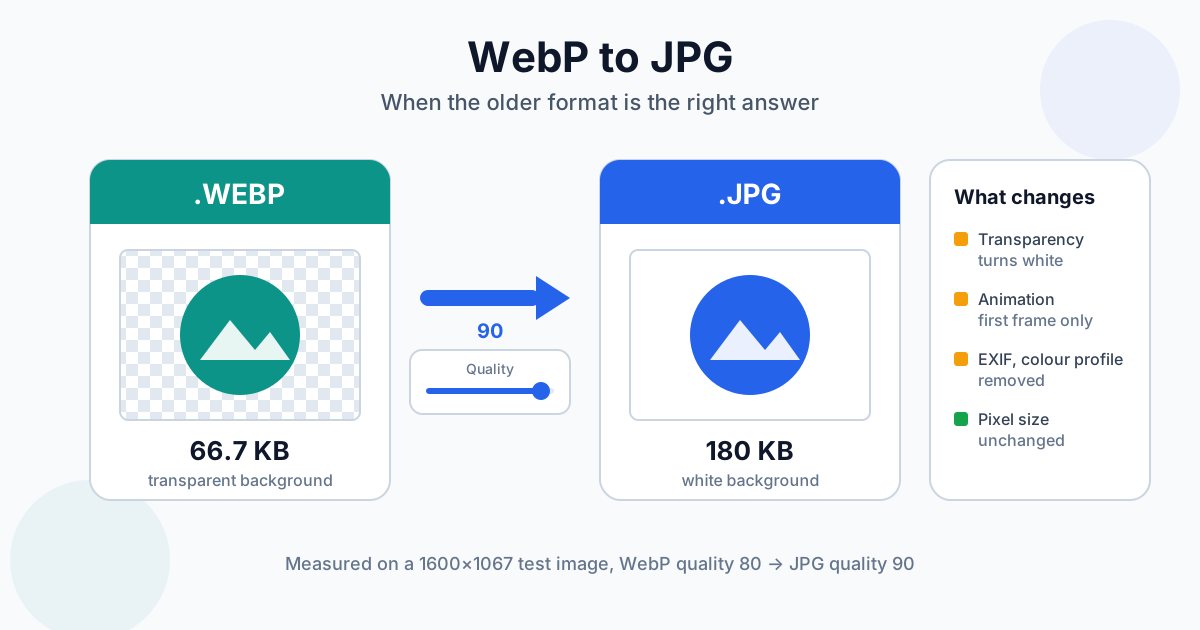
To convert WebP to JPG, upload the file to the WebP to JPG converter, leave the quality at 90 and download the JPG — or, on your own computer, open it in Paint (Windows) or Preview (Mac) and save a copy as JPEG. Three things change on the way: transparent areas turn white, an animated WebP keeps only its first frame, and the file gets bigger. This guide covers when JPG really is the better format and what to expect from the result.
How to Convert WebP to JPG Online
- Open the WebP to JPG converter
- Drop one WebP file, or several at once — they go into a queue and convert one after another
- Set the JPG quality slider (10 to 100, default 90) before you upload
- Download each JPG, or use Download all as ZIP when you converted a batch
The conversion runs on our servers over an encrypted HTTPS connection; the privacy policy says what is kept and for how long. Guests can upload files up to 100 MB, which is far beyond any normal WebP photo. The pixel dimensions don't change: a 1600×1067 WebP comes back as a 1600×1067 JPG.
When JPG Is Still the Right Answer
WebP is the better format for a website. JPG is the better format almost everywhere else, because every device and program made in the last 30 years opens it. Convert when:
- An upload form rejects your file. Job portals, government forms, marketplaces and print-lab order pages often list "JPG, PNG" and nothing else
- You're ordering prints. Photo labs and print shops ask for JPEG or TIFF. If the picture is going on paper, also check the photo's DPI for printing before you order
- Someone else has to open it. A WebP attachment can show up as an unknown file in older mail clients, photo frames, TVs and office software
- Your editor won't open it. Photoshop only reads WebP natively from version 23.2 (early 2022); older versions and plenty of small tools still refuse it
- You're archiving photos. Photo managers and backup tools treat JPG as a first-class photo format; WebP support is patchier
When not to convert: if the image is for your own website, keep the WebP. If it has a transparent background — a logo, an icon, a cut-out product shot — go to PNG instead (more on that below). For how WebP works and why sites use it, see what WebP is.
What Changes When You Convert WebP to JPG
We tested this rather than guessing. Setup: a 1600×1067 test image with photo-like gradients and grain (a generated plasma-fractal pattern), saved as WebP at quality 80 with EXIF data (camera make, model, date) and an sRGB colour profile. Plus a WebP with a transparent background and a three-frame animated WebP. All went through our converter; we read the results back with an image library.
| What's in the WebP | What the JPG gets |
|---|---|
| Transparent background | Filled with pure white (255, 255, 255) |
| Animation (3 frames) | First frame only, as a still JPG |
| Pixel size 1600×1067 | Unchanged, 1600×1067 |
| EXIF: camera, date | Removed |
| ICC colour profile | Colours converted to sRGB, profile removed |
| Lossy WebP compression | Re-encoded as JPG at the quality you set |
Transparency → white is a JPG limitation, not a converter choice: the format has no alpha channel, so something has to fill the see-through pixels. White suits documents and most product photos. On a dark web page it becomes a visible white box.
Animation → first frame. JPG can't hold more than one image. If the WebP is a short clip, you'll get the opening frame and nothing else.
Metadata is gone. Camera model, capture date and GPS location don't reach the JPG. That's often what you want before posting a photo, but if you need the date later, keep the original WebP. You can check what a file carries with the EXIF viewer.
Why the JPG Is Bigger Than the WebP
Same test image, four quality settings:
| File | Size |
|---|---|
| WebP source (quality 80) | 66.7 KB |
| JPG, quality 50 | 63.7 KB |
| JPG, quality 75 | 99.9 KB |
| JPG, quality 90 (default) | 180.0 KB |
| JPG, quality 100 | 697.6 KB |
At the default setting the JPG is 2.7 times the size of the WebP. That's normal: WebP's compression is more efficient, and the JPG also has to reproduce the small artefacts the WebP encoder already introduced. Your own ratio will differ with the picture — flat graphics and noisy photos behave differently — but expect the JPG to be larger at any quality you'd actually use.
Quality 100 doesn't bring anything back. The detail the WebP threw away is gone for good. At 100 the JPG just copies the WebP's pixels, artefacts included, very faithfully — at 10.5 times the WebP's size in our test.
Which JPG Quality to Choose
- 90 (default) — the safe choice for printing, editing and archiving
- 75–80 — for email, chat and upload forms with a size cap; on photos the difference from 90 is hard to spot at normal viewing size
- Below 50 — only when the size limit is brutal; smooth areas like skies start to show blocks
- 100 — no point for a WebP source; you pay in size and gain nothing visible
Every lossy re-save adds a little new damage on top of the old. Convert from the WebP once, at the quality you need, and keep the WebP rather than re-saving the JPG again and again.
WebP to JPG or PNG: Which Target?
| Your image | Convert to | Why |
|---|---|---|
| Photo, no transparency | JPG | Much smaller than PNG, opens everywhere |
| Logo, icon, cut-out with a transparent background | PNG | Keeps the transparency; JPG turns it white |
| Screenshot with small text | PNG | Lossless, text stays crisp |
| Animated WebP | Neither | Both keep one frame; you need a desktop tool that writes animated GIF or video |
For the PNG route use WebP to PNG. If you're wondering why your browser keeps saving pictures as WebP in the first place, the WebP to PNG guide explains it and shows how to save straight as PNG. The full format comparison lives in PNG vs JPG vs WebP.
How to Convert WebP to JPG on Windows, Mac and iPhone
You don't always need a website. Built-in tools do the job for a file or two.
WebP to JPG on Windows
- Right-click the WebP → Open with → Paint
- File → Save as → JPEG picture
- Pick a folder and save
Paint has no quality setting. If Paint won't open the file, install Microsoft's free WebP Image Extensions from the Microsoft Store.
How to Convert a WebP Image to JPG on Mac
- One file: open it in Preview → File → Export → Format JPEG → set the Quality slider → Save
- Several files: select them in Finder, right-click → Quick Actions → Convert Image → Format JPEG. This Quick Action ships with macOS Monterey and later
WebP to JPG on iPhone
Open the Shortcuts app and build a two-step shortcut: Convert Image (format: JPEG) followed by Save to Photo Album, with "Show in Share Sheet" turned on. After that, share any WebP to the shortcut. Without Shortcuts, open the online converter in Safari and upload from Photos or Files.
Photoshop and GIMP
Photoshop 23.2 and later opens WebP directly: File → Save a Copy → JPEG. In GIMP, open the WebP and use File → Export As with a .jpg name; GIMP asks for the quality on export.
Troubleshooting WebP to JPG
A white box appeared around my logo. The WebP was transparent. Use PNG, or place the logo on the background colour you need in an editor before exporting to JPG.
My animation stopped moving. JPG keeps the first frame only. There's no way around that inside the JPG format.
Very saturated colours look a little flatter. The converter translates the colours into standard sRGB and drops the profile, so a WebP with a wide-gamut profile (Display P3, Adobe RGB) keeps its normal colours, but the most saturated reds and greens outside sRGB are clipped. In our test with an Adobe RGB WebP, mid-tone colours came out as the correct sRGB values. If the extra gamut matters, export from an editor that can embed the original profile in the JPG
The JPG is still too big for the upload form. Convert again at quality 75, or run the JPG through the image compressor. For more ways to shrink a picture, see how to reduce image file size.
I renamed .webp to .jpg and the site still rejects it. Renaming changes the label, not the data. Many upload forms check the file's actual contents, and some apps refuse to open the mislabelled file at all. Convert it properly.
I have hundreds of WebP files. The online queue handles a batch per visit; for whole folders, Preview's batch export or the macOS Quick Action is quicker, and batch image conversion covers the scripted options.
Summary
Convert WebP to JPG when someone or something outside the web needs the picture: a form, a print lab, an old editor, a relative's photo frame. Keep quality at 90, expect a bigger file, and choose PNG instead whenever the image has a transparent background. The WebP to JPG converter takes several files at once and lets you download them as one ZIP.
Related Tools
- WebP to JPG converter — photos into universally readable JPEGs, quality 10–100
- WebP to PNG converter — keeps transparency, lossless
- WebP converter hub — every format WebP converts to
- PNG to JPG — the same job for PNG images
- Image compressor — when the JPG is still too large
- EXIF viewer — see what metadata a photo carries