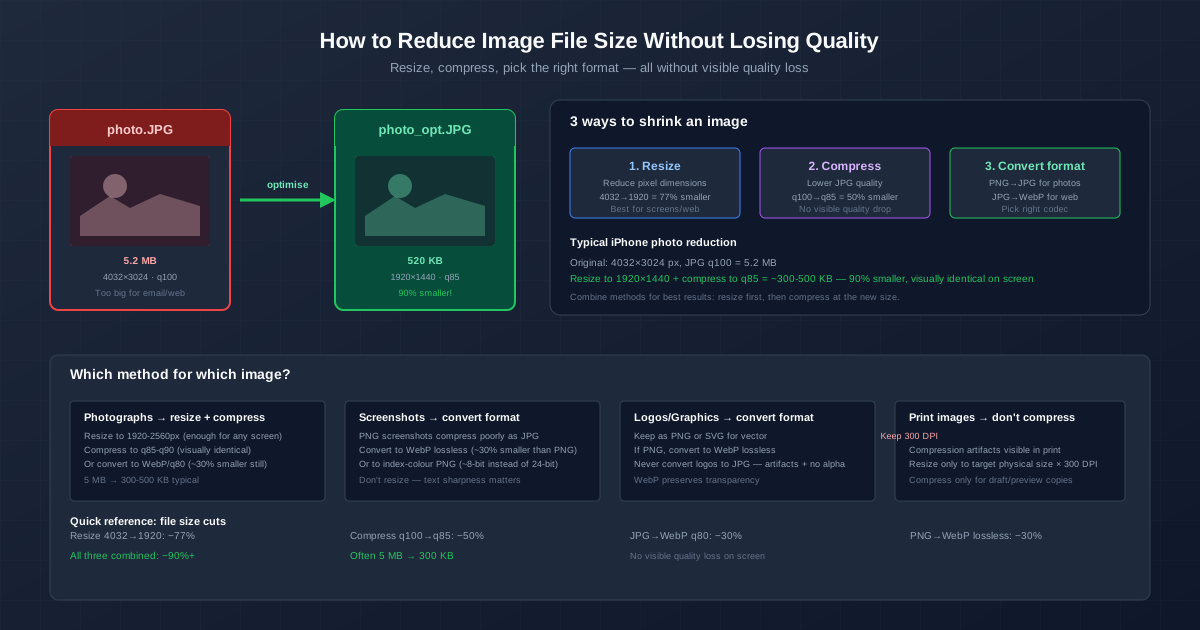
Images are the heaviest part of most websites, emails, and shared files. A single iPhone photo is 4032×3024 pixels and 5 MB — far larger than any screen needs. You can shrink it to around 300 KB without any visible quality change by combining three techniques: resize the dimensions, lower the JPG quality to 85, and convert to WebP.
This is not about making images look worse. It is about discarding data that no screen can display and no human eye can detect. The methods below are lossless from a perceptual standpoint — the result looks identical to the original.
Method 1: Resize — Reduce Pixel Dimensions
An iPhone photo is 4032×3024 pixels. A 4K monitor is 3840×2160. A typical laptop is 1920×1080. An Instagram post is 1080×1350. In every case, the photo has far more pixels than the display can show, and the excess is wasted.
Resize to the maximum dimension the image will actually be shown at. For the web and email, 1920 pixels on the long edge covers every realistic display scenario. That takes a 12-megapixel photo down to roughly 2.7 megapixels — a 77% reduction in pixels, and about the same in file size.
| Source | Original (px) | Resize to | Size reduction |
|---|---|---|---|
| iPhone photo | 4032×3024 | 1920×1440 | ~77% |
| DSLR / mirrorless | 6000×4000 | 2560×1707 | ~82% |
| Instagram post | varies | 1080×1350 | depends on source |
Method 2: Compress — Lower JPG Quality
JPG quality runs from 1 to 100. The jump from 100 to 85 is enormous in file size terms and almost invisible to the eye. Quality 100 stores so much data that adjoining pixels have imperceptibly identical colours — data that no display can reproduce and no eye can see.
- Quality 100 → 85: File size drops sharply, quality looks identical.
- Quality 85 → 70: Smaller again, barely perceptible in A/B comparison on a screen.
- Quality below 60: Visible block artifacts, avoid for anything user-facing.
Always resize first, compress second. Compressing a 4032-pixel image to quality 85 still wastes bytes on pixels that will be scaled down anyway.
Resize to the display dimensions, then compress at the reduced size.
Method 3: Pick the Right Format
Different formats are efficient for different content. Picking the wrong one wastes bytes or loses quality unnecessarily:
| Content | Best format | Size vs worst pick |
|---|---|---|
| Photograph | JPG q85 or WebP q80 | Much smaller than PNG |
| Screenshot with text | PNG or WebP lossless | JPG adds artifacts around text |
| Logo with transparency | WebP lossless or PNG | JPG does not support transparency |
| Vector graphic | SVG (don't rasterize) | SVG is miniscule vs any raster |
| Web images | WebP | Smaller than JPG at same quality |
| Convert your image to the right format with the appropriate converter: |
PNG to JPG for photographs stuck as PNG, JPG to WebP for web delivery, or PNG to WebP for transparent web graphics.
The Combined Effect
These methods are multiplicative. A 5.2 MB iPhone photo:
- Resize from 4032→1920 px: 5.2 MB → ~1.2 MB (−77%)
- Then compress to JPG q85: 1.2 MB → ~600 KB (−50%)
- Then convert to WebP q80: 600 KB → ~420 KB (−30%) Final result: 420 KB — 92% smaller than the original. And on any screen at any size, no human viewer can tell the difference from the 5.2 MB original.
Tools to Reduce Image Size
Online converter (quickest)
Use the image compressor — upload images and choose the resize dimensions and quality. Takes up to 20 images in one queue. The right answer for most users.
IrfanView (Windows) — Batch resize + compress
File → Batch Conversion → Add all files → choose JPG as output, set quality to 85 and a max width (e.g., 1920). IrfanView processes hundreds of files in minutes with full control over quality and dimensions.
ImageMagick — command line
magick input.jpg -resize 1920x1440 -quality 85 output.jpg
Related Optimisation Topics
For a broader look at making images fast on the web, see our image optimisation guide . For the format choice between PNG, JPG, and WebP, see PNG vs JPG vs WebP . For turning a PNG photo into a much smaller JPG, see PNG to JPG without quality loss .
Quick Summary
- Resize first. Match the pixel dimensions to the display you are targeting.
- Compress to quality 85. The sweet spot — a much smaller file, identical look.
- Pick the right format. JPG/WebP for photos, PNG/WebP-lossless for graphics.
- Combine all three. A 5 MB photo can become a 400 KB file with no visible quality loss.
- Keep originals for archival and future editing. Produce compressed copies for sharing.
- Always keep 300 DPI + quality 95+ for print images. Print is the exception to every compression rule above.