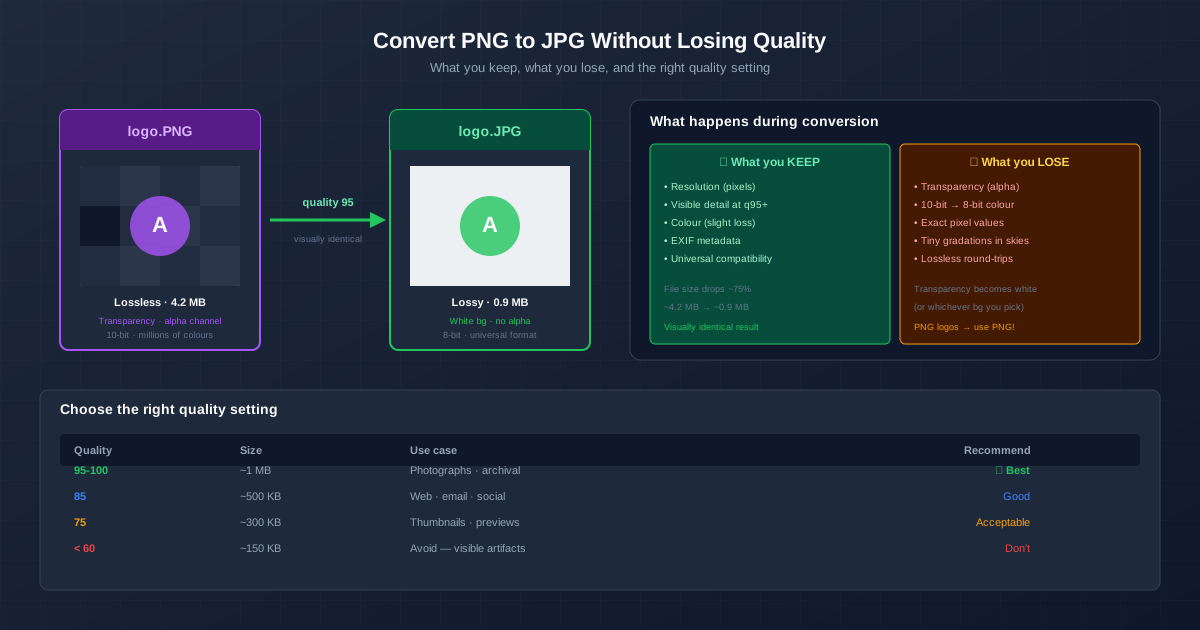
PNG and JPG are the two most common image formats, and they are built for different jobs. PNG is lossless — it preserves every pixel exactly — which makes it ideal for logos, screenshots, and graphics with sharp edges. JPG is lossy but far more efficient for photographs, producing files roughly a quarter of the size at quality 95, which is visually indistinguishable from the PNG original.
Converting PNG to JPG at quality 95 is the right answer when you have a photograph stored as PNG and need a smaller file for sharing, web upload, or email. The conversion is "visually lossless" — no human eye can tell the difference, even though the file is technically smaller because JPG threw away data it judged unimportant. To do it now, use the PNG to JPG converter and accept the default quality 95.
The Honest Answer: JPG Is Always Lossy
Strictly speaking, every PNG to JPG conversion loses information. PNG stores exact pixel values losslessly. JPG divides the image into 8×8 blocks, applies a discrete cosine transform, and throws away high-frequency detail that the human eye is bad at seeing. There is no way to recover that data after the conversion.
But "losing information" is not the same as "looking worse." At quality 95 and above, the discarded data is genuinely imperceptible — the JPG looks identical to the PNG to any human viewer. Only pixel-level inspection or specialised software can detect the difference. For all practical purposes — sharing, printing at normal sizes, displaying on a screen — quality 95 JPG counts as "no quality loss."
The rest of this guide is about hitting that visually-lossless sweet spot, picking the right quality setting, and understanding the few things JPG genuinely cannot preserve (transparency, 10-bit colour, exact pixel values).
What You Keep
- Resolution. A 4000×3000 PNG becomes a 4000×3000 JPG. Pixel dimensions never change.
- Visible detail. At quality 95, fine textures, edges, and small features look the same as in the PNG.
- Colour accuracy. The colours stay very close to the original. There is a tiny shift due to 8-bit quantisation (see below) but it is invisible in practice.
- EXIF metadata. Camera model, timestamp, GPS, exposure settings — most converters preserve these by default.
- Universal compatibility. The JPG opens in every browser, operating system, image editor, and printer made in the last 30 years.
What You Lose
- Transparency (alpha channel). JPG has no alpha. Every transparent pixel in the PNG becomes a solid colour — usually white. If your PNG has transparency, decide on a background colour before converting.
- 10-bit colour depth. JPG is 8-bit per channel (16.7 million colours). PNG can be 10-bit or 16-bit (over a billion colours). Wide-gamut photography loses some colour gradation, though this matters only for professional print work.
- Exact pixel values. Each pixel may shift by a few values compared to the PNG. Invisible to the eye, but verifiable in software.
- Smooth gradients. At quality below 85, smooth areas like skies and skin tones develop visible banding and block artifacts.
- Lossless round-trips. Once converted, you cannot recover the original PNG from the JPG. Keep the PNG as a master if you may need to edit again.
The Right Quality Setting
JPG quality runs from 1 to 100. Higher means better quality and larger files. The sweet spots:
| Quality | Typical size (from 4 MB PNG) | When to use |
|---|---|---|
| 100 | ~2 MB | Archival, future editing. Visually identical but file is large. |
| 95 | ~1 MB | Everyday use — sharing, printing, web. Recommended default. |
| 85 | ~500 KB | Web upload, email attachments. Slight quality drop, hard to notice. |
| 75 | ~300 KB | Thumbnails, previews. Visible artifacts in smooth areas. |
| Below 60 | ~150 KB | Avoid. Blocky artifacts obvious to the eye. |
| Quality 95 covers 95% of use cases. Drop to 85 only when file size is a hard constraint — email attachment limits, slow web pages. Avoid anything below 75 for anything user-facing. |
Tools for the Conversion
Online converter (quickest)
Drag PNG files into the PNG to JPG converter and download JPGs a few seconds later. Quality defaults to 95, batch upload supported, no install needed. Right answer for one-off conversions or small batches.
IrfanView / XnView MP (batch desktop)
For folders of hundreds of PNG files, IrfanView (Windows) and XnView MP (cross-platform) convert in batch with full control over quality, background colour, and rename patterns. Open the batch dialog, add files, set JPG quality to 95, choose output folder, and run.
Photoshop / GIMP / Affinity Photo
For full control, open the PNG in an image editor and use Save As → JPG. Photoshop's "Save for Web" dialog previews the result at different quality levels side by side. GIMP's export dialog exposes the quality slider and a smoothing option that reduces artifacts in smooth areas.
ImageMagick (command line)
For scripting or automated workflows, ImageMagick converts a PNG in one command:
magick input.png -quality 95 output.jpg
For batch conversion of every PNG in a folder (bash):
{"for f in *.png; do magick "$f" -quality 95 "${f%.png}.jpg"; done"}
When NOT to Convert PNG to JPG
Some PNGs should stay PNG. Recognise these cases before you convert:
- Logos and graphics with transparency. The alpha channel is essential. Converting flattens transparency to a solid colour, breaking the logo over coloured backgrounds. Keep as PNG, or convert to WebP which supports transparency.
- Screenshots with text. Sharp edges and high-contrast text produce visible ringing artifacts in JPG, and the file may end up larger than the PNG. Keep screenshots as PNG.
- Line art and illustrations. Flat colour areas compress poorly in JPG — you get block artifacts and a bigger file. PNG wins here.
- Images you will edit again. Each JPG re-save degrades quality (generation loss). Keep an editable PNG master and export JPG only at the end.
- Wide-gamut or HDR content. PNG's 10-bit and 16-bit modes capture colour JPG cannot represent. Stick with PNG (or TIFF) for professional print and HDR workflows.
Handling Transparency: Picking a Background
If your PNG has transparency and you do need a JPG, pick the right background colour before converting:
- White. Default for most converters. Works for documents, print, and light-themed web pages.
- Black. Good for dark-themed designs and product photos on dark backgrounds.
- Brand colour. Match the background of where the image will be displayed — a hex code matching your site's hero section, for example.
Most online converters and desktop tools let you set a background colour in the conversion options. If you skip this step, transparent pixels become whatever the tool defaults to (usually white).
A Note on File Size
A common surprise: the JPG can end up larger than the PNG. This happens when the PNG was a simple graphic — a logo, screenshot, or flat illustration — that PNG compresses very efficiently. JPG's block-based encoding adds noise to the smooth areas, bloating the file.
Rule of thumb: photographs shrink dramatically when converted to JPG (often to 20% of the PNG size). Graphics with flat colours may grow. If your converted JPG is larger than the source PNG, the PNG was the right format for that content — keep it as PNG.
For a deeper look at when each format wins, see our PNG vs JPG vs WebP comparison .
When to Consider WebP Instead
If you are converting for the web, WebP usually beats JPG. It produces files roughly 25-35% smaller than JPG at the same visual quality, supports transparency (lossy and lossless modes), and is supported by every modern browser. Convert your PNG to WebP if the target is a modern website and you do not need to support very old software.
For email attachments, older software, printers, and maximum compatibility, JPG is still the safer choice. For archival or future editing, keep the PNG master.
Quick Recommendations
- Use quality 95. Visually identical to the PNG, file size a quarter of the original.
- Keep PNG for logos, screenshots, and graphics with transparency. JPG ruins these.
- Convert PNG photographs to JPG. Photographs are what JPG is built for.
- Pick a background colour for transparency. White is the default and works for most cases.
- Keep a PNG master if you may edit again. Repeated JPG re-saves degrade quality.
- For modern web use, consider WebP. Smaller files, transparency support, universal browser support.
- Avoid quality below 75. The file size saving is small and the quality drop is obvious.