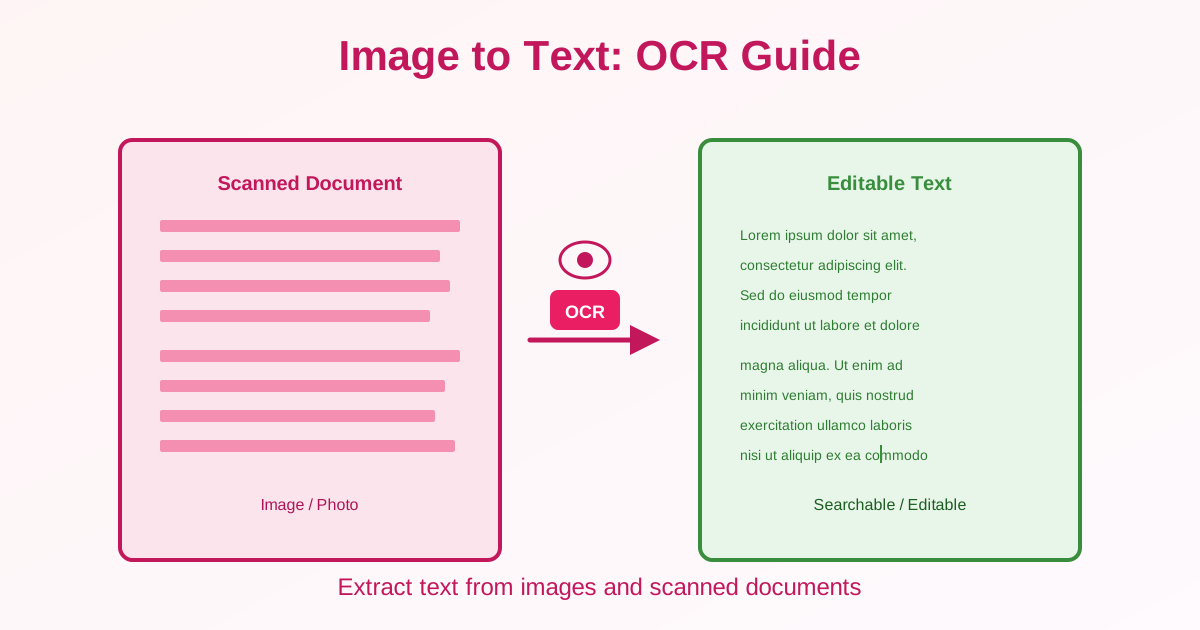
Need to extract text from images or scanned documents? OCR (Optical Character Recognition) converts images containing text into editable, searchable digital text. This guide explains how OCR works, when to use it, and how to get the best results from image-to-text conversion.
What is OCR?
OCR technology analyzes images to identify and extract text characters. It converts visual text (in photos, scans, or screenshots) into digital text you can edit, search, and copy.
How OCR Works
- Image preprocessing: Enhance contrast, remove noise, straighten skew
- Text detection: Identify regions containing text
- Character recognition: Analyze letter shapes and patterns
- Text extraction: Convert recognized characters to digital text
- Post-processing: Correct common errors using dictionaries
When to Use OCR
- Digitize printed books or documents
- Extract text from photos of signs, receipts, or business cards
- Make scanned PDFs searchable
- Convert screenshots to editable text
- Extract data from forms or invoices
- Transcribe historical documents or archives
Types of OCR
Printed Text OCR
Recognizes machine-printed text (books, documents, forms):
- Accuracy: 95-99% on clear scans
- Best for: Documents, books, reports, invoices
- Requirements: 300+ DPI, clear font, good contrast
Handwriting Recognition (ICR)
Recognizes handwritten text (notes, forms, letters):
- Accuracy: 50-95% depending on handwriting clarity
- Best for: Printed handwriting, filled forms
- Challenges: Cursive writing, messy handwriting, unique styles See our handwritten text recognition guide for detailed tips.
Scene Text Recognition
Extracts text from photos of real-world scenes (signs, menus, street names):
- Accuracy: 70-90% depending on lighting and angle
- Best for: Signs, labels, product packaging
- Challenges: Perspective distortion, backgrounds, varied fonts
How to Use OCR: Step-by-Step
From Images to Text
- Upload your image (JPG, PNG, etc.) to an OCR tool
- Select language if prompted (English, Spanish, etc.)
- Click "Extract Text" or "Convert"
- Review extracted text for errors
- Download as TXT, DOCX, or searchable PDF
From Scanned PDFs to Searchable PDFs
- Upload scanned PDF (image-based, text not selectable)
- Use OCR PDF tool to add text layer
- Download searchable PDF (looks identical, but text is selectable) The visual appearance stays the same, but you can now search and copy text.
Getting Better OCR Results
Image Quality Tips
- Resolution: 300 DPI minimum, 600 DPI for small text
- Contrast: Black text on white background works best
- Focus: Sharp, clear images (not blurry)
- Lighting: Evenly lit, no shadows or glare
- Orientation: Straight text (not skewed or rotated)
Scanning Tips
When scanning documents for OCR:
- Use 300 DPI scan setting
- Grayscale or black-and-white mode (not color for text documents)
- Place document flat on scanner (no wrinkles or folds)
- Clean scanner glass to avoid dust spots
Photo Tips
When photographing text with a phone or camera:
- Hold steady (avoid motion blur)
- Good lighting (daylight or bright indoor light)
- Capture straight-on (not at an angle)
- Fill frame with text (don't include unnecessary background)
OCR Accuracy Expectations
| Source Type | Typical Accuracy | Notes |
|---|---|---|
| Clean printed text, 300+ DPI | 95-99% | Best case scenario |
| Old documents, faded text | 80-90% | Requires manual review |
| Phone photos (good lighting) | 85-95% | Varies with lighting/focus |
| Clear handwriting | 80-95% | Printed letters work best |
| Cursive handwriting | 50-75% | High error rate |
| Low-resolution scans (<150 DPI) | 60-80% | Rescan at higher DPI |
What OCR Can and Cannot Do
OCR Can:
- Extract text from images
- Make scanned documents searchable
- Convert print to editable digital text
- Recognize multiple languages
- Handle most printed fonts
OCR Cannot:
- Perfectly preserve formatting (columns, tables, layouts)
- Read extremely poor quality images reliably
- Handle all handwriting with high accuracy
- Extract non-text elements (images, graphics) as text
- Correct all recognition errors automatically
OCR vs Manual Typing
When to use OCR vs typing manually:
Use OCR When:
- Large volumes of text (10+ pages)
- Good quality printed documents
- Time savings matter
- Minor errors acceptable (can review/correct)
Type Manually When:
- Very short text (1-2 paragraphs)
- Poor image quality (OCR will produce many errors)
- 100% accuracy required
- Complex formatting must be preserved
After OCR: Next Steps
Review and Correct
Always proofread OCR output:
- Common errors: confusing similar letters (0/O, 1/l, 5/S)
- Check numbers carefully (OCR struggles with digits)
- Verify proper nouns and technical terms
Format the Text
OCR produces plain text. You'll need to:
- Add headings and formatting
- Fix paragraph breaks
- Recreate tables or columns
Common Issues and Solutions
Low Accuracy Results
If OCR accuracy is below 80%:
- Increase scan/photo resolution to 300+ DPI
- Improve lighting and contrast
- Straighten skewed images
- Try a different OCR tool
Missing Text Sections
If OCR skips parts of the image:
- Text may be too small or faint
- Try higher resolution scan
- Adjust image contrast before OCR
Wrong Language Recognition
If OCR produces gibberish:
- Manually select correct language before OCR
- Some tools auto-detect language (may be wrong)
Related Topics
- Image to Text OCR Tool — Extract text from JPG/PNG images
- Scanned PDF to Text — OCR for PDF documents
- OCR Accuracy Tips — Improve recognition results
- Handwriting Recognition — OCR for handwritten documents
Conclusion
OCR technology converts images containing text into editable digital text with 90-99% accuracy on clear printed documents. Use 300+ DPI scans, ensure good contrast and lighting, and straighten skewed images for best results.
Handwriting recognition is less accurate (50-95%) and requires clearer writing. Always review OCR output for errors, especially numbers and proper nouns. OCR saves time on large documents but may not be worth it for very short texts or poor quality images where manual typing is faster and more accurate.