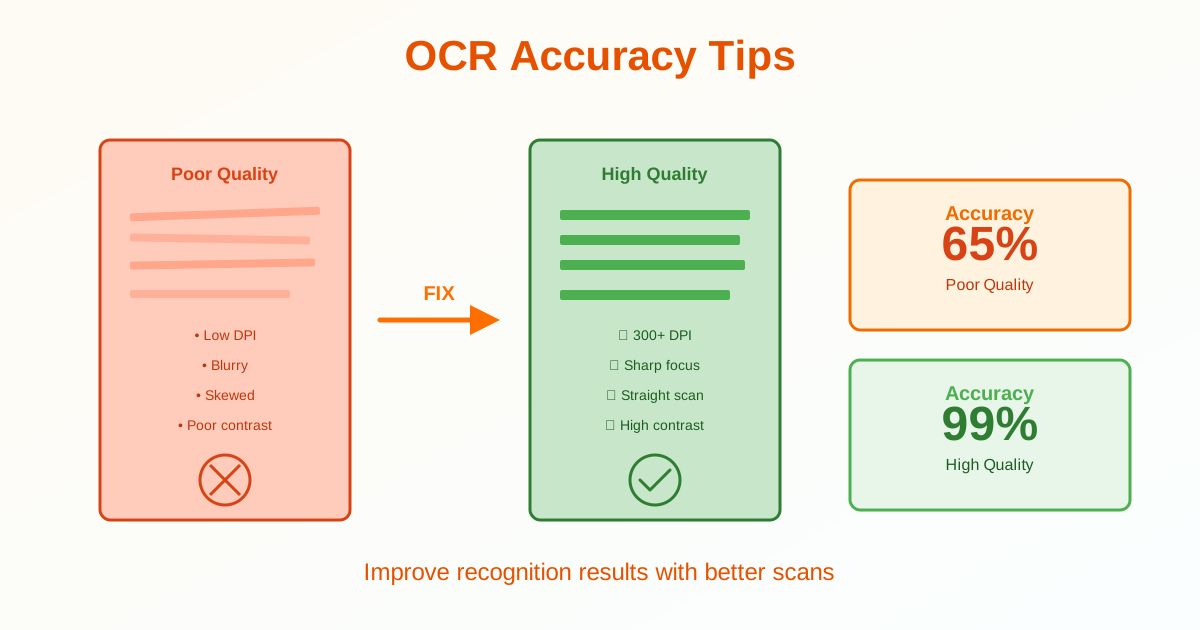
OCR accuracy varies from 60% (poor scans) to 99% (high-quality scans). The difference is image quality. This guide shows you how to achieve 95-99% accuracy through proper resolution, contrast, and scanning techniques.
The #1 Factor: Resolution (DPI)
DPI (Dots Per Inch) is the most critical factor for OCR accuracy:
| DPI | Typical Accuracy | Recommendation |
|---|---|---|
| 72-100 | 40-60% | Too low—don't use |
| 150 | 70-80% | Minimum acceptable |
| 300 | 95-99% | Recommended standard |
| 600 | 98-99% | For small text or poor originals |
| 1200+ | 98-99% | Overkill—no improvement over 600 |
Rule of thumb: Always scan at 300 DPI minimum. Use 600 DPI for newspapers, small fonts (under 10pt), or faded documents.
Contrast and Clarity
High Contrast = Better OCR
OCR works best with sharp distinction between text and background:
- Ideal: Black text on pure white background
- Good: Dark gray text on light background
- Poor: Light gray text on gray background
- Fails: Yellow text on white, low-contrast combinations
Improving Contrast
If your original has low contrast:
- Use scanner's contrast/brightness settings (increase contrast by 10-20%)
- Scan in black-and-white mode instead of grayscale for maximum contrast
- For faded documents: photocopy first, then scan the copy
- Edit scans in image software: increase contrast and brightness
Scan Orientation and Alignment
Straight Scans Matter
Skewed text reduces accuracy significantly:
- Perfect alignment (0°): 99% accuracy
- 1-2° skew: 95% accuracy
- 5° skew: 85% accuracy
- 10°+ skew: 70% or worse
How to Scan Straight
- Align document edges with scanner guides
- For bound books: press flat, scan page perpendicular to scanner
- Use auto-deskew if your scanner has it
- Manually rotate images before OCR if already scanned
Image Sharpness
Avoid Blur
Blurry text is the second-biggest accuracy killer after low DPI:
- Scanner glass: Clean before scanning (fingerprints blur text)
- Document flatness: Press pages flat (wrinkles cause focus issues)
- Camera photos: Hold steady, use good lighting, tap to focus
- Scan speed: Use normal speed, not fast mode (fast = lower quality)
Sharpening vs Over-Sharpening
Slight sharpening can help blurry scans:
- Apply subtle sharpening in image editor (5-10% only)
- Don't over-sharpen—creates artifacts that confuse OCR
- If original is sharp, don't sharpen at all
Scan Mode Selection
Best Modes for OCR
- Black and white: Best for clean text documents (highest contrast)
- Grayscale: Good for text with images or varying contrast
- Color: Only if you need colored text preserved (larger files, no accuracy benefit)
When to Use Each Mode
| Document Type | Best Mode |
|---|---|
| Clean printed text (books, reports) | Black and white |
| Text with photos or diagrams | Grayscale |
| Faded or old documents | Grayscale (preserves subtle contrast) |
| Colored highlights or annotations | Color (if colors matter) |
Document Preparation
Before Scanning
- Remove staples and clips: Prevent shadows and creases
- Flatten pages: Iron out folds or wrinkles if possible
- Clean documents: Erase pencil marks, remove coffee stains if possible
- Fix torn pages: Tape tears on back side (tape on front creates glare)
For Old or Delicate Documents
- Photocopy first (often improves contrast on yellowed pages)
- Scan the photocopy instead of the fragile original
- Adjust photocopy settings for maximum black/white contrast
Lighting (For Camera/Phone Scans)
Good Lighting Practices
- Use natural daylight or bright indoor lighting
- Avoid shadows (don't block light with your phone/body)
- No glare or reflections (don't use flash on glossy pages)
- Even lighting across the entire page
Camera Settings
- Disable flash (causes glare on paper)
- Use highest resolution camera setting
- Tap to focus on the text area
- Hold steady or use a stand/tripod
Image Format Considerations
File format affects OCR accuracy:
Best to Worst for OCR
- TIFF (uncompressed): Best quality, largest files
- PNG: Lossless compression, excellent for text
- PDF (high quality): Good if scanned at proper DPI
- JPG (high quality 90-100%): Acceptable, slight compression
- JPG (low quality <80%): Avoid—compression artifacts blur text
Language Selection
Choosing the correct language improves accuracy:
- Manually select language instead of auto-detect when possible
- For mixed-language documents, OCR separately if tool allows
- Latin alphabets (English, Spanish, French) have highest accuracy
- Asian languages (Chinese, Japanese) may need specialized OCR tools
Testing OCR Quality
Before Processing Large Batches
- OCR a single test page
- Check accuracy (count errors per 100 words)
- If accuracy is below 95%, adjust settings and rescan
- Once quality is good, process the full batch
Accuracy Benchmarks
- Excellent: 98-99% (1-2 errors per 100 words)
- Good: 95-97% (3-5 errors per 100 words)
- Acceptable: 90-94% (6-10 errors per 100 words)
- Poor: Below 90% (rescan with better settings)
Quick Checklist for 99% Accuracy
- ✓ Scan at 300 DPI minimum (600 for small text)
- ✓ Use grayscale or black-and-white mode
- ✓ Clean scanner glass before scanning
- ✓ Align document straight on scanner
- ✓ Flatten pages (no wrinkles or folds)
- ✓ Ensure good lighting (for camera scans)
- ✓ Use high-contrast settings
- ✓ Save as PNG or TIFF (not low-quality JPG)
- ✓ Select correct language manually
- ✓ Test on one page before batch processing
Related Topics
- Image to Text OCR Guide — OCR fundamentals and how it works
- Scanned PDF to Text — Convert scanned documents
- Image to Text Tool — Extract text from images
Conclusion
OCR accuracy improves dramatically with proper scan quality. Use 300 DPI minimum, ensure high contrast between text and background, scan straight without skew, and keep images sharp. Black-and-white or grayscale mode works best for text documents. Clean scanner glass, flatten pages, and use good lighting for camera scans. Save as PNG or TIFF instead of low-quality JPG.
Test one page before processing large batches to verify 95%+ accuracy. With these settings, you'll achieve 98-99% OCR accuracy consistently.