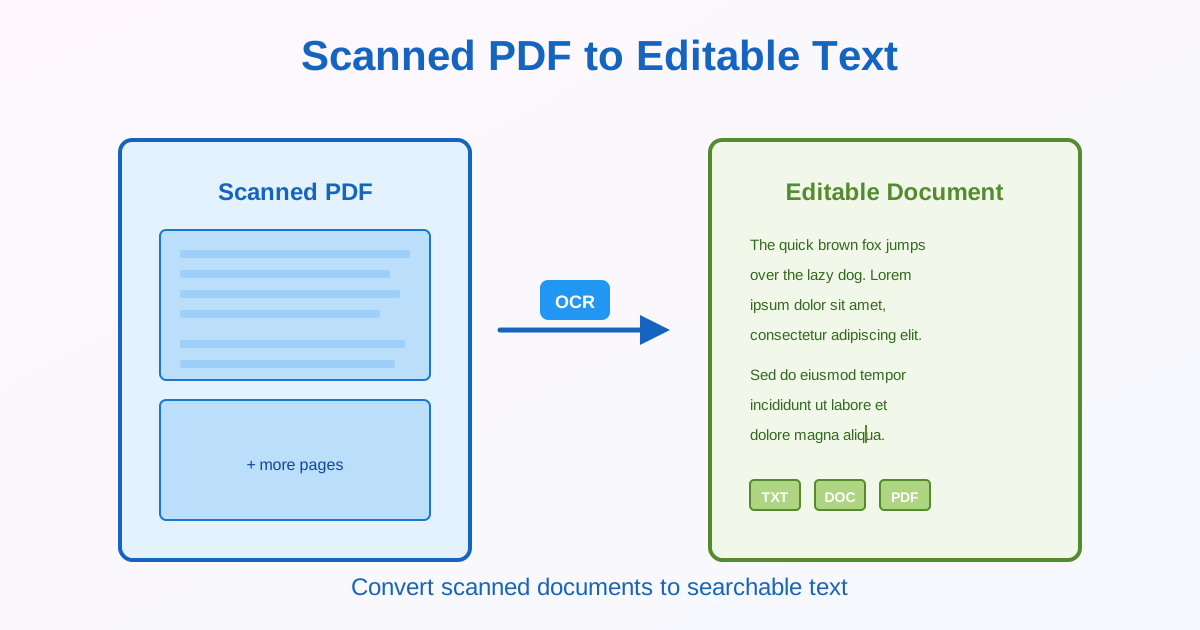
Got a scanned PDF where you can't select or search text? OCR (Optical Character Recognition) converts image-based PDFs to searchable, editable text. This guide covers methods, accuracy expectations, and when to use scanned PDF OCR vs regular PDF to Word conversion.
Scanned PDF vs Text-Based PDF
Understanding the difference:
Scanned PDF (Image-Based)
- Created by scanning paper documents or photographing pages
- Text appears as images (pixels), not actual text
- Cannot select, copy, or search text
- Needs OCR to become searchable/editable
Text-Based PDF (Digital)
- Created from Word, Google Docs, or other software
- Contains actual text (not images)
- Text is selectable and searchable
- Use PDF to Word instead (no OCR needed)
Quick test: Try selecting text. If it selects, you don't need OCR. If it doesn't select, you have a scanned PDF that needs OCR.
OCR Options for Scanned PDFs
Option 1: Searchable PDF
Add hidden text layer to make the PDF searchable:
- Upload your scanned PDF to an OCR tool
- Select "Searchable PDF" output
- Click "Process" or "OCR"
- Download the searchable PDF Result: PDF looks identical, but you can now search, select, and copy text. The original image stays visible with invisible text underneath.
Option 2: Extract to Word
Convert to editable Word document:
- Upload your scanned PDF
- Use OCR PDF to Word conversion
- Download the DOCX file
- Edit text in Microsoft Word or Google Docs Result: Editable text document. Formatting may need adjustment. Original layout is not preserved precisely.
Option 3: Extract to Plain Text
Get text only (no formatting):
- Upload scanned PDF
- Select "TXT" or "plain text" output
- Download text file Result: Raw text with no formatting. Best for simple documents where layout doesn't matter.
Which Option to Choose?
| Your Need | Best Option | Why |
|---|---|---|
| Search text, keep original look | Searchable PDF | Preserves appearance, adds search |
| Edit and modify text | OCR to Word | Fully editable document |
| Extract data only | Plain text | Simple, no formatting needed |
| Archive with search capability | Searchable PDF | Original + search functionality |
Improving OCR Accuracy
Scan Quality Requirements
- Resolution: 300 DPI minimum, 600 DPI for small text or poor originals
- Mode: Grayscale or black-and-white (not color for text documents)
- Orientation: Straight scans (not skewed)
- Clarity: Sharp focus, no blur
Document Preparation
Before scanning:
- Flatten pages (remove creases, folds)
- Clean originals (remove stains if possible)
- Place straight on scanner bed
- Ensure even lighting (for camera scans)
Image Enhancement
If you already have scans, improve them before OCR:
- Increase contrast (darker text, whiter background)
- Rotate to straighten skewed scans
- Crop unnecessary borders
- Remove noise or spots
What to Expect After OCR
Text Extraction Quality
OCR accuracy depends on scan quality:
- Clean 300+ DPI scans: 95-99% accurate
- Older documents: 80-90% accurate (faded text, age spots)
- Poor scans (150 DPI): 70-80% accurate
- Very old/damaged: 50-70% accurate
Formatting Preservation
What transfers and what doesn't:
- Preserved: Plain text, basic paragraphs
- Partially preserved: Headings, lists (may need cleanup)
- Often lost: Precise layouts, columns, tables, fonts
- Always lost: Images (become separate from text) Expect to reformat the output. OCR focuses on text extraction, not layout recreation.
Common Issues and Solutions
Low Accuracy Results
If OCR produces many errors:
- Rescan at higher DPI (300 minimum, 600 for poor originals)
- Improve contrast in scan settings
- Straighten skewed pages
- Try different OCR tool
Missing Text Sections
If OCR skips parts of the page:
- Text may be too faint (increase contrast)
- Scan resolution too low (use 300+ DPI)
- Text in margins may be cut off (scan full page)
Gibberish Output
If OCR produces nonsense text:
- Wrong language selected (manually choose correct language)
- Scan quality extremely poor (rescan at higher quality)
- Very unusual fonts (OCR struggles with decorative fonts)
Multi-Page PDF Processing
For large scanned PDFs:
Processing Time
- 10 pages: ~1-2 minutes
- 50 pages: ~5-10 minutes
- 100+ pages: ~15-30 minutes Time varies with page complexity and tool used.
Batch Processing Tips
- Split very large PDFs into smaller sections first
- Process during off-hours (can take time)
- Check first few pages before processing entire document
After OCR: Review and Correction
Proofreading Checklist
- Numbers: OCR often confuses 0/O, 1/l, 5/S
- Proper nouns: Names, places may be misrecognized
- Technical terms: Specialized vocabulary needs verification
- Formatting: Paragraph breaks, headings, lists
Common OCR Errors
| Should Be | OCR Often Reads As |
|---|---|
| 0 (zero) | O (letter) |
| 1 (one) | l (lowercase L) or I |
| 5 (five) | S (letter) |
| 8 (eight) | B (letter) |
| rn (r and n) | m (letter m) |
Related Topics
- OCR PDF to Word — Convert scanned PDFs to editable documents
- Image to Text OCR — Learn OCR fundamentals
- OCR Accuracy Tips — Improve recognition results
- PDF to Word — For non-scanned PDFs (no OCR needed)
Conclusion
Scanned PDFs need OCR to become searchable or editable. Use searchable PDF output to preserve appearance while adding search functionality. Use Word output for editing text content. Scan at 300+ DPI with high contrast for 95-99% accuracy. Lower quality scans produce 70-85% accuracy. Always review OCR output for errors, especially numbers and proper nouns. Text formatting rarely transfers perfectly—expect to reformat paragraphs, headings, and layouts after extraction.