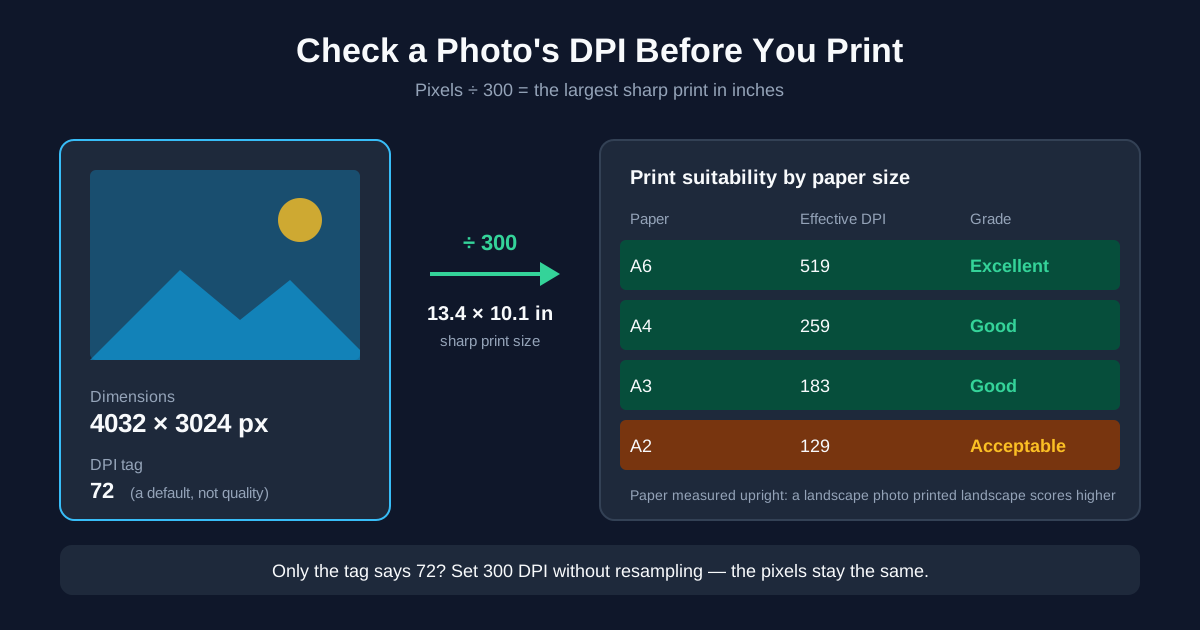
To check whether a photo is good enough to print, divide its pixel dimensions by 300. The result is the largest size in inches it prints sharp: 3000 × 2400 pixels makes a 10 × 8 inch print. The DPI number shown in the file's properties matters much less than you'd think — it's often a default "72" that says nothing about quality.
The fastest way to see all of this at once: drop the photo into the image DPI checker. It shows the pixel size, the DPI tag and the real resolution for ten paper sizes, and the analysis runs in your browser.
How to Check Photo DPI Online in Four Steps
- Open the DPI checker and select a JPG, PNG, WebP, GIF, TIFF or BMP file.
- Read the Dimensions box first — that's the pixel count, and it's what decides the print size.
- Look at Maximum Print Size: the largest print at 300 DPI, in millimetres and centimetres.
- Scroll to the Print Suitability table and find the paper size you want.
iPhone photos are usually HEIC, which the checker doesn't open. Convert them with HEIC to JPG first — the pixel count stays the same. Our HEIC to JPG guide covers the iPhone settings that make the camera save JPG directly.
How to Read the Checker's Paper-Size Table
The table lists A0 to A6, Letter, Legal and Tabloid. For each one it works out the effective DPI — how many of your pixels land on each inch of paper when the photo fills the whole sheet — and grades it:
| Grade | Effective DPI | What it means in practice |
|---|---|---|
| Excellent | 300 and up | Print shop quality, fine for anything held in the hand |
| Good | 150–299 | Fine for home prints, handouts and posters on a wall |
| Acceptable | 100–149 | Only for large prints seen from a distance |
| Poor | Below 100 | Pixelation visible, pick a smaller size |
Two details are worth knowing before you trust a row:
- "Fills the whole sheet" means cropping. If the photo's shape doesn't match the paper, the checker scales it until both sides cover the page. The overhanging edge is cut off, and the number reflects that.
- The paper is measured upright (portrait). A landscape photo on portrait paper gets a lower number than it would on the same sheet turned sideways. A 4032 × 3024 landscape photo shows 259 DPI for A4 — but printed landscape on A4 it actually reaches about 345. If your photo is wider than tall, and you'll print it that way, the real figure is better than the row says.
How to Check the DPI of a Picture on Windows
- Right-click the photo in File Explorer and choose Properties.
- Open the Details tab.
- Under Image you'll see Dimensions (the pixel size) and Horizontal / Vertical resolution (the DPI tag).
Use Dimensions for the maths. The resolution line often reads 72 or 96, and that's just the tag.
How to Check Photo DPI on a Mac
- Open the photo in Preview.
- Choose Tools → Show Inspector (or press Cmd + I).
- The General Info tab shows Image Size in pixels and Image DPI.
Tools → Adjust Size shows the same values plus the print size in inches or centimetres at the current DPI. Close it with Cancel if you only wanted to look.
How to Check Photo Resolution on iPhone and Android
Phones don't show DPI, and they don't need to — they show the pixel size, which is what counts.
- iPhone: open the photo in Photos and swipe up (or tap the ⓘ button). The info panel lists the megapixels and the pixel dimensions, for example 4032 × 3024.
- Android: in Google Photos, open the photo and swipe up to see the details, including the resolution in pixels. Other gallery apps have a similar Details or Info entry in their menu.
Divide those dimensions by 300 and you have the sharp print size. A 4032 × 3024 photo gives 13.4 × 10.1 inches.
Maximum Print Size from Pixels: The Formula
Print size in inches = pixels ÷ 300. For centimetres, multiply the inches by 2.54.
| Photo size (pixels) | Where it typically comes from | Sharp print at 300 DPI |
|---|---|---|
| 6000 × 4000 | 24 MP camera | 20 × 13.3 in |
| 4032 × 3024 | 12 MP phone camera | 13.4 × 10.1 in |
| 1600 × 1200 | Photo resized for email | 5.3 × 4 in |
| 1080 × 1350 | Photo saved from social media | 3.6 × 4.5 in |
At 150 DPI — fine for a poster on a wall — you can double each of those sizes. If you want the background on which of those numbers applies to your print, what DPI you need for print vs screen covers it by use case.
Why the Checker Shows 72 DPI for a Sharp Photo
The checker reads the resolution field from the JPEG header (JFIF) and from the PNG pHYs chunk. Plenty of camera and phone JPEGs don't write that header, and other formats keep it elsewhere. When the tool finds nothing, it shows 72 — the traditional default.
So "72 DPI" on a 12-megapixel photo isn't a problem with the photo. The Print Suitability table ignores the tag completely and works from the pixel count, which is why a "72 DPI" photo can still get Excellent for A4.
What Print Shops Mean by "Low Resolution"
Upload a photo to a print service and you might get a warning like "low resolution" or "may print blurry". That usually means one of two things:
- Too few pixels for the size you picked. This is the real problem. VistaPrint, for example, asks for 300 DPI at the final print size, and Shutterfly's preview warns before you order when a photo is too small for the size you picked. The fix is a smaller print size or a bigger original.
- The DPI tag says 72. Some upload forms and some print-shop staff check the tag, not the pixels. If your pixel count is fine, changing the tag to 300 without resampling satisfies the form without touching the image.
The checker tells you which case you're in: if the table says Excellent for your size and only the tag is low, it's the second.
How to Change a Photo to 300 DPI Without Resampling
If the pixels are enough and only the tag needs to say 300:
- Online: the image DPI converter takes JPG, PNG or TIFF. Pick 300 and "change the DPI tag only". The pixel dimensions stay as they are; only the default print size changes.
- Photoshop: Image → Image Size, untick Resample, type 300 in Resolution.
- GIMP: Image → Print Size, set X and Y resolution to 300. This dialog never resamples.
- Mac Preview: Tools → Adjust Size, untick Resample image, set Resolution to 300.
Why this adds no detail: the file has the same pixels before and after. We ran a 600 × 400 PNG through the converter in tag-only mode — the pixel data came back identical, only the stored DPI changed. The converter's other mode, resampling, keeps the print size and adds pixels to reach the new DPI. Those pixels are interpolated from the existing ones, so the file grows but nothing gets sharper.
What to Do When a Photo Is Too Small to Print
The table says Poor for the size you wanted. Your options, in order of how well they work:
- Print smaller. Pick the largest size that reaches Good or Excellent. Often that's one paper size down.
- Find the original file. Photos sent through messengers, saved from social media or exported "for email" are usually shrunk. The copy on the camera or phone that took it may have several times the pixels.
- Reshoot or rescan. For documents and prints, scanning at 300 DPI at the original size gives exactly the pixels you need to print it back at that size.
- Upscale, with caveats. Resampling or AI upscalers add pixels so a print shop accepts the file. Simple resampling makes edges soft; AI upscaling can look sharper but invents detail that wasn't in the photo, which shows up badly on faces and text. Check a crop at 100 % before ordering a big print.
For posters that people see from a few steps away, VistaPrint's poster guide accepts 150–200 DPI — a smaller photo may be enough for a large print after all.
Summary
To check a photo for printing, take the pixel dimensions, divide by 300, and that's your sharp print size in inches. The DPI tag is usually beside the point. The image DPI checker does this for every common paper size in one go, and the DPI converter fixes the tag when a print shop insists on seeing 300.
Related Tools
- Image DPI checker — pixel size, DPI tag and print grade for ten paper sizes
- Image DPI converter — set 300 DPI with or without resampling
- HEIC to JPG — convert iPhone photos before checking them
- JPG to PDF — send the finished photo to the print shop as a PDF