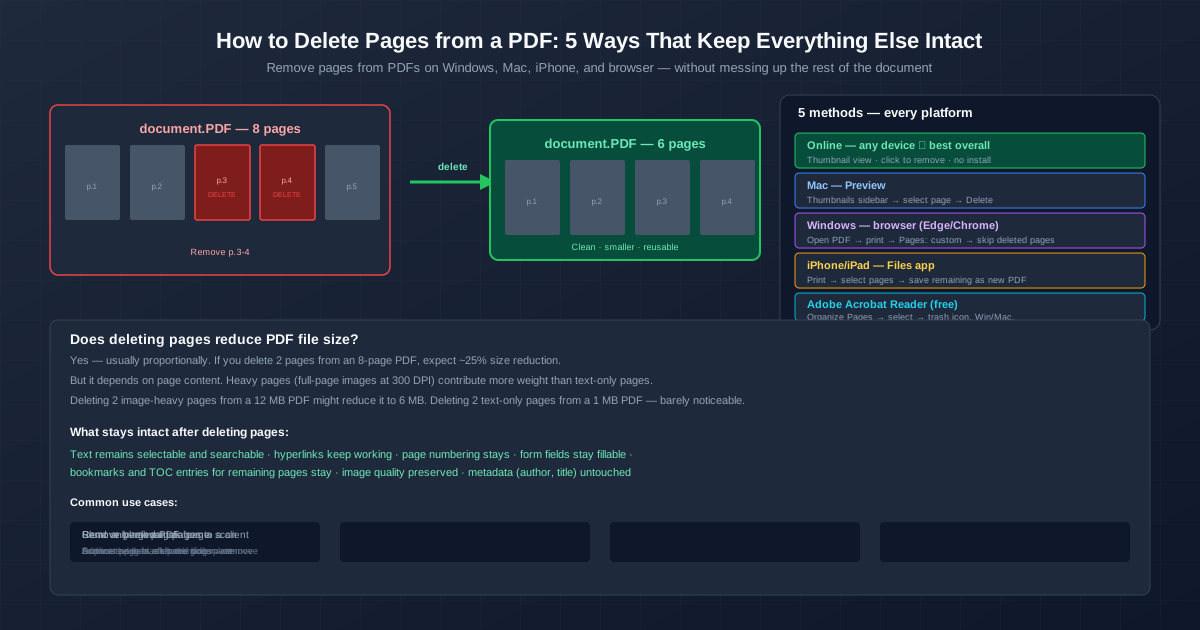
You have a PDF — a scanned contract with blank back sides, a merged report with duplicate pages, a presentation deck with a slide you do not want the client to see. You need those pages gone, and you need everything else to stay exactly as it is. Here are five ways to delete pages from a PDF on any device, with zero damage to the pages you keep.
Fastest for most cases: open the PDF page remover in your browser, upload the file, click the pages to remove, and download a clean PDF — all in under 30 seconds.
Method 1: Online Page Remover — Visual, Any Device
The online page remover is the best all-around method. You see every page as a thumbnail, click to remove what you do not want, and the result preserves the original PDF quality — text stays searchable, links keep working, form fields remain fillable.
- Open the delete pages from PDF tool in any browser — Safari, Chrome, Edge, Firefox.
- Drag and drop your PDF or tap the upload area and select the file from your device.
- Thumbnails of every page appear. Click the trash icon on pages you want to remove, or click a page and press Delete.
- The preview updates in real time — you see exactly what the final PDF will look like before committing.
- Click Delete Pages. The cleaned PDF downloads automatically. This works identically on Windows, Mac, Chromebook, iPhone, Android — any device with a browser. No install, no account. For batch page removal — deleting every other page, removing all blank pages — the online tool is the fastest because you can click through pages rapidly with visual feedback.
Method 2: Mac Preview — Built-In, Instant
Preview is the default PDF viewer on every Mac, and it has a page deletion feature most people never discover. It is the fastest method for Mac users — no install, no upload, instant results.
- Double-click your PDF — it opens in Preview automatically.
- Enable the Thumbnails sidebar: menu bar → View → Thumbnails (or press Option+Cmd+2). A sidebar with every page appears.
- In the sidebar, click the page you want to delete — it highlights blue.
- Press the Delete key. The page vanishes instantly.
- To delete multiple pages: Cmd+click to pick individual pages, or Shift+click to select a range, then press Delete.
- Save: File → Save (Cmd+S) overwrites the original. File → Export as PDF saves a cleaned copy and keeps the original intact. Preview handles PDFs up to about 50 pages comfortably. Beyond that, the sidebar gets slow — use the online tool for large documents. Undo with Cmd+Z if you accidentally delete the wrong page.
Method 3: Windows — Print-to-PDF Trick (No Software)
Windows does not have a built-in PDF editor like Preview, but Edge and Chrome both have a print-to-PDF feature that can selectively skip pages. This is the simplest free method — no install needed.
- Open the PDF in Edge or Chrome — drag the file into a browser window or right-click → Open With → Edge.
- Press Ctrl+P to open the print dialog.
- Set Printer to "Save as PDF" or "Microsoft Print to PDF".
- In the Pages section, choose Custom. Enter the page numbers you want to KEEP. For example, to delete pages 3 and 4 from an 8-page PDF, enter: 1-2, 5-8.
- Click Print. Choose where to save the new PDF. The result has only the pages you listed — the deleted pages are gone. The print-to-PDF method works because it re-renders the PDF, skipping the pages you did not list. The output quality is good for text and simple graphics. For PDFs with complex vector art or precise color requirements, use the online tool or Acrobat Reader instead — the print-to-PDF method may slightly alter rendering in edge cases.
Method 4: Adobe Acrobat Reader (Free) — Organize Pages
Adobe Acrobat Reader DC is free for Windows and Mac, and it includes a basic Organize Pages tool that can delete, rotate, and reorder pages. It is more capable than the print-to-PDF trick and more precise than Preview for complex documents.
- Download and install Adobe Acrobat Reader DC (free — do not confuse with Acrobat Pro, which is paid).
- Open your PDF in Acrobat Reader.
- Click Organize Pages in the right-hand toolbar (or Tools → Organize Pages).
- A thumbnail view of all pages opens. Click a page to select it — a blue border appears.
- Click the trash icon (or press Delete) to remove the selected pages.
- File → Save (or Cmd+S / Ctrl+S) to save the cleaned PDF. Acrobat Reader gives you visual feedback, undo (Ctrl+Z), and has no issues with complex PDF features. If you regularly work with PDFs on Windows or Mac, it is worth the one-time install.
Method 5: iPhone/iPad — Files App Print Trick
iOS does not have a "delete page" button, but the Print screen lets you select which pages to keep — and you can save those selected pages as a new PDF, effectively deleting the unselected ones.
- Open the PDF in the Files app — tap the file, iOS opens it in the built-in PDF viewer.
- Tap the Share icon (square with arrow pointing up).
- Scroll and tap Print. A print preview with page thumbnails appears.
- Un-select the pages you want to DELETE by tapping their blue checkmarks. Leave only the pages you want to KEEP checked.
- Long-press one of the checked thumbnails → Share → Save to Files. Choose a folder and tap Save. This creates a new PDF containing only the pages you kept checked — the unchecked pages are excluded. The original PDF stays untouched in Files. For visual page deletion on iPhone (see what you are removing), the online PDF page remover in Safari is better — you see thumbnails and can tap directly on pages to remove them.
Does Deleting Pages Reduce File Size?
Yes — roughly proportionally to what you delete. Delete 2 pages from a 10-page PDF and expect about a 20% size reduction. But the content of those pages matters more than the count:
- Image-heavy pages contribute most of the weight. A single full-page 300 DPI photo in a PDF can be 2-4 MB. Deleting pages like these drops the file size significantly.
- Text-only pages add very little. A text page with no images is a few kilobytes. Deleting them barely changes the file size.
- Deleting 2 image-heavy pages from a 12 MB PDF might reduce it to 6 MB. Deleting 2 text-only pages from a 1 MB PDF — you will not notice the difference. After deleting pages, run the result through a PDF compressor for maximum size reduction. Page deletion only removes the pages — a compressor cleans up unused internal objects, embedded fonts no longer referenced, and metadata bloat left behind.
What Stays Intact After Deleting Pages
With all five methods, the pages you keep are not modified. Nothing is recompressed, re-encoded, or altered:
- Text remains selectable and searchable — the text layer on kept pages is untouched.
- Hyperlinks keep working — internal links within the kept pages, and external links to websites, continue to function.
- Bookmarks stay — bookmarks pointing to pages you kept remain valid. Bookmarks pointing to deleted pages become dead (redirect to the nearest page, or do nothing, depending on the PDF viewer).
- Form fields remain fillable — any interactive form on a kept page still works.
- Image quality preserved — images on kept pages are copied byte-for-byte, no recompression.
- Metadata (author, title, keywords) untouched — the PDF properties are carried over unchanged. One thing that can break: cross-page references in the text body — like "see page 12 for details". If you delete page 12, that reference still says page 12, which no longer points to the right place. You will need to update these manually. This is a limitation of every PDF page deletion method — no tool can automatically rewrite body text references.
Related Tools
Need the reverse — extract specific pages from a PDF as a separate file? Use Split PDF to carve out page ranges into new PDFs instead of deleting them. To combine PDFs after cleaning them up, the PDF merger combines multiple cleaned PDFs into one. After deleting pages, if the file is still too large for email or upload, run it through the PDF compressor to shrink it further — compression removes internal bloat that page deletion alone leaves behind.
Quick Summary
- Online page remover is the easiest for any device — upload, click pages to remove, download. Visual thumbnails, no install, works everywhere.
- Mac Preview is the fastest for Mac users — open PDF, enable Thumbnails (Option+Cmd+2), select page, press Delete. Instant and offline.
- Windows print-to-PDF trick requires no software — open in Edge, Ctrl+P, set Custom pages to only the ones you want to keep.
- Deleting pages is non-destructive for remaining pages — text, links, forms, images, and bookmarks on kept pages all stay intact.
- File size drops roughly proportionally — image-heavy pages account for most of a PDF's weight. Text-only pages barely matter.