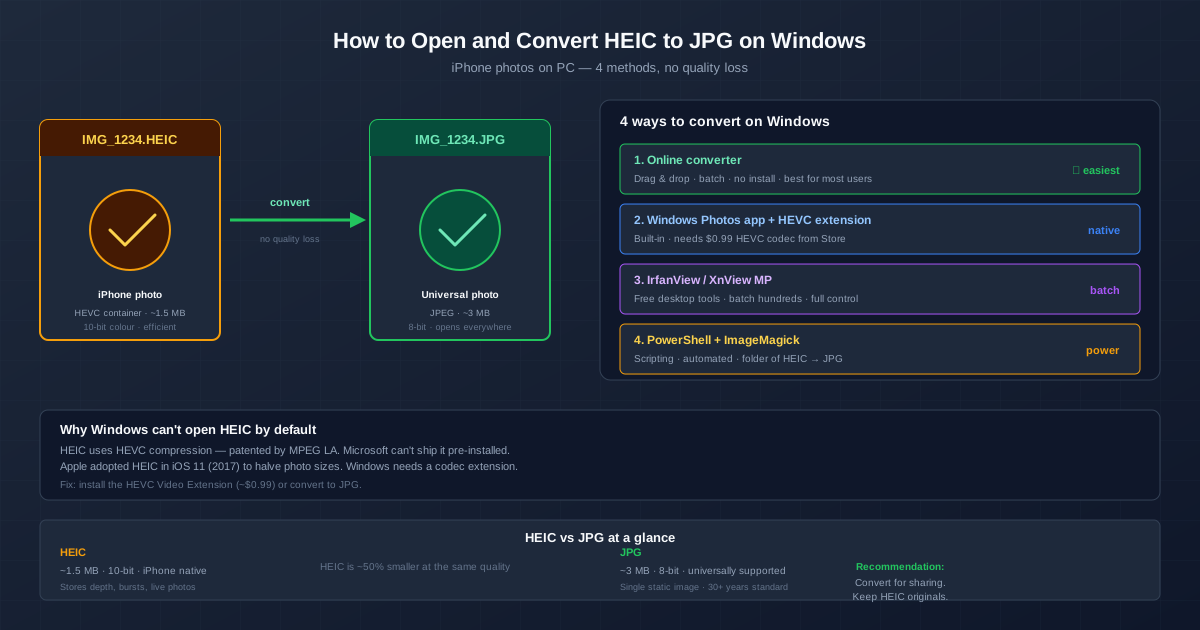
Copy photos from an iPhone to a Windows PC and you'll see a folder of .HEIC files that the Photos app can't open. To convert HEIC to JPG on Windows, either upload the files to an online HEIC to JPG converter, batch-convert them with a free desktop tool like IrfanView, or install Microsoft's HEVC extension so Photos can open and re-save them. This guide walks through all four methods.
HEIC has been the iPhone's default photo format since iOS 11 because it stores photos in less space than JPG, but Windows doesn't ship with the decoder.
Why Windows Can't Open HEIC by Default
HEIC files use HEVC (H.265) compression — the same codec used for modern video. HEVC is covered by patent pools that charge royalties per device, so Microsoft doesn't include the decoder in Windows and sells it as a separate extension in the Microsoft Store instead.
Apple chose HEIC in 2017 for the storage saving. In our test, one iPhone 15 Pro Max photo (5712×4284) was 2.0 MB as HEIC and 2.7 MB after conversion to JPG at quality 90. That saving is why HEIC stays the default — and why Windows users keep running into it.
Third-party tools like IrfanView, XnView MP, and ImageMagick bundle their own HEIC decoders so they read HEIC files without the Microsoft extension.
Method 1: Convert HEIC to JPG Online (Fastest)
For a handful of photos, an online converter is the quickest answer. There's nothing to install and it works the same on any version of Windows.
- Open the HEIC to JPG converter.
- Drag your .HEIC files onto the upload area, or click to browse. You can select several at once — they go into a queue and convert one after another.
- Leave the JPG quality slider at its default of 90, or move it (10–100) if you need a smaller or larger file.
- Download each JPG, or click Download all as ZIP.
What we measured on a 2.0 MB iPhone 15 Pro Max photo: the JPG kept the full 5712×4284 resolution, and the camera model, capture date and GPS location all came through in the EXIF data. Each file counts toward the daily conversion limit, so for hundreds of photos a desktop tool (Method 3) is the better fit.
Method 2: Windows Photos App + HEVC Extension
If you prefer to keep everything native, install the HEVC Video Extensions and use the built-in Photos app. This avoids third-party software but costs $0.99 in the Microsoft Store.
- Open the Microsoft Store and search for HEVC Video Extensions (published by Microsoft). It costs roughly $0.99.
- Install the extension. You may need to restart the Photos app.
- Double-click any .HEIC file — it now opens in the Photos app.
- To convert: open the file, use Save as (in the "…" menu), choose JPG, and pick a destination.
The Photos app method works for one file at a time. For batch conversion of dozens of HEIC files, this gets tedious — use Method 3 or 4 instead.
You may also see the free HEIF Image Extensions. It handles the HEIF container, but the image inside is still HEVC-compressed, so on its own it isn't enough — the official route is the free HEIF extension plus the paid HEVC one.
Method 3: IrfanView or XnView MP (Best for Batch)
For regular iPhone import workflows — a folder of 200 photos from a trip — a free desktop batch converter is the right tool. IrfanView (lightweight, fast) and XnView MP (more features, modern UI) are two free choices. Both bundle their own HEIC decoder, so no Microsoft extension needed.
IrfanView batch conversion
- Download IrfanView and the IrfanView plugins package (the plugins include the HEIC decoder).
- Open IrfanView, press B to open the batch conversion dialog.
- Add your HEIC files (or a whole folder with Add all).
- Set Output format to JPG. Click Options and set quality to 90.
- Set an output directory, then click Start.
Everything runs locally, so a folder of a few hundred photos needs no uploads and no daily limit.
XnView MP batch conversion
XnView MP has a more visual interface — you can preview each HEIC file before converting. Select the files, right-click → Batch Convert, pick JPG as the format, set quality, and start. XnView MP also handles rename patterns (for example vacation_###.jpg), which is useful when organising imports.
Method 4: PowerShell + ImageMagick
If you want full automation — for example, watching a folder and converting every new iPhone import — ImageMagick is a command-line tool that handles HEIC to JPG with a single command. Install it once, then reuse the command forever.
Install ImageMagick
Download from the official ImageMagick site and install with default options.
Make sure the Add to PATH option is checked during install.
Verify with:
magick -version
Convert a single file
magick IMG_1234.HEIC -quality 90 IMG_1234.jpg
Convert every HEIC in a folder
Get-ChildItem *.HEIC | ForEach-Object { magick $_ -quality 90 ($_.BaseName + ".jpg") }
Run this in PowerShell inside the folder containing your HEIC files. Every file is converted in place, with the same base name and a .jpg extension. Add the line to a .ps1 script to make it reusable.
Which JPG Quality to Pick When Converting HEIC
JPG quality runs from 1 to 100: higher means more detail kept and a bigger file. Here's what one iPhone 15 Pro Max photo (5712×4284, 2.0 MB as HEIC) weighed after conversion at different settings with our converter:
| JPG quality | File size | Compared with the HEIC |
|---|---|---|
| 100 | 8.5 MB | 4.2× larger |
| 95 | 4.1 MB | 2.1× larger |
| 90 (default) | 2.7 MB | 1.4× larger |
| 85 | 2.0 MB | about the same |
| 75 | 1.4 MB | 0.7× |
Quality 90 is a sensible default for sharing and everyday use. Go to 95 if you'll edit the photo further, and skip 100 — it doubles the size again for detail you're unlikely to see. Below 80, look closely at skies and skin before you delete the originals.
Should You Switch the iPhone to JPG Instead?
If most of your photos end up on a Windows PC, you can make the iPhone shoot JPG (Settings → Camera → Formats → Most Compatible) and skip conversion. The cost is storage: JPG files are bigger — our test photo grew by about 40% when converted at quality 90. For the iPhone side of this choice, see the HEIC to JPG guide for iPhone photos.
If you edit photos in Photoshop, Affinity Photo or similar tools on Windows, check their HEIC support first — current versions generally open HEIC, older ones need a JPG.
HEIC vs JPG: Practical Summary
| HEIC | JPG | |
|---|---|---|
| File size (our test photo) | 2.0 MB | 2.7 MB at quality 90 |
| Bit depth | Up to 10-bit | 8-bit |
| Opens on | Apple devices, Windows with the HEVC extension, recent Android | Everything |
| Extra content | Depth maps, bursts, Live Photo motion | A single still image |
| Best for | Capture and storage | Sharing and older software |
Does Converting HEIC to JPG Keep EXIF and Location Data?
EXIF metadata holds the camera model, timestamp, exposure settings and GPS location. Whether it survives depends on the tool:
- Our online converter: keeps it. In our test the JPG still had the camera model, capture date and GPS coordinates of the HEIC original.
- IrfanView: keeps EXIF by default; the save options can drop it.
- ImageMagick: keeps EXIF by default. Add
-stripto the command to remove it. - Windows Photos app: check the result — Save as behaviour varies between app versions.
Because the location usually comes along, treat a converted JPG like the original photo. Before you post it publicly, check it with the EXIF viewer and strip the GPS data with Remove EXIF.
Related Conversions
HEIC files from iPhone can also be converted to HEIC to PNG if you need a lossless copy for editing. For a deeper look at which image format to pick for which purpose, see our PNG vs JPG vs WebP comparison and the overview of image optimisation for the web.
Quick Recommendations
- One-time conversion of a few photos: use the online HEIC to JPG converter. Nothing to install.
- Regular imports of hundreds of photos: install IrfanView or XnView MP and use their batch mode.
- Automated folder watching: use ImageMagick in a PowerShell script.
- Want HEIC to just open natively: buy the $0.99 HEVC Video Extension from the Microsoft Store.
- Want to prevent HEIC entirely: set the iPhone to Most Compatible and accept the extra storage.
- Keep HEIC originals when you can. Convert to JPG for sharing, not for archival — HEIC stores more data in less space.