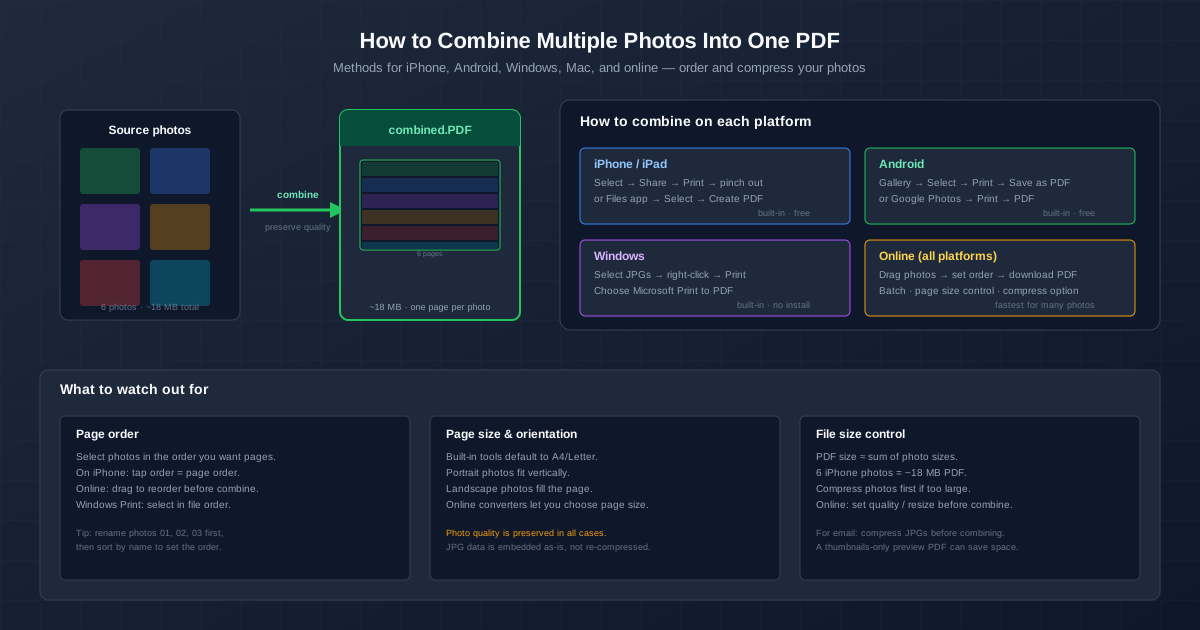
To combine photos into one PDF, you don't need to install anything: iPhone, Android, Windows and Mac all have a built-in way, and an online converter covers any device.
The idea is the same everywhere: select your photos in the order you want the pages → Print (or Create PDF) → save as PDF. Each photo becomes one page, and the PDF ends up roughly as big as all the photos together.
For the online route, zip the photos and upload the archive to the multiple JPEG to PDF converter — pages follow file-name order and you download one PDF. A single photo goes through the JPG to PDF converter.
How to Combine Photos Into One PDF on iPhone and iPad
iOS has a built-in PDF generator hidden inside the Print screen. It combines multiple photos into one PDF without any extra app.
- Open Photos. Tap Select and tap each photo in the order you want pages to appear.
- Tap the Share icon (square with arrow). Scroll down and tap Print.
- On the print preview, pinch out with two fingers — the preview expands into a full-screen PDF.
- Tap the Share icon again and choose Save to Files. Name the file and pick a folder.
The PDF uses A4 or US Letter as the page size (depending on your region setting).
Each photo is scaled to fit inside the page, centered. The selection order in Photos becomes the page order — tap photos in the sequence you want.
How to Combine Photos Into a PDF on Android
Android has an equivalent built-in workflow that works with the Gallery app or Google Photos.
- Open Gallery or Google Photos.
- Long-press the first photo, then tap the others to select them.
- Tap the Share or More menu, then choose Print.
- In the print dialog, choose Save as PDF as the printer (some Android versions show this directly; others have a PDF button).
- Tap Save and pick a folder. If your Android version doesn't show "Save as PDF" in the print dialog, use the online converter below instead.
How to Combine Photos Into One PDF on Windows
Windows has included a "Microsoft Print to PDF" virtual printer since Windows 10. It combines selected photos into a PDF in a few clicks.
- Open File Explorer and navigate to the folder with your photos.
- Sort the files by name. If you need a specific page order, rename the photos (01_photo.jpg, 02_photo.jpg, etc.) first.
- Select all the photos you want. Right-click and choose Print (on Windows 11, Show more options → Print).
- In the Print Pictures dialog, select Microsoft Print to PDF as the printer, pick the paper size (A4 or Letter) and the Full page photo layout. Untick Fit picture to frame if you don't want the edges cropped.
- Click Print, name the PDF, and choose where to save it.
How to Combine Photos Into One PDF on Mac
The Mac has two built-in routes.
Finder (quickest):
- Rename the photos so they sort in page order (01_, 02_…) and select them all in Finder.
- Right-click → Quick Actions → Create PDF. A PDF with one photo per page appears next to the originals.
Preview (when you want to reorder by dragging):
- Select the photos, right-click → Open With → Preview. They open in one window with a thumbnail sidebar.
- Drag the thumbnails into order; rotate a page with Cmd+L or Cmd+R.
- Select all thumbnails (Cmd+A in the sidebar), then File → Print → PDF → Save as PDF.
Note that File → Export as PDF in Preview saves only the photo you're looking at, not the whole set.
Combine Photos Into One PDF Online (Any Device)
The online route works the same on every device: you upload from the browser, the PDF is built on our servers, and you don't have to learn each platform's menus.
- Rename the photos with leading numbers (01_, 02_, 03_…) — pages are ordered by file name.
- Put the photos in a ZIP archive (right-click → Compress on Mac, Send to → Compressed folder on Windows).
- Upload the ZIP to the multiple JPEG to PDF converter. Each photo becomes one page at its own dimensions; there is no page-size setting.
- Click Convert and download the combined PDF. Any text in the photos also becomes searchable. If you'd rather arrange pages by dragging, convert each photo with the JPG to PDF converter and combine the PDFs in Merge PDF, which has drag-to-reorder.
The ZIP may contain JPG or PNG photos. iPhone photos are usually HEIC, so run them through the HEIC to JPG converter first — it takes several files at once and hands them back as one ZIP.
Controlling Page Order
The single biggest mistake when combining photos to PDF: getting the page order wrong and having to redo it. Each method has its own way of determining order:
- iPhone: the tap sequence when selecting photos = page order.
- Android: depends on the app — some respect selection order, others use file name order.
- Windows: sorts by file name. Rename photos 01, 02, 03 before selecting.
- Mac: Finder's Create PDF follows the file order; in Preview, drag sidebar thumbnails to reorder before printing to PDF.
- Online: the ZIP converter follows file names; Merge PDF lets you drag files into order.
The safest universal strategy: rename your photos with leading numbers before starting. 01_front_cover.jpg, 02_contents.jpg, etc.
Then any tool that relies on file name order produces the right sequence.
File Size: What to Expect
The combined PDF is about as big as the photos together, and several times bigger if a tool stores the pixels without JPEG compression. JPG to PDF keeps the JPEG as it is: in our test a 2.7 MB iPhone photo became a PDF less than 1 KB larger, and Compress PDF brought it down to 1.0 MB. Ten photos can easily pass the attachment limit of most email services — Gmail allows 25 MB per message, Outlook.com 20 MB.
If the PDF is too large:
- Shrink the photos before combining. Resizing a 4032×3024 photo to 1920×1440 leaves under a third of the pixels, and the file shrinks with them. The reduce image file size guide walks through it.
- Compress the finished PDF with Compress PDF.
- Split into several PDFs if one is still too large for the channel you're using.
Related Tasks
If you need the reverse — extracting images from a PDF — use the PDF to JPG converter. For converting JPG to PDF specifically on iPhone, see the iPhone-specific guide.
Quick Summary by Platform
| Platform | Method | Best for |
|---|---|---|
| iPhone / iPad | Photos → Print → pinch out → Save | Quick on-device combine, a few photos |
| Android | Gallery → Print → Save as PDF | Quick on-device combine |
| Windows | Select → right-click → Print → Print to PDF | Desktop, many large photos |
| Mac | Finder → Quick Actions → Create PDF, or Preview → Print → Save as PDF | Desktop, drag-to-reorder sidebar |
| Any device | Online converter | Batch via ZIP, cross-platform |