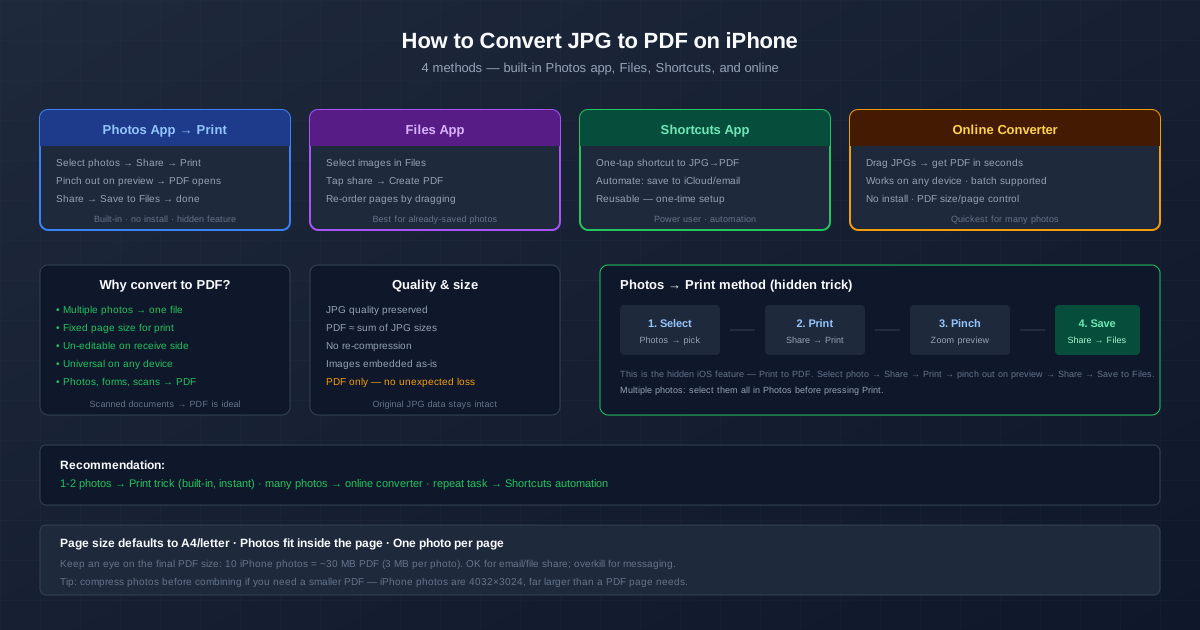
Converting JPG photos to PDF on an iPhone takes seconds and requires no extra apps. Select the photo → Share → Print → pinch out → Save to Files — that is the hidden built-in method. For combining multiple photos into one PDF, an online converter or the Files app handles it just as quickly.
This guide covers four methods, from the one-tap built-in approach to an automated Shortcut you set up once and reuse forever. If you'd rather use a browser, the JPG to PDF converter turns a photo into a PDF in seconds without changing the image.
Method 1: The Hidden Print-to-PDF Trick
iOS has a built-in PDF generator hidden inside the Print screen. It works with the Photos app, and it has been there since iOS 10 — most iPhone users simply do not know about it.
- Open the Photos app. Tap Select in the top right and choose the photo(s) you want in the PDF.
- Tap the Share button (square with an arrow pointing up).
- Scroll down and tap Print.
- On the print preview screen, pinch out with two fingers on the preview image — as if you were zooming into a photo. The preview expands into a full-screen PDF.
- Tap the Share button again (top right or bottom, depending on iOS version) and choose Save to Files.
The PDF is saved wherever you choose in the Files app — iCloud Drive, On My iPhone, or any connected cloud service. From there you can email it, send it in a message, or upload it.
If you selected multiple photos, each becomes a separate page in the PDF. The order matches the selection order in Photos — tap them in the order you want the pages to appear.
Method 2: Files App — Create PDF
If your photos are already saved in the Files app (from a download, an email, or an earlier Save to Files), the Files app has a direct "Create PDF" action.
- Open the Files app and navigate to the folder with your images.
- Tap Select and pick the JPG files you want.
- Tap the More button (three dots) or the share icon, then choose Create PDF.
- The PDF appears in the same folder. Tap to open, rename, or share it. The Files app uses each image's own dimensions as the page size — not A4 like the Print trick. For photos with unusual aspect ratios, the pages are custom-sized. If you need standard page sizes for printing, use the Print trick instead.
This method also lets you reorder pages. Once the PDF is created, open it, tap the page thumbnail button (four squares), and drag pages to reorder them.
Method 3: Shortcuts App — Full Automation
If you convert photos to PDF regularly (scanning receipts, combining forms, documenting work), build a one-tap Shortcut. It takes five minutes to set up and then you tap a home-screen icon and the PDF appears.
- Open the Shortcuts app (pre-installed on every iPhone).
- Tap the + button to create a new shortcut.
- Tap Add Action and search for Select Photos. Add it. Toggle Select Multiple to ON.
- Search for Make PDF and add it. The selected photos feed into this action automatically.
- Add Save File (to save to Files) or Share (to send immediately). Choose whether to ask where each time or use a preset folder.
- Name the shortcut "Photos to PDF" and optionally add it to the Home Screen. Now, whenever you need a PDF from photos: tap the shortcut, select photos, and the rest happens automatically. You can chain additional actions — email the PDF to a specific address, upload it to iCloud, or compress it first.
Method 4: Online Converter
If you find the built-in methods clunky, an online converter works in any browser — no install required.
- Open the JPG to PDF converter on your iPhone (works in Safari, Chrome, any browser).
- Tap the upload area and pick a photo from your library.
- Download the PDF and save it to Files or share it directly. The JPG goes into the PDF as it is, so there is no quality loss and the PDF is about the size of the photo; the page takes the photo's own dimensions, and the GPS location is removed.
- For several photos, convert each one and combine the PDFs in Merge PDF , where you drag them into order. Or save the photos to Files, select them, tap More → Compress to make a ZIP, and upload it to multiple JPEG to PDF , which returns one searchable PDF with pages in file-name order.
Page Size: What to Expect
The different methods produce slightly different page sizes:
| Method | Page size | Photo scaling |
|---|---|---|
| Photos Print trick | A4 or US Letter (region-dependent) | Photo fits inside page, centered |
| Files Create PDF | Image dimensions | No scaling — custom page per image |
| Shortcuts Make PDF | Image dimensions | Same as Files, unless you add a resize action |
| Online converter | Image dimensions | No scaling — custom page per image |
| For printing the PDF later, use the Print trick; with the other methods, choose Fit to page in the print dialog. For document scans and forms that do not need to be printed, the Files app or Shortcuts methods work fine. |
File Size Considerations
iPhone photos are large — 4032×3024 pixels, roughly 3 MB each as JPG. A PDF of 10 iPhone photos is around 30 MB. That is fine for email or file-sharing services, but overkill for text messages (most messaging apps compress attachments anyway).
If you need a smaller PDF: compress the photos first, then combine them. The Photos app offers a built-in resize when sharing via email — select the photos, tap Mail, and iOS asks whether to send at actual size or a smaller version. Save the resized versions, then combine into PDF.
For a detailed compression approach before PDF creation, see our image optimisation guide .
H3: When to Use Each Method
- Print trick. 1-5 photos, quick one-off. No install, immediate.
- Files app. Photos already saved in Files. Direct, no extra steps.
- Shortcuts. Repeat task — daily receipt scanning, weekly form submissions. Set up once, tap forever.
- Online converter. Many photos, full page-size control, batch mode. Any device, not just iPhone.
Related Tasks
If you need the reverse — extracting images from a PDF — use the PDF to JPG converter . For combining photos specifically for sharing (not PDF), see combining photos into one PDF . For using photos as input to a document, rather than just bundling them, the JPG to Word converter extracts text from the image via OCR.
Quick Summary
- Print trick works for every iPhone, no apps needed. Select → Share → Print → pinch out → Save.
- Files app "Create PDF" works on images already saved. Quickest when photos are already in Files.
- Shortcuts automates repeated conversions. One-time setup, one-tap forever.
- Online converter handles batches. Best for dozens of photos on any device.
- No quality loss. JPG data is embedded inside PDF unchanged.
- Compress photos first if you need a small PDF. iPhone photos are 3 MB each; 10 photos = 30 MB PDF.