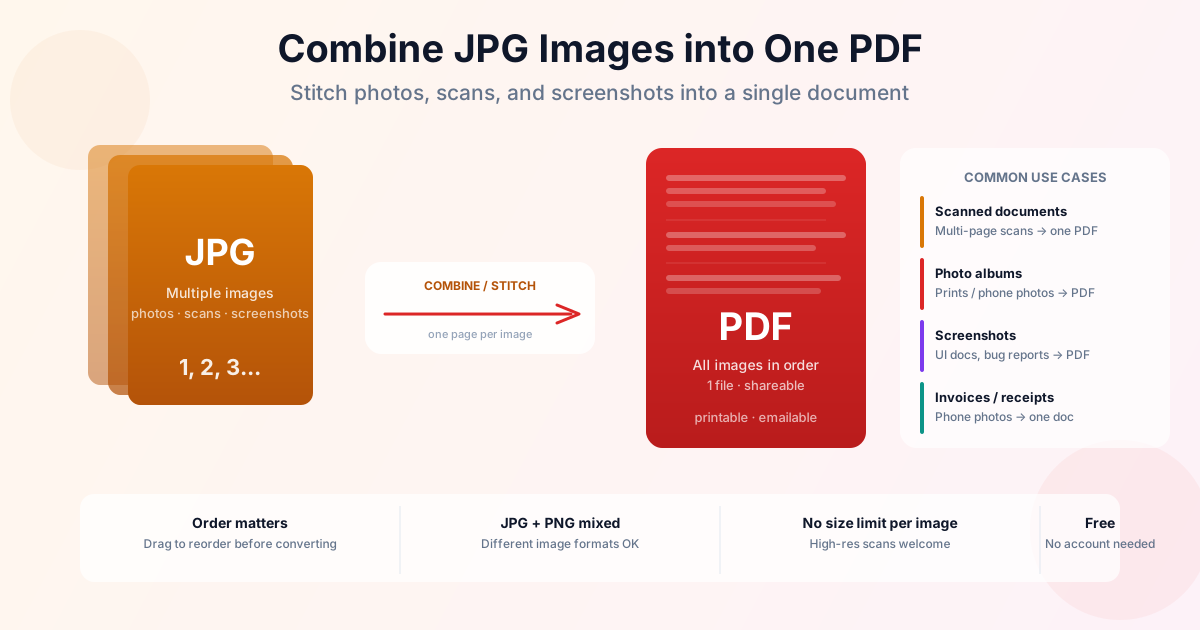
Need to send a bunch of photos as one file? Scanned a multi-page document page by page and want it as a single PDF? Combining multiple JPG images into one PDF is a common task — and it takes under a minute with the right tool.
Use our JPG to PDF converter to merge photos, scans, and screenshots into a single PDF. Upload multiple images at once, arrange the page order, and convert — no account, no software, free.
How to Stitch JPG Images Into a PDF
- Open our JPG to PDF tool
- Click the upload area or drag and drop all your JPG files at once
- Drag to reorder the images if the page sequence matters
- Click Convert
- Download the resulting PDF Each image becomes one page in the PDF. If you upload 8 photos, you get an 8-page PDF. The conversion preserves the original image resolution.
When You Need to Merge Photos to PDF
The most common reasons to combine images into a single PDF:
- Scanned multi-page documents — most scanners save each page as a separate JPG; combine them into one PDF before emailing or filing
- Phone photos of paperwork — receipts, invoices, contracts photographed with a phone; combine into one document for submission
- Photo albums and reports — multiple photos that belong together as a single shareable or printable file
- Screenshots for documentation — UI walkthroughs, bug reports, presentations — multiple screenshots into one PDF for easier sharing
- Application attachments — some portals accept only PDF; combining all supporting images into one file is cleaner than uploading them separately
Set JPG Page Order Before Converting to PDF
When you upload multiple files, the initial order depends on how your OS passes files to the browser — alphabetical or selection order, depending on the platform. This may not match the logical order you want.
Always check and adjust the page order in the converter before clicking Convert. Drag images up or down to set the exact sequence. It takes 10 seconds and saves you from converting twice.
Naming your files with numeric prefixes (01_receipt.jpg, 02_receipt.jpg) makes the order consistent across platforms and batches.
Mixing JPG and PNG in the Same PDF
You are not limited to JPG. Our converter accepts JPG, PNG, and other image formats in the same batch. Each format is handled the same way — one image becomes one page.
When to use PNG instead of JPG:
- Screenshots — PNG is sharper for screenshots with text; JPG introduces compression artifacts around small characters
- Documents with fine print — same reason: PNG preserves sharp edges better
- Photos — JPG is fine; PNG will be unnecessarily large with no visible quality difference for typical photos
Convert Image to PDF Freeware — Built-in OS Options
If you prefer desktop software, both Mac and Windows have built-in options that require no download.
Mac: Preview
- Select all JPG images in Finder
- Right-click → Open With → Preview
- In Preview, select all pages in the sidebar (Cmd+A)
- Go to File → Export as PDF
- Choose a name and save Preview lets you drag to reorder pages in the sidebar before exporting — same as our online tool. For batch processing many images this way, it is slower than the online approach but keeps everything local.
Windows: Print to PDF
- Select all images in File Explorer (Ctrl+A or Shift+click to select a range)
- Right-click → Print
- In the Print dialog, set Printer to Microsoft Print to PDF
- Adjust paper size if needed, click Print, choose save location The Windows method does not let you reorder — images are placed in the order they appear in File Explorer. Use numeric filename prefixes to control order. For reordering flexibility, use the online tool or install a free freeware like IrfanView.
iPhone: Files App (iOS 16+)
- Open the Files app and navigate to the folder with your images
- Tap the three-dot menu → Select, then tap all the images you want
- Tap the Share icon → Create PDF
- The PDF is created in the same folder This method is fast and works offline. For more control over page order, use our online tool in Safari — upload from your camera roll, reorder, convert.
After Combining: Compress If the PDF Is Too Large
When you combine many high-resolution photos, the resulting PDF can be large — sometimes 50– 100 MB or more. Most email services cap attachments at 20–25 MB.
If your combined PDF is too large to email or upload:
- Use our PDF compressor — reduces file size significantly without visible quality loss for most photos
- Or reduce the source image resolution before combining — 150–200 DPI is sufficient for screen viewing; 300 DPI for printing
For scanned documents (not photos), the PDF compressor is especially effective — it can reduce a 30 MB scan to under 3 MB.
Combining JPG to PDF vs Merging PDF Files
| Task | You have | Use this tool |
|---|---|---|
| Stitch JPG to PDF | Image files (.jpg, .png) | JPG to PDF |
| Merge PDF files | Existing PDF documents | Merge PDF |
| Split one PDF into pages | One PDF, need individual pages | Split PDF |
| PDF too large after combining | Large PDF from many images | Compress PDF |
Summary
Combining JPGs into one PDF is a 30-second job — drag the images in, set the page order, convert. Use the JPG to PDF converter for batches on any device, Preview on Mac or Microsoft Print to PDF on Windows when you want no browser. If the result is too large to email, run it through the PDF compressor afterwards.
Related Tools
- JPG to PDF converter — combine multiple images into one PDF
- Merge PDF — combine existing PDF files into one document
- Split PDF — extract specific pages from a PDF
- Compress PDF — reduce file size after combining images
- How to split and merge PDFs on Mac — using Preview without extra software