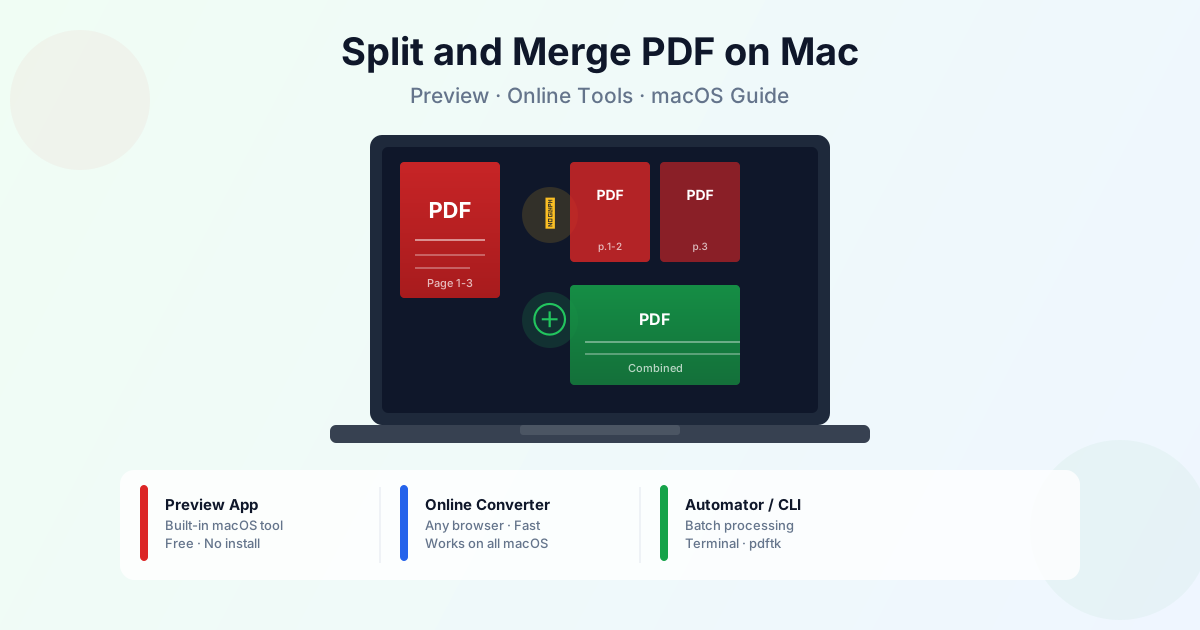
Mac users have an advantage when working with PDFs: the built-in Preview app handles most split and merge tasks without any additional software. For heavier jobs — merging dozens of files, splitting on specific conditions, or automating the process — there are online tools and command-line options that work on every macOS version. This guide covers all three approaches with exact steps.
Method 1: Split or merge PDF in Preview (no extra software)
Preview is Apple's built-in document viewer, and it has genuine PDF editing capabilities that most people never discover. You can extract pages, reorder them, and combine files entirely within Preview.
How to split a PDF in Preview
Splitting in Preview works by dragging pages out of the sidebar into a new window or folder:
- Open the PDF in Preview — double-click the file or right-click → Open With → Preview
- Show the thumbnails sidebar — View → Thumbnails (or ⌘-Opt-2)
- Select the pages you want to extract — click one thumbnail, then Shift-click or Cmd-click to select a range or non-consecutive pages
- Drag the thumbnails to the desktop or a Finder window — Preview creates a new PDF file containing only those pages
- Rename and save the extracted file — it appears as "untitled.pdf" by default
Alternatively: after selecting pages, go to File → Print → PDF → Save as PDF to export the selection. This works well for extracting a defined page range.
How to merge PDFs in Preview
Merging in Preview requires opening one file, then dragging pages from another into its sidebar:
- Open the first PDF in Preview — this will be the base file
- Show the thumbnails sidebar — View → Thumbnails
- Open the second PDF in a separate Finder window — do not open it in Preview yet
- Drag the second PDF file from Finder into the Preview sidebar — drag it between existing thumbnails to control where the pages are inserted
- Repeat for additional files — drag each one into position in the sidebar
- Save the merged file — File → Export as PDF (use Export, not Save, to create a new file rather than overwriting the original)
Important: use File → Export as PDF, not File → Save. Saving overwrites your original file.
Export creates a new merged document and leaves the source files intact.
Preview's merge works well for combining 2–5 files. For merging 10 or more PDFs, the drag-and-drop process gets tedious — an online tool or command line handles large batches faster.
Method 2: Split or merge PDF online (works on any Mac)
For tasks Preview handles poorly — splitting by file size, merging many files at once, or splitting on every page — an online tool is faster. Our PDF split tool and PDF merge tool work in Safari, Chrome, and Firefox on any Mac without installing anything.
Splitting a PDF online
- Open thePDF split tool
- Upload your PDF — drag and drop or click to browse
- Choose split mode: by page range, by every N pages, or split into individual pages
- Download the resulting files — each section becomes a separate PDF
Merging PDFs online
- Open thePDF merge tool
- Upload all the files you want to combine — you can add multiple files at once
- Drag the files in the list to set the order
- Click Merge and download the combined PDF The online method is particularly useful on older Macs where Preview may have bugs with certain PDF types, and on company-managed Macs where you can't install software but can use a browser.
Method 3: Split and merge PDF from the command line
Terminal offers the most powerful PDF manipulation options on Mac — batch processing, scripted workflows, and operations not available in any GUI. There are two tools worth knowing.
Using the built-in python3 + PyObjC (macOS Ventura and later)
macOS includes a Python-based PDF utility via the Quartz framework. To merge two PDFs from Terminal:
"/System/Library/Automator/Combine PDF Pages.action/Contents/MacOS/join" -o merged.pdf file1.pdf file2.pdf
This uses the same engine as the Automator "Combine PDF Pages" action — no extra software needed.
Using pdftk (requires install via Homebrew)
pdftk is the command-line standard for PDF operations. Install it via Homebrew, then use it for both split and merge:
```bash
# Install via Homebrew brew install pdftk-java
# Merge multiple PDFs into one
pdftk file1.pdf file2.pdf file3.pdf cat output merged.pdf
# Split PDF: extract pages 1-5 into a new file
pdftk input.pdf cat 1-5 output pages_1_to_5.pdf
# Split every page into its own file
pdftk input.pdf burst output page_%02d.pdf
pdftk handles encrypted PDFs (with the password), repairs corrupted PDFs, and processes files in loops — useful for batch-splitting an entire folder of PDFs with a single shell script.

### Using Automator for batch merging
Automator (built into macOS) has a dedicated "Combine PDF Pages" action. This is useful for creating a workflow you can run repeatedly — for example, automatically merging all PDFs in a Downloads folder every morning:

1. Open Automator → New Document → Workflow
2. Search for and add "Get Specified Finder Items" — add your PDF files here
3. Add "Combine PDF Pages" — choose append or shuffle order
4. Add "Move Finder Items" to set the output folder
5. Save as an application or workflow to run with a double-click

## Which PDF Split and Merge Method Is Best for Mac?
| Situation | Best method |
| --- | --- |
| Extract a few pages from one PDF | Preview — drag thumbnails to desktop |
| Merge 2–4 PDFs manually | Preview — drag second file into sidebar |
| Merge 5+ PDFs or split by range | Online tool — faster, no drag-and-drop tedium |
| Batch process dozens of files | pdftk in Terminal or Automator workflow |
| Company Mac — can't install software | Online tool in browser (no install required) |
| Old macOS or Preview behaving strangely | Online tool or pdftk |
## Troubleshooting PDF Split and Merge on Mac
**Preview exports a blank PDF.** This happens when the source PDF is locked or uses features Preview can't render. Try opening it in Chrome first — Chrome has its own PDF renderer that handles more formats.

If Chrome opens it correctly, print from Chrome to PDF, then use that file in Preview.

**Preview's merged PDF is much larger than the originals combined.** Preview sometimes re-renders PDFs instead of combining them at the byte level, which inflates file size. Use the online merge tool instead — it combines PDFs without re-rendering, so the output is close to the sum of the input sizes.

**Pages are in the wrong order after merging.** In Preview, reorder thumbnails in the sidebar before exporting. With the online tool, drag files in the upload list before clicking Merge. With pdftk, list the files in the exact order you want them.

**The PDF is password-protected.** Preview can split and merge password-protected PDFs if you know the password — it will prompt you when opening. The online tool handles unlocked PDFs only. pdftk accepts the password via theinput_pw flag.

For more detailed guides on each operation, see our [PDF splitting guide](/blog/how-to-split-pdf-by-pages) and [PDF merging guide](/blog/merge-pdf-guide).

## Summary
Mac has better built-in PDF tools than Windows. Preview handles most everyday split and merge tasks without extra software. For larger jobs, the online [PDF split](/pdf/split) and [PDF merge](/pdf/merge) tools work in any browser, no installation required. For batch processing and scripting, pdftk via Homebrew gives you full command-line control.

## Related Tools
- [Split PDF](/pdf/split) — extract specific pages or split by range, works in any browser
- [Merge PDF](/pdf/merge) — combine multiple PDF files into one document
- [Compress PDF](/pdf/compress) — reduce file size after merging large documents