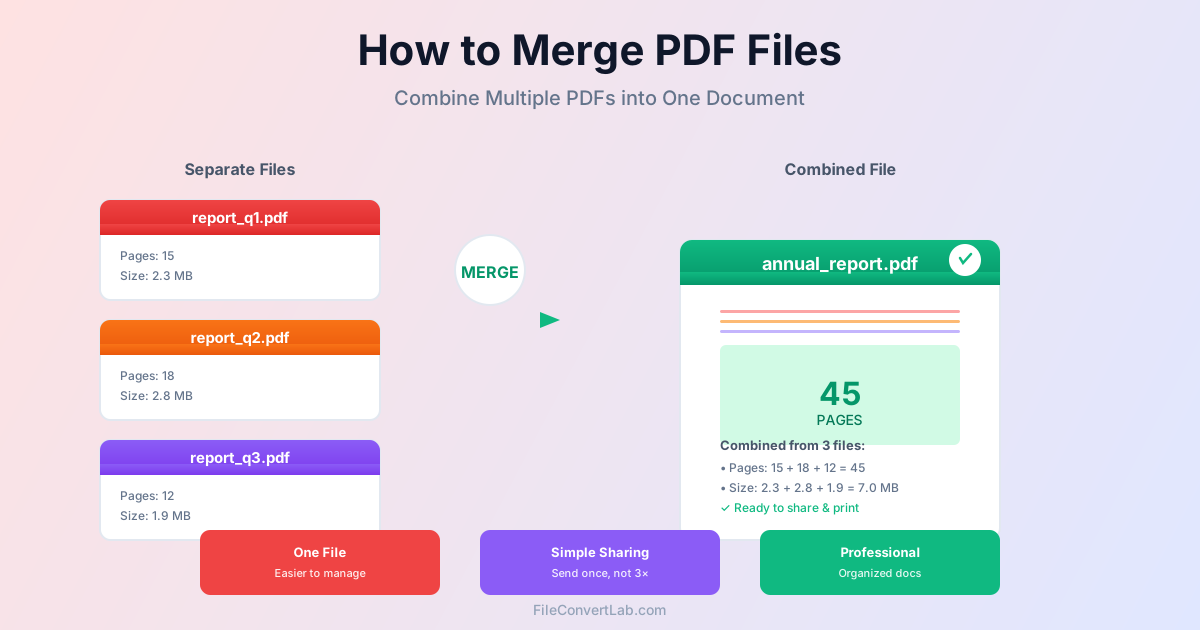
To merge PDF files, add them all to a PDF merge tool, drag them into the order you want and click Merge — you get one PDF with every page, and the pages themselves aren't re-encoded, so text, images and fonts look exactly as before.
This guide covers the steps, page order, what does and doesn't survive a merge (bookmarks, for one), file size, password-protected files and merging large batches.
Why Merge PDF Files into One?
Combining PDFs into a single file offers significant advantages over managing multiple separate documents:
- Easier sharing: Send one file instead of attaching dozens of separate documents to emails
- Better organization: Keep related documents together (contracts + appendices, reports + charts)
- Simplified archiving: Store complete projects as single files rather than scattered documents
- One sequence: readers get every part in the right order, without juggling files
- Reduced clutter: Fewer files to manage in folders and cloud storage
- Professional presentation: Deliver polished, complete documents to clients or stakeholders
Common Reasons to Combine PDFs
Combining Scanned Documents
Some scanners and scanning apps save each page as a separate PDF. Merging turns them back into one document — a 20-page contract scanned page by page becomes one 20-page PDF.
Consolidating Reports
Combine executive summary, main report, data appendices, and supporting charts into one comprehensive document. This ensures readers have all materials in proper sequence without switching between files.
Creating Complete Presentations
Merge slide decks from multiple presenters into one cohesive presentation.
Add cover pages, agendas, and closing slides by merging separate PDF files in the desired order.
Organizing Legal Documents
Combine contracts, addendums, exhibits, and signature pages into single legal documents. This ensures all parties have complete, identical copies with pages in the correct order.
How to Merge PDF Files: Step by Step
Step 1: Prepare Files
Before merging:
- Collect all PDFs you want to combine in one folder
- Rename files to indicate desired order (01_intro.pdf, 02_chapter1.pdf)
- Verify each PDF opens correctly and contains expected content
- Check file sizes — very large files may need compression before merging
Step 2: Upload Files
Open the PDF merge tool and add all the PDFs. You can select several files at once (Ctrl+click or Cmd+click) or drag them onto the page. The files together must fit your plan's size limit (100 MB as a guest).
Step 3: Arrange Order
Drag files up or down in the list, or use the arrow buttons. The merged PDF follows this order exactly. Double-check it before merging — fixing the order afterwards means reordering pages in Rotate and Reorder PDF or merging again.
Step 4: Merge Files
Click Merge. The page shows an estimated time; it depends mainly on the total file size.
Step 5: Download Merged PDF
Download the combined PDF, open it and check the page order and a few pages from each source file.
Advanced PDF Merging Options
Merging Specific Pages
To merge only certain pages from each PDF:
- Split out the pages you need with the PDF split tool — by page range (for example 12-30) or by picking pages — or remove the rest with Delete PDF pages
- Merge the resulting PDFs
This is how you combine, say, chapter 3 of Report A with chapter 5 of Report B.
Adding Blank Pages or Separators
Insert blank pages between sections by creating blank PDFs and including them in the merge sequence. Alternatively, create separator pages with section titles in a word processor, export to PDF, and merge them between content sections.
Handling Password-Protected PDFs
To merge password-protected PDFs:
- Unlock each protected PDF with PDF unlock (you need the password)
- Upload the unlocked copies to the merge tool
- Merge them in the order you want
- Optionally add password protection to the final merged PDF in a desktop editor
Optimizing Merged PDFs
Reducing File Size
A merged PDF is about as big as the source files put together, so merging scans produces large files. After merging, run it through Compress PDF, which re-encodes the images with a quality slider. What shrinks a PDF:
- Image compression: lower JPEG quality of embedded images
- Downsampling: lower image resolution for screen viewing (not print)
- Font subsetting: keep only the characters actually used
See the PDF compression guide for details.
Adding Page Numbers
After merging, add continuous page numbering to the combined document using PDF editing tools. This is especially important for professional documents where page references matter (reports, legal documents, manuscripts).
Bookmarks After Merging
Our merge tool copies the pages; the bookmarks (outline) of the source files don't carry over. For a long merged document, add bookmarks afterwards in a desktop PDF editor, or — if the sources come from Word — insert a table of contents before exporting them to PDF.
Merging Many PDFs at Once
When combining hundreds of files:
- Organize by naming: use sequential filenames (001.pdf, 002.pdf) so the files are added in the right order
- Upload in batches: If the files together exceed your plan's size limit, merge them in groups, then merge the results
- Verify sample first: Test merge with 5-10 files to ensure correct ordering before processing all files
- Compress after merging: Large batch merges create huge files; compress to manageable sizes
Common PDF Merge Problems
Pages in Wrong Order
Problem: Merged PDF has pages out of sequence.
Solution: Check the order in the merge list before clicking Merge; sequential filenames (01_, 02_) help. If it's already merged, move pages with Rotate and Reorder PDF.
File Too Large to Share
Problem: Merged PDF exceeds the email attachment limit (25 MB in Gmail, 20 MB in Outlook.com).
Solution: Compress the merged PDF, split into multiple parts, or share via cloud storage links (Google Drive, Dropbox) instead of email attachments.
Quality Degradation
Problem: Merged PDF looks blurry or lower quality.
Solution: Merging doesn't re-encode pages, so blurriness comes from the source files or from compression applied afterwards. Avoid compressing an already-compressed PDF again.
PDF Merging Best Practices
- Keep originals: Always preserve source PDFs in case you need to re-merge or extract specific files later
- Use descriptive filenames: Name merged PDFs clearly (Complete_Report_Q3.pdf, not merged_file.pdf)
- Test with samples: For large merges, test with 3-5 files first to verify ordering and settings
- Compress for sharing: If emailing merged PDFs, compress to reduce file size and speed up sending/downloading
- Add metadata: Update merged PDF properties (title, author, subject) for better organization and searchability
- Consider OCR: if you merged scans, run the result through OCR to searchable PDF to make the text searchable
- Check bookmarks and forms: source bookmarks don't carry over; open fillable forms after merging and test a field
Related Topics
- How to compress PDFs — reduce merged file sizes
- Split and merge PDF on Mac — Preview, Terminal and online methods
- Batch PDF conversion — converting many files to PDF
- PDF merge tool — Combine your PDFs online
Summary
To merge PDF files, set the order before you click Merge — everything else follows from it. The pages come through unchanged; bookmarks don't, and the file is as big as its parts, so compress it before emailing. Start with the PDF merge tool, and keep the originals in case you need to re-merge.