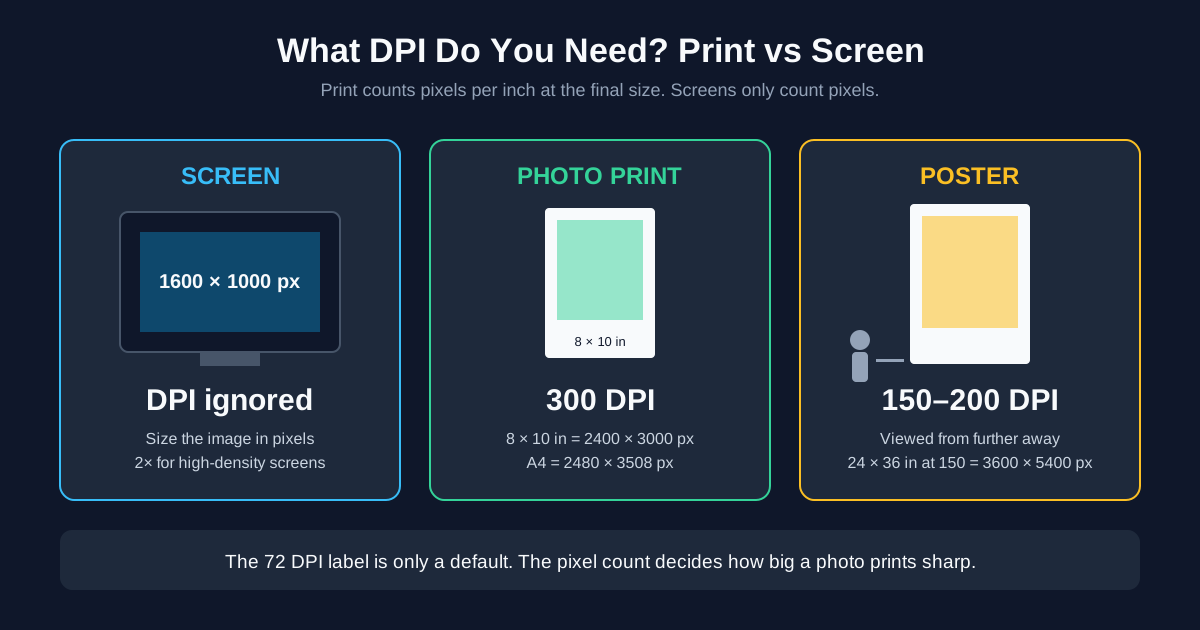
What DPI do you need for print vs screen? For print, aim for 300 pixels per inch at the size you'll print — that's the minimum VistaPrint asks for on uploaded photos, and it's the number most print shops quote. Large posters seen from a few steps away get by with 150–200. For screens, DPI does nothing at all: a monitor shows an image by its pixel dimensions, so a web image needs the right width in pixels, not a DPI value.
Not sure what your file has? Drop it into the image DPI checker — it reads the DPI tag and works out the real resolution for ten paper sizes, in your browser.
What DPI Do You Need for Print vs Screen: Quick Answer
| Where the image ends up | What to aim for | Why |
|---|---|---|
| Website, email, social post | Pixel width only — DPI is ignored | Screens map image pixels to screen pixels |
| Photo print, flyer, anything held in hand | 300 pixels per inch | VistaPrint's minimum for uploaded images |
| Poster viewed up close or small print | 240–300 | VistaPrint poster guide, close viewing |
| Larger poster viewed from farther away | 150–200 | VistaPrint poster guide, distant viewing |
| Banner, sign, trade-show wall | Lower still, set by viewing distance | Nobody reads it from 30 cm |
The rest of this post explains where those numbers come from, so you can handle the cases the table doesn't cover.
DPI vs PPI: What's the Difference?
PPI (pixels per inch) is a property of your image at a given print size: 3000 pixels across 10 inches is 300 PPI. DPI (dots per inch) is, strictly, how many ink dots a printer lays down per inch — a printer may use several dots to reproduce one pixel.
In practice everyone says "DPI" for both. Photoshop, Windows file properties, print shops and the resolution field inside a JPEG all mean pixels per inch when they say DPI. This post does the same.
The important part: PPI only exists once you decide a physical size. A 3000 × 2000 pixel photo has no fixed DPI. Print it 10 inches wide and it's 300 DPI; print it 20 inches wide and it's 150 DPI. Same file, same pixels.
Why Screens Ignore DPI
Your screen shows image pixels, not inches. Browsers use a CSS pixel defined as 1/96 of an inch, and they lay out an image by its pixel dimensions. The DPI number stored in the file is never consulted.
We tested this on our own image DPI converter: a 600 × 400 PNG tagged 72 DPI, re-tagged to 300 DPI in "change the tag only" mode. The pixel data came back identical — zero differing pixels in a pixel-by-pixel comparison — and both files display at exactly the same size in a browser. Only a printer or a layout program treats the two differently.
So for screens, forget DPI and think in pixels:
- Content image in a blog post — about as wide as the text column
- Full-width hero — as wide as the widest screen you care about
- High-density phones and laptops — screens with a device pixel ratio of 2 draw each CSS pixel with 2 × 2 physical pixels, so an image shown 800 CSS pixels wide needs 1600 pixels to look crisp there
Extra pixels beyond that only make the file heavier. Our guide to reducing image file size covers trimming them, and PNG vs JPG vs WebP covers the format choice.
What "72 DPI" on Your Image Actually Means
Seeing "72 DPI" on a photo that looks perfectly sharp? That number is a label, not a measurement of quality.
Many phone and camera JPEGs leave out the density field in the header that most tools read. Software then shows a default, and 72 is the traditional one — it goes back to early Mac screens. Our checker shows 72 in that case too, and points you to the pixel dimensions instead.
Look at what the label does to the paper size. A 12-megapixel phone photo is 4032 × 3024 pixels:
- At 72 DPI the file claims 56 × 42 inches
- At 300 DPI the same pixels cover 13.4 × 10.1 inches
Nothing about the photo changed. The pixel count is what decides how big it prints well. The label just tells layout software what size to place it at by default.
How Many Pixels You Need for Each Paper Size
This is the table to keep. Multiply the paper size in inches by the target DPI:
| Print size | Pixels at 150 DPI | Pixels at 300 DPI |
|---|---|---|
| 4 × 6 in | 600 × 900 | 1200 × 1800 |
| 5 × 7 in | 750 × 1050 | 1500 × 2100 |
| 8 × 10 in | 1200 × 1500 | 2400 × 3000 |
| Letter (8.5 × 11 in) | 1275 × 1650 | 2550 × 3300 |
| A4 (210 × 297 mm) | 1240 × 1754 | 2480 × 3508 |
| A3 (297 × 420 mm) | 1754 × 2480 | 3508 × 4961 |
| A2 (420 × 594 mm) | 2480 × 3508 | 4961 × 7016 |
| 24 × 36 in poster | 3600 × 5400 | 7200 × 10800 |
Read it backwards too: that 4032 × 3024 phone photo covers A4 at over 300 DPI when the page and photo share an orientation, but only about 240 DPI on A3.
Going between inches and millimetres: 1 inch = 25.4 mm. For metric paper, divide the millimetres by 25.4, then multiply by the DPI.
DPI for Posters and Large Format: The Viewing-Distance Rule
300 DPI is a close-viewing number. It assumes the print is held in the hand or looked at from arm's length. The further away people stand, the less detail their eyes can pick out, so the fewer pixels per inch you need.
VistaPrint's poster guide puts it in two bands: 240–300 DPI for small prints and close viewing, 150–200 DPI for larger posters seen from further away. Banners across a hall or signs on a building go lower again, because nobody stands close enough to see individual pixels.
A practical way to decide: how close will the nearest person be? Arm's length means 300. A poster on a corridor wall that people walk past means 150–200. A banner above a stage can go lower. Print shops set their own minimums per product, and the product page or file-prep guide is the final word.
DPI for Home and Office Printing
Office documents and home prints sit between the two worlds. Text and charts look fine at lower resolutions than photos, because nobody inspects a meeting handout with a loupe.
Our checker grades 300 DPI and up as excellent, 150–299 as good, 100–149 as acceptable for large prints and anything below 100 as poor. Its legend puts the line where pixelation becomes visible at 100 DPI. For a handout or a photo on the fridge, anything in the "good" band is fine.
If you're printing a scanned document rather than a photo, the scan resolution is what counts. A page scanned at 300 DPI prints back at its original size at 300 DPI — the pixels were captured at exactly the density you need.
Does Changing the DPI Number Improve Quality?
No. Changing the DPI tag doesn't add a single pixel of detail. VistaPrint's own guide says as much: raising the DPI setting in a graphics program doesn't improve resolution.
There are two different things people mean by "change to 300 DPI":
- Change the tag only. The pixels stay the same, and the default print size shrinks to match. Useful when a print shop's upload form rejects "72 DPI" even though the pixels are plenty.
- Resample. The software invents new pixels to keep the old print size at the new DPI. The file gets bigger, but the extra pixels are interpolated — there's no new detail in them.
Our DPI converter does both for JPG, PNG and TIFF. Whether your file needs either is a separate question, and the answer comes from its pixel count, not its tag.
Vector Graphics and PDFs Have No DPI Until They're Rasterized
Logos in SVG, text in a Word document and vector art in a PDF are made of shapes, not pixels. They print sharp at any size because the printer draws them at its own resolution.
DPI only enters the picture when you turn them into pixels — exporting an SVG to PNG, or saving a PDF page as an image. At that moment you pick a pixel size, and the same rules apply. If you're exporting a logo, SVG to PNG resolution walks through picking the export size. If you're turning PDF pages into images, converting PDF to JPG covers the DPI choice for that.
Summary
Print needs pixels per inch at the final size — 300 for anything seen up close, 150–200 for posters seen from further away. Screens need the right pixel width and ignore DPI entirely. The DPI label on a file is a default print size, not a quality score. To see how your own file maps onto real paper sizes, run it through the DPI checker.
Related Tools
- Image DPI checker — reads the DPI tag and grades the image for A0–A6, Letter, Legal and Tabloid
- Image DPI converter — set the DPI tag, or resample to a new DPI
- Compress image — shrink a photo for the web once the pixel size is right
- JPG to PDF — put a print-ready photo into a PDF for the print shop