You need to submit a PDF but the form says "maximum 200KB". Or you need to email a document and it keeps bouncing because of attachment limits. Compressing a PDF to a specific size is a common problem — and it's solvable with the right approach.
Use our PDF compressor to reduce file size instantly. This guide explains why PDFs get large, what size targets are realistic, and how to hit specific limits like 100KB or 1MB.
Why PDFs Are Large in the First Place
A PDF is a container format. Inside it can be text, fonts, images, color profiles, thumbnails, form fields, metadata, and embedded attachments. File size comes almost entirely from images.
- Scanned documents — each page is a high-resolution image. A 10-page scan at 300 DPI can easily be 15–30 MB.
- Embedded photos or logos — a single full-resolution product photo can add 3–5 MB to an otherwise small document.
- PowerPoint or Word converted to PDF — presentation graphics, background images, and embedded charts carry their full resolution into the PDF.
- Full embedded fonts — some PDF creators embed entire font families instead of just the characters used, adding 0.5–2 MB per font.
Compression works by downsampling images (reducing their pixel density), applying stronger image compression, and stripping unnecessary metadata and embedded data. Text is never degraded — it's stored as vectors and stays sharp regardless of compression level.
Common Size Targets and What They Mean
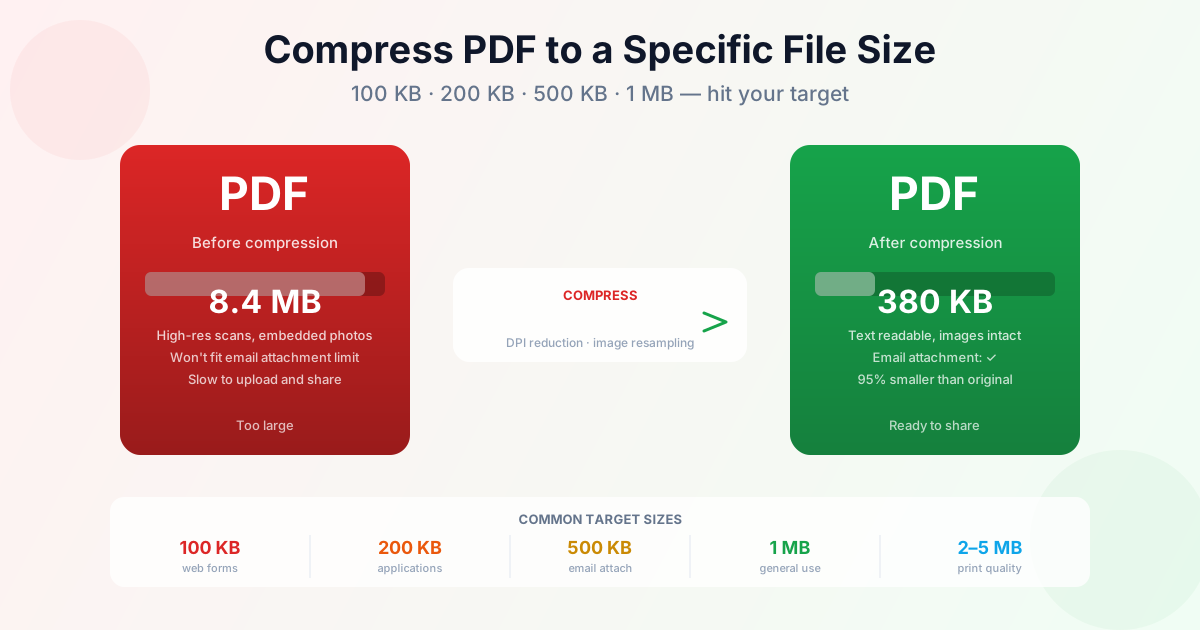
| Target size | Typical use case | Image quality after |
|---|---|---|
| 100 KB | Government forms, job applications, visa documents | Low — legible, not print-quality |
| 200 KB | Online applications, academic submissions | Moderate — fine for screen reading |
| 500 KB | Email attachments, HR documents | Good — images look clean |
| 1 MB | General sharing, CRM uploads | Very good — near original quality |
| 2–5 MB | Print-ready documents, presentations | Excellent — suitable for printing |
| The smaller the target, the more aggressively images get downsampled. For text-only documents (contracts, reports, letters), even aggressive compression has no visible impact — the text is vector data and remains crisp. |
How to Compress a PDF to a Specific Size
Step 1: Compress with maximum strength first
Open our PDF compressor, upload your file, and choose the highest compression level. Download the result and check the file size. For most documents, this gets you 60–90% reduction.
Step 2: If still too large, split the document
If the compressed PDF is still above the limit, the document is either very long or contains high-resolution images that don't compress further. The practical fix:
split the PDF into smaller parts and submit them separately (if allowed), or remove pages that aren't required by the form.
Step 3: For scanned documents, use OCR instead
A scanned PDF is a collection of images — every page is a photo. After compression, a 10-page scan might still be 800KB. Converting the scan to a searchable PDF with OCR replaces the image pages with actual text, which is far smaller. A 10-page scanned document with OCR applied typically drops to under 200KB.
Compressing PDF on Mac (No Adobe)
Mac's built-in Preview app has a basic compression option:
- Open the PDF in Preview
- File → Export as PDF
- Click the "Quartz Filter" dropdown
- Select "Reduce File Size"
- Save the file Preview's filter is aggressive — it often reduces quality more than necessary for a given size target. For better control, our online tool lets you choose compression strength and works in Safari on Mac without any installation.
What PDF Compression Cannot Do
There are limits to what compression can achieve. Knowing them saves time:
- Already-compressed images — JPEG images inside a PDF are already compressed. Running PDF compression again barely reduces them. If your PDF contains high-quality JPEGs and you need it under 100KB, removing some images may be the only option.
- Short text-only PDFs — a 10-page text document is already 50–150KB. Compression reduces it by maybe 20%. If you need it under 50KB, some pages may need to be removed.
- Password-protected PDFs — compression tools cannot modify encrypted PDFs. You'll need to remove the password first, then compress.
Email Attachment Size Limits
Different email providers enforce different limits:
- Gmail: 25 MB per email
- Outlook.com / Hotmail: 20 MB
- Yahoo Mail: 25 MB
- Corporate email servers: typically 10 MB, sometimes 5 MB These are the sender limits. The recipient's server may have a lower limit. For safe delivery across any email system, keeping attachments under 5 MB is the practical rule. For business documents you want to guarantee arrive, under 2 MB is safer still.
Summary
Most size targets (200KB, 500KB, 1MB) are reachable by running the PDF compressor at maximum strength — text never degrades, only images get downsampled. If the file still exceeds the limit, split the PDF or OCR a scanned original to replace image pages with real text. Already-compressed JPEGs inside the PDF are the one case compression can't help much.
Related Tools
- Compress PDF — reduce file size with adjustable quality settings
- Split PDF — divide a large PDF into smaller parts
- Merge PDF — combine multiple PDFs into one file
- How to compress PDF: complete guide — covers all methods in detail
- Split and merge PDF on Mac — Preview, online tools, and Terminal