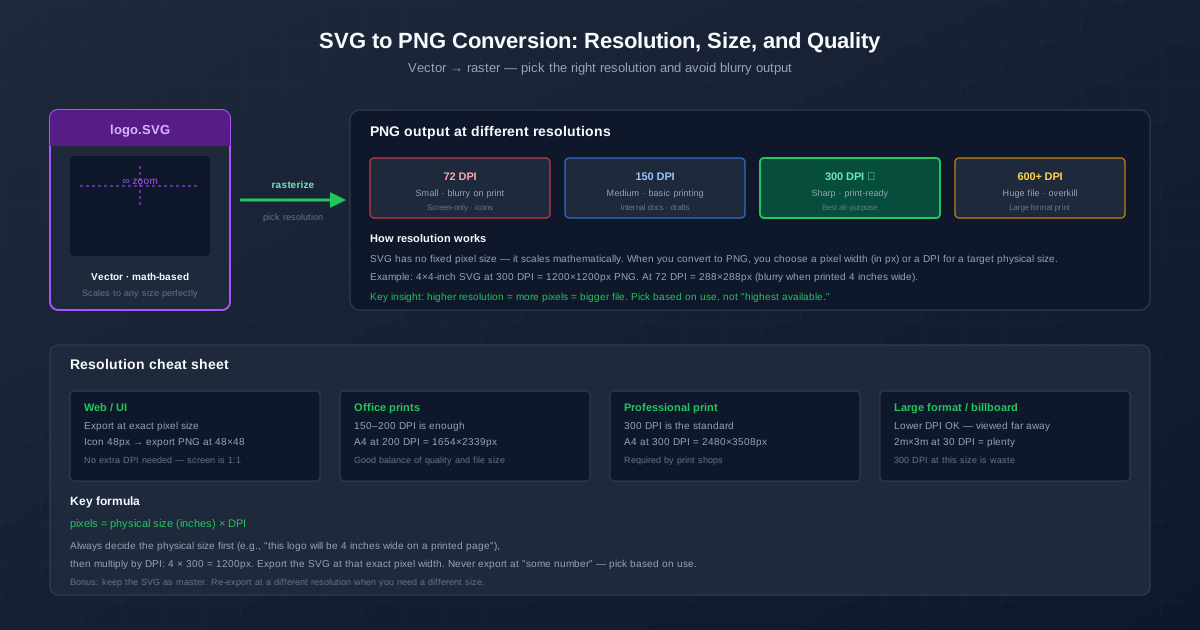
SVG to PNG resolution comes down to one fact: an SVG has no pixels, so the PNG you get from it is exactly as big as the export size you ask for — and that's where blurry PNGs come from. Decide the pixel size first: for screens, the display size (twice that for high-density screens); for print, inches × 300. Then make sure the converter actually renders at that size instead of scaling a small render up.
Our SVG to PNG converter renders at the size written inside the SVG file, keeps the transparent background, and takes several files at once. Below: how to control that size, why SVG exports come out blurry, and how to keep transparency.
How to Work Out the SVG Export Size in Pixels
One formula covers every case:
pixels = display size × scale
- For a screen, the display size is in CSS pixels and the scale is the device pixel ratio. A logo shown 200 CSS pixels wide needs a 200-pixel PNG on a standard screen and 400 pixels on a screen with a ratio of 2. Export the larger one and let the page scale it down.
- For print, the display size is in inches and the scale is the print resolution. A logo printed 4 inches wide at 300 pixels per inch needs 1200 pixels. For millimetres, divide by 25.4 first: 50 mm is 1.97 inches, so 591 pixels at 300.
- For an icon set or favicon, the size is fixed by the platform. Export each size separately from the SVG rather than shrinking one big PNG — small sizes stay crisper that way. For a Windows or browser .ico, SVG to ICO packs the result into the icon format.
Keep the aspect ratio of the SVG's viewBox. If the viewBox is 0 0 200 100, the PNG should be twice as wide as it is tall — otherwise the drawing is letterboxed or stretched.
How SVG Size Is Decided in Our SVG to PNG Converter
The converter has no size field. It reads the size from the SVG itself. We tested it by sending SVGs with different headers through the conversion API:
| SVG root element | PNG you get |
|---|---|
width="200" height="100" | 200 × 100 px |
width="2000" height="1000" (same drawing) | 2000 × 1000 px, just as sharp |
width="3in" height="1in" | 270 × 90 px (90 pixels per inch) |
width="5cm" height="2.5cm" | 177 × 88 px |
only viewBox="0 0 400 100", no width/height | 100 × 100 px, drawing letterboxed in the middle |
So to get a bigger PNG, change the width and height attributes before uploading:
- Open the .svg in any text editor (Notepad, TextEdit in plain-text mode, VS Code).
- Find the opening
<svgtag. - Set
widthandheightto the pixel size you want, in plain numbers with no units — for examplewidth="1200" height="600". Keep theviewBoxas it is; that's what makes the drawing scale instead of getting cropped. - Save and upload.
The last row of the table matters most. Many SVGs exported from design tools and icon libraries have only a viewBox. Those come out at 100 pixels, which is the most common reason for a "tiny PNG" from our converter. Add width and height and the problem is gone.
Why Your SVG to PNG Looks Blurry
Vectors don't get blurry. What gets blurry is a PNG that's shown larger than the pixels it has. The usual causes:
- The export was too small. A 300-pixel PNG placed 4 inches wide on paper is only 75 pixels per inch. Re-export at the size from the formula above.
- The SVG had no width or height. As the table shows, some renderers fall back to a small default size. The drawing is fine; there just aren't enough pixels.
- The page scales the PNG up. On a high-density phone, a 200-pixel logo in a 200-CSS-pixel slot gets stretched to 400 physical pixels. Export at 2× the slot.
- A small PNG was enlarged later. Once it's pixels, enlarging only interpolates. Go back to the SVG and export again at the new size.
- Thin lines at small sizes. A 0.5-pixel stroke lands between pixels and turns grey and soft. For small icons, use strokes of at least 1 pixel at the export size, or export a simplified icon for small sizes.
- Wrong format. JPG compression smears the flat colours and hard edges typical of SVG graphics. Use PNG or WebP.
How to Keep a Transparent Background in SVG to PNG
Areas of an SVG with no shape are transparent, and PNG can store that. Whether it survives depends on the tool:
- Our SVG to PNG converter keeps it. In our test, the corners of the output PNG had an alpha value of 0 — fully transparent.
- ImageMagick fills the background white unless you tell it otherwise. With ImageMagick 7.1.2,
magick logo.svg logo.pngproduced a white background; adding-background nonekept it transparent. - Inkscape exports the document's background colour together with its opacity. The default is transparent; if you get a solid background, set the background alpha to 0 in Document Properties.
- JPG can't store transparency at all. In our SVG to JPG test, the transparent area came out black. If you need a JPG, add a white rectangle behind the drawing in the SVG first, or use SVG to WebP, which kept the transparent background in the same test.
To check the result, open the PNG in an image viewer that shows a checkerboard behind transparent pixels, or place it on a dark background in a document.
How Big the PNG File Gets
Pixel size drives file size. The 200 × 100 logo from our test was 4.4 KB as PNG; the same drawing at 2000 × 1000 was 55.5 KB. Flat logos compress well because PNG stores runs of identical colour cheaply. Photographic content inside an SVG compresses much worse.
If the file is too heavy for a web page, export at the size you actually display (2× for high-density screens) rather than something larger "just in case", then run it through image compression if needed.
Other Ways to Export SVG to PNG at a Specific Size
Inkscape (free, Windows / Mac / Linux)
Open the SVG, then File → Export. Choose the export area (Document, Page or Selection), and type the width or height in pixels — the other side follows the aspect ratio. You can also type a DPI instead: Inkscape counts 96 pixels per inch, so 96 DPI gives the document's own size and 192 doubles it.
ImageMagick (command line)
magick -background none -density 300 logo.svg logo.png
ImageMagick treats the SVG's own size as 96 pixels per inch, so -density 300 renders at 300/96 of it: the 200 × 100 test logo came out at 625 × 312 pixels. Put -density before the input file, or it won't affect the rendering. For an exact width, add -resize 1200x after the input — but render at a high enough density first so you're shrinking, not enlarging.
A browser
Chrome and Firefox render SVG natively. Open the file, zoom until it's the size you want, and take a screenshot. It's crude, but it works on any computer, with no install. Remember that the screenshot has your screen's pixel density baked in.
Keep the SVG as Your Master File
The PNG is a snapshot at one size. When you need a bigger version — a new print size, a retina icon, a banner — go back to the SVG and export again. Enlarging an old PNG gives you soft edges; a fresh export from the SVG is sharp at any size.
Quick Summary
- Pixels = display size × scale — CSS size × pixel ratio for screens, inches × 300 for print
- Our converter uses the SVG's own width and height — edit them in a text editor to get a bigger PNG; a viewBox-only SVG comes out at 100 pixels
- Blurry PNG = too few pixels — export again from the SVG instead of enlarging
- Transparency stays in PNG and WebP — JPG turns it into a solid colour
- Keep the SVG and re-export whenever the size changes
For the basics of the format itself, see the SVG to PNG guide, and for PNG, JPG and WebP compared, see PNG vs JPG vs WebP.