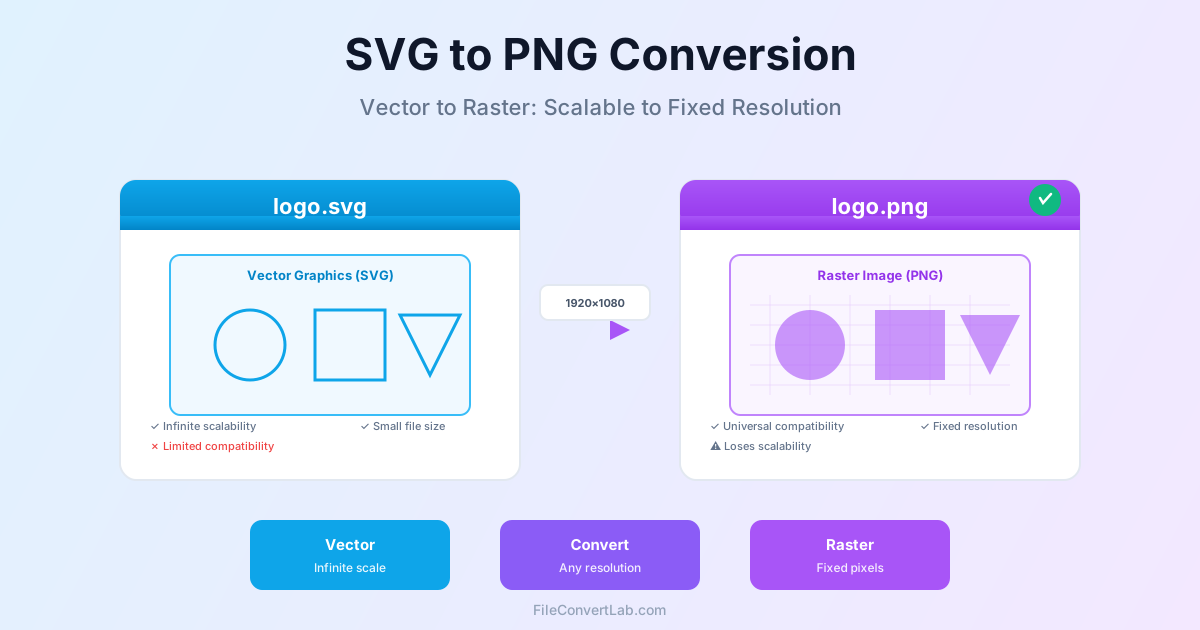
Converting SVG (Scalable Vector Graphics) to PNG (Portable Network Graphics) transforms infinitely scalable vector graphics into fixed-resolution raster images. You lose scalability, but PNG offers universal compatibility across all software, browsers, and platforms. Knowing when and how to convert helps you choose the right resolution and maintain visual quality for your use case.
SVG vs PNG: Understanding the Difference
SVG is a vector format that stores images as mathematical descriptions of shapes, paths, and colors. This allows infinite scaling without quality loss. PNG is a raster format that stores images as a grid of pixels, with quality tied to the resolution at which it was created.
| Feature | SVG | PNG |
|---|---|---|
| Scalability | Infinite, no quality loss | Fixed resolution, pixelates when enlarged |
| File Size | Small for simple graphics | Larger, depends on resolution |
| Compatibility | Modern browsers, limited software | Universal, all platforms |
| Editability | Easy to edit vectors | Pixel-level editing only |
| Transparency | Full support | Full support |
When to Convert SVG to PNG
- Email newsletters: Many email clients strip or block SVG files for security; PNG works universally
- Legacy software: Older versions of PowerPoint, Word, or design tools may not support SVG import
- Consistent rendering: SVG can render slightly differently across browsers/software; PNG looks identical everywhere
- Social media: Some platforms have issues with SVG uploads; PNG is universally accepted
- Print production: Many print workflows require raster formats at specific resolutions (300 DPI)
- Maximum compatibility: When you need guaranteed display across all platforms and devices
Choosing the Right Resolution
The most important decision when converting SVG to PNG is resolution. Since SVG is infinitely scalable, you must choose the pixel dimensions for your PNG:
Web Use
- Small icons: 128×128, 256×256, or 512×512 pixels
- Website headers: 1920×1080 (Full HD) or 2560×1440 (2K)
- Logos: 1000×1000 or larger for high-DPI displays
- Social media: Platform-specific (1200×630 for Facebook/Twitter)
Print Use
For print, calculate pixels as: (width in inches × 300 DPI) by (height in inches × 300 DPI)
- Business card (3.5" × 2"): 1050×600 pixels at 300 DPI
- Flyer (8.5" × 11"): 2550×3300 pixels at 300 DPI
- Poster (24" × 36"): 7200×10800 pixels at 300 DPI
How to Convert SVG to PNG
Converting SVG to PNG with our SVG to PNG converter :
Step 1: Upload SVG Files
Select one or multiple SVG files. Our converter supports batch processing, allowing you to convert entire icon sets or logo variations at once.
Step 2: Set Resolution
Choose output dimensions based on your use case. For responsive web use, export at 2× or 3× the display size to ensure sharpness on high-DPI screens (Retina displays, modern smartphones).
Step 3: Download PNG Files
Download your PNG files. The conversion rasterizes the SVG at your specified resolution, creating a pixel-perfect PNG that preserves all colors, shapes, and transparency from the original.
Maintaining Quality During Conversion
- Export at 2× intended size: For a 500px web image, export SVG at 1000px for crisp display on high-DPI screens
- Use even dimensions: Odd pixel counts can cause slight blurring in some rendering engines
- Preserve transparency: Ensure PNG alpha channel is enabled for transparent backgrounds
- Test different sizes: If unsure, export multiple resolutions and choose the best for your needs
Batch Converting SVG Files
For icon sets, logo variations, or illustration libraries:
- Select all SVG files you want to convert
- Set a consistent resolution for all files
- Convert in a single batch operation
- Download all PNG files as a ZIP archive Batch conversion is essential for efficiency—converting 50 icons individually would take hours, while batch processing completes in minutes.
When to Keep SVG Instead
Don't convert to PNG if:
- Using on modern websites where all visitors have current browsers
- Need the image to scale perfectly on all screen sizes and resolutions
- Working with simple graphics where SVG file size is smaller than PNG
- Anticipate needing to edit the graphic later (vectors are easier to modify)
- Deploying to responsive web design where multiple sizes are needed
Related Conversions
- PNG to JPG — Reduce PNG file sizes for photographs
- PNG vs JPG vs WebP — Understanding raster image formats
Conclusion
Converting SVG to PNG trades infinite scalability for universal compatibility.
Choose your PNG resolution carefully based on final usage—web, print, or social media. You lose the ability to scale without quality loss. In return, PNG ensures your graphics display consistently across all platforms, software, and devices.
Always keep original SVG files for future editing and re-exporting at different sizes. For modern web use, prefer SVG when possible. Convert to PNG only when compatibility or specific platform requirements demand it. When converting, export at 2× your intended display size for sharp results on high-resolution screens.