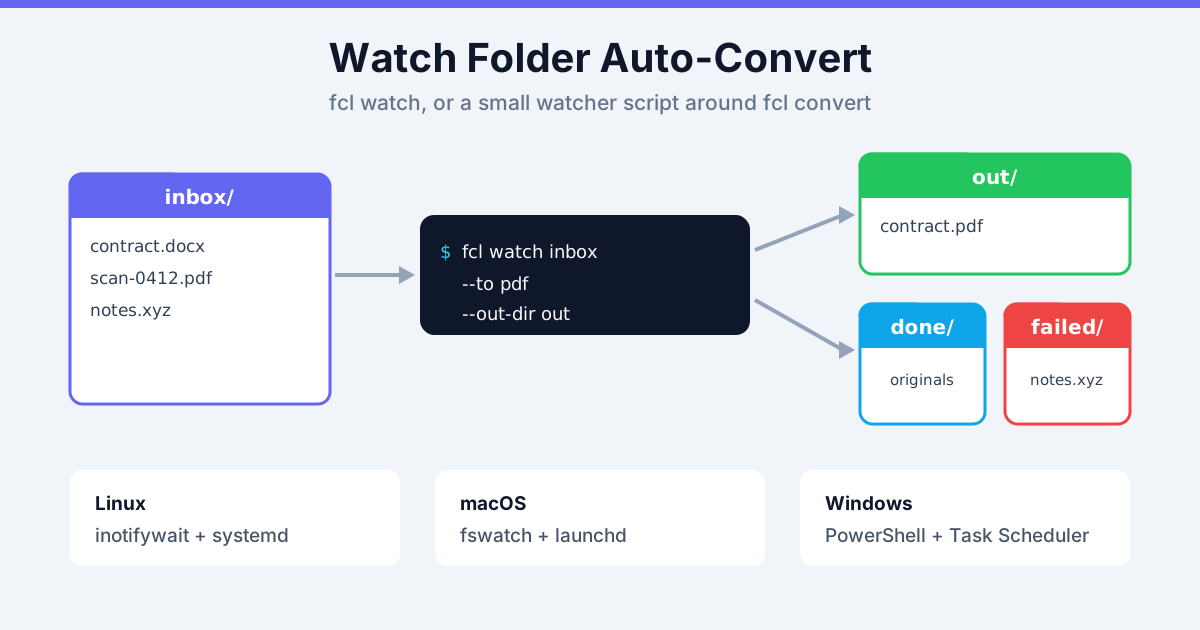
Want a watch folder that auto-converts every file dropped into it? Run fcl watch ~/inbox --to pdf --out-dir ~/converted and leave it running. Each new file in ~/inbox gets uploaded, converted and saved to ~/converted, and it keeps going until you press Ctrl+C. When you also want processed files moved out of the way, failures sorted into their own folder and rate-limited files retried, wrap fcl convert in a short watcher script instead. There's one below for Linux (inotifywait), macOS (fswatch) and Windows (PowerShell FileSystemWatcher).
We ran every command in this post while writing it: fcl 0.1.0 against the conversion service, inotifywait 4.23, fswatch 1.14 and PowerShell 7.6 on Linux. The flag reference lives on the fcl CLI reference page. If fcl isn't installed yet, start with the fcl CLI quickstart.
Auto-Convert a Watch Folder with fcl watch
$ fcl watch inbox --to pdf --out-dir out --interval 2
Watching inbox for new files to convert to pdf.
1 files already there are left alone. Press Ctrl+C to stop.
Saved to out/inv1.pdf
Saved to out/inv2.pdf
--to takes the same targets as fcl convert: pdf, word, excel, png, jpg, webp, searchable-pdf, ocr-word, txt and the rest in the formats table on the reference page. The operation is picked per file from its extension, so a folder that receives .docx and .xlsx files can watch with --to pdf and each file goes through the right conversion.
The flags that matter for a watch folder:
| Flag | What it does | Default |
|---|---|---|
--out-dir DIR | Where results go | Next to the input file |
--interval N | Seconds between folder checks | 5 |
--limit N | Stop after N successful conversions | 0 (keep watching) |
--quality, --dpi, --ocr-language, --option | Passed to every conversion | Operation defaults |
Add the global --json flag and each event becomes one JSON line on stdout, which is easy to feed into a log collector:
$ fcl --json watch inbox --to pdf --out-dir out --interval 2
{"directory":"inbox","event":"watching","existingFiles":1,"intervalSeconds":2,"to":"pdf"}
{"input":"inbox/inv1.docx","jobId":"job_c80baf3722e6","operation":"word-to-pdf","output":"out/inv1.pdf","status":"completed","warnings":[]}
A file that can't be converted produces a line with "status":"failed" and an error field, and the watcher carries on with the next file.
What fcl watch Does and Doesn't Do
We tested the edge cases. Here's how fcl watch behaves:
- Files already in the folder are ignored. Only files that appear after start are converted. Anything that arrived while the watcher was stopped counts as "already there" at the next start
- A new file waits one check before upload. Its size has to stay the same across two checks, so a file that's still being copied isn't sent half-written. With
--interval 2that's a 2-second quiet period - Only the top level of the folder is watched. Files in subfolders are skipped
- Results never trigger a second conversion. If output goes into the watched folder,
fclremembers the files it wrote and leaves them alone - Each file name is converted once per session. Drop
scan.pdfin, move it out, drop a newscan.pdfin: the second one is ignored until you restart the watcher. That matters for scanners that always write the same name - Failures aren't retried. An unsupported extension, a corrupt file or a rate-limit error is logged, and that file is skipped for the rest of the session
- Source files stay where they are.
fcl watchdoesn't move or delete anything
For a folder that receives a few uniquely named files an hour, like invoices saved from email or exports from an app, those rules are fine. If you need a done/failed split, retries, or scanner files that reuse names, use one of the scripts further down.
Watch a Scanner Folder: Scans to Searchable PDF
The most useful watch folder is often the one your scanner saves into. Point fcl watch at it with an OCR target, and every scan comes out as a PDF you can search and copy text from:
$ fcl watch scans --to searchable-pdf --ocr-language de --out-dir scans/searchable
Watching scans for new files to convert to searchable-pdf.
0 files already there are left alone. Press Ctrl+C to stop.
Saved to scans/searchable/scan1.pdf

$ pdftotext scans/searchable/scan1.pdf -
Rechnung Nr. 4711
Betrag: 120 Euro
searchable-pdf accepts PDF, PNG and JPG scans. --ocr-language takes one of 29 language codes (de, fr, ja, ar and so on). Leave it out and recognition runs in automatic mode. On the website, the same conversion is OCR PDF to searchable PDF. Want editable text instead? Watch with --to ocr-word to get DOCX files.
Mind the credits here: OCR costs 5 credits per file. A guest gets 50 credits a day, which is 10 scans. A free account gets 200 a day.
Watch Folder Limits: Credits per Minute and per Day
Every conversion spends credits, and a watch folder can spend them faster than you expect. Here's what each plan allows:
| Plan | Credits per minute | Credits per day |
|---|---|---|
| Guest (no login) | 20 | 50 |
| Free account | 50 | 200 |
| Premium | 100 | 2,000 |
| Premium Plus | 200 | 5,000 |
A Word, Excel or PowerPoint to PDF job costs 2 credits, most image format changes cost 2, PDF to image and image compression cost 1, OCR costs 5 and video conversion costs 10.
Here's what happens when a burst lands. We copied 12 DOCX files into a folder watched by fcl watch --to pdf as a guest. The first 10 converted. Files 11 and 12 failed with Rate limit exceeded. This operation costs 2 credits, you have 0 credits/min remaining. Try again in 39 seconds., and because fcl watch doesn't retry, they stayed unconverted. The --interval flag doesn't help here, because it spaces out folder checks, not uploads.
So:
- Sign in with
fcl loginfor the higher allowance. A service started under your user account picks up the stored session - Retry rate-limited files after a minute. The scripts below do this
- Watch the daily cap for OCR and video folders. A daily-limit error means waiting until the next day or moving up a plan, and retrying won't help
Linux: Watch a Folder and Convert with inotifywait
inotifywait (package inotify-tools) reports file events as they happen. This script watches <folder>/inbox, converts each finished file, moves the original to done/ or failed/, and retries rate-limited files up to three times:
#!/usr/bin/env bash
set -u
DIR=${1:?folder}; TO=${2:?target format}
mkdir -p "$DIR/inbox" "$DIR/out" "$DIR/done" "$DIR/failed"

convert_with_retry() {
  local src=$1 result
  for attempt in 1 2 3; do
    result=$(fcl --json convert "$src" --to "$TO" --out-dir "$DIR/out") && return 0
    echo "$(date -Is) $result" >>"$DIR/errors.log"
    case "$result" in
      *"Rate limit exceeded"*) sleep 60 ;;
      *) return 1 ;;
    esac
  done
  return 1
}

process() {
  local name=$1 src="$DIR/inbox/$1"
  case "$name" in .*|*.part|*.crdownload|*.tmp) return ;; esac
  [ -f "$src" ] || return
  if convert_with_retry "$src"; then
    mv -f -- "$src" "$DIR/done/"
  else
    mv -f -- "$src" "$DIR/failed/"
  fi
}

for leftover in "$DIR"/inbox/*; do
  [ -e "$leftover" ] && process "$(basename "$leftover")"
done

inotifywait -m -q -e close_write -e moved_to --format '%f' "$DIR/inbox" |
while IFS= read -r name; do
  process "$name"
done
Run it with ./watch-convert.sh ~/hotfolder pdf. What each part is for:
close_writeandmoved_tofire when a writer closes the file or a file is moved in. So you never pick up a file mid-copy, and you don't need a size-polling delay- The leftover loop converts whatever landed while the script wasn't running, which
fcl watchskips - Moving to
done/means the same name can arrive again later and it'll be converted again - Temporary names are skipped. Browsers and many sync tools write
.partor.crdownloadfiles first and rename them when finished, and the rename triggersmoved_to fcl --jsonreturns the error text in the output, so the script can tell a rate limit (wait and retry) from a bad file (give up)
In our test, 12 DOCX files dropped at once as a guest all converted. Two hit the per-minute limit, waited 60 seconds and went through on the second attempt. File names with spaces work too. A file that doesn't convert, such as an unsupported .xyz, ends up in failed/, and the reason is in errors.log.
macOS: Watch a Folder with fswatch
macOS has no inotifywait. Install fswatch with Homebrew (brew install fswatch). It reports file-system events, but it can report a file as soon as it's created, before the copy finishes. So this version waits until the size stops changing:
#!/usr/bin/env bash
set -u
DIR=${1:?folder}; TO=${2:?target format}
mkdir -p "$DIR/inbox" "$DIR/out" "$DIR/done" "$DIR/failed"

wait_until_stable() {
  local size=-1 now
  while now=$(wc -c <"$1" 2>/dev/null) && [ "$now" != "$size" ]; do
    size=$now; sleep 2
  done
}

fswatch -0 --event Created --event Updated --event MovedTo --event Renamed "$DIR/inbox" |
while IFS= read -r -d '' src; do
  name=$(basename "$src")
  case "$name" in .*|*.part|*.crdownload|*.tmp) continue ;; esac
  [ -f "$src" ] || continue
  wait_until_stable "$src"
  [ -f "$src" ] || continue
  if fcl convert "$src" --to "$TO" --out-dir "$DIR/out" 2>>"$DIR/errors.log"; then
    mv -f -- "$src" "$DIR/done/"
  else
    mv -f -- "$src" "$DIR/failed/"
  fi
done
fswatch sends several events for one file. That's harmless here: once the file has moved to done/, the [ -f "$src" ] check skips the rest. The stability check is a heuristic. A copy from a slow network share that stalls for more than 2 seconds can still be caught halfway. When you control the program that writes the files, have it write under a .part name and rename at the end. For rate-limit retries, drop in the convert_with_retry function from the Linux script.
We ran this script with fswatch on Linux, where it uses inotify. On a Mac it uses its FSEvents backend, which reports creates, updates and renames under the same event names.
Windows: Watch a Folder with PowerShell FileSystemWatcher
PowerShell can use .NET's FileSystemWatcher directly. This script waits for a create or rename event (or 5 seconds), then processes everything in inbox that's ready:
param(
  [Parameter(Mandatory)] [string] $Folder,
  [Parameter(Mandatory)] [string] $To
)
$inbox, $out, $done, $failed = 'inbox', 'out', 'done', 'failed' |
  ForEach-Object { New-Item -ItemType Directory -Force -Path (Join-Path $Folder $_) } |
  ForEach-Object FullName
$log = Join-Path $Folder 'errors.log'

function Test-Ready([string] $Path) {
  try { [IO.File]::Open($Path, 'Open', 'Read', 'None').Dispose(); $true } catch { $false }
}

$watcher = [IO.FileSystemWatcher]::new($inbox)
while ($true) {
  $null = $watcher.WaitForChanged([IO.WatcherChangeTypes]::Created -bor [IO.WatcherChangeTypes]::Renamed, 5000)
  Get-ChildItem -LiteralPath $inbox -File |
    Where-Object { $_.Name -notmatch '^\.|\.(part|crdownload|tmp)$' -and (Test-Ready $_.FullName) } |
    ForEach-Object {
      fcl convert $_.FullName --to $To --out-dir $out 2>> $log
      $target = if ($LASTEXITCODE -eq 0) { $done } else { $failed }
      Move-Item -LiteralPath $_.FullName -Destination $target -Force
    }
}
Save it as Watch-Convert.ps1 and run pwsh -File Watch-Convert.ps1 -Folder C:\Hotfolder -To pdf. Two design choices:
- The folder is swept on every wake-up, not per event.
FileSystemWatchercan drop events when many files arrive at once. Sweeping means a missed event only delays a file by 5 seconds instead of losing it, and files already sitting there at start get converted too Test-Readytries to open the file exclusively. On Windows that fails while another program still has the file open for writing, so half-copied files wait for the next pass
Use PowerShell 7 (pwsh). We ran the script with PowerShell 7.6. fcl exits with code 1 when a file fails, and that's what $LASTEXITCODE checks.
Run the Watch Folder as a Background Service
A watcher in a terminal window stops when you log out. Run it as a service instead.
Linux (systemd user service). Save this as ~/.config/systemd/user/fcl-watch.service:
[Unit]
Description=Convert scans dropped into ~/Scans to searchable PDF

[Service]
ExecStart=/usr/local/bin/fcl watch %h/Scans --to searchable-pdf --out-dir %h/Scans/searchable
Restart=on-failure
RestartSec=30

[Install]
WantedBy=default.target
Then systemctl --user enable --now fcl-watch and journalctl --user -u fcl-watch -f for the log. To use the script instead, point ExecStart at watch-convert.sh with its two arguments.
macOS (launchd). Save as ~/Library/LaunchAgents/com.example.fcl-watch.plist and load it with launchctl load ~/Library/LaunchAgents/com.example.fcl-watch.plist:
<?xml version="1.0" encoding="UTF-8"?>
<!DOCTYPE plist PUBLIC "-//Apple//DTD PLIST 1.0//EN" "http://www.apple.com/DTDs/PropertyList-1.0.dtd">
<plist version="1.0">
<dict>
  <key>Label</key><string>com.example.fcl-watch</string>
  <key>ProgramArguments</key>
  <array>
    <string>/usr/local/bin/fcl</string>
    <string>watch</string>
    <string>/Users/you/Scans</string>
    <string>--to</string>
    <string>searchable-pdf</string>
    <string>--out-dir</string>
    <string>/Users/you/Scans/searchable</string>
  </array>
  <key>RunAtLoad</key><true/>
  <key>KeepAlive</key><true/>
  <key>StandardErrorPath</key><string>/Users/you/Library/Logs/fcl-watch.log</string>
</dict>
</plist>
Windows (Task Scheduler). Register the PowerShell script to start at logon:
$action = New-ScheduledTaskAction -Execute 'pwsh.exe' -Argument '-NoProfile -WindowStyle Hidden -File C:\Scripts\Watch-Convert.ps1 -Folder C:\Hotfolder -To pdf'
Register-ScheduledTask -TaskName 'fcl watch folder' -Action $action -Trigger (New-ScheduledTaskTrigger -AtLogOn)
Run all three under your own user account, so fcl finds the session that fcl login stored in your config folder.
Troubleshooting a Watch Folder
- Nothing happens when a file lands: with
fcl watch, check it's in the top level of the folder and didn't exist before the watcher started. Withinotifywait, check the file really arrives ininbox/and not in a subfolder - A re-scanned file with the same name isn't converted: that's
fcl watchconverting each name once per session. Restart it, or use a script that moves files todone/ Rate limit exceeded: too many files in one minute for your plan. Retry after the wait time in the message, or sign in for a higher allowanceDaily limit exceeded: the day's credits are used up. Retrying won't help until tomorrowUnsupported conversion: .xyz to pdf: that extension has no route to the target. It's logged, and the scripts move it tofailed/- Half-converted or corrupt output: the file was picked up mid-copy. Raise the interval, or have the writer use a temporary name and rename at the end
- Conversions run as guest after login: the service runs as a different user, or the stored session expired. Run
fcl whoamias the service user andfcl loginagain if needed
For conversions you submit from your own code rather than a folder, the conversion API guide to jobs, polling and callbacks shows the same flow over HTTP.
Summary
For a folder that should auto-convert whatever lands in it, fcl watch <folder> --to <format> --out-dir <dir> is one command and needs no scripting. Once you need processed and failed subfolders, rate-limit retries or scanner files with repeated names, a short inotifywait, fswatch or FileSystemWatcher script around fcl convert does it. Keep the credits-per-minute limit in mind either way. Every flag is documented on the fcl CLI reference.
If you're converting a pile of existing files once rather than watching a folder, the batch file conversion guide compares the web queue, desktop apps and the CLI.
Related Tools
- fcl CLI reference:
watch,convert, every flag and format pair - Conversion API documentation: the job endpoints
fclcalls - OCR PDF to searchable PDF
- Word to PDF converter
- OCR PDF to Word