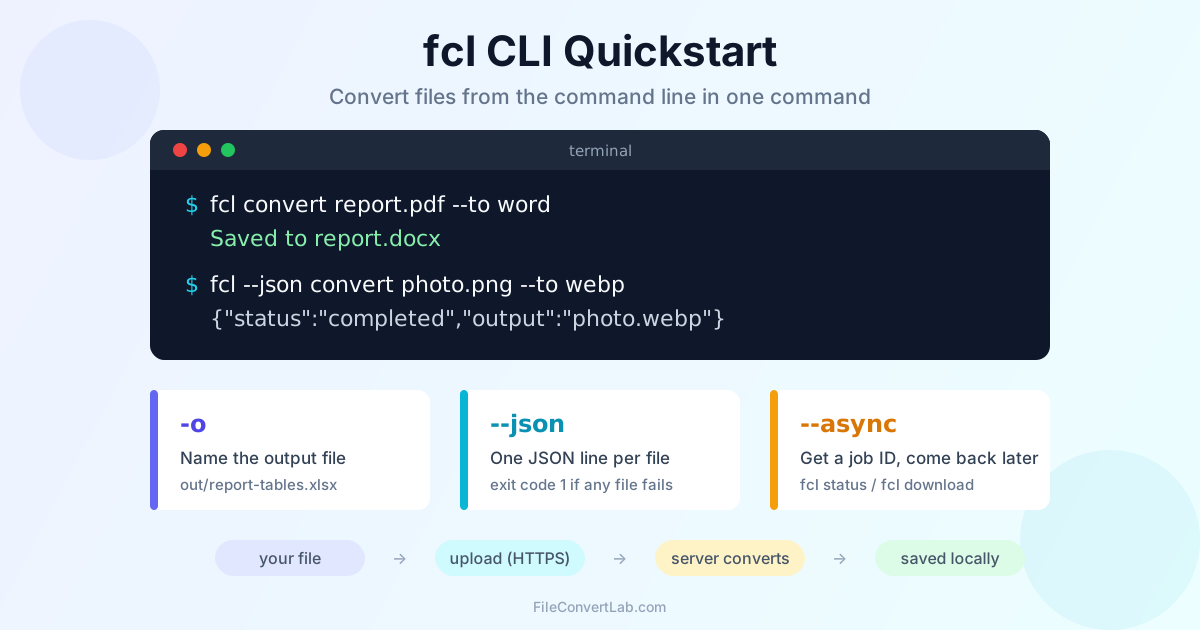
To convert files from the command line with FileConvertLab, use fcl: you give it a file and a target format, it uploads the file, waits for the conversion and saves the result next to the original. Run fcl convert report.pdf --to word and report.docx appears in the same folder. No browser tab, no download dialog. This quickstart covers install, guest mode vs fcl login, your first conversion, output paths, --json for scripts, the options worth knowing and background jobs.
Every command below was run against the service while this post was written, and the output shown is what it printed. For the complete list of commands and flags, see the fcl CLI reference. This post is the shortest path from nothing installed to a working command.
How to Install the fcl CLI
Prebuilt binaries are on the fcl CLI reference for four platforms: Linux x64, Linux ARM64, macOS on Apple Silicon and Windows x64. Each archive holds a single binary with no runtime dependencies. On Linux or macOS, download and install it in one step:
curl -L https://fileconvertlab.com/downloads/cli/fcl-linux-x64.tar.gz | tar -xz
sudo mv fcl-linux-x64/fcl /usr/local/bin/
fcl --version                                # prints: fcl 0.1.0
Swap the archive name for your platform: fcl-linux-arm64.tar.gz or fcl-macos-arm64.tar.gz. If you download the macOS archive through a browser instead of curl, macOS blocks the binary on first run; clear the flag with xattr -d com.apple.quarantine fcl.
On Windows, download fcl-windows-x64.tar.gz, unpack it with tar -xzf fcl-windows-x64.tar.gz in PowerShell, and copy fcl.exe to any folder that's listed in PATH.
The Linux builds need glibc 2.30 or later (Ubuntu 20.04, Debian 11 and newer), and the macOS build needs macOS 13 or later.
Use fcl Anonymously or Log In
You don't need an account. With no stored credentials, fcl runs as a guest, with the same limits as the website when you're not signed in:
$ fcl whoami
Not logged in (anonymous/guest mode)
Signing in raises the credit allowance. Limits per plan:
| Guest (no login) | Free account | Premium | Premium Plus | |
|---|---|---|---|---|
| Credits per minute | 20 | 50 | 100 | 200 |
| Credits per day | 50 | 200 | 2,000 | 5,000 |
| Max file size | 100 MB | 100 MB | 500 MB | 1 GB |
| Max pages per file | 200 | 100 | 500 | 10,000 |
Heavier jobs cost more credits. PDF to image and image compression cost 1 credit, Office conversions and PDF compression cost 2, OCR costs 5 and video costs 10. At 2 credits per PDF-to-Word job, a guest gets about 25 of those a day.
To use your account, run fcl login. It uses the OAuth2 device flow. The command prints a URL and a short code and tries to open the URL for you. You sign in on the website and type the code there, so your password never goes through the terminal:
$ fcl login

  To authenticate, open this URL in a web browser:

    https://fileconvertlab.com/auth/device

  Then enter this code: ABCD-1234
After you approve, fcl whoami shows your name, credits per minute and per day, maximum file size and page cap. The token goes into your user config folder (~/.config/fcl/credentials.json on Linux, with permissions set so only your user can read it) and is refreshed automatically. fcl logout clears it. On a machine where you can't open a browser, set the FCL_ACCESS_TOKEN environment variable instead of logging in.
Your First Conversion: PDF to Word from the Command Line
$ fcl convert report.pdf --to word
Saved to report.docx
That one line does four things. fcl works out the operation from the input extension plus --to (here pdf-to-word), uploads the file over HTTPS, checks the job status every two seconds while a spinner runs, and downloads the result. It's the same server-side conversion as the PDF to Word converter on the website.
--to takes short names like word, excel, pdf, png, jpg, webp, epub, txt, ocr-word or compress. The reference page lists every source and target pair. If a pair doesn't exist, fcl stops before uploading anything:
$ fcl convert photo.png --to word
photo.png: Unsupported conversion: .png to word. Run 'fcl convert --help' for supported formats.
Error: 1 of 1 files failed
The exit code is 1. For text out of an image, the target you want is --to ocr-word or --to txt.
Choose Where the Output Goes with -o
-o (or --output) names the result file. Folders that don't exist yet are created:
$ fcl convert report.pdf --to excel -o out/report-tables.xlsx
Saved to out/report-tables.xlsx
Here's how naming works:
- No
-o: the result lands next to the input, with the same name and the new extension - Same extension in and out (compression, metadata removal):
_convertedis added to the name, soreport.pdfbecomesreport_converted.pdfand the original stays untouched - Several input files:
-ois refused. Use--out-dirinstead, and each result keeps its own name:
$ fcl convert photo.png banner.png --to webp --quality 80 --out-dir web/
Saved to web/photo.webp
Saved to web/banner.webp
If one file in the list fails, the rest still convert. At the end fcl prints Error: 1 of 2 files failed and exits with 1.
Compress a PDF from the Command Line
$ fcl convert report.pdf --to compress
Saved to report_converted.pdf

$ fcl convert scan.pdf --to compress --quality 50 -o scan-small.pdf
Saved to scan-small.pdf
--quality goes from 1 to 100 and defaults to 75. Lower values give smaller files and softer images. At 100 the compression is lossless. It's the same compression as the PDF compressor on the website, and it costs 2 credits per file.
Convert PDF to JPG with the CLI
$ fcl convert report.pdf --to jpg
Saved to report.zip
A one-page PDF gives you one image, saved as report.jpeg. A multi-page PDF gives you a ZIP archive, saved as report.zip, with one image per page (report_p001.jpeg, report_p002.jpeg…). fcl takes the extension from the file the server sends back, so the name matches the content. Pass -o to choose another name.
Want every page stacked into one tall image instead? Pass pagesPerImage=0 through --option:
$ fcl convert report.pdf --to jpg --option pagesPerImage=0 -o report-long.jpg
Saved to report-long.jpg
--to png works the same way. --dpi does not change the render resolution here. It belongs to the dpi target, covered below. On the website, the matching page is the PDF to JPG converter.
Convert PNG to WebP and SVG to PNG on the Command Line
$ fcl convert photo.png --to webp --quality 70
Saved to photo.webp

$ fcl convert logo.svg --to png
Saved to logo.png
--quality applies to lossy targets (jpg, webp) and defaults to 90 for conversions. SVG to PNG renders at the size declared in the SVG: a 200×100 SVG in our test came out as a 200×100 PNG. The same PNG to WebP conversion is on the web as the PNG to WebP converter.
Key fcl Options: --quality, --dpi, --ocr-language, --option
| Flag | What it sets | Example |
|---|---|---|
--quality 1-100 | Lossy output and compression strength | fcl convert photo.jpg --to webp --quality 70 |
--dpi 36-1200 | DPI written into an image (target dpi) | fcl convert scan.png --to dpi --dpi 300 |
--ocr-language CODE | Document language for OCR (default: automatic) | fcl convert scan.pdf --to txt --ocr-language de |
--pages RANGES | Pages for split and delete-pages | fcl convert report.pdf --to split --pages 1-3,5 |
--text TEXT | Watermark text | fcl convert report.pdf --to watermark --text DRAFT |
--option key=value | Anything else an operation accepts (repeatable) | fcl convert deck.pptx --to pdf --option speakerNotes=true |
fcl checks --quality and --dpi ranges before uploading. The server checks OCR language codes, and an unknown code comes back with the full list of 29 languages:
$ fcl convert report.pdf --to txt --ocr-language xx
report.pdf: Failed to upload file: language must be one of [en, de, es, fr, it, nl, pl, pt, tr, id, vi, cs, sv, da, fi, no, hu, ro, ru, uk, el, ar, fa, hi, ja, ko, th, zh, zh-tw] or "auto", got: xx
--option values are typed: true, false and numbers go through as JSON booleans and numbers, and anything in quotes stays text (--option color="888888").
Machine-Readable Output with --json
Add --json and fcl prints one JSON object per file on stdout instead of the spinner and "Saved to" lines:
$ fcl --json convert photo.png --to webp --quality 70
{"input":"photo.png","jobId":"job_7ccaddf47189","operation":"png-to-webp","output":"photo.webp","status":"completed","warnings":[]}
A failed file prints {"error":"…","input":"report.pdf","status":"failed"}. The exit code is 0 when everything converted and 1 if anything failed, so you can check the code and hand the JSON lines to jq:
fcl --json convert *.docx --to pdf | jq -r 'select(.status=="failed") | .input'
--json works with convert and watch. status and download always print plain text.
Background Jobs: --async, fcl status and fcl download
For a big file you don't want to wait on, --async uploads it and returns right away:
$ fcl convert report.pdf --to word --async
Job created: job_c21a5e86d3cf
Operation: pdf-to-word
Status: pending

Check status:  fcl status job_c21a5e86d3cf
Download:      fcl download job_c21a5e86d3cf

$ fcl status job_c21a5e86d3cf
Job:       job_c21a5e86d3cf
Operation: pdf-to-word
Status:    completed
Input:     report.pdf
Output:    report_20260925_111631.docx

$ fcl download job_c21a5e86d3cf -o report.docx
Saved to report.docx
A job moves through pending and processing (OCR jobs can also show delegated while a separate worker handles them) to one of three final states: completed, failed or rejected. Without -o, fcl download uses the file name the server gives it, which includes a timestamp. A result can be downloaded for 24 hours after the job completes. Try to download an unfinished job and fcl stops with Job is still pending. Wait for completion before downloading.
--async is the CLI side of the job model behind the whole service. If you'd rather call it over HTTP, the endpoints, fields and webhooks are in the conversion API documentation. If a folder should convert itself as files arrive, fcl watch <dir> --to pdf does that. Its flags are on the reference page.
Troubleshooting Common fcl Errors
Unsupported conversion: .x to y: that pair doesn't exist. Check the formats table on the reference page, or pick a different--toFile not found: the path is wrong.fclchecks it before uploadingInvalid file type. Please upload a PDF file.: the operation expects a different input than the file you passed. Check the extension- A rate-limit message: you've used your credits for the minute or the day. Wait a minute, or sign in with
fcl loginfor a higher allowance File rejected: …: the file failed input checks, for example a corrupt document. The message gives the reasonwhoamisays you're not logged in after you logged in: the stored session expired. Runfcl loginagain
Summary
Converting files from the command line with fcl takes one command: fcl convert <file> --to <format>. Add -o for the name, --json for scripts and --async for long jobs. Start as a guest, and sign in with fcl login when the 50 daily credits aren't enough. Everything else is in the fcl CLI reference.
For how to choose between the web tools, desktop apps and scripts when you have a whole pile of files, see batch file conversion.
Related Tools
- fcl CLI reference: every command, flag and format pair
- Developer resources: API and CLI overview
- Conversion API documentation: jobs, polling and webhooks over HTTP
- PDF to Word converter
- PDF compressor
- PDF to JPG converter
- PNG to WebP converter