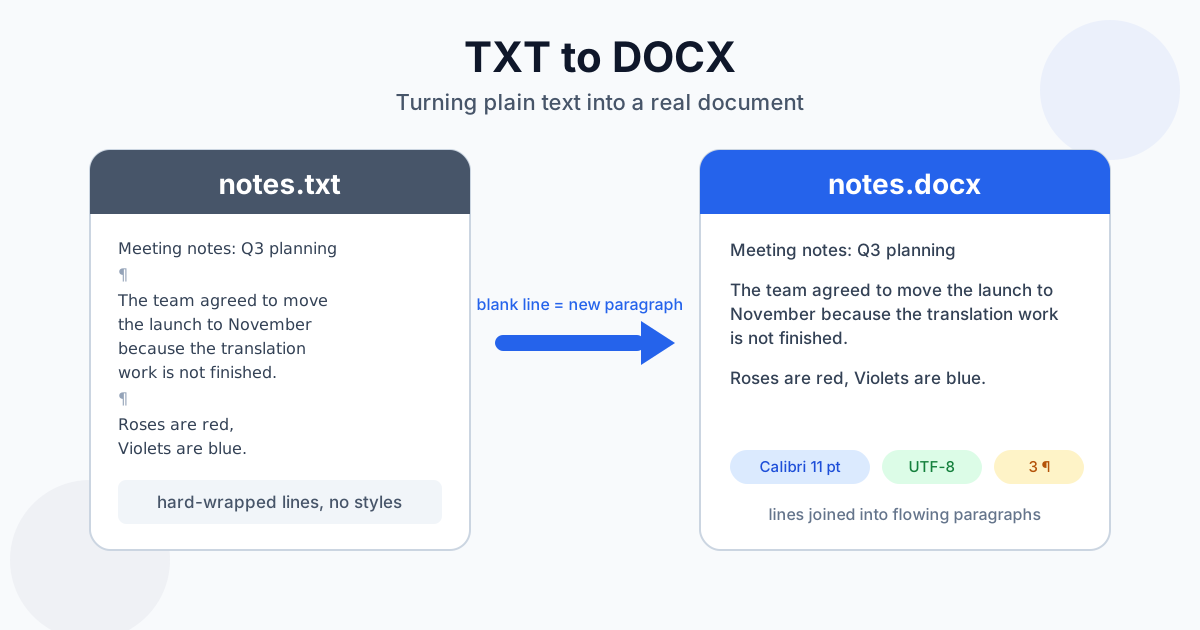
To convert a text file to Word, upload the .txt to the TXT to DOCX converter and download the .docx — or open the .txt in Word and use Save As → Word Document. The two routes don't give the same document: the converter joins hard-wrapped lines into real paragraphs and sets the text in Calibri 11 pt, while Word keeps every line as a separate paragraph. Which one you want depends on what's in the file, and that's what this guide sorts out.
How to Convert a Text File to Word (TXT to DOCX)
- Open the TXT to DOCX converter
- Drop your .txt file — or several; they convert one after another in a queue
- Download the .docx, or Download all as ZIP for a batch
- Open it in Word, Google Docs, LibreOffice Writer or Pages
The conversion runs on our servers over HTTPS. A single file can hold up to 5 million characters and become up to 100,000 paragraphs; past that, the converter asks you to split the file. Guests can upload up to 100 MB per file, which no normal text file comes near.
What the Converter Does With Your Text
We wrote a test file that mixes the usual suspects — a title, a paragraph hard-wrapped at about 60 characters, a hyphen list, a tab-separated table, an indented code snippet and a two-line verse — converted it, and read the DOCX's XML.
| In the TXT | In the DOCX |
|---|---|
| A line followed by a blank line | Its own paragraph |
| Three hard-wrapped lines of one paragraph | One paragraph; the line breaks become spaces |
| One or several blank lines | One paragraph break — no empty paragraphs |
| List lines with no blank lines between them | Merged into one paragraph: "Action items: - Anna… - Marc…" |
| Tab-separated table rows | Merged into one paragraph; the tabs are kept |
| Indentation at the start of a line | Removed |
| Two lines of verse | One line: "Roses are red, Violets are blue." |
| Font | Calibri 11 pt on every paragraph |
| Headings, bold, lists | None — plain text has nothing to take them from |
Windows (CRLF) and Mac/Linux (LF) line endings give the same result.
The rule is simple: a blank line starts a new paragraph; a single line break doesn't. That's exactly right for prose that was wrapped at 72 or 80 characters — exported emails, notes from a terminal editor, public-domain book texts. You get flowing paragraphs instead of ragged lines, which is the hardest thing to fix by hand in Word.
It's wrong for text where every line matters: lists, addresses, tables, poems and code. Those need one extra step before converting.
How to Keep Lists, Addresses and Tables Intact
Put a blank line after every line you want to keep as its own paragraph. You don't have to do it by hand:
- Notepad++ or VS Code: select the list, open Replace with regular expressions on, replace
\nwith\n\n - Any editor: press Enter once more after each list item, address line or verse line
- Or skip the converter for that file: open it directly in Word (below), which keeps every line
Tab-separated tables are the one case where the direct route is clearly better. Word keeps each row as its own paragraph with the tabs intact, and Insert → Table → Convert Text to Table turns them into a real table in one step.
Encoding: Which Text Files Read Correctly
Garbled letters in the output are almost always an encoding problem, not a conversion bug. We saved short test texts in each encoding below and converted them one by one:
| Saved as | Result |
|---|---|
| UTF-8, with or without BOM | Correct |
| UTF-16 with BOM (Notepad's "UTF-16 LE") | Correct |
| Windows-1252 / ISO-8859-1 (café, naïve, €, curly quotes) | Correct |
| Windows-1251 (Russian) | Correct |
| ISO-8859-2 (Polish, Czech) | Correct |
| KOI8-R (old Russian Unix files) | Correct |
| Shift-JIS (Japanese) | Correct |
| UTF-16 without BOM | Correct |
UTF-8 always works, and it's what current Notepad and TextEdit save by default. The older encodings are recognised from the text itself, which needs a sentence or two to go on: a file of just a few words, such as a lone "Zażółć gęślą jaźń" in ISO-8859-2, can still come out wrong. Re-save a file like that as UTF-8:
- Notepad (Windows): File → Save as → Encoding: UTF-8 → Save
- TextEdit (Mac): if the file opens garbled, set Settings → Open and Save → Plain Text File Encoding to the right encoding, reopen it, then save with Unicode (UTF-8)
- VS Code: click the encoding in the status bar → Reopen with Encoding (pick the real one) → click again → Save with Encoding → UTF-8
- Notepad++: Encoding → Convert to UTF-8 → Save
Opening a TXT File Directly in Word
Word opens plain text itself: File → Open, switch the file filter to All Files or Text Files, pick the .txt. If Word isn't sure about the encoding, it shows a File Conversion dialog — choose Other encoding, pick the right one and watch the preview until the accents look right. Then File → Save As → Word Document (*.docx). Until you do that, you're still editing a .txt, and everything you format disappears on save.
What you get is different from the converter:
| Open in Word | TXT to DOCX converter | |
|---|---|---|
| Each line of the TXT | Its own paragraph | Joined until the next blank line |
| Hard-wrapped prose | Stays broken into short lines | Becomes flowing paragraphs |
| Lists, tables, verse | Kept line by line | Merged unless separated by blank lines |
| Encoding | You pick it in the dialog | Detected automatically for the encodings above |
| Needs Word installed | Yes | No |
Rule of thumb: prose → converter; line-by-line content → Word directly.
Converting TXT to Word With Google Docs
No Word at all? Upload the .txt to Google Drive, right-click it → Open with → Google Docs, then File → Download → Microsoft Word (.docx). Like Word, Google Docs keeps every line as a paragraph, so hard-wrapped text stays ragged.
TXT to DOCX, RTF or ODT?
We also have TXT to RTF and TXT to ODT, and they behave differently from the DOCX converter. Running the same test files through them showed:
- Every line stays its own paragraph, in a monospaced "Preformatted Text" style — useful for code, logs and poetry, where layout carries meaning
- They read UTF-8 only. Our Windows-1252 test file came out as "Caf�, na�ve", so re-save as UTF-8 first
Pick DOCX for anything that should read like a document and go to Word users. Pick ODT if the file will live in LibreOffice (see ODT to DOCX for moving it to Word later). RTF only makes sense for an old program that can't read DOCX; RTF vs DOCX explains why, and the RTF to TXT guide covers the way back to plain text.
After the Conversion: First Steps in Word
The DOCX is a clean starting point, not a finished document. Three quick wins:
- Mark the headings. Click a title line and pick Heading 1 or Heading 2 from the Styles gallery; the Navigation Pane and a table of contents come for free
- Change the font the right way. Calibri 11 pt is set directly on the text, so editing the Normal style alone won't change it. Press Ctrl+A then Ctrl+Space (Cmd+A, Ctrl+Space on Mac) to clear it, and the Normal style takes over
- Add space between paragraphs. The file sets none, so paragraphs sit tight against each other. Set it once in the Normal style (Paragraph → Spacing After) instead of typing blank lines
The full walkthrough — heading styles, lists, cleaning line breaks, tables, page numbers — is in how to format plain text in Word. For what's inside the file you just made, see the DOCX format guide.
Troubleshooting TXT to DOCX
Accented letters show as odd symbols. The file is probably a few words in an older encoding, too little text to recognise it from. Re-save as UTF-8 and convert again.
My list turned into one long line. The list items had no blank lines between them. Add them, or open the file directly in Word.
The document is one giant paragraph. Your TXT has no blank lines at all — common with text copied from a chat or a PDF. Open it in Word instead, or add blank lines where paragraphs should break.
"This text file holds more characters than this converter handles." Split the file into parts under 5 million characters each and convert them together, then download them as one ZIP.
I need plain text again. DOCX to TXT strips the formatting back out. Anything you added in Word — headings, bold, tables — is lost in that direction.
Summary
The TXT to DOCX converter turns hard-wrapped plain text into proper paragraphs in Calibri 11 pt and recognises UTF-8, UTF-16 and the common older encodings on its own. Separate list items with blank lines first, or open line-by-line files straight in Word. For prose, the TXT to DOCX converter saves you the one job that's tedious by hand: rejoining broken lines.
Related Tools
- TXT to DOCX converter — plain text to an editable Word document
- TXT to RTF — keeps each line, monospaced
- TXT to ODT — for LibreOffice users
- DOCX to TXT — the reverse direction
- TXT converter hub — every format a text file converts to