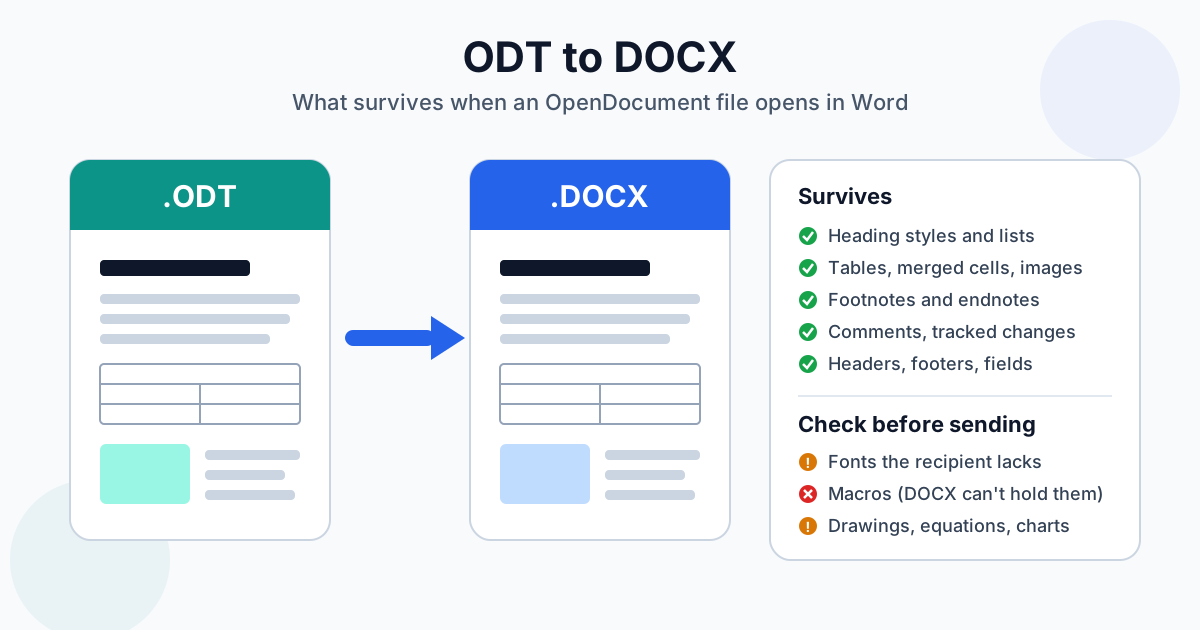
Want to convert ODT to Word without losing formatting? Word opens most .odt files directly, and a converted DOCX keeps far more than people expect: headings, lists, tables with merged cells, footnotes, comments and tracked changes all came through in our test. What breaks is narrower — fonts the recipient doesn't have, macros, and anything drawn with the office suite's own tools. If you just need the file in Word format, the ODT to DOCX converter does it in one step; the rest of this guide is about what to check before you hit send.
Should You Open the ODT in Word or Convert It First?
Both work. Pick based on where the file goes next:
- You only need to read or lightly edit it yourself → open it in Word with File → Open. Current Word versions read OpenDocument Text without any add-on
- Someone asked for a .docx — a job portal, a publisher, a client's document system → convert first. An upload form that checks the extension won't accept .odt, no matter how well Word would open it
- You'll edit with Track Changes and send it back → convert first and work in the DOCX. Word asks every time you save an .odt whether to keep the format, and a file that bounces between formats picks up small differences each round
- The other person just needs to read it → skip Word entirely and send a PDF made with ODT to PDF. A PDF looks the same on every machine, fonts included
Microsoft publishes its own support article listing the differences between the .odt and .docx formats. It's worth a skim if your documents use unusual features, but for everyday letters and reports the list below covers what actually happens.
What Survives ODT to DOCX: Our Test File
We built a two-page test document in Writer, saved it as ODT, converted it with our converter and opened the resulting DOCX's XML to see what Word receives. The document had:
| Element in the ODT | What the DOCX contains |
|---|---|
| Heading 1 / Heading 2 | Word's built-in Heading 1 and Heading 2 styles, so the Navigation Pane works |
| Bold, italic, coloured text | Kept, including the exact colour |
| Custom paragraph style with shading and a left border | A named style with the same shading and border |
| Bulleted list with a nested level | A real Word list with two levels, not typed bullets |
| Table with a merged header cell and shaded cells | A Word table; the merge and the cell shading are kept |
| Inline image | Embedded as a picture |
| Text frame | A Word text box |
| Two-column section | A Word section set to two columns |
| Footnote and endnote | Real Word footnote and endnote |
| Comment | A Word comment, author name kept |
| Tracked insertion and deletion | Word tracked changes, both authors kept |
| Header, and footer with "Page X of Y" | Word header and footer with live PAGE and NUMPAGES fields |
| Table of contents, date field, word count, cross-reference | Live Word fields — press F9 to update them |
| Hyperlink | Clickable link |
That's the file itself. We didn't render it in every Word version, so treat the table as "the structure arrives intact", and still look at the document in Word before sending it anywhere important.
Not in our test: equations, charts, drawing shapes, form controls and master documents. These are the parts most likely to need attention — see the next section.
What Breaks When ODT Files Open in Word
Fonts the Recipient Doesn't Have
The DOCX keeps the font names from the ODT exactly: in our test, Liberation Serif, Liberation Sans and a third-party font stayed as they were. Word then displays whatever the recipient has installed, and a missing font gets swapped.
The common case is less painful than it sounds. Liberation Serif, Liberation Sans and Liberation Mono have the same character widths as Times New Roman, Arial and Courier New, and Carlito and Caladea match Calibri and Cambria. Switch to the Microsoft equivalent and your line and page breaks stay put. A decorative or third-party font has no such twin, so text reflows.
Two ways to avoid surprises:
- Before converting, change the fonts in Writer to Times New Roman, Arial or Calibri if the recipient uses Windows and you have those fonts
- Or embed the fonts in the ODT (File → Properties → Font tab in Writer), then send a PDF if the look matters more than editability
Macros
Macros never make it into a DOCX. The format can't hold them — macro-enabled Word files use a different extension, .docm. On top of that, Writer macros are written in Basic, and Word runs VBA, so even a macro-enabled file wouldn't run them. If a document depends on a macro, rewrite it in VBA or do the job by hand in Word.
Drawings, Equations and Charts
Shapes drawn with Writer's drawing toolbar, formula objects and embedded charts go through translation layers that Word handles differently. We didn't measure these, so check them one by one. If an equation or chart comes out wrong, the reliable fix is to paste it into the ODT as an image before converting — you lose editability of that one object, not the rest of the document.
Page Styles and Numbering Restarts
Writer uses page styles; Word uses sections. A simple document with one page style converts cleanly. Documents that switch page styles mid-way — a landscape page, a different first page, numbering that restarts in an appendix — become several Word sections. Page through the DOCX and confirm each section's orientation and page-number start.
How to Convert ODT to Word Without Losing Formatting
- Open the ODT in Writer once and fix fonts (see above). This one step prevents most reflow
- Accept or reject tracked changes if the recipient shouldn't see your edit history. They survive conversion, so they'll show up in Word
- Upload the file to the ODT to DOCX converter. You can select several ODT files at once — they go into a queue, convert one after another, and you can download each result or grab them all with "Download all as ZIP"
- Open the DOCX in Word and check headings in the Navigation Pane, tables, images, and any page with a different layout
- Press Ctrl+A, then F9 to refresh fields, so the table of contents and page references match Word's pagination
The file travels over HTTPS; what happens to uploads afterwards is set out in our privacy policy. Guests can upload files up to 100 MB, which is far more than any text document needs.
Other Ways to Get a DOCX
Save As Word in Writer
In Writer, choose File → Save As and pick "Word 2007-365 (.docx)" from the file type list. When the dialog asks, choose to keep the Word format. To make DOCX the default for every new document, set it under Tools → Options → Load/Save → General → "Always save as".
The online route is for when you don't have Writer on the machine in front of you — a work laptop, a borrowed computer, a phone.
Google Docs
Upload the .odt to Google Drive, open it with Google Docs, then File → Download → Microsoft Word (.docx). This goes through Google's own document model, so it's a double conversion: anything Google Docs doesn't support — text frames, some page styles, section columns — is simplified on the way in and stays simplified on the way out. Good for simple files, weaker for complex layouts.
When RTF Makes More Sense
If the recipient runs a very old word processor or a system that only imports RTF, ODT to RTF is the fallback. RTF keeps basic formatting but drops more than DOCX does; our RTF vs DOCX comparison lists the differences.
Sending an ODT to a Word User: Quick Checklist
- They'll edit it → DOCX, fonts changed to Microsoft equivalents
- They'll only read or print it → PDF
- They'll send it back → DOCX, and keep your ODT as the master copy
- It contains macros → DOCX without the macros, plus a note on what the macro did
- Several files → select them all at once and download the ZIP
Common Issues After ODT to DOCX Conversion
Text looks different but nothing is missing. It's the font. Select all, look at the font box — if it shows a Liberation font the recipient doesn't have, switch to the Microsoft twin.
Table of contents shows old page numbers. Fields keep the values from the source until updated. Click the TOC and press F9.
Comments or edit history appeared that you forgot about. They were in the ODT. Remove them in Writer before converting, or in Word under Review → Delete All Comments and Accept All Changes.
A landscape page turned portrait. Check the section's orientation in Layout → Orientation; page style changes don't always map one to one.
Word keeps asking about the format when you save. You opened the .odt itself rather than a converted file. Save As → Word Document once, or convert first, and the prompt stops.
About the ODT Format
ODT is the OpenDocument Text format, an open ISO standard and the default in Writer. If you want to know more about the format itself and which programs open it on each platform, see our ODT format guide. For the Word side, the DOCX format guide explains what's inside a .docx. Going the other way, from Word to OpenDocument, is a job for DOCX to ODT.
Summary
For most documents, converting ODT to DOCX is safe: structure, notes, comments and tracked changes all arrive. The things to fix are fonts without a Microsoft equivalent, macros that DOCX can't carry, and drawn objects you should check by eye. Swap the fonts first, then run the file through the ODT to DOCX converter.
Related Tools
- ODT to DOCX converter — OpenDocument to Word, several files at once
- ODT to PDF — for recipients who only need to read the document
- ODT to RTF — for legacy word processors
- All ODT tools — every conversion from OpenDocument Text
- DOCX to ODT — the reverse direction