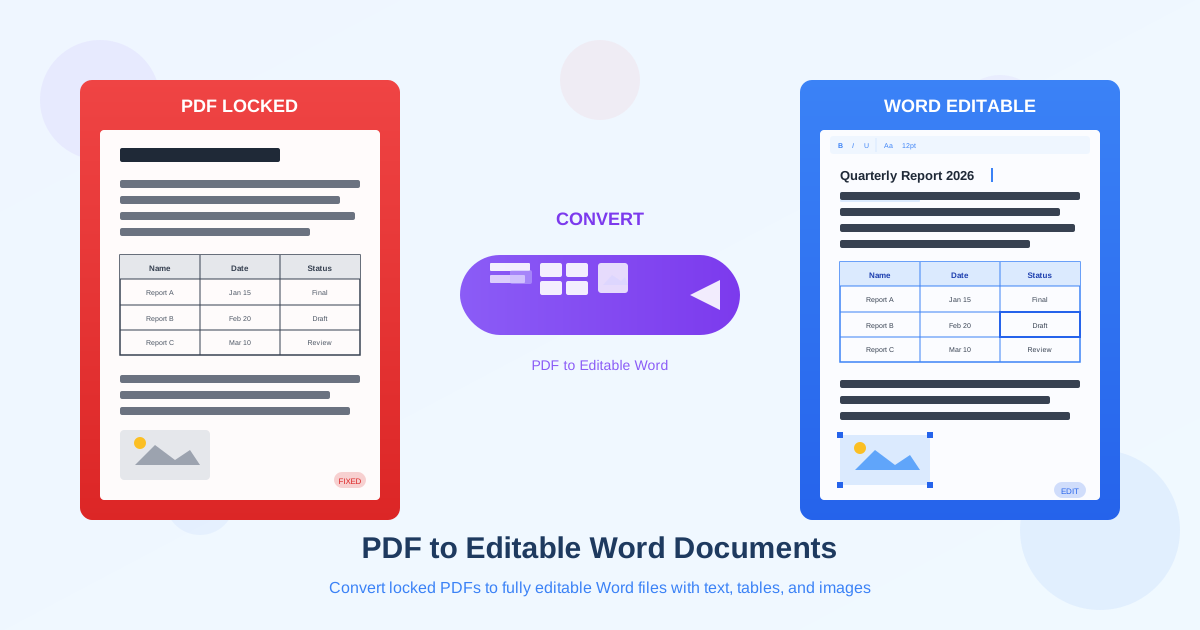
You have a PDF and you need to edit it. Maybe it is a contract you need to revise, a report you want to update with new data, or a resume you want to restructure. The problem is that PDFs were designed to be read and printed, not edited. Converting a PDF to an editable Word document is the most practical way to unlock that content for real editing — changing text, reformatting paragraphs, updating tables, and reworking layouts. This guide covers everything you need to know about turning PDFs into fully editable Word files: what types of PDFs exist, what transfers well during conversion, when you need OCR, and how to choose between standard and AI-powered conversion for the best results.
Digital vs Scanned PDFs: Why It Matters
Before you convert a PDF file to Word, you need to understand what kind of PDF you are working with. This single distinction determines which conversion method will work and what quality you can expect.
Digital (Text-Based) PDFs
Digital PDFs are created directly from applications like Microsoft Word, Google Docs, LaTeX, Adobe InDesign, or web browsers. They contain actual text data — characters, fonts, positions, and formatting information stored as structured data. When you open a digital PDF and select text with your cursor, you can highlight individual words and copy them. This is the key test: if you can select text in the PDF, it is digital, and the converter can extract that text directly without any intermediate step.
Digital PDFs produce the best conversion results because the converter reads the actual text, font information, and layout coordinates. The text does not need to be recognized — it is already there as machine-readable data. Use the PDF to Word converter directly for these documents.
Scanned (Image-Based) PDFs
Scanned PDFs are created by scanning paper documents — using a flatbed scanner, a multifunction printer, or a phone camera app. Each page is stored as an image (JPEG or TIFF embedded in the PDF wrapper). The PDF looks like a document, but it contains no text data at all. Try selecting text:
either you cannot select anything, or the selection grabs the entire page as a single image block.
To convert a scanned PDF to an editable Word file, you need OCR (Optical Character Recognition). OCR analyzes the page images, identifies letters and words, and produces machine-readable text that the converter can then format into a Word document. Use OCR PDF to Word conversion for scanned documents. Scan quality directly affects accuracy: 300 DPI with high contrast produces the best OCR results.
Hybrid PDFs
Some PDFs contain a mix of digital and scanned content. A common example is a report where the main text is digital but includes scanned appendices, or a document where a cover page is an image while the body is text. Hybrid PDFs need a converter that can detect which pages require OCR and which can be extracted directly.
AI-powered PDF to Word conversion handles hybrid documents by automatically detecting page types and applying the appropriate extraction method for each.
What Transfers Well During Conversion
Not every element in a PDF translates equally well into a Word document. Knowing what to expect helps you plan for cleanup and choose the right conversion method when you convert PDF to editable Word files.
Text and Paragraphs
Body text is the most reliable element in PDF to Word conversion. The converter reads each text block, identifies its font, size, color, and weight (bold, italic), and creates corresponding Word paragraphs. Line spacing, paragraph spacing, and indentation are mapped to Word styles. Simple single-column text documents convert with near-perfect accuracy. Multi-column layouts are more challenging because Word handles columns differently than PDF — the converter must determine reading order and column boundaries, which can occasionally produce misplaced text blocks.
Tables
Tables with visible borders convert well: the converter detects cell boundaries from line positions and maps them to Word table cells. Simple data tables, price lists, and schedules with consistent column widths produce clean Word tables. Complex tables with merged cells, nested headers, or irregular column widths are harder — the converter may misalign columns or split merged cells.
For documents with important tables, compare the Word output against the original PDF carefully.
If tables are your primary concern, consider converting to Excel instead using the PDF to Excel converter.
Images and Graphics
Embedded raster images (photos, screenshots, logos) transfer reliably from PDF to Word. The converter extracts them at their original resolution and places them in the Word document with similar positioning. Vector graphics (charts, diagrams, decorative elements) may simplify during conversion because Word and PDF handle vector paths differently. Complex layered graphics with transparency effects are the most likely to change appearance. For image-heavy documents, verify that all images are present and correctly positioned after conversion.
Fonts and Typography
If the PDF embeds its fonts (most digital PDFs do), the converter can identify the exact font used and apply it in the Word document. When the font is available on your system, the Word file looks identical to the PDF. When the font is not available, Word substitutes a similar font, which may change character widths and line breaks. Standard fonts (Arial, Times New Roman, Calibri) transfer without issues. Custom or proprietary fonts are more likely to be substituted.
Lists, Headers, and Footers
Bullet lists and numbered lists transfer well when they use standard markers. Custom list styles may convert to plain text with manual indentation. Headers and footers are detected and mapped to Word header/footer areas, though their exact positioning may shift slightly. Page numbers are usually preserved. Hyperlinks embedded in text are generally maintained as clickable links in the Word output.
When OCR Is Needed for PDF to Word
OCR is not a universal tool — it solves a specific problem. Understanding when you actually need OCR prevents wasted time and avoids potential accuracy reduction on digital PDFs.
You Need OCR When
- The PDF was created by scanning a paper document (flatbed scanner, phone camera, fax)
- You cannot select individual words or characters in the PDF viewer
- Copying text from the PDF produces no text or garbled characters
- The PDF contains images of typed or printed pages rather than digital text
- The document was originally a physical form, letter, book, or printed report
You Do Not Need OCR When
- You can select and copy text from the PDF normally
- The PDF was exported from Word, Google Docs, LaTeX, or a design application
- The PDF was generated by a web browser (print to PDF, save as PDF)
- Search within the PDF viewer finds specific words and phrases Applying OCR to a digital PDF is counterproductive. The OCR engine would re-recognize text that is already perfectly readable, potentially introducing errors where none existed. Always check whether your PDF is digital or scanned before choosing your conversion path.
Tips for Better OCR Results
When you do need OCR to convert a scanned PDF to Word, these factors affect accuracy:
- Scan resolution — 300 DPI is the minimum for reliable OCR. Below 200 DPI, character recognition degrades significantly
- Contrast and clarity — sharp black text on a white background produces the best results. Faded text, colored backgrounds, and shadows reduce accuracy
- Page orientation — skewed or rotated pages should be straightened before or during OCR. Most OCR engines handle slight skew automatically, but heavy rotation causes errors
- Language selection — ensure the OCR engine is set to the correct document language for optimal character recognition
- Font size — very small text (below 8pt) and very large decorative fonts are harder for OCR to process accurately
Standard vs AI-Powered PDF to Word Conversion
Two fundamentally different approaches exist for converting PDF to editable DOCX files.
Each has strengths suited to different document types.
Standard Geometric Conversion
Standard conversion analyzes the geometric structure of the PDF: text coordinates, font metrics, line positions, and image placements. It maps these coordinates to Word paragraphs, tables, and image anchors. This approach is fast, deterministic, and works excellently for text-heavy documents with straightforward layouts — reports, letters, articles, and simple forms.
Standard conversion struggles with complex layouts: multi-column pages where reading order is ambiguous, documents with text boxes overlapping body text, and pages where decorative elements interfere with text extraction. The standard PDF to Word converter is your best starting point for most documents.
AI-Powered Conversion
AI conversion uses trained models that understand document structure semantically. Rather than just reading coordinates, the AI recognizes what each element is: a heading, a paragraph, a table cell, a caption, a footnote. It understands reading order in complex layouts, identifies table structures even without visible borders, and handles mixed content pages (text, images, tables, and charts on the same page) more accurately.
Use AI-powered PDF to Word conversion when standard conversion produces unsatisfactory results, for documents with complex layouts, or for hybrid PDFs that mix digital and scanned pages. AI conversion handles all three PDF types (digital, scanned, hybrid) with a single upload.
| Feature | Standard Conversion | AI Conversion |
|---|---|---|
| Simple text documents | Excellent | Excellent |
| Multi-column layouts | Can misorder text | Understands reading order |
| Tables with borders | Good | Excellent |
| Borderless tables | Often missed | Detected by pattern |
| Scanned PDFs | Not supported | Built-in OCR |
| Hybrid PDFs | Partial (text pages only) | Full support |
| Processing speed | Fast | Moderate |
| Best for | Clean text documents | Complex or mixed layouts |
Formatting Preservation Tips
Getting the best possible results when you convert PDF to Word often comes down to preparation and post-processing. These practical tips help you preserve formatting and minimize manual cleanup.
Before Conversion
- Check if the PDF is digital or scanned — try selecting text. This determines your conversion path and expected quality
- Note the document complexity — simple single-column text? Multi-column with images? Tables everywhere? Complex documents benefit from AI conversion
- Identify critical elements — know which parts of the document are most important: the text body, the tables, the images, or all of them equally
- Check page count — large documents (100+ pages) may benefit from splitting into sections before conversion for easier review
After Conversion
- Compare side by side — open both the original PDF and the Word file, and check each page for missing content, shifted elements, or formatting changes
- Check fonts — if text looks different, the original font was likely substituted. Install the missing font or choose an acceptable alternative
- Verify tables — check that table cells are aligned correctly, merged cells are preserved, and no data shifted between columns
- Review images — confirm all images are present, positioned correctly, and at acceptable quality
- Fix page breaks — page break positions may shift during conversion. Add or remove manual page breaks as needed
- Clean up styles — the converter may create many custom styles. Use Word's Styles panel to consolidate them if you plan to edit the document extensively
Common Use Cases for PDF to Editable Word
Understanding typical scenarios helps you set the right expectations and choose the optimal conversion approach for your specific document.
Contracts and Legal Documents
Legal documents are typically text-heavy with numbered clauses, defined terms, and minimal graphics.
These convert well with standard conversion. Pay attention to numbered paragraph formatting — legal numbering schemes (1.1, 1.1.1, etc.) sometimes lose their hierarchy. Headers and footers with confidentiality notices usually transfer but may need repositioning.
Academic Papers and Reports
Research papers with two-column layouts, footnotes, citations, and embedded figures benefit from AI conversion. Standard conversion can struggle with two-column text reading order. Footnotes may end up inline rather than at the page bottom. Mathematical equations rarely convert well from PDF to Word regardless of the method — expect to recreate equations manually or with an equation editor.
Resumes and CVs
Resumes use varied formatting: multiple columns, icons, colored sections, and creative layouts.
Simple text-based resumes convert cleanly. Heavily designed resumes with graphic elements, sidebars, and custom fonts may lose their visual design during conversion. For design-heavy resumes, consider editing the PDF directly using a PDF tool rather than converting to Word.
Business Proposals and Presentations
Proposals often combine text, tables, charts, and images in designed layouts. If the proposal originated in Word, converting back usually works well. If it was designed in InDesign or a similar tool, expect some layout differences. For presentation-style PDFs (one main idea per page with large text and graphics), converting to PowerPoint may be more appropriate than converting to Word.
Scanned Paper Documents
Old contracts, archived letters, printed forms, and historical documents all exist as scanned PDFs.
Use OCR-based PDF to Word conversion for these. The output quality depends heavily on scan quality. High-resolution scans of cleanly printed documents produce good results. Faded documents, handwritten annotations, or documents with stamps and signatures will need manual corrections in the converted Word file.
PDF to DOCX vs PDF to DOC: Which Format
When you convert PDF file to DOCX, you are using the modern Office Open XML format that has been the standard since Microsoft Word 2007. DOCX files are smaller, more reliable, and support all modern Word features. The older DOC format (Word 97-2003) has compatibility advantages with very old systems but lacks support for newer formatting options. Unless you specifically need to share files with someone using Word 2003 or earlier, always choose DOCX. Every major word processor — Microsoft Word, Google Docs, LibreOffice, and Apple Pages — supports DOCX natively.
For a detailed comparison, see the PDF to DOCX vs DOC format guide.
Troubleshooting Common Conversion Issues
Even with the best converter, certain PDF characteristics can cause issues. Here are the most common problems and how to resolve them.
Text Appears as Images
If the Word file shows page images instead of editable text, your PDF is likely scanned or image-based. The converter could not find text data to extract. Solution: use OCR conversion instead, or AI conversion which includes built-in OCR for scanned pages.
Wrong Reading Order
Text blocks appear in the wrong sequence — column two before column one, or sidebar text mixed into the main body. This happens with multi-column PDFs where the reading order is ambiguous from coordinates alone. AI conversion usually resolves this by understanding semantic document structure rather than relying solely on position.
Missing or Substituted Fonts
The Word file uses different fonts than the original PDF, causing text to reflow and line breaks to shift. This happens when the PDF uses fonts not installed on your system. Install the required fonts if you have them, or accept the substitution and manually adjust line breaks and page breaks where needed.
Excessive Spacing or Gaps
Large gaps appear between paragraphs or within text blocks. The converter may interpret PDF text positioning literally, creating exact spacing that does not translate well to Word's flow model.
Select the affected paragraphs, open Paragraph settings, and adjust spacing before/after to normal values (typically 0pt before, 6-12pt after for body text).
Choosing the Right Conversion Path
With three conversion methods available, here is a decision tree to guide your choice when you need to convert PDF to Word file:
- Can you select text in the PDF? If no, you have a scanned PDF — use OCR PDF to Word or AI conversion
- Is the layout simple? Single column, basic formatting, standard tables — use standard conversion
- Is the layout complex? Multi-column, mixed content, borderless tables, or hybrid PDF — use AI-powered conversion
- Are tables the main content? Consider PDF to Excel instead if you need to work with tabular data in a spreadsheet
- Unsatisfied with the result? Try a different method. Standard conversion failing? Switch to AI. Always compare the output against the original before deciding
Related Resources
- PDF to Word Converter — standard geometric conversion for digital PDFs
- OCR PDF to Word — conversion with text recognition for scanned documents
- AI PDF to Word — AI-powered conversion for complex and hybrid PDFs
- PDF to Excel Converter — when your PDF content is primarily tables
- All PDF Tools — complete set of PDF conversion and editing tools
- Compress PDF — reduce PDF file size before or after conversion
- PDF to Word Formatting Guide — deep dive into formatting preservation
- Scanned PDF to Word OCR Guide — detailed OCR conversion walkthrough ### Ready to Convert Your PDF? Choose the conversion method that matches your PDF type for the best editable Word result. PDF to Word OCR PDF to Word AI PDF to Word