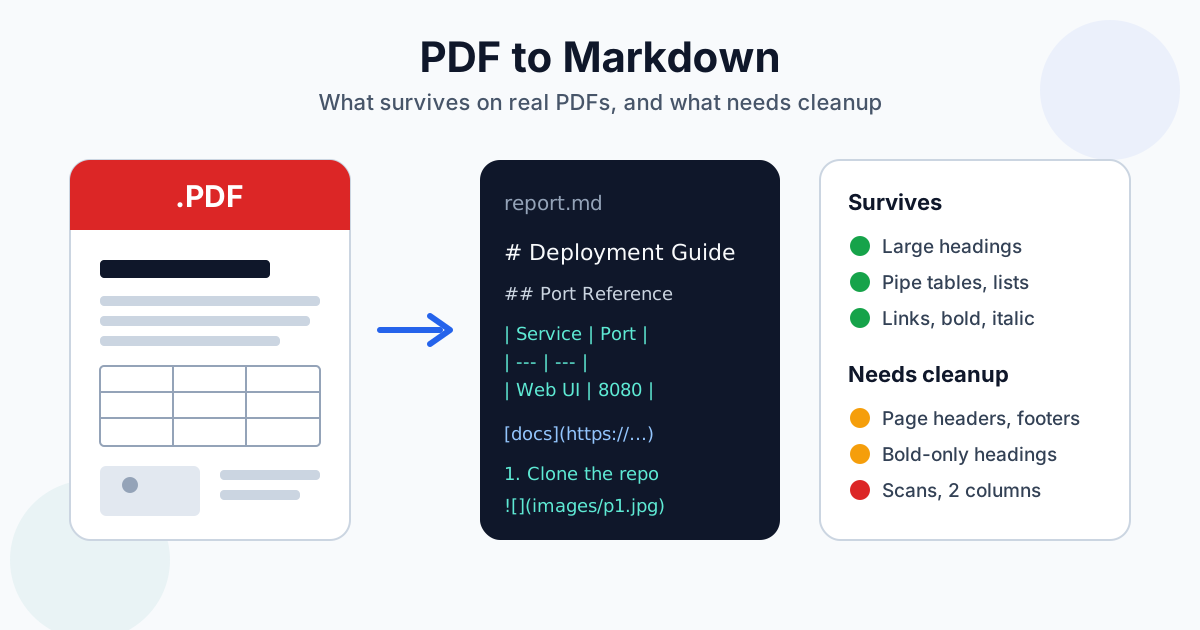
Converting a PDF to Markdown works well for text PDFs with clear, large headings and simple tables: headings, lists, pipe tables, code blocks, links, bold and italic come through, and wrapped lines join back into whole paragraphs. Pictures come along in an images/ folder, linked where they sat on the page. What doesn't make it: the text of scanned pages and the reading order of two-column layouts, and running headers and footers stay in the text. Our PDF to Markdown converter gives you a .md file in one step. This guide shows what we measured on test PDFs and how to clean up the result for an LLM prompt, a RAG index or a docs repository.
How to Convert PDF to Markdown
- Check that the PDF has a text layer. Open it and try to select a sentence. If you can't, it's a scan. Skip to the OCR section below — converting a scan directly gives you a picture of each page and no text
- Unlock copy-protected files. Some PDFs open without a password but block copying. Run such a file through Unlock PDF first, as long as you have the right to use its text
- Upload the PDF to the PDF to Markdown converter. You can pick several files at once: they convert one after another, and "Download all as ZIP" collects the results
- Open the
.mdfile in a Markdown editor with a preview (VS Code, Obsidian, Typora) and work through the cleanup checklist below
Guests can upload PDFs up to 100 MB and 20 pages, a free account 100 pages. The file travels over HTTPS; what happens to uploads afterwards is set out in our privacy policy.
What Survives PDF to Markdown
Three kinds of PDF show what the converter keeps and what it loses:
- Two short documents we wrote ourselves and exported to PDF from an office suite: a setup guide with a title, headings, a bulleted list with a nested level, a numbered list, a table, a code block, bold and italic, and a page with a link and a picture
- Four pages of the ISO 32000 PDF specification (Adobe's public copy): numbered section headings, reference tables, code examples, running headers and footers
- A one-page two-column layout we made ourselves
| Element | What the Markdown contained |
|---|---|
| Headings in the setup guide | All recognised: # for the title and the sections, ## for the subsection. The title and the sections share a level |
| Numbered headings in the spec ("7.3.2 Boolean Objects") | None became headings. They stayed bold text, **7.3.2 Boolean Objects** — they're bold body-size text, and size is what the converter reads |
| Tables | Clean pipe tables in both documents, header row included |
| Links, bold, italic | Kept as [text](url), **bold**, *italic*. A space next to a link can slip inside the brackets: [project page ](url)for details |
| Bulleted lists | - list items, with the nested level indented |
| Numbered lists | 1. and 2. in order |
| Paragraphs | Wrapped lines joined back into one paragraph |
| Code block | Lines in a monospace font got ``` fences. The spec's examples stayed plain paragraphs |
| Images | The download became a ZIP with the .md and an images/ folder. A picture between two paragraphs was linked at that spot; on the short page with a heading, the link landed above the heading |
| Page breaks | A --- rule between pages; running headers and footers ("PDF 32000-1:2008", "© Adobe…") repeated on every page |
| Two-column layout | Lines from both columns merged side by side — unreadable without rework |
| Scanned PDF | A ZIP whose .md holds only a link to a picture of the page, plus a "scanned PDF" warning |
The short version: on a clean single-column PDF, lists, tables, code and inline formatting come through; headings only when they're visibly larger than body text. Running headers, footers and two-column layouts need a cleanup pass.
PDF to Markdown for LLMs: ChatGPT, Claude and RAG
Why convert at all, if chat assistants accept PDFs? Because a Markdown file is text you control. You can trim it, split it and reuse it in prompts, a vector index or an API call, and headings give a retrieval pipeline natural places to cut.
Length. Our setup guide came to 512 characters as plain text and 592 as Markdown, which carries the headings and the table structure with it. HTML from a PDF to HTML converter came to 1,809, mostly for the stylesheet and inline style attributes. For an LLM, Markdown is the sweet spot.
Before you chunk by headings, fix the headings. A heading-based splitter trusts # marks. On the spec it would find no headings at all. Check the heading structure first (the cleanup checklist covers this).
Strip running headers and footers. A footer like "© Adobe Systems Incorporated 2008 – All rights reserved" repeats on every page, with its page number. In a RAG index it lands in many chunks and pollutes search results. Delete it with a regex find-and-replace, so the changing number doesn't get in the way.
Keep the --- page rules only if you need page references. They're handy when you want the model to cite a page. Otherwise remove them so a chunk doesn't end mid-sentence.
PDF to Markdown for Docs-as-Code: Git, Obsidian, Static Sites
Markdown is the native format of Git-based documentation. Once a PDF manual is in Markdown, changes show up as readable diffs, and reviewers comment on lines, not pages.
- Git repositories and wikis: commit the cleaned file, then fix structure in follow-up commits so the history shows what you changed by hand
- Obsidian: drop the
.mdfile into your vault. Headings appear in the outline pane, and you can link sections with[[note#heading]] - Static site generators (Hugo, Jekyll, Docusaurus): add the front matter your generator expects (title, date, slug) at the top of the file
- Images: unzip the download with its
images/folder next to the.md, so the relative links keep working, and fill in the empty![]()alt text
Cleanup Checklist After Converting PDF to Markdown
Work through this in order.
- Delete running headers and footers and, if you don't need them, the
---page rules - Check the heading outline. Use the outline view of your editor. Promote bold lines that should be headings (
**7.3.2 Boolean Objects**→### 7.3.2 Boolean Objects), and lower the sections by one level if they share#with the title - Fence code that stayed plain. Code in a monospace font arrives fenced; put
```above and below any other code example - Compare complex tables with the PDF. A pipe table can't hold merged cells, so multi-level headers need a look
- Check where the pictures landed in the preview, and move any link that sits away from its paragraph
For a long manual, try this on one chapter first to see whether the result is worth it.
Scanned PDFs: Run OCR First
The converter reads the PDF's text layer. A scan has none, so you get a link to a picture of the page and no text. The fix is two steps:
- Make the scan searchable with OCR PDF to searchable PDF, which adds a text layer behind the page images
- Convert that searchable PDF to Markdown as usual
The checklist above still applies to the result. If all you need is raw text, OCR PDF to text is one step shorter. Our explainer on how online OCR works covers what affects recognition quality.
When PDF to Markdown Is the Wrong Tool
- Two-column papers and heavily designed layouts: the columns get interleaved. AI PDF to Word is a separate tool that finds columns and page furniture before it writes a Word file — our AI PDF to Word guide explains when it's worth it
- You need the page to look the same: keep the PDF, or convert PDF to Word if you have to edit it
- You're publishing on a web page, not in a repo: see our guide to converting PDF to HTML for the web. Markdown is lighter and easier to diff, HTML is ready for a browser
Summary
PDF to Markdown gives you clean tables, lists and working links from a text PDF, and correct headings when the headings are visibly bigger than the body text. Plan a cleanup pass for running headers and footers, run OCR first on scans, and keep two-column papers away from it. For a single-column report or manual, the PDF to Markdown converter plus the checklist gets you LLM-ready or repo-ready text.
Related Tools
- PDF to Markdown converter —
.mdoutput with pipe tables and links - OCR PDF to searchable PDF — add a text layer to scanned PDFs before converting
- Extract Images from PDF — every picture in a PDF as a separate file
- PDF to HTML converter — for web pages instead of Markdown files
- Unlock PDF — for PDFs that block copying