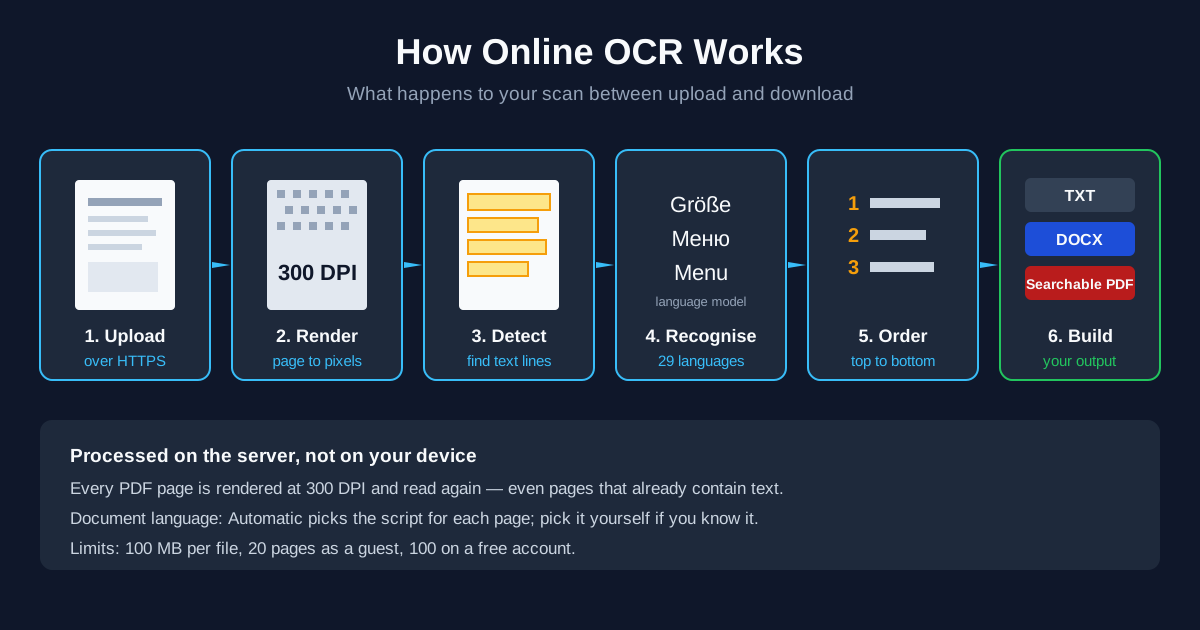
Here's how online OCR works: your file travels over an encrypted HTTPS connection to a server, which turns every page into an image, finds the lines of text, reads them with a model for the language you picked and writes the result into the format you asked for — plain text, a Word document or a searchable PDF. Nothing is recognised on your own device. Here's what happens at each step when you use our online OCR tools, and what that means for the file you get back.
How Online OCR Works, Step by Step
The whole trip, from upload to download, looks like this:
- Upload — the file goes to our servers over HTTPS and joins a queue
- Render — each PDF page becomes a 300 DPI image; photos and screenshots are used at their own size
- Detect — the engine finds where the text lines sit on the page
- Recognise — each line is read with the recognition model for the document language
- Order — lines are sorted into reading order, top to bottom and left to right
- Build — the text is written into TXT, DOCX or a searchable PDF, and you download it
Each step explains a quirk you might notice in the result, so it's worth knowing what goes on in each one.
Step 1: Upload Over HTTPS and the Job Queue
You pick a file. Most OCR pages that return a file — Word, TXT or searchable PDF — also take several at once, queue them and let you download all results as a ZIP; the multi-image tools take one ZIP of images instead. Each file is uploaded over HTTPS and becomes a job on our servers.
OCR is heavier than most conversions, so it runs on a dedicated worker. The page checks the job's status while you wait and shows an estimated time for longer documents. When the job finishes, the download button appears. You don't need to install anything, and your computer or phone does no recognition work at all — which is why online OCR runs the same on an old laptop as on a new one.
Step 2: How Scanned PDF Pages and Images Are Prepared
A scanned PDF is a stack of pictures. Before anything can be read, every page is rendered at 300 DPI — 300 pixels per inch of paper, so an A4 page becomes an image of roughly 2480 × 3508 pixels. That resolution is the usual standard for OCR: small print stays legible without making each page enormous.
Two things follow from this:
- Every page is read, even if it already has text. OCR doesn't check whether a page has a text layer; it redraws the page as pixels and recognises it again. If you can already select text in your PDF, you don't need OCR at all — a regular PDF to Word converter keeps the original text exactly
- Images are used at their native size. A JPG or PNG isn't resized, so a sharp 3000-pixel photo gives the engine more to work with than a 600-pixel thumbnail
Sideways and upside-down pages don't need turning first: each page is turned upright before recognition, and slightly tilted lines are followed as they run.
Step 3: Finding the Text on the Page
The first pass doesn't read anything. A detection model scans the page image and draws a box around every line of text it can find, separating text from photos, rules, stamps and empty paper.
This is where faint or tiny text can get lost: if the detector doesn't box a line, nothing later in the chain will read it. Low contrast (grey pencil, faded thermal paper, light text on a coloured background) and very small type are the usual reasons a line goes missing.
Step 4: Reading Each Line in the Right Language
Now each boxed line is cropped and passed to a recognition model that turns the pixels into characters. Which model reads your text depends on the Document language menu — it lists 29 languages, grouped by alphabet:
- Latin script — English, German, French, Spanish, Italian, Portuguese, Dutch, Polish, Czech, Hungarian, Romanian, Turkish, Vietnamese, Indonesian and the Nordic languages
- Cyrillic — Russian and Ukrainian
- Greek
- Arabic script — Arabic and Persian
- Devanagari — Hindi
- East and Southeast Asian scripts — Japanese, Korean, Thai, and Chinese in simplified and traditional characters
The Automatic setting looks at the script on each page and picks the matching model: Latin, Cyrillic, Greek, Arabic and Persian, Devanagari, Thai, Korean, Chinese or Japanese. When it picks the right language, the result is the same as choosing that language by hand. Because it decides page by page, a document with an English cover and Russian pages is read correctly in one go, and when you upload several files, each one gets its own detection.
Choosing the language yourself is still worth it when you know it — it can't do worse than Automatic — and two cases need it:
- Traditional Chinese — Automatic reads it with the Simplified model; pick 中文 (繁體) for best results
- Another script inside one page — every line on a page is read with that page's model, so an English line on a Russian page is read with the Russian one. Pick the page's main language, or keep the other-script part on its own page
A language picked in the menu applies to every page of the job. Every OCR tool has the menu, including the on-screen "to text" pages PNG to TXT and JPG to text; it starts on Automatic, or on the site's language when you browse a translated version.
Step 5: Putting the Lines in Reading Order
Recognition returns a pile of lines with coordinates. To turn them into readable text, the lines are sorted by position — top to bottom, then left to right — and words sitting on the same height are joined into one line.
That works well for letters, reports, forms and screenshots. It has two side effects you should know about:
- Two-column pages can come out interleaved, because a line from the left column and a line from the right column sit at the same height
- Tables are rebuilt from alignment. When several lines share the same column positions, the Word output turns them into a table with one cell per column. Clean, evenly spaced tables rebuild best; tables with merged cells or text wrapping inside a cell need a check
Step 6: What Gets Built — TXT, Word or Searchable PDF
The last step writes the recognised text into the output you chose. The recognition is the same for all three; only the packaging differs.
| Output | What you get | Pick it when |
|---|---|---|
| TXT | One line of text per detected line, with a "Page Break" marker between pages | You want to copy, search or paste the text somewhere else |
| Word (DOCX) | One paragraph per detected line, larger lines as Word headings, bulleted and numbered lists as list styles, tables rebuilt from columns, one section per source page. Photos and charts are placed as pictures cropped from the page | You want to edit the document |
| Searchable PDF | Your original page images with an invisible text layer placed over each line | You want the document to look the same but let Ctrl+F and copy work |
For a scanned PDF you'd use OCR PDF to searchable PDF or OCR PDF to Word; for a photo, JPG to text shows the result straight on the page with a Copy button. If you're not sure which output to choose, our comparison of OCR output formats goes through each one in detail.
In the searchable PDF, lines the engine is unsure about are left out of the text layer rather than written in wrong, so a search may miss a word the page visibly shows.
How Long Online OCR Takes
It depends mostly on the number of pages and on how busy the queue is. As a reference point, we timed our own test files end to end — upload, queue, recognition and download, on our test server:
- A three-page scanned PDF (300 DPI, heading, paragraphs, a bulleted list and a chart on each page): about 5 seconds each for Word, searchable PDF and TXT
- A single small screenshot (one PNG, three lines of text): 1–2 seconds
Time grows with page count, so a 100-page scan takes proportionally longer. Long documents show an estimated time while you wait.
OCR Limits: File Size, Pages and Daily Operations
- File size: 100 MB per file as a guest or on a free account; 500 MB on Premium, 1 GB on Premium Plus
- Pages: up to 20 pages per PDF as a guest, 100 on a free account, 500 on Premium and 10,000 on Premium Plus
- Daily operations: OCR runs on daily credits and costs more than a light conversion. A guest gets roughly ten Word or searchable-PDF OCR jobs a day; text output costs fewer credits
OCR on a guest account is free with no sign-up, within those limits. For a document above the page limit, split it with split PDF and run the parts one by one.
Is Online OCR Safe?
Yes, for the documents people usually OCR — letters, invoices, book pages, screenshots. Your file travels over an encrypted HTTPS connection and is processed on our servers. How uploaded files and processed data are handled is set out in full in our privacy policy — read it before uploading anything you'd treat as confidential, like identity documents or medical records.
What Online OCR Can't Do Well
- Handwriting. The models are trained on printed text. Neat block capitals sometimes come through; cursive usually doesn't
- Decorative fonts and text on photos. Script typefaces, outlined letters and text over busy backgrounds lower recognition
- Languages outside the list. If your language isn't among the 29 — Hebrew, for example — the result won't be usable
- Layout reproduction. Word output gets structure (headings, lists, tables), not a pixel-perfect copy of the page. Accuracy also varies with scan quality; our guide to OCR accuracy covers what affects it
For a step-by-step walkthrough of running a scanned PDF through OCR, see OCR essentials; for pictures and screenshots, see how to extract text from an image.
Summary
Online OCR renders each page, finds the text lines, reads them with the model for your chosen language, sorts them into reading order and writes TXT, Word or a searchable PDF — all on the server, with the file sent over HTTPS. The setting worth checking is the document language: Automatic picks the model for each page from its script, and choosing the language yourself helps with Traditional Chinese and with pages that mix scripts. Start from the OCR tools and pick the output you need.
Related Tools
- OCR PDF to searchable PDF — add a text layer to a scanned PDF
- OCR PDF to Word — editable DOCX with headings, lists and tables
- JPG to text — read a photo and copy the text from the page
- PNG to TXT — screenshot to a text file, with language choice
- Rotate and reorder PDF pages — fix page order and orientation in the PDF itself