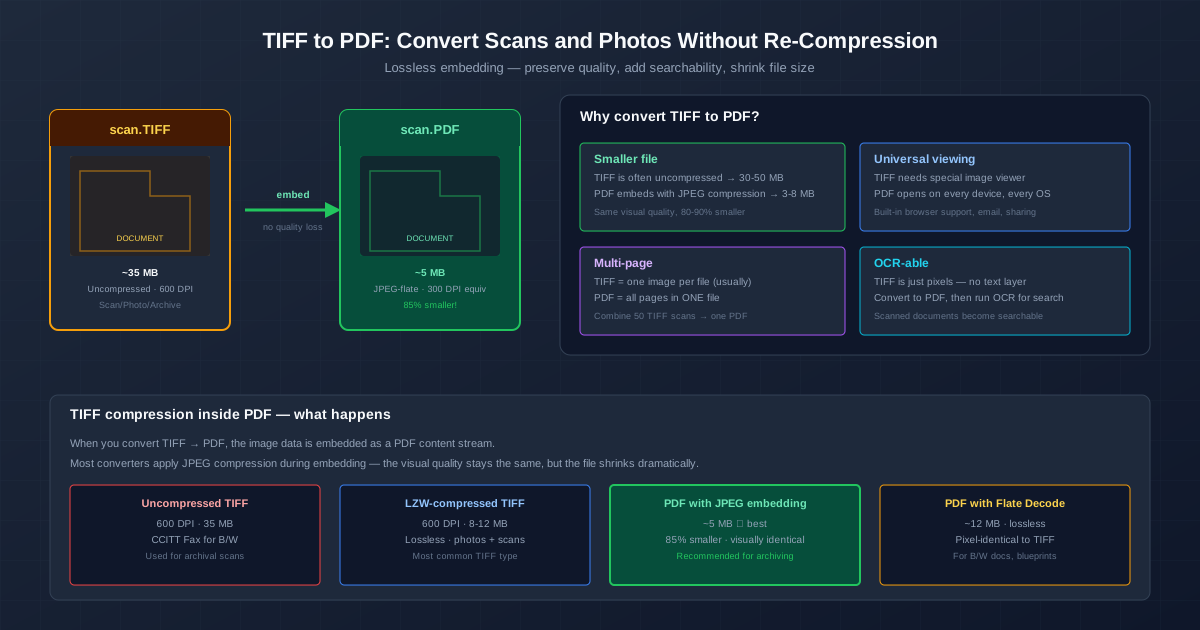
TIFF is the heavy-duty image format of scanning and archival — it stores every pixel without compromise. In our test, a colour photo of an A4 page (3188×4000 pixels) took 38 MB as an uncompressed TIFF.
Converting TIFF to PDF makes it viewable on any device, can shrink the file without losing a single pixel, and turns a multi-page TIFF into one multi-page document.
For the quickest conversion, use the TIFF to PDF converter — drag your TIFF in and get a PDF with every page of it.
Why TIFF Files Are So Large
TIFF is a flexible container format that can hold uncompressed, losslessly compressed, or lossy compressed image data. Its default mode is uncompressed — every pixel is stored as raw data bytes. A 600 DPI A4 colour scan at 24-bit is 4961×7016 pixels — about 104 MB of raw pixel data before compression. LZW compression (lossless, like ZIP) helps less than you might expect on real scans: in our test it took the 38 MB colour page only down to 14 MB, because camera and scanner noise does not compress well.
TIFF is built for maximum fidelity — it supports 16-bit colour, multiple layers, transparency, and CMYK colour space. These features matter in pre-press and archival workflows but are wasted on a scanned document that only needs to be read and searched. PDF stores the image with compression and drops the TIFF-specific overhead.
What Happens During Conversion
Our converter reads every page of the TIFF and embeds the pixels in the PDF losslessly, with Flate compression (the same method ZIP and PNG use) — the PDF is pixel-identical to the TIFF. Other tools may also offer lossy embedding:
- JPEG-encoded: much smaller files with small visual changes — fine for sharing, not for archives.
- CCITT Group 4 (black-and-white only): very small files for text documents such as contracts, forms and letters.
File Sizes in Our Test
| Source | TIFF | PDF from our converter |
|---|---|---|
| Colour photo of an A4 page, 3188×4000, uncompressed | 38.3 MB | 12.4 MB |
| Same page, LZW-compressed | 14.2 MB | 12.4 MB |
| Clean scanned letter page, 612×792, uncompressed | 1.45 MB | 370 KB |
| Same page, LZW-compressed | 395 KB | 370 KB |
Lossless PDF gains most against an uncompressed TIFF. Against an LZW TIFF the saving is small — 13% on the photo, 6% on the letter — because both are lossless. For a much smaller file, run the PDF through the PDF compressor , which recompresses the images.
Multi-Page: Combine Many TIFFs Into One PDF
Many scanners produce one TIFF per page — scan001.tiff, scan002.tiff, and so on.
If your scanner saved a multi-page TIFF, the converter turns it into one PDF with all the pages in their original order.
If it saved one TIFF per page, select them all at once: each becomes its own PDF and you download them together as a ZIP. Then join them with Merge PDF in the order you want.
Making Scans Searchable with OCR
A TIFF is a picture — it has no text layer, so you cannot search or select words. Converting to PDF does not add text by itself, but the PDF can hold an invisible OCR text layer. After converting TIFF to PDF, run the resulting PDF through OCR PDF and the engine reads the text from the image, placing it behind the visible page as a searchable layer. The result looks the same, but now you can search, select, and copy text from the document.
When to Keep TIFF, When to Convert
- Keep TIFF: if you plan to further process the image (colour correction, retouching, enlargement) in Photoshop or professional software. TIFF is the master format for image editing.
- Keep TIFF: if the scan is for pre-press / CMYK / professional printing workflows. Print shops expect TIFF or PDF/X.
- Convert to PDF: for document archives — scans you will read, search, and share. PDF is universally viewable and much smaller.
- Convert to PDF: for distribution — sending someone a large TIFF they do not know how to open is worse than a PDF they double-click and read.
Related Tasks
For making PDF scans searchable after conversion, use OCR for PDF . For the reverse — extracting images from a PDF — use extract images from PDF . For combining other image formats into PDF, the JPG to PDF converter handles photographs and casual scans.
Quick Summary
- TIFF → PDF keeps every pixel. In our test a 38 MB uncompressed colour page became a 12 MB PDF, pixel-identical.
- For a much smaller file, compress the PDF afterwards. Lossy recompression trades a little fidelity for size.
- Multi-page TIFF → one PDF. Separate page TIFFs: convert them together, then merge the PDFs.
- Run OCR after conversion for searchable text. TIFF is a picture; PDF + OCR adds a searchable text layer.
- Keep TIFF as master for further editing. Convert to PDF for distribution and archiving.