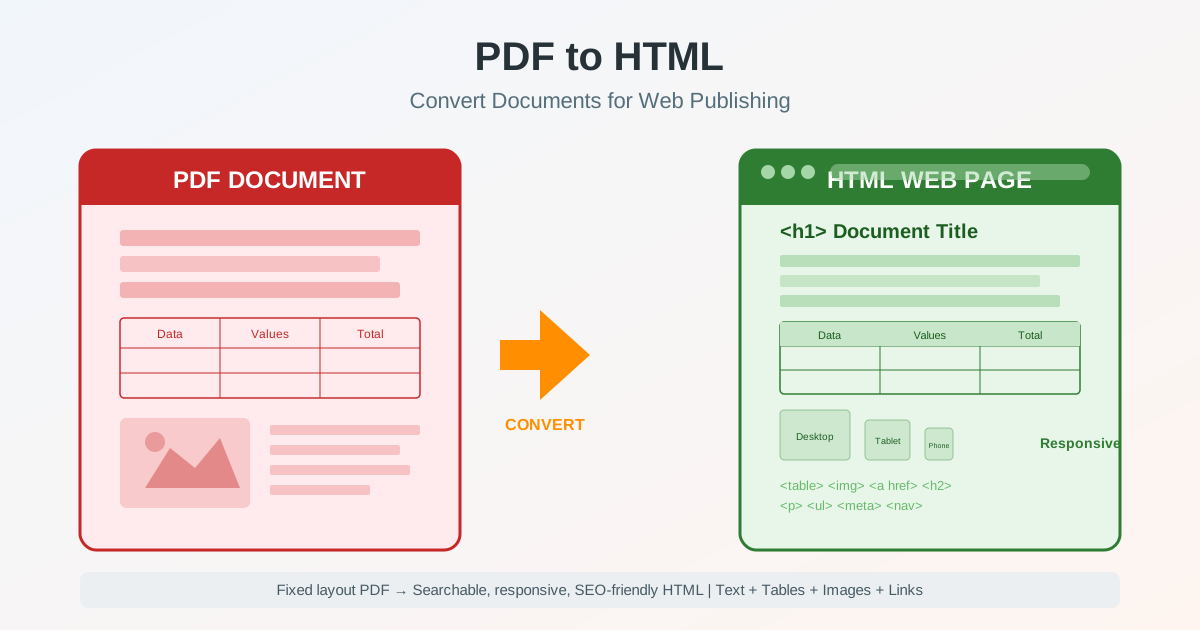
PDF documents were designed for print — fixed pages, precise positioning, consistent appearance on every device. But the web works differently. When you need to publish PDF content online, converting PDF to HTML gives you searchable, responsive, and accessible web pages that work on any screen size. Whether you are publishing reports, sharing documentation, or migrating content to a CMS, understanding how to convert PDF to HTML — and what to expect from the process — saves time and avoids common pitfalls.
Why Convert PDF to HTML for Web Publishing
Publishing a PDF as a web page rather than hosting a downloadable file has practical advantages that affect user experience, search visibility, and content management.
Search engine visibility. Search engines can crawl HTML content directly — every heading, paragraph, link, and image alt tag becomes indexable. PDF files are harder to index, rarely appear in featured snippets, and cannot carry Open Graph metadata or structured data markup.
If your PDF report contains valuable information that should rank in search results, converting it to HTML makes that possible.
Mobile responsiveness. A PDF viewed on a phone requires zooming and horizontal scrolling. HTML content reflows to fit any screen width, making it readable without pinching.
For content that your audience will primarily consume on mobile — articles, guides, product information — HTML is the correct format.
Accessibility. HTML supports screen readers, keyboard navigation, ARIA labels, and semantic structure. PDF accessibility is possible but significantly harder to implement correctly. Converting to HTML with proper heading hierarchy and alt text makes your content usable by everyone.
Page speed. Embedding a PDF on a web page using an iframe or viewer plugin adds significant weight. A converted HTML page loads faster, renders progressively, and contributes to better Core Web Vitals scores.
Common Use Cases for PDF to HTML Conversion
Different scenarios call for different approaches when you publish PDF content as a web page.
Web Publishing and Blog Content
Organizations often produce annual reports, whitepapers, and research papers as PDFs. Converting these to HTML makes the content directly publishable on a website. The text becomes part of the page, images are extracted and served as web-optimized files, and internal links become clickable navigation. This is how you convert a PDF report to HTML for your company blog or knowledge base.
Email Newsletters and Campaigns
PDF attachments in emails often go unopened. Converting the content to HTML lets you include it directly in the email body or link to a web-hosted version. Tables, formatted text, and images transfer to HTML and display inline in most email clients.
CMS Content Migration
When migrating documentation, product catalogs, or policy documents from PDF archives to a content management system like WordPress, Drupal, or a headless CMS, converting PDF to HTML is the first step. The resulting HTML can be pasted into the CMS editor or imported programmatically, preserving the document structure.
Online Documentation and Knowledge Bases
Technical manuals, user guides, and API documentation distributed as PDFs become far more useful as web pages. Users can search within the page, bookmark specific sections, and navigate using the table of contents. Converting to HTML is the foundation for building searchable online documentation.
How PDF to HTML Conversion Works
A PDF to HTML converter analyzes the internal structure of the PDF file and maps each element to its HTML equivalent.
Here is what happens during conversion:
Text extraction. The converter reads the PDF text layer, identifies paragraphs, headings, and lists based on font size, weight, and spacing. These become HTML elements — <h1> through <h6> for headings, <p> for paragraphs, <ul> and <ol> for lists.
Image extraction. Embedded images are extracted from the PDF and saved as separate image files (typically PNG or JPEG). The HTML references these images with an <img> tags. Vector graphics may be converted to SVG or rasterized depending on the converter.
Link preservation. Hyperlinks within the PDF — both internal cross-references and external URLs — are converted to HTML anchor tags. This keeps navigation functional in the web version.
Table extraction. PDF tables are detected by analyzing cell boundaries, row and column patterns, and content alignment. The converter creates standard HTML <table> markup with <thead>, <tbody>, and <td> elements. This is critical for converting PDF reports to HTML while maintaining data readability.
What Transfers Well — and What Does Not
Elements That Convert Reliably
Body text and headings — plain text with standard fonts converts accurately.
Heading hierarchy is reconstructed from font sizes. Simple tables — tables with clear borders and uniform columns produce clean HTML table markup.
Hyperlinks — both internal and external links transfer as clickable HTML anchors. Lists — bullet points and numbered lists map directly to HTML list elements. Embedded images — photos and diagrams are extracted and linked.
Elements That May Need Adjustment
Complex layouts — multi-column designs, text wrapping around images, and overlapping elements rely on absolute positioning in PDF. HTML uses flow layout, so these designs may reorder or flatten. Custom fonts — if the PDF uses fonts not available on the web, the HTML will fall back to system fonts or web-safe alternatives.
Decorative elements — watermarks, background patterns, and ornamental borders are often lost or converted as background images. Form fields — interactive PDF forms require separate handling to become functional HTML forms.
Tables and Structured Data
PDF to HTML table extraction works best when tables have visible borders and consistent cell sizes. Financial statements with merged header cells, multi-level column groupings, or cells spanning multiple rows may require post-conversion cleanup. If your primary goal is extracting tabular data, also consider PDF to Word conversion for tables you need to edit, since Word handles complex table structures natively.
PDF Embedding vs HTML Conversion
When you need to display PDF content on a website, you have two options: embed the PDF file directly or convert it to HTML. Each approach has distinct trade-offs.
Embedding (iframe or PDF viewer) preserves the exact original layout. Users see the document as the author intended, including precise positioning, fonts, and page breaks. However, embedded PDFs are not indexed by search engines, do not adapt to mobile screens, add page weight, and block accessibility tools.
HTML conversion sacrifices some visual precision but gains searchability, responsiveness, accessibility, and performance. The content is part of the web page itself, not a file loaded inside a frame. For content-first documents — articles, reports, documentation — HTML conversion is almost always the better choice.
Use embedding only when the exact PDF layout is essential: signed contracts, legal filings, regulated documents, or print-ready forms where pixel-perfect fidelity matters.
PDF to HTML vs PDF to Markdown
Both formats serve web publishing, but they target different workflows.
PDF to HTML produces ready-to-display web pages with styling, table markup, inline images, and hyperlinks. The output can be opened in a browser immediately.
PDF to Markdown produces lightweight plain-text markup that is ideal for static site generators (Hugo, Jekyll, Gatsby), documentation platforms (GitBook, ReadTheDocs), and version control systems where diffing matters.
Choose HTML when: you need the content displayed on a web page immediately, you want tables and images included inline, or you are publishing to a platform that accepts HTML input.
Choose Markdown when: you need the content in a CMS with Markdown support, you want to track changes in Git, or you are building documentation with a static site generator.
Responsive Design Considerations
Converting PDF to responsive HTML requires attention to how fixed-width content adapts to variable screen sizes. The conversion produces the structural HTML — but responsive behavior depends on the CSS you apply afterward.
Images. Set max-width: 100% and height: auto on all images so they scale down on narrow screens without overflowing. Use the srcset attribute for serving appropriately sized images to different devices.
Tables. Wide tables from PDF documents may overflow on mobile. Wrap tables in a horizontally scrollable container, or apply CSS to stack table rows vertically on small screens. For data-heavy PDFs, consider whether the HTML table needs all columns or if a simplified view works better on mobile.
Typography. PDF documents use fixed font sizes. In HTML, use relative units (rem, em) and adjust line height for screen reading. Body text at 16-18px with 1.6 line height works well for most converted content.
Viewport meta tag. Ensure your HTML page includes <meta name="viewport" content="width=device-width, initial-scale=1"> — without this, mobile browsers render the page at desktop width.
SEO Implications of Publishing PDF Content as HTML
Converting PDF content to HTML has direct SEO benefits that make the content more competitive in search results.
Full text indexing. While Google can extract text from PDFs, it processes HTML more reliably. Heading tags, paragraph structure, and semantic markup help search engines understand content hierarchy and relevance.
Internal linking. HTML pages can link to and from other pages on your site, building topical authority. A PDF file is a dead end — it cannot easily participate in your site's link structure.
Rich results eligibility. HTML pages can include structured data (JSON-LD), FAQ schema, breadcrumb markup, and article metadata. These enable rich results in search that PDFs cannot achieve.
User engagement signals. HTML pages track time on page, scroll depth, and click-through rates. These signals help search engines assess content quality. PDF downloads provide minimal engagement data.
If you later need to recreate the PDF from your HTML content, you can use an HTML to PDF converter to generate a downloadable version — giving you both a web page for search engines and a PDF for offline distribution.
Best Practices for PDF to HTML Conversion
Follow these guidelines to get the best results when converting PDF documents for web display.
Use text-based PDFs when possible. PDFs created from Word, InDesign, or other authoring tools contain a text layer that converts cleanly. Scanned PDFs (essentially images of pages) require OCR first, which introduces potential accuracy issues.
Review and clean the output. No converter produces perfect HTML from every PDF. Check heading hierarchy (H1 through H6 should be logical), verify table structure, confirm images are properly linked, and fix any character encoding issues.
Optimize images after extraction. Images extracted from PDFs are often larger than needed for web display. Compress them, convert to WebP where supported, and add descriptive alt text that the PDF version did not have.
Add metadata. Your HTML page should include a title tag, meta description, Open Graph tags, and canonical URL — none of which exist in the original PDF. This is new content you create to make the page perform in search and social sharing.
Test across devices. View the converted HTML on desktop, tablet, and phone.
Check that tables do not overflow, images scale correctly, and text is readable without zooming.
Validate HTML. Run the output through an HTML validator to catch unclosed tags, missing attributes, or deprecated elements. Clean markup improves rendering consistency across browsers.
Step-by-Step: Convert PDF to HTML
Here is the practical workflow for publishing a PDF as a web page:
1. Assess the PDF. Open the PDF and check whether it is text-based (you can select and copy text) or scanned (the content is an image). Text-based PDFs convert directly.
Scanned PDFs need OCR processing first.
2. Upload and convert. Use the PDF to HTML conversion tool to upload your file. The converter analyzes the document structure and produces the HTML output.
3. Review the output. Open the HTML file in a browser. Check that headings, paragraphs, tables, images, and links transferred correctly. Note any elements that need manual adjustment.
4. Add responsive CSS. Apply a stylesheet or CSS framework to make the content responsive. At minimum, set fluid image widths, scrollable table containers, and appropriate typography for screen reading.
5. Add metadata and SEO elements. Write a unique title tag, meta description, and heading structure. Add Open Graph tags for social sharing. Include structured data if appropriate (article schema, FAQ schema).
6. Publish and verify. Upload the HTML page to your web server or CMS.
Test on mobile devices, run a PDF tools page accessibility check, and verify that search engines can crawl the page.
When to Use a Different Conversion Format
PDF to HTML is not always the right choice. Here is when other formats serve better:
Need to edit content extensively? Convert PDF to Word first, make your edits in Word, then export to HTML. Word gives you better editing tools for restructuring documents.
Building documentation with a static site generator? Convert PDF to Markdown for Hugo, Jekyll, Docusaurus, or similar platforms. Markdown integrates naturally with these tools.
Extracting data from tables? If the PDF contains tabular data you need in a spreadsheet, converting to HTML and then parsing tables adds unnecessary steps. Go directly to the appropriate format for data analysis.
Need to recreate the PDF from HTML later? Plan your workflow around round-tripping. Create the HTML version as your source of truth, and use HTML to PDF conversion to generate PDF versions on demand.