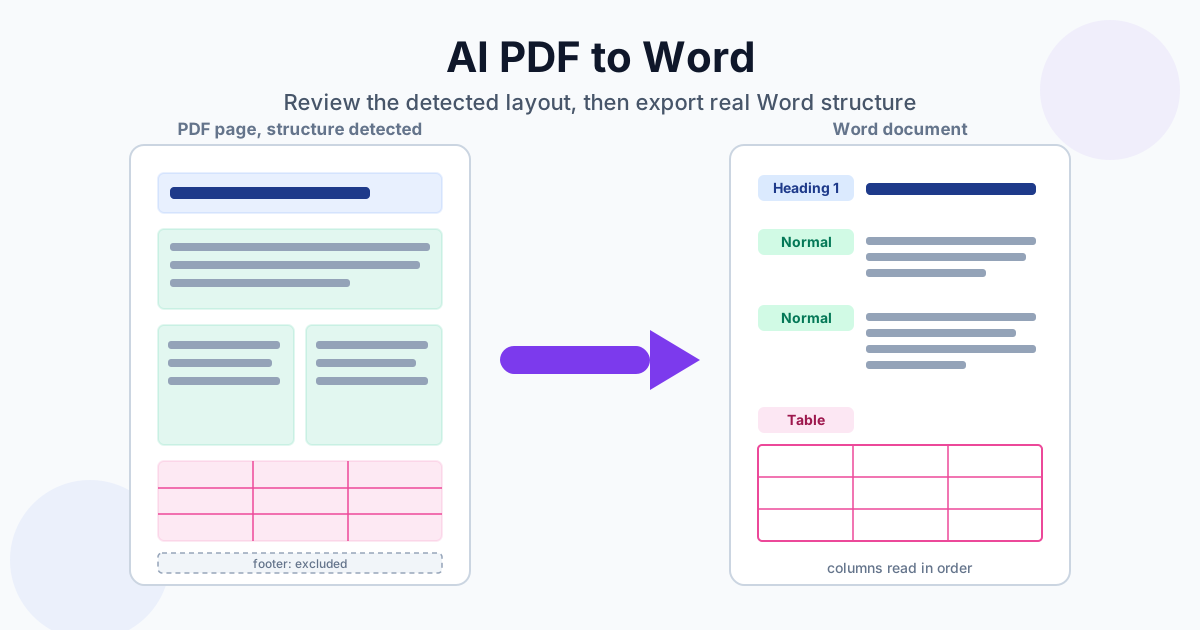
AI PDF to Word looks at each page as an image, finds the blocks a person would see (headings, paragraphs, lists, tables, headers and footers) and shows them to you before it writes the Word file. That's the difference from a standard converter, which rebuilds the document from the PDF's text layer without asking. The AI route earns its keep on digital PDFs whose headings, columns or page furniture come out wrong in a standard conversion. For everything else, the standard converter is faster and often just as good.
You'll find it at AI PDF to Word. Below: what it does differently, how the page editor works, what "Convert All Pages" gives you, the 10-page limit, and when to skip it. The findings come from test documents we ran through the tool.
Standard vs AI PDF to Word: What Actually Differs
A digital PDF already contains its text, with positions and fonts. The standard PDF to Word converter reads that text layer and rebuilds paragraphs, headings and tables from the geometry. It's fast and it works well on ordinary reports, letters and contracts.
It struggles when the geometry is misleading:
- Multi-column pages, where the line order in the file doesn't match the reading order
- Headings that are just bigger bold text, with nothing in the file saying "this is a heading"
- Running headers, footers and page numbers that land in the middle of your body text on every page
- Tables without borders, which look like loose columns of words
AI conversion works from what the page looks like. It renders the page, draws a box around each block it recognises, labels it, and shows you the result with a confidence score. You decide what goes into the Word file.
| Standard PDF to Word | AI PDF to Word | |
|---|---|---|
| Reads | The text layer | The page image, with text from the text layer |
| You can review the structure | No | Yes, page by page |
| Headers, footers, page numbers | Converted like any other text | Can be left out of the export |
| Output | One DOCX for the whole file | One DOCX per reviewed page, or the whole file without review |
| Speed (our 3-page test) | Under a second | About half a minute for the whole file |
| Page limit without Premium | 20 pages (guest), 100 (free account) | 10 pages per PDF |
How the Page Editor Works
- Upload a PDF on the AI PDF to Word page. No account is needed
- Page 1 is analysed automatically. You see the page with coloured boxes: headings in blue, paragraphs in green, tables in pink, headers and footers in cyan. A panel lists every element by type, with a confidence percentage, and says how many columns and tables were found
- Untick anything you don't want. Running headers, footers, page numbers, stray captions, a watermark caught as a paragraph. Unticked elements stay out of the Word file. You can also remove an element from the list entirely
- Click Generate. You get a DOCX of that page, with a preview before download
- Move to the next page with the page arrows. Each page is analysed when you open it, and you generate it the same way
What came out when we generated page 1 of our test report:
- The title and section headings arrived as real Word Heading 1 paragraphs, so they show up in Word's navigation pane and table of contents
- Each detected paragraph arrived as one paragraph, rather than one paragraph per PDF line
- Unticked elements were simply absent
Check the low-confidence boxes. In the same test, one paragraph was detected with 48% confidence and its box started a little too far right. The exported paragraph was missing the first words of each line. You can't redraw a box in the editor, so when a box visibly cuts through text, untick it and copy that paragraph by hand, or use the standard converter for that page. A bulleted list detected as a single paragraph came through as bullet characters inside one paragraph, not as a Word list.
Convert All Pages: the Whole Document, Without the Edits
The editor works one page at a time. Above it, Convert All Pages turns the entire PDF into a single DOCX. Two things to know:
- Your edits don't apply. What you unticked in the editor is ignored. Convert All Pages makes its own decisions for every page
- It's built for digital PDFs. Scans are a different story, covered below
On our 3-page digital test (a single-column page with headings and a bulleted list, a two-column page, and a page with a bordered table), Convert All Pages took about 36 seconds. Every line of text was there, the two columns were read in the right order (left column first), and the table became a real Word table. Headings came through as larger text rather than Word heading styles, though, and each PDF line became its own paragraph. The standard converter handled the same file in half a second, with heading styles.
So the honest rule is simple. For a whole digital document, start with the standard converter. Use the AI editor on the pages where the standard result is wrong, and export those pages with the structure you checked.
What About Scanned PDFs?
Don't use AI PDF to Word for scans. The editor takes the words for each box from the PDF's text layer, and a scan has none, so a page generated from a scan comes out empty. We tested it: the analysis found the headings and paragraphs, and the exported page had no text. Convert All Pages is worse on scans: in our tests it put text into the Word file that wasn't in the document at all, and the same happened on a scan that had been made searchable with OCR first. Until that's fixed, keep scans away from this tool.
For a scan, use OCR PDF to Word. It reads the page and gives you an editable DOCX with headings, numbered lists and tables rebuilt, in any of 29 document languages. Scanned PDF to Word with OCR walks through it and shows what to tidy afterwards.
The 10-Page Limit and Other Limits
- 10 pages per PDF for guests and free accounts. A longer file is refused with a message saying how many pages it has. Premium raises the cap to 500 pages and Premium Plus to 10,000
- Daily limit. Every analysed page and every export counts toward the daily operation limit, the same pool as other conversions. Guests get a smaller allowance than free accounts, and the plans are on the pricing page
- File size. 100 MB without an account, 500 MB on Premium, 1 GB on Premium Plus
- It runs on our servers. The PDF is uploaded over an encrypted (HTTPS) connection, and its handling is described in the privacy policy
Working around the 10-page cap: split the PDF and run only the pages that need the AI treatment. A 60-page report with three awkward two-column pages doesn't need AI on all 60. Convert it with the standard converter, then redo those three pages in the AI editor and paste them in.
What AI Conversion Keeps, and What It Doesn't
Keeps (page editor):
- Headings as Word heading styles
- Paragraphs as whole paragraphs, in reading order
- Tables as Word tables (Convert All Pages did this in our test; the editor includes the tables you keep)
- Your choice of what to leave out
Doesn't keep:
- Exact positions. Word reflows the text. Sidebars, pull quotes and text wrapped around pictures end up as blocks in reading order, not floating where they were
- Decorative layout. Background shapes, coloured bands and page borders aren't recreated
- Images inside the page export. The editor exports text and tables. If you need the pictures, take them from the PDF separately
If what you're fighting is spacing, fonts or line breaks after a normal conversion, that's a formatting problem, not a structure problem. Why PDF to Word formatting changes covers the fixes. For tables specifically, PDF tables to Word goes deeper, and if the tables are the only thing you need, AI PDF to Excel extracts them into a spreadsheet instead.
When to Stay With the Standard Converter
Use the standard PDF to Word converter when:
- The PDF is a normal single-column document: a letter, a contract, a simple report
- You need the whole document and it's longer than 10 pages
- Speed matters more than a perfect heading hierarchy
- You'll restyle the document in Word anyway
Switch to AI PDF to Word when a standard result gives you any of these:
- Two columns merged line by line into nonsense
- Headings that are only bold body text, so Word's navigation pane is empty
- A page number or running title between every few paragraphs
- A page you want to rebuild cleanly, with only the parts you choose
For the basic steps of turning a PDF into something you can edit, see how to convert a PDF to an editable Word document.
Summary
AI PDF to Word is a review tool. It shows you the structure it found on each page and exports that page with real heading styles and without the headers, footers and stray bits you untick. Use the standard converter for whole documents, and bring the problem pages of a digital PDF to AI PDF to Word. Send scans to OCR PDF to Word instead.
Related Tools
- AI PDF to Word: review detected structure page by page, then export
- PDF to Word: fast standard conversion for whole documents
- OCR PDF to Word: editable text from scanned PDFs
- AI PDF to Excel: pull tables out into a spreadsheet