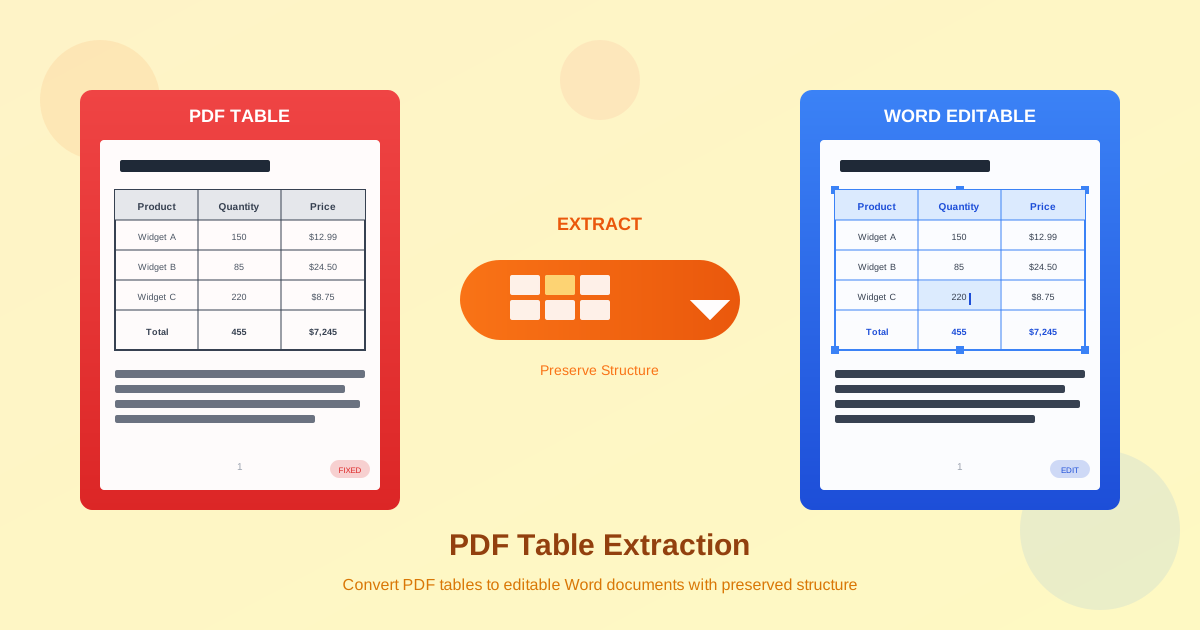
Extracting tables from PDF documents is one of the most common and frustrating conversion challenges. Whether you're pulling financial data from reports, extracting product specifications from catalogs, or editing pricing tables from contracts, getting clean, editable tables from PDFs requires understanding how tables work in both formats.
This guide covers everything from simple single-page tables to complex multi-page data structures, with practical techniques for preserving formatting and handling common extraction problems.
Why Table Extraction Is Challenging
PDF and Word handle tables fundamentally differently, which is why extraction often produces imperfect results. Understanding these differences helps you set realistic expectations and know when manual cleanup will be necessary.
PDF stores visual positioning, not structure. When a table appears in a PDF, the file doesn't contain a "table" object with rows and columns. Instead, it contains individual text elements positioned at specific coordinates, plus lines drawn at specific locations. The visual appearance of a table is created by placing text and lines precisely—but the PDF has no concept of "this text belongs to cell B3."
Word uses semantic table structure. In a Word document, a table is a defined object with rows, columns, and cells. Each cell knows its position in the grid, what content it contains, how it's formatted, and whether it merges with adjacent cells. This structural information makes tables easy to edit—you can add rows, adjust column widths, or change cell formatting without affecting overall layout.
Conversion requires intelligent reconstruction. When converting PDF to Word, the converter must analyze the visual layout, detect patterns that look like tables, identify cell boundaries, determine row and column relationships, and reconstruct a proper Word table structure. This process works well for simple, clearly-defined tables but struggles with complex layouts, invisible borders, or unusual designs.
Simple vs Complex Tables: What to Expect
Not all tables are created equal. Understanding the complexity level of your tables helps predict conversion quality and plan for any necessary manual work.
Simple Tables: High Success Rate
Simple tables convert reliably with minimal issues. These tables share common characteristics:
- Visible borders — Clear lines separating all cells
- Uniform grid — Consistent row heights and column widths
- No merged cells — Each cell occupies exactly one grid position
- Single page — The entire table fits on one page
- Text content only — No images, charts, or embedded objects within cells If your table matches this description, expect conversion using our PDF to Word converter to produce accurate results with minimal cleanup required.
Complex Tables: Expect Manual Adjustment
Complex tables often require post-conversion editing. Challenging table characteristics include:
- Merged cells — Cells spanning multiple rows or columns (common in headers)
- Invisible borders — Tables using spacing or shading instead of lines
- Nested tables — Tables within table cells
- Multi-page tables — Tables continuing across page breaks
- Variable column widths — Irregular column spacing throughout the table
- Embedded content — Images, checkboxes, or form fields within cells For complex tables, plan time for manual cleanup after conversion. The automated extraction provides a starting point, but you'll need to verify cell relationships, fix merged cells, and adjust formatting.
Step-by-Step: Extracting Tables from PDF
Follow this process to extract tables from PDF documents with the best possible results:
Step 1: Assess Your Table
Before converting, examine your PDF table. Open the PDF and try selecting text within the table. If you can select individual cell contents, the PDF contains text data (good for conversion). If selecting grabs the entire table as an image, you have a scanned document requiring OCR processing first.
Look at the table structure: Does it have clear borders? Are there merged cells in the header? Does it span multiple pages? Note these characteristics as they'll affect your conversion strategy and cleanup requirements.
Step 2: Choose the Right Output Format
Consider whether Word or Excel is the better destination for your table data:
- Choose Word when you need to preserve the surrounding document, edit text within the table, or maintain the table as part of a larger document layout
- Choose Excel when you need to perform calculations, sort/filter data, create charts, or import the data into other systems For purely tabular data extraction, our PDF to Excel converter may produce cleaner results since it focuses specifically on table detection rather than full document layout.
Step 3: Convert the Document
Upload your PDF to the converter. For documents with multiple tables, the entire document converts at once—you'll get all tables in the output. Processing time depends on document length and complexity. Most single-page documents with tables convert in seconds.
Step 4: Review Table Structure
Open the converted Word document and carefully examine each table. Check for:
- Correct number of rows and columns
- Proper cell content placement
- Merged cells appearing correctly
- Headers properly structured
- Borders and shading matching the original
Step 5: Clean Up and Edit
Make necessary corrections in Word. Common cleanup tasks include fixing merged cells, adjusting column widths, adding missing borders, correcting text alignment, and reformatting headers. Word's Table Tools (visible when you click in a table) provide all the features needed for these adjustments.
Preserving Table Formatting
Table formatting includes borders, colors, fonts, alignment, and cell sizing. Here's how to maximize formatting preservation during extraction:
Borders and Cell Shading
Tables with clear black borders convert most accurately. The converter detects lines in the PDF and translates them to Word table borders. Colored borders usually preserve well, though exact color matching depends on the PDF's color space.
Cell shading (background colors) typically preserves during conversion. However, gradient fills or pattern fills may not convert accurately and might need manual reapplication in Word.
Column Widths and Row Heights
The converter attempts to preserve column proportions from the original PDF. Exact pixel-perfect matching isn't always possible since Word uses different measurement systems. If column widths are critical, you may need to manually adjust them after conversion using Word's column sizing features.
Row heights automatically adjust to fit content in Word. If specific row heights are required, set them manually in Table Properties after conversion.
Text Formatting Within Cells
Text formatting (fonts, sizes, bold, italic) within table cells generally preserves well during conversion. Alignment (left, center, right, justified) also transfers accurately in most cases. Vertical alignment within cells (top, middle, bottom) may need manual adjustment.
Handling Multi-Page Tables
Tables spanning multiple PDF pages present a unique challenge. Since PDF pages are independent units, the converter processes each page separately, resulting in separate tables in the Word output.
Understanding the Problem
When a table continues across a page break in a PDF, the file doesn't contain information linking the table sections together. Each page has its own positioned text and lines. The converter cannot automatically know that the table on page 2 is a continuation of the table from page 1.
Merging Multi-Page Tables in Word
After conversion, you'll need to manually merge the table sections. Here's the process:
- Identify continuation tables — Locate where one table ends and the next begins
- Remove repeated headers — If the PDF repeated column headers on each page, delete the duplicate header rows
- Copy rows — Select all rows from the second table and copy them
- Paste into first table — Position cursor at the end of the first table and paste
- Delete empty table — Remove the now-empty second table structure
- Verify alignment — Check that columns align properly after merging For very long tables spanning many pages, this process may need to be repeated multiple times. Take care to maintain column alignment throughout.
PDF to Word vs PDF to Excel: Which to Choose
Both conversion options can extract tables, but they serve different purposes. Choosing correctly saves time and produces better results.
| Criteria | PDF to Word | PDF to Excel |
|---|---|---|
| Best for | Editing tables within documents | Data extraction and analysis |
| Preserves surrounding content | Yes, full document layout | No, tables only |
| Calculation support | Limited | Full spreadsheet functions |
| Data sorting/filtering | Basic | Advanced |
| Multiple tables | All in one document | Separate sheets possible |
| Text content alongside tables | Preserved | Lost |
Use PDF to Word When:
- You need to edit the table as part of a complete document
- The table has extensive text formatting to preserve
- Surrounding paragraphs, images, or other content must be retained
- The table will be printed or distributed as a document
Use PDF to Excel When:
- You need to perform calculations on the data
- The data will be sorted, filtered, or analyzed
- You're importing into a database or other system
- Creating charts or visualizations from the data
- Only the tabular data matters, not the document context
Manual Cleanup Techniques in Word
Even well-converted tables often need some adjustment. Here are the most common cleanup tasks and how to perform them efficiently in Word:
Fixing Merged Cells
If merged cells weren't detected correctly during conversion, you can merge or split cells manually. Select the cells you want to merge, right-click, and choose "Merge Cells." To split a cell, select it, right-click, and choose "Split Cells," then specify the number of rows and columns.
Adding or Removing Borders
Click anywhere in the table to activate the Table Design tab. Use the Borders dropdown to apply borders to selected cells, rows, columns, or the entire table. You can choose border style, color, and width. For tables with missing borders, select the table and apply "All Borders" to add lines everywhere.
Adjusting Column Widths
Hover over column borders until the cursor changes to a resize cursor, then drag to adjust. For precise control, right-click the table, choose "Table Properties," and set exact measurements for each column. Use "Distribute Columns Evenly" to make all columns the same width.
Fixing Text Alignment
Select cells needing alignment fixes. Use the alignment buttons in the Layout tab (horizontal alignment) or right-click and choose "Table Properties" then "Cell" for vertical alignment options (top, center, bottom).
Reformatting Headers
Select the header row and apply formatting (bold, background color) as needed. If the table repeats headers when it spans pages, select the header row, right-click, choose "Table Properties," then "Row," and check "Repeat as header row at the top of each page."
Common Table Extraction Errors and Fixes
Even with careful conversion, certain errors appear regularly. Knowing these patterns helps you quickly identify and fix issues:
Cells Shifted to Wrong Columns
Sometimes cell content appears in adjacent columns. This happens when the converter misinterprets column boundaries. Fix by cutting the misplaced content and pasting it into the correct cell. If this affects many cells, it may be faster to manually recreate the affected columns.
Text Split Across Multiple Cells
Long text that should be in one cell may appear split across several cells. This occurs when the converter interprets line breaks as cell boundaries. Merge the affected cells, then review the text to ensure it reads correctly.
Missing Rows or Columns
Occasionally rows or columns with very faint content or unusual formatting may not convert. Compare the converted table against the original PDF row by row. Add missing rows/columns manually and fill in the missing content.
Table Converted as Text
If a table appears as plain text (with tabs or spaces instead of cells), the converter didn't recognize it as a table. In Word, select the text, go to Insert > Table > Convert Text to Table. Specify the delimiter (tabs, commas, or other) that separates columns.
Related Resources
Learn more about PDF conversion and table handling:
- Complete PDF to Word Conversion Guide — comprehensive guide to all PDF conversion aspects
- Preserving Formatting in PDF to Word — tips for maintaining layouts during conversion
- PDF to Excel Converter — for data-focused table extraction
- Converting Scanned PDFs with OCR — for tables in scanned documents
Key Takeaways
- Understand table complexity — Simple tables with clear borders convert well; complex tables need more cleanup
- Choose the right format — Use Word for document editing, Excel for data analysis
- Expect multi-page table work — Tables spanning pages require manual merging after conversion
- Plan for cleanup — Even good conversions often need border, alignment, or merged cell fixes
- Check cell content carefully — Verify all data transferred correctly before relying on the converted table
- Use OCR for scanned tables — Image-based PDFs require OCR processing before table extraction