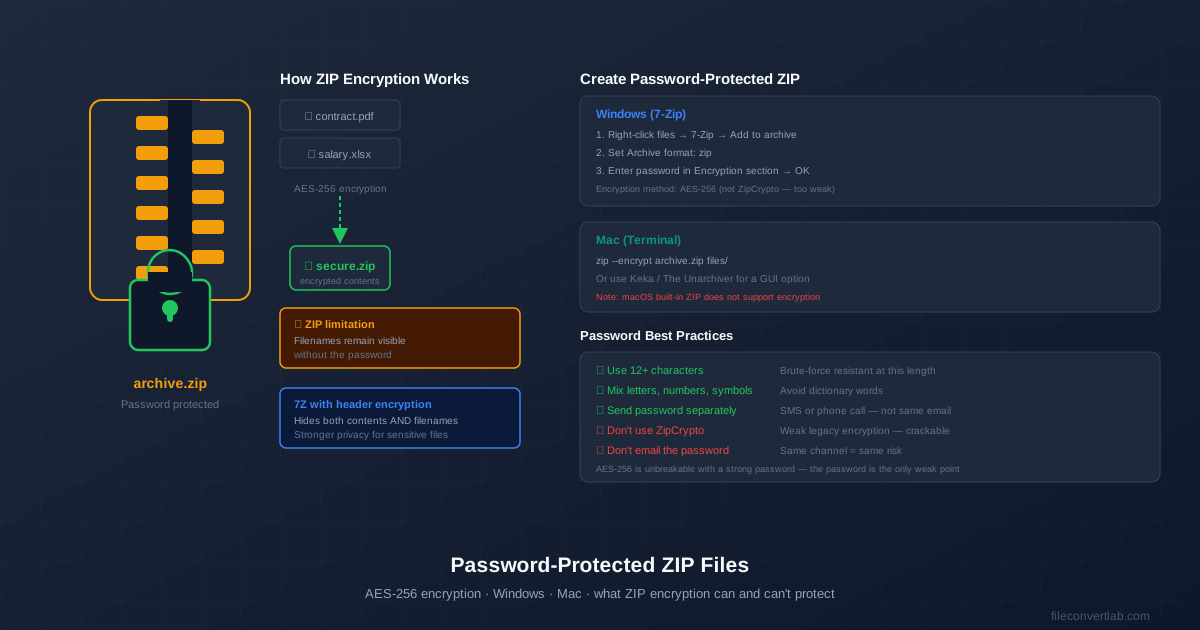
ZIP files support AES-256 encryption — strong enough to protect sensitive documents.
Windows and Mac don't make it obvious how to enable it, but the process takes about a minute once you know where to look. There's also one important limitation to understand before you use it.
The key limitation: ZIP encryption protects file contents but leaves filenames visible. Anyone can open your ZIP and see "contract_signed.pdf" without the password — they just can't read its contents. If hiding the filenames matters, use 7Z with header encryption instead.
Create a Password-Protected ZIP on Windows (7-Zip)
Windows's built-in ZIP tool does not support encryption. You need 7-Zip, which is free and open-source.
Step 1: Install 7-Zip
Download 7-Zip from 7-zip.org and run the installer. It takes about 30 seconds. See our guide on opening 7Z files on Windows for detailed installation steps.
Step 2: Create the encrypted archive
- In File Explorer, select the files or folder you want to protect. Right-click → 7-Zip → Add to archive.
- In the dialog, set Archive format to zip.
- In the Encryption section at the bottom: Enter your password in the Enter password field.
- Re-enter it in Reenter password.
- Set Encryption method to AES-256. Do not use ZipCrypto — it's a legacy method with known weaknesses.
- Click OK. The encrypted ZIP is created in the same folder. Important: AES-256, not ZipCrypto 7-Zip defaults to ZipCrypto for ZIP format — an old encryption method that can be cracked. Always switch to AES-256 before clicking OK. If you use ZipCrypto, an attacker with a known file in your archive can potentially recover your password.
Create a Password-Protected ZIP on Mac
macOS's built-in Compress feature does not support encryption. You have two options: the Terminal (no install needed) or Keka (GUI app).
Option A: Terminal (built-in, no install)
- Open Terminal (Applications → Utilities → Terminal).
- Navigate to the folder containing your files.
- Run the zip command with the --encrypt flag:
# Compress a single file with password zip --encrypt secure.zip document.pdf # Compress a folder with password zip -r --encrypt secure.zip my-folder/ # Compress multiple files zip --encrypt secure.zip file1.pdf file2.docx
Terminal will prompt you to enter and confirm the password. The ZIP uses legacy encryption (not AES-256) by default on macOS — see the caveat below.
macOS ZIP encryption caveat The built-in zip command on macOS uses a legacy encryption algorithm, not AES-256. For stronger encryption on Mac, use Keka or install p7zip via Homebrew and use 7Z format with AES-256.
Option B: Keka (GUI app, AES-256)
- Download Keka from keka.io (free) or the Mac App Store ($2.99).
- Open Keka. In the sidebar, set the format to ZIP.
- Enable the Password field and enter your password.
- Drag your files onto the Keka window to create the encrypted archive. Keka uses AES-256 encryption for ZIP format, making it the better option compared to Terminal's built-in zip command.
ZIP Encryption vs 7Z Encryption: When to Use Each
| Feature | ZIP (AES-256) | 7Z (AES-256) |
|---|---|---|
| Encryption strength | AES-256 (strong) | AES-256 (strong) |
| Filenames hidden | No — visible to anyone | Yes (with header encryption) |
| Recipient needs software | No — built-in on Win/Mac/iOS | Yes — 7-Zip or similar |
| Compression ratio | Standard | Better |
| Best for | Sharing with anyone | Maximum privacy, technical recipients |
| Use ZIP when you don't know what software the recipient has. Use 7Z when you need filenames hidden and you know the recipient can open 7Z files. For a full comparison of these formats, see ZIP vs 7Z vs RAR . |
Password Best Practices
AES-256 encryption is effectively unbreakable — but only if the password is strong.
The password is the only weak point. A short or common password can be guessed or brute-forced regardless of how strong the encryption algorithm is.
- Use at least 12 characters. A 12-character random password takes billions of years to brute-force. An 8-character common word can be cracked in minutes.
- Mix characters. Combine uppercase, lowercase, numbers, and symbols. Avoid dictionary words, even with substitutions like "p4ssw0rd".
- Send the password through a different channel. If you email the encrypted ZIP and also email the password, an attacker who intercepts the email has both. Send the password by SMS, phone call, or WhatsApp instead.
- Never send the password in the same email as the archive. This is the most common mistake. It completely defeats the purpose of encryption.
Opening a Password-Protected ZIP
Recipients on Windows or macOS can open password-protected ZIPs without any extra software. When they double-click or try to extract, the operating system asks for the password.
On mobile, most file manager apps (Files on iOS, Files by Google on Android) support opening password-protected ZIPs. If the built-in app doesn't, a third-party app like iZip (iOS) or Zarchiver (Android) will.
If your recipient can't open the 7Z you sent them, guide them to our how to open 7Z on Mac or how to open 7Z on Windows guides.