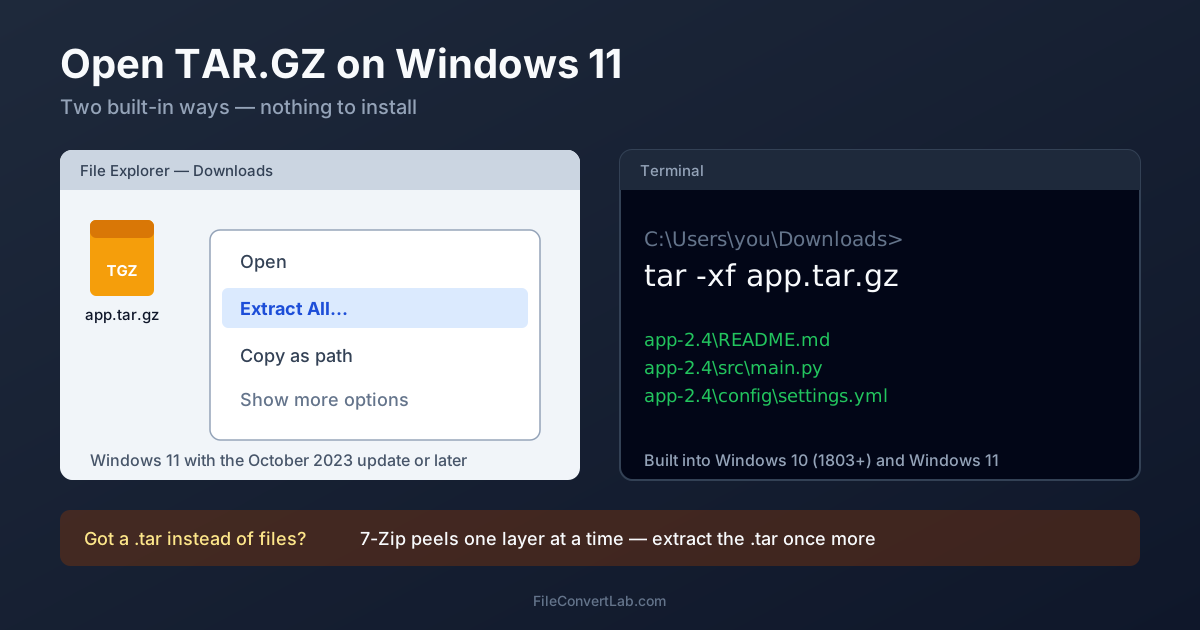
On Windows 11 you can open a tar.gz file without installing anything: right-click it in File Explorer and choose Extract All. That works on any Windows 11 PC with the October 2023 update or later. If the menu item isn't there, the command line has had a tar command since Windows 10 version 1803 — open Terminal in the folder and run tar -xf archive.tar.gz.
That covers most downloads. This guide goes through both methods, what to do with a .tgz or a bare .tar, the cases where Windows gives up, and 7-Zip as the fallback. No Windows at hand at all, or a locked-down PC? The online TAR.GZ extractor takes the file and gives you a ZIP back.
Method 1: Open tar.gz on Windows 11 with File Explorer "Extract All"
Microsoft added TAR support to File Explorer in update KB5031455 (October 2023) for Windows 11 versions 22H2 and 23H2; every 24H2 install includes it. It reads the whole family, not just .tar.gz:
| Extension | Opens in Explorer |
|---|---|
.tar.gz, .tgz | Yes |
.tar.bz2, .tbz2 | Yes |
.tar.xz, .txz | Yes |
.tar.zst, .tzst | Yes |
.tar | Yes |
.gz on its own (e.g. report.csv.gz) | No |
Steps:
- Right-click the
.tar.gzfile. - Choose Extract All.
- Keep or change the proposed folder (Windows suggests one named after the archive) and click Extract.
You can also double-click the archive to browse it like a folder and drag out only the files you need.
Check whether your PC has it: if Extract All doesn't appear for a .tar.gz, press Win + R, type winver and look at the version. On 22H2 or 23H2, install the pending updates in Settings → Windows Update. Windows 10 never received this feature — use Method 2 there.
Creating archives is a separate feature: from version 24H2, Compress to → Additional options can produce 7Z and TAR archives. Earlier versions can only create ZIP. The 7Z on Windows guide covers what Explorer can and can't do with archives.
Method 2: Extract tar.gz with the Built-in Windows tar Command
Every Windows 10 build since 1803 and every Windows 11 build ships tar.exe in C:\Windows\System32. It's bsdtar, the same program that powers tar on macOS, so the commands match what you'd type on a Mac.
- Open the folder with the archive in File Explorer.
- Right-click an empty spot and choose Open in Terminal (on Windows 10: type
cmdin the address bar and press Enter). - Run:
tar -xf archive.tar.gz
The files land in the current folder. No -z is needed: tar recognises gzip on its own, so the same command opens .tgz. Useful variations:
| Task | Command |
|---|---|
| Extract into another folder | mkdir C:\work\app then tar -xf archive.tar.gz -C C:\work\app |
| See what's inside first | tar -tf archive.tar.gz |
| Pull out a single file | tar -xf archive.tar.gz app-2.4/config/settings.yml |
| Print each file as it's extracted | tar -xvf archive.tar.gz |
Two Windows details. The target folder for -C must already exist, hence the mkdir. And inside the archive the paths use forward slashes (app-2.4/config/settings.yml), so copy names exactly as tar -tf prints them. Everything else — stripping a top-level folder, extracting by wildcard, the error messages — works as on Linux and macOS; the tar.gz extraction guide explains those options.
Which Formats Does Windows tar.exe Support?
That depends on the build, and you can check in one line:
tar --version
The output lists the compression libraries tar was built with. zlib means gzip works, so .tar.gz and .tgz are fine everywhere. If you also see liblzma, bz2lib and libzstd, your tar handles .tar.xz, .tar.bz2 and .tar.zst too. The version string commonly quoted for the original Windows 10 release is bsdtar 3.3.2 - libarchive 3.3.2 zlib/1.2.5.f-ipp — gzip only. If a library is missing, open that archive with Explorer (Windows 11) or 7-Zip instead.
Opening a .tgz File on Windows
A .tgz is a .tar.gz with a shorter name, byte for byte — the TAR extensions explainer shows the proof. On Windows 11 it gets the same Extract All entry, and tar -xf archive.tgz works on Windows 10 and 11.
If Windows shows a .tgz with a blank icon and no Extract option, that's a Windows 10 PC or a Windows 11 PC without the update. Use tar instead. Don't rename a .tgz to .zip: the name changes, the gzip data inside doesn't, and Explorer's ZIP handler won't open it.
Why You Get a .tar After Extracting (the Two-Step Case)
A .tar.gz is two layers: gzip compression around a tar bundle. Tools that handle both layers at once — Explorer's Extract All, tar -xf, the online extractor — go straight to your files.
7-Zip handles one layer at a time. We checked with 7-Zip 26.00 (the Linux build of the same version, on a test archive of 711 files): Extract Here on demo.tar.gz produced a single demo.tar of 43 MB and nothing else. Opening a .tgz in 7-Zip shows the same thing — one .tar inside. That's expected, not a broken download. Extract the .tar a second time and the files appear.
To skip the intermediate file in 7-Zip's window, double-click the .tar inside the .tar.gz — 7-Zip opens it in place — then select the files and click Extract. On the command line, 7-Zip can do both steps in one pipe:
7z x archive.tar.gz -so | 7z x -si -ttar -oC:\work\app
Delete the leftover .tar afterwards if you took the two-step route; it's as large as the uncompressed contents.
Open tar.gz with 7-Zip (Windows 10, or When Explorer Fails)
7-Zip is the fallback for Windows 10 and for archives Explorer refuses. It's free and opens every TAR variant plus 7Z, RAR and ZIP.
- Install 7-Zip from 7-zip.org.
- On Windows 11, right-click the archive and choose Show more options → 7-Zip → Open archive (Windows 11 hides 7-Zip in the classic menu; Shift + right-click jumps straight there).
- Double-click the
.tarinside, select everything and click Extract.
If you open archives often and want the commands in the first Windows 11 menu, NanaZip is the same engine packaged for the Microsoft Store. The 7Z on Windows guide compares the two and shows how to make either the default app.
When Windows Can't Open the Archive
Most failures aren't about Windows at all — they come from the archive or from things Linux allows and Windows doesn't.
- A lone
.gzfile.data.csv.gzis one compressed file, not a tar. Explorer doesn't read it. 7-Zip does: extract it and you getdata.csv - A
.tar.xzor.tar.zston Windows 10. Explorer can't help and the built-in tar may lack the library (checktar --version). Use 7-Zip: version 26.00 listed our.tar.xzand.tar.zsttest archives without complaint - File names Windows forbids. Linux happily stores names with
:,?,*,"or|, and names likeauxorcon. Windows can't create those files, so they fail or get renamed during extraction - Two files that differ only in case.
READMEandreadmecan sit side by side in a Linux archive. Windows folders are case-insensitive by default, so one overwrites the other - Very deep paths. Source-code archives can exceed the classic 260-character path limit. Extract to a short folder such as
C:\xinstead of deep inside Downloads - Symbolic links. Unix archives often contain symlinks. 7-Zip 26.00 skipped one that pointed outside the archive with
Dangerous link path was ignoredand extracted the other 711 files; the rest of the archive is usable - A truncated or fake download. If every tool reports an error, the file is probably an HTML error page or a cut-off download. Download it again
For archives full of Linux permissions and symlinks — software you're going to run under WSL, for example — extract inside WSL with Linux tar rather than on the Windows side. Windows file systems have no place for Unix permissions.
When to Use the Online Extractor Instead
- No install rights and no Windows 11 update — a work laptop on Windows 10 is the typical case
- You want a ZIP to pass on. The TAR.GZ to ZIP converter repackages the archive so anyone on Windows can double-click it
- You're on a Chromebook or phone for the moment
The file is uploaded over HTTPS and processed on our servers; the privacy policy describes how uploads are handled. The ZIP you get back keeps file names and folders, but not Unix permissions or symlinks.
Summary
On Windows 11, Extract All in File Explorer opens a tar.gz in one step, as long as the October 2023 update is installed. On Windows 10, tar -xf archive.tar.gz in Command Prompt does the same job with nothing to install. If you end up with a .tar, you used a tool that peels one layer at a time — extract it again. For a PC where neither works, the TAR.GZ extractor hands you a ZIP.
Related Tools
- Extract TAR.GZ online — upload a .tar.gz or .tgz, download a ZIP
- TAR.GZ to ZIP converter — for recipients who only use ZIP
- Extract TAR.XZ online — for .tar.xz when your Windows tar lacks xz support
- Extract 7Z online — the same without 7-Zip for .7z archives