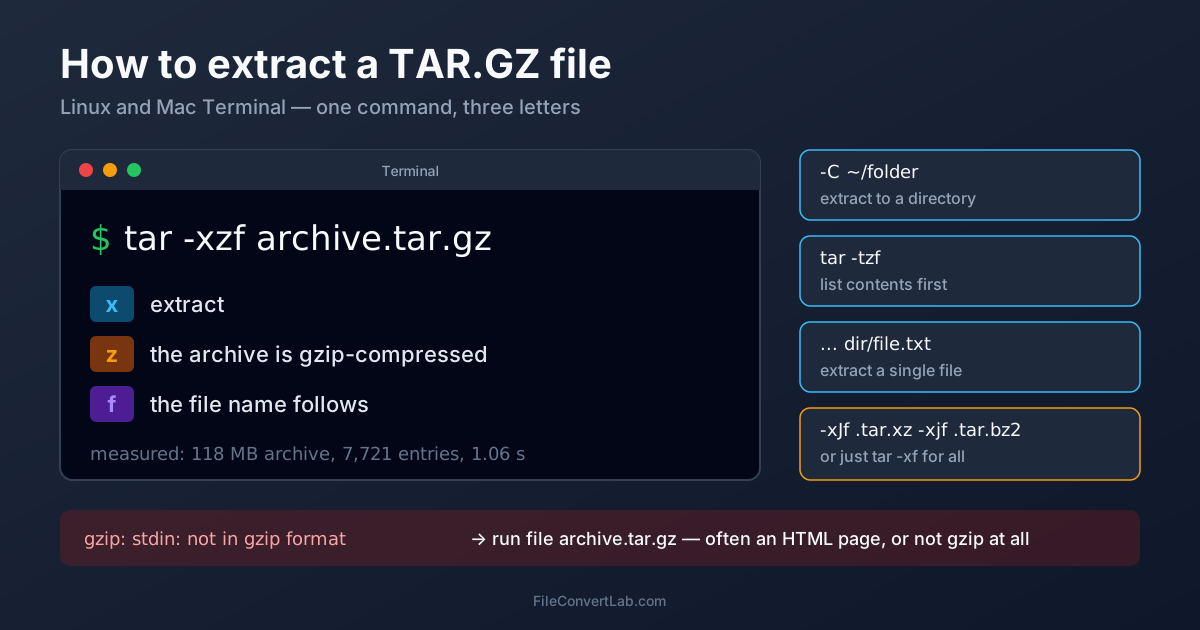
To extract a tar.gz file on Linux or Mac, open a terminal in the folder with the file and run tar -xzf archive.tar.gz. The files appear in the current folder, with the directory structure, permissions and symlinks the archive was built with. No terminal at hand, or on a locked-down machine? Upload it to the TAR.GZ extractor and download the contents as a ZIP.
The rest of this guide covers what people actually get stuck on: extracting into another folder, pulling out one file, peeking inside first, the .tar.xz and .tar.bz2 cousins, and the two error messages that account for most failed extractions.
All timings below were measured on one test archive: ten copies of the Python 3.14 standard library — 7,721 entries, 430.7 MB as a plain .tar, 118.2 MB after gzip -6. Machine: Linux, GNU tar 1.35, gzip 1.14, Intel Core i9-13900K.
How to Untar a tar.gz File in Linux
The one command you need:
tar -xzf archive.tar.gz
What the letters mean, so you can stop copying them blindly:
| Flag | Meaning |
|---|---|
-x | extract |
-z | the archive is gzip-compressed |
-f | the next word is the file name |
-v | verbose — print each file as it comes out (optional) |
-f must be followed directly by the file name, which is why it goes last in the bundle: tar -xzfv archive.tar.gz fails with v: Cannot open: No such file or directory because tar reads v as the file name.
You can usually drop the -z. Modern GNU tar and the tar on macOS look at the first bytes of the file and pick the decompressor themselves, so tar -xf archive.tar.gz works too. In our tests tar -xf correctly unpacked the same data compressed as gzip, bzip2, xz and zstd, even with the file renamed to mystery.bin.
Full extraction of the 118 MB test archive took 1.06 seconds. On everyday downloads you won't notice the wait.
Extract tar.gz to a Specific Directory
By default tar writes into the folder you're standing in. To send the files elsewhere, add -C:
mkdir -p ~/projects/app
tar -xzf archive.tar.gz -C ~/projects/app
The target folder must exist — tar won't create it, hence the mkdir -p.
A related annoyance: many archives wrap everything in one top-level folder like app-2.4.1/. If you want the contents without that wrapper, strip the first path component:
tar -xzf app-2.4.1.tar.gz -C ~/projects/app --strip-components=1
--strip-components=1 removes one leading folder from every path. Check the layout first (next section) so you strip the right number of levels.
List the Contents Without Extracting
Swap -x for -t to see what's inside:
tar -tzf archive.tar.gz            # names only
tar -tvzf archive.tar.gz           # with permissions, owner, size, date
tar -tzf archive.tar.gz | head     # just the first few lines
Do this before extracting anything from an unknown source. It tells you whether the archive has a single top-level folder or will dump 400 loose files into your Downloads folder. Listing isn't free, though: tar has to decompress the whole stream to find every name, so listing our test archive took 1.04 seconds — as long as extracting it.
Extract a Single File from tar.gz
Name the file after the archive, exactly as tar -t prints it:
tar -xzf archive.tar.gz app-2.4.1/config/settings.yml
For several files matching a pattern, turn on wildcards — without the flag tar treats * literally and reports Not found in archive:
tar -xzf archive.tar.gz --wildcards '*/docs/*.md'
Why pulling one file is slow on big archives. A tar.gz is one continuous compressed stream with no index, so tar can't jump to the file you want. Worse, by default it keeps reading to the end in case the same name appears again. In our test, extracting one small file that sat fourth in the archive took 1.07 seconds — the same as unpacking all 7,721 entries.
The fix is --occurrence, which tells GNU tar to stop at the first match:
tar -xzf archive.tar.gz --occurrence app-2.4.1/config/settings.yml
With it, the same file came out in under 0.01 seconds. A file near the end of the archive still costs a full read (1.00 seconds in our test) — that's the price of a format without an index. If you need random access to single files regularly, ZIP and 7Z keep an index; see 7Z vs ZIP for how those formats compare.
How to Extract tar.gz on Mac
macOS ships its own tar (the BSD version), and every command above works in Terminal unchanged: tar -xzf, -C, -t, --strip-components. The GNU-only extra is --occurrence; on a Mac, use --fast-read (short form -q) for the same stop-at-first-match effect.
Prefer not to type? Double-click the .tar.gz in Finder. Archive Utility unpacks both layers — the gzip and the tar — in one go and puts the result next to the archive, usually in a folder named after it. It's fine for downloads; it gives you no control over the destination, no partial extraction and no listing, so for anything beyond "just open it" use Terminal.
One Mac-specific gotcha appears in the other direction. Archives created with tar on a Mac carry Apple extended attributes, and GNU tar on Linux prints warnings like Ignoring unknown extended header keyword 'LIBARCHIVE.xattr.com.apple.quarantine'. The files extract correctly; the warnings are noise. To avoid them when creating archives on a Mac, run COPYFILE_DISABLE=1 tar -czf ....
On Windows? Windows 10 and 11 include the same tar command. Open Command Prompt or PowerShell in the folder and run tar -xzf archive.tar.gz — no install needed.
Extract tar.xz and tar.bz2: Same Command, Different Letter
The .tar.gz family has siblings that differ only in the compressor. The flags change by one letter:
| File | Explicit command | Auto-detect |
|---|---|---|
.tar.gz, .tgz | tar -xzf file.tar.gz | tar -xf file.tar.gz |
.tar.xz, .txz | tar -xJf file.tar.xz (capital J) | tar -xf file.tar.xz |
.tar.bz2, .tbz2 | tar -xjf file.tar.bz2 | tar -xf file.tar.bz2 |
.tar.zst | tar --zstd -xf file.tar.zst | tar -xf file.tar.zst |
If you're unsure, tar -xf is the safe habit. Using the wrong explicit letter is one of the classic causes of the error in the next section. The online equivalents are the TAR.XZ extractor and the TAR.BZ2 extractor.
"gzip: stdin: not in gzip format" and Other tar Errors
Each of these we reproduced on purpose, so the messages below are what GNU tar 1.35 really prints.
gzip: stdin: not in gzip format / Error is not recoverable
gzip: stdin: not in gzip format
tar: Child returned status 1
tar: Error is not recoverable: exiting now
The file isn't gzip, whatever its name says. Three causes, in order of likelihood:
- You downloaded a web page. A broken link, login wall or expired token often saves an HTML error page as
something.tar.gz. Runfile archive.tar.gz— if it saysHTML document, download again from the real link. - It's a plain tar with a .gz name. Some servers decompress on the fly.
tar -xf(withoutz) opened our renamed plain tar without complaint. - It's xz or bzip2 inside. Same message when you use
-zon a.tar.xz. Again,tar -xfsorts it out.
Unexpected EOF in archive
gzip: stdin: unexpected end of file
tar: Unexpected EOF in archive
The download was cut short. We produced this by cutting our 11.8 MB single-copy test archive at 5 MB: tar still wrote out 461 of its 714 files — everything before the cut — and the rest were gone. Check the file before you rely on it with gzip -t archive.tar.gz — silence means the compressed stream is intact, unexpected end of file means download it again.
This does not look like a tar archive
You ran tar on a single gzipped file, such as report.csv.gz or access.log.gz. There's no tar inside, so there's nothing to untar. Decompress it instead:
gunzip report.csv.gz          # replaces it with report.csv
gunzip -k report.csv.gz       # keeps the .gz as well
Cannot mkdir: Permission denied
You're extracting into a folder you can't write to, such as /opt or /usr/local. Extract into your home folder, or prefix with sudo if the files really belong there.
Permissions and Symlinks After Extraction
This is where tar.gz does something ZIP doesn't: it stores Unix permissions and symbolic links. We built a test archive with an executable script (755), a world-writable config (666) and a symlink, then extracted it as a regular user:
- Symlinks came back as symlinks
- The executable bit survived — the script stayed runnable
- Extra-permissive modes were trimmed by the user's umask:
666became644 - Ownership became the extracting user, not the original owner
Add -p (tar -xzpf) and the 666 came back exactly. Run tar as root and it also restores the original owners — which is what you want for a system backup and don't want for a random download.
One practical consequence: if you convert a tar.gz to ZIP, for example with the TAR.GZ to ZIP converter so a Windows colleague can open it, the files survive but the Unix permissions and symlinks don't. The same applies to our online extractor, which hands you a ZIP. For deploying software on Linux, extract the original tar.gz with tar.
When the Online Extractor Is the Better Choice
The terminal wins for anything on a server, anything large and anything where permissions matter. The online TAR.GZ extractor wins when:
- You're on a Chromebook, a phone or a work laptop where you can't open a terminal
- You got a
.tar.gzby email and just need the documents inside - You want a ZIP you can pass on to someone else
Files are uploaded over HTTPS and processed on our servers; see the privacy policy for how uploads are handled.
Summary
tar -xzf archive.tar.gz extracts a tar.gz on Linux and Mac; -C folder picks the destination and -t shows what's inside first. When tar complains the file is "not in gzip format", check it with file — it's usually a web page or a differently compressed archive, and tar -xf handles the latter. For a one-off without a terminal, use the TAR.GZ extractor.
Related Tools
- Extract TAR.GZ online — upload a .tar.gz or .tgz, download a ZIP
- Extract TAR.XZ online — for .tar.xz and .txz
- Extract TAR.BZ2 online — for .tar.bz2 and .tbz2
- TAR.GZ to ZIP converter — repackage for Windows users