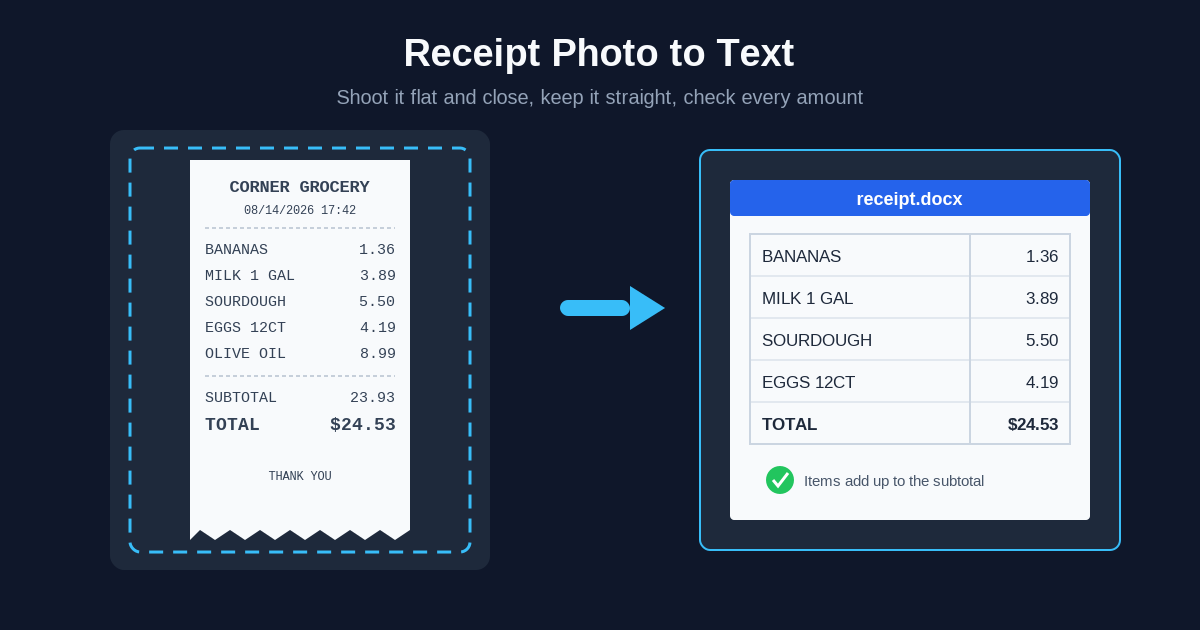
For receipt OCR, photograph the receipt flat and close, then upload the photo to JPG to text — the recognised text appears on the page with a Copy button. If you want each item next to its price, use JPG to Word instead: it rebuilds the receipt as a two-column table. Either way, check every amount against the paper. In our tests the amounts came through right on clean photos, but a slightly crooked photo quietly paired items with the wrong prices, and a receipt shot from too far away lost most of its prices.
How to Turn a Receipt Photo into Text in 4 Steps
- Lay the receipt flat on a dark surface and hold the phone straight above it
- Fill the frame with the receipt — move closer rather than zooming, and take two photos if it's long
- Upload the JPG to JPG to text for copy-and-paste, or to JPG to Word for an item-and-price table
- Check the total, the date and every amount against the receipt before you file it
iPhone photos are HEIC by default and the OCR tools take JPG, PNG and PDF, so convert first with HEIC to JPG or set the camera to "Most Compatible". JPG to text takes one photo at a time, JPG to Word takes several at once, and both have a document language menu with 29 languages.
What We Found Testing Receipt OCR
We made three test receipts in a typical thermal-printer layout — a US grocery receipt, a German bakery receipt with euro amounts and a UK café receipt with pounds — and turned them into realistic phone photos: close up, from further away, tilted, crumpled and faded. Every photo went through the same recognition JPG to text uses.
| Photo | What came back |
|---|---|
| Close-up, receipt fills the frame | Every price and total right. Slips in codes: "12OZ" read as "120Z", an auth code "0O81S5" as "0081S5" |
| Receipt a sixth of the frame width | Every amount still right; "8 OZ" became "8 0Z", the time "17:42" became "17 :42" |
| Receipt a ninth of the frame width | Amounts right; "OIL" became "0IL" |
| Receipt a twelfth of the frame width | Store name and most item prices gone — only the subtotal, tax and total survived; "EGGS" became "EGG5" |
| Crumpled (wavy lines) | Every amount right |
| Faded to pale grey | Every amount right; "1 GAL" became "I GAL" |
| Tilted 3° | Every amount read, but each price landed next to the wrong item |
| Tilted 8° | Prices and items shuffled beyond easy repair |
Two lessons stand out. Letters and digits that look alike get swapped — O and 0, S and 5, 1 and I — mostly in codes and units, where there are no surrounding words to give the right answer away. And the damage that matters most is silent: a missing price or a price on the wrong line looks perfectly plausible in the output.
Thermal Paper Fades — Capture Receipts Early
Most till receipts are printed on thermal paper, which darkens where it's heated. Heat, sunlight and friction make it fade, and a receipt kept in a wallet for months can turn pale or disappear in patches.
In our test a pale grey receipt still read correctly, but that was an evenly faded digital image with sharp letters. Real thermal fading is patchy and blurs the edges of characters, which is what recognition struggles with. So:
- Photograph receipts the day you get them, before they spend weeks in a pocket
- Don't brighten a faded receipt in a photo editor; raising brightness bleaches thin strokes first
- If it's already too faint to read by eye, OCR won't recover it — ask the shop for a copy
Small Print: Get Closer, Don't Zoom
Receipt print is small, and it's the first thing to go when a photo is taken from too far away. The reason is simple: large photos are scaled down to a working size of about 2,000 pixels on the long side before the text is read. If the receipt fills a twelfth of your frame, the letters end up a few pixels tall and prices vanish — exactly what happened in our test.
- Move the phone closer until the receipt fills most of the frame; digital zoom only enlarges pixels
- Crop to the receipt before uploading if you couldn't get close
- Tap to focus on the print, and hold still — blur hurts small type more than large
The same rules apply to any document photo; our guide to preparing scans for OCR covers resolution and lighting in more depth.
Keep the Receipt Straight — Tilt Scrambles Prices
This is the failure worth knowing about. On a receipt, the item name sits on the left and the price far away on the right. When the photo is even slightly crooked, the price sits a little higher or lower than its item, and it gets matched to the neighbouring line.
In the Word output of our photo tilted by just 3°, every price moved up one row: the bananas got the milk's price, the milk got the bread's, and so on down the receipt. Nothing looked broken. At 8° the prices and items were shuffled so thoroughly that sorting them out would take longer than typing.
- Shoot from directly above, phone parallel to the paper
- Use a scanner app — the document scanner in iPhone Notes, the Google Drive app on Android or Microsoft Lens detects the edges and squares the receipt for you
- Straighten the photo with the crop tool in Photos if it's already crooked
Crumpled Receipts: Flatten, Then Shoot
A crumpled receipt was the least of our problems — the wavy test photo came back with every amount right. Deep creases are a different matter: a fold that runs through a line of print casts a shadow and can break characters in half. Smooth the receipt with your hand or press it under a book for a minute, and light it from the front so creases don't throw shadows across the text.
Long Receipts: Several Photos in One ZIP
A long receipt won't fit in one sharp photo. Take it in sections from top to bottom, leaving a line or two of overlap, and name the photos in order — 01.jpg, 02.jpg. Then put them in a ZIP and upload it to multiple JPG to text, which reads the images in file-name order and returns one text file with a page-break marker between photos.
In our test with a receipt split into two overlapping photos, the text came back complete and in order, but the overlapping lines appeared twice — delete the repeats before you add anything up. The same ZIP trick works for whiteboards and flipcharts, see whiteboard photo to text; for other bulk jobs, see batch OCR.
Currency Symbols, Decimal Commas and Look-Alike Characters
- Euro and pound signs are read. Our German receipt kept every "€", and the UK receipt kept every "£" — except the bold total, where "£13.40" came out as "f13.40"
- Decimal commas stay commas. "13,69 €" came through as written, so paste into a spreadsheet set to the right locale or replace commas before calculating
- Pick the receipt's language for accents. Choose German, French or whatever the receipt is printed in on JPG to Word, so letters like ß and é come through, then check amounts and totals against the paper
- Codes and postcodes are the riskiest lines. "YO1" became "Y01", and letter-and-digit auth codes rarely came back intact
A quick check that catches most mistakes: add up the item prices and compare with the subtotal. If the sum is off, one of the amounts is wrong.
Item and Price in One Row: Use JPG to Word
On a receipt the gap between item name and price is wide, so a plain text result puts them on separate lines — the name, then the price underneath. That's fine for copying a total, awkward for anything else.
JPG to Word handles this better. It spots that the prices line up in a column and rebuilds the receipt as a Word table with the item in one column and the price in the next. On our straight close-up photo, all twelve rows — items, subtotal, tax, total and card payment — came out correctly paired. From there you can copy the table straight into Excel or Google Sheets. Just remember the tilt test above: the table is only as straight as the photo.
Image to Excel is built for gridded tables with borders. A receipt has no grid, and our test receipt was rejected with a message saying no table could be read.
Invoices: Check Whether You Need OCR at All
Invoices usually arrive as PDFs, and most of those are digital — made by accounting software, with real text inside. Try selecting a line of the invoice. If the words highlight, OCR would only make things worse: convert it with PDF to Word, which keeps the original characters exactly.
- Invoice tables to a spreadsheet: AI PDF to Excel finds the tables and gives you an XLSX file, and it falls back to OCR for scanned pages. Guest and free accounts can process up to 10 pages per PDF
- A scanned or photographed invoice to Word: OCR PDF to Word. We tried a scanned invoice with a bordered line-item table: the Word file had all four columns — description, quantity, unit price, amount — with every figure right and the subtotal, VAT and total in the right-hand columns
Our tools read text; they don't pick out fields like "vendor" or "VAT number" for you. If you need that, expense apps and accounting software with receipt capture are built for it.
Keep a Searchable Archive of Receipts
For tax or expense records you often want the receipt itself, not just its text. A searchable PDF keeps the photo and adds invisible text, so you can find a receipt later by searching for the shop name or an amount. JPG to searchable PDF does it in one step, and multiple JPG to PDF puts a ZIP of receipts into one file; both have the document language menu, so a receipt in Greek, Russian or another non-Latin language goes the same way. For a receipt that's already a PDF, use OCR PDF to searchable PDF. Search for one amount before you file the result.
Receipts often carry the last digits of a card number. Your files travel to our servers over an encrypted HTTPS connection; how uploads are handled is set out in our privacy policy.
Summary
Receipt OCR works well on a straight, close, flat photo taken while the print is still dark. Distance costs you prices, and a tilt of a few degrees quietly matches prices to the wrong items, so check that the item prices add up to the subtotal. For a quick copy, use JPG to text; for item-and-price rows, use JPG to Word.
Related Tools
- JPG to text — receipt photo to copyable text on the page
- JPG to Word — item and price as a Word table, with a language menu
- Multiple JPG to text — a long receipt from several photos in one ZIP
- JPG to searchable PDF — a receipt archive you can search
- AI PDF to Excel — invoice tables to XLSX
- HEIC to JPG — convert iPhone photos before OCR