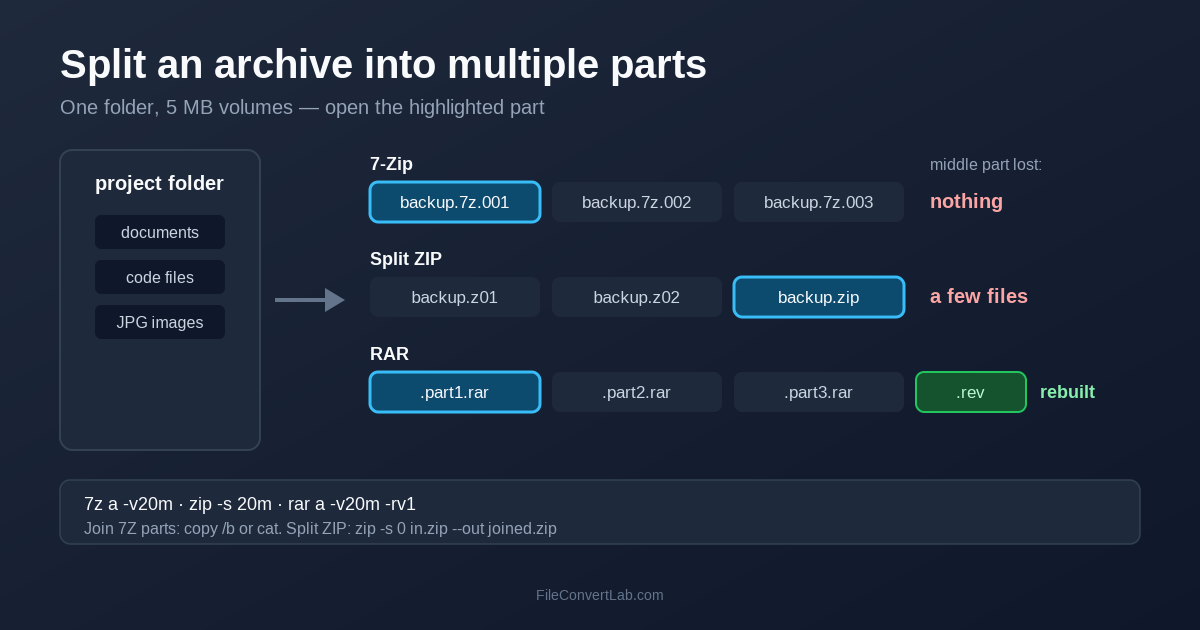
To split an archive into multiple parts, set a volume size when you create it: in 7-Zip type a size into Split to volumes, bytes (you get .7z.001, .7z.002…), on the command line use zip -s 100m (.z01, .z02… plus a final .zip), and in WinRAR fill in Split to volumes, size (.part1.rar, .part2.rar…). To join the parts again, put them all in one folder and open the first one. If one part is missing, most of the archive is usually gone.
To change a joined archive's format online (ZIP to 7Z, TAR.GZ to ZIP and so on), use the archive converter after you've joined the parts on your computer — the section on uploading below explains how.
Split Archive Formats Compared
| 7-Zip volumes | Split ZIP | RAR volumes | Plain split | |
|---|---|---|---|---|
| Part names | backup.7z.001, .002, .003 | backup.z01, .z02, backup.zip | backup.part1.rar, .part2.rar | file.001, .002 (you choose) |
| Open this part | .7z.001 | .zip (the last one) | .part1.rar | join first, or .001 in 7-Zip |
| One middle part missing | Nothing extracted | Some files, plus broken ones | The files before the gap | Nothing, unless the inner format can salvage |
| Can rebuild a lost part | No | No | Yes, with recovery volumes | No |
| Tools that create it | 7-Zip, NanaZip, Keka, 7z | zip -s, WinZip | WinRAR, rar (paid after trial) | split, 7-Zip |
"5M" in 7-Zip and zip means 5 MiB: every part except the last is exactly 5,242,880 bytes. Keep that in mind when a service's limit is written in decimal megabytes.
How to Split a 7Z Archive with 7-Zip
Windows (7-Zip or NanaZip):
- Select the files or folder, right-click → 7-Zip → Add to archive… (on Windows 11 it's under Show more options; NanaZip shows it in the first menu).
- Leave Archive format on 7z.
- In Split to volumes, bytes, pick a preset or type your own size, such as
20Mor1G. - Click OK. You get
name.7z.001,name.7z.002, and so on.
Linux and macOS (command line):
7z a -v20m backup.7z project-folder/      # Linux, 7-Zip package
7zz a -v20m backup.7z project-folder/     # macOS, Homebrew "sevenzip"
7-Zip can split any format it writes. If you choose ZIP in the same dialog, the parts are named name.zip.001, .002, not the classic .z01 scheme, so other ZIP tools won't recognise them as a split ZIP.
How to Split a ZIP File into Parts
Windows File Explorer and the macOS Compress command can't split ZIP files. The standard route is Info-ZIP's zip, which comes with macOS and most Linux distributions:
zip -r -s 20m backup.zip project-folder/
That creates backup.z01, backup.z02 … and a final backup.zip. The last file holds the archive's table of contents, which is why it's the one you open.
To split an existing ZIP without re-compressing it:
zip big.zip --out part.zip -s 20m
On Windows without extra tools, the practical answer is 7-Zip's volumes (above) or WinRAR.
RAR Volumes and Recovery Volumes
WinRAR: Add to archive → Split to volumes, size → pick a size. Current RAR5 archives name parts name.part1.rar, name.part2.rar; the old RAR4 scheme used name.rar, name.r00, name.r01.
RAR's unique feature here is recovery volumes (.rev files). In WinRAR you set their number on the Advanced tab; on the command line it's -rv:
rar a -v5m -rv1 backup.rar project-folder/
Delete backup.part2.rar from a three-part set, run rar rc backup.part1.rar, and RAR rebuilds the missing part from the single .rev file. One recovery volume costs about one extra part of storage, and it can replace any one lost part. ZIP and 7Z have nothing comparable built in.
Split Any File on Linux and macOS with split and cat
Sometimes you don't need an archive at all, just smaller pieces of one big file, such as a disk image or an existing archive:
split -b 20M -d -a 3 --numeric-suffixes=1 video.mkv video.mkv.   # Linux: video.mkv.001, .002…
cat video.mkv.0* > video.mkv                                      # join again
On macOS, split -b 20m video.mkv video.mkv.part- does the same with letter suffixes (the numeric options above are GNU-only). The joined file is identical to the original. Handy detail: 7-Zip recognises numbered .001 files as a "Split" set, so a Windows recipient can open file.zip.001 in 7-Zip without joining anything first.
How to Join Split Archive Parts
Whatever the format, put every part in the same folder, with the original names. Then:
- 7Z volumes: open
.7z.001, or run7z x backup.7z.001. Opening.7z.002fails with "Can't open as archive". It has to be the first part - Split ZIP: open the
.zipin 7-Zip, WinRAR or Keka. 7-Zip also accepted the.z01. Classicunzipcan't: it warns that "true multi-part support doesn't exist yet" and fails. To get a normal single ZIP, runzip -s 0 backup.zip --out joined.zip - RAR volumes: open
.part1.rar. Pointunraratpart2and it goes back topart1on its own and extracts everything
Joining 7Z parts without 7-Zip works because they're plain byte slices:
cat backup.7z.001 backup.7z.002 backup.7z.003 > backup.7z                 # Linux, macOS
copy /b backup.7z.001 + backup.7z.002 + backup.7z.003 backup.7z           # Windows cmd
Don't do that with split ZIPs. Concatenating .z01 + .z02 + .zip gives a file that looks like a ZIP but has the wrong internal offsets. Classic unzip rejects it, and so does our extractor. Use zip -s 0 instead, or zip -FF to rebuild it.
Choosing a Volume Size
- Email: attachments grow by about a third in transit because of Base64 encoding, and many providers cap a message at 20–25 MB. Parts of 15 MB, one per email, are a safe choice. How to compress files for email covers provider limits and what to do before splitting at all
- FAT32 USB sticks: the largest single file FAT32 can hold is 4 GiB minus one byte. A 4,000 MB volume size (
-v4000m) leaves a margin - Upload forms and cloud services: use the limit the service states, converted to MiB if the tool uses binary units
- Fewer, larger parts are safer. Every extra part is another file that can go missing
What Happens When One Part Is Missing
Remove the middle part of a three-part set and this is what's left:
- 7Z: 7-Zip reports "Unexpected end of archive" and extracts nothing. The archive's index sits in the last part, and with solid compression the data depends on what came before
- Split ZIP: 7-Zip reports "Missing volume: backup.z02". A few files come out intact, and it also writes broken ones, so check before you trust anything
- Solid RAR:
unrarstops at the gap. Files before it come out intact, but anything after it is lost - RAR with one recovery volume: the missing part is rebuilt and all files are intact
If you're sending parts over an unreliable channel, either use RAR with recovery volumes or send a checksum list (sha256sum backup.7z.* > parts.sha256) so the recipient knows exactly which part to request again.
Can You Upload Split Archives to FileConvertLab?
Yes — select every part at once and the extractor joins them before it unpacks:
- Extract 7Z online takes
.7z.001,.7z.002… - Extract ZIP online takes a classic split ZIP (
.z01,.z02and the final.zip) as well as 7-Zip's.zip.001parts - Extract RAR online takes
.part1.rar,.part2.rar…
If a part is missing, the job stops and names it, so you know which file to ask for. All parts together have to fit the upload limit: 100 MB without an account or on a free account. A password-protected set works too: type the password before you select the parts.
Going the other way, the ZIP to 7Z converter can cut its result into 10, 25, 50, 100 or 700 MB volumes (.7z.001, .002…), delivered together in one ZIP.
A better move, when it applies, is to avoid splitting altogether by recompressing. How much that gains depends on the content. Our ZIP to 7Z converter writes solid archives: in our test the 7Z came out 58% smaller than ZIP on source code, 40% smaller on program binaries and 28% smaller on a mixed set, while a phone photo barely changed. For the compression trade-offs between formats, see ZIP vs 7Z vs RAR. For opening a .7z.001 set step by step, see the 7Z extraction guide.
Summary
To split an archive into multiple parts, set a volume size when you create it: 7-Zip for .7z.001 sets, zip -s for .z01 sets, WinRAR for .part1.rar. Keep every part together and open the first one (the .zip for split ZIPs). Losing a single part usually loses the archive, unless you added RAR recovery volumes. To use an online tool such as our archive converter, join the parts into one file first.
Related Tools
- Archive converter — change ZIP, 7Z and TAR formats
- Extract 7Z online — upload a joined
.7z - Extract ZIP online — upload a joined
.zip - ZIP to 7Z — switch a ZIP to the 7Z format