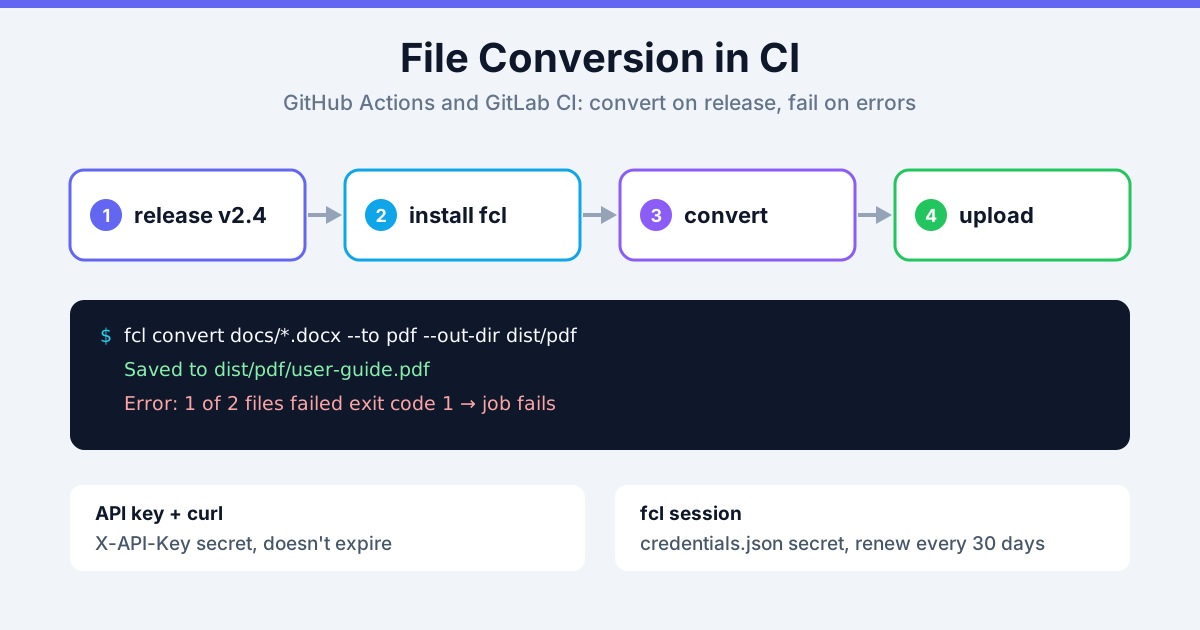
There are two ways to convert files in a CI pipeline with FileConvertLab. You can install the fcl CLI in the job and run fcl convert docs/*.docx --to pdf --out-dir dist/pdf, or you can call the conversion API with curl and an API key. Either way, a failed conversion ends with a non-zero exit code, the job goes red, and the PDFs get uploaded as build artifacts. The real decision is which credential you store as a secret, because the CLI and the API accept different ones.
This guide has a GitHub Actions workflow that converts DOCX to PDF when you publish a release, a GitLab CI job that does the same on a tag, and the credit arithmetic that keeps the pipeline under the limits. It sits under developer resources next to the API and CLI references. If you haven't used fcl yet, the fcl CLI quickstart covers the basics in five minutes.
Which Credentials Work in CI: API Key or fcl Session
| API key | fcl session | No credentials | |
|---|---|---|---|
| Used by | curl or any HTTP client (X-API-Key header) | The fcl CLI (Authorization: Bearer) | Both |
| Where it comes from | API keys page in your account | fcl login | Nothing to set up |
| Lifetime | Until you revoke it | 30 days from fcl login | n/a |
| Limits | Your account's limits, copied into the key when you create it | Your account's limits | Guest: 20 credits/min, 50/day |
| When it's wrong | 401 Invalid or disabled API key, and the job fails | The CLI silently falls back to guest | n/a |
Three things to know before you pick:
- The CLI doesn't accept API keys. It sends a Bearer token from
fcl login, and ansk_live_…key in that slot is ignored FCL_ACCESS_TOKENdoesn't belong in a secret. The CLI reads it, but a login access token expires after one hour and the CLI can't refresh a token passed that way. For CI, store the whole session file instead (below). It holds a refresh token that stays valid for 30 days, andfclswaps it for a fresh access token on every run- A dead session doesn't fail loudly. When the stored session has expired,
fclkeeps converting as a guest, with guest limits. The workflow below catches that with a check step
Our recommendation: for a pipeline you want to forget about, use an API key with curl. It doesn't expire, and a bad key fails the job right away. Use fcl when you'd rather not maintain a script and can renew a session once a month.
GitHub Actions: Convert DOCX to PDF on Release with fcl
This workflow runs when a release is published. It converts every .docx in docs/ to PDF, uploads the PDFs as a workflow artifact and attaches them to the release:
name: Release PDFs
on:
  release:
    types: [published]

permissions:
  contents: write

jobs:
  pdf:
    runs-on: ubuntu-latest
    steps:
      - uses: actions/checkout@v4

      - name: Install fcl
        run: |
          curl -fsSL https://fileconvertlab.com/downloads/cli/fcl-linux-x64.tar.gz | tar -xz -C "$RUNNER_TEMP"
          install -D "$RUNNER_TEMP/fcl-linux-x64/fcl" ~/.local/bin/fcl

      - name: Restore fcl session
        env:
          FCL_CREDENTIALS: ${{ secrets.FCL_CREDENTIALS }}
        run: |
          mkdir -p ~/.config/fcl
          printf '%s' "$FCL_CREDENTIALS" > ~/.config/fcl/credentials.json
          chmod 600 ~/.config/fcl/credentials.json

      - name: Convert docs to PDF
        run: fcl --json convert docs/*.docx --to pdf --out-dir dist/pdf

      - name: Check the session was used
        run: |
          fcl whoami | grep -q '^User:' || {
            echo "::error::fcl ran as guest. Run fcl login and update FCL_CREDENTIALS."
            exit 1
          }

      - uses: actions/upload-artifact@v4
        with:
          name: pdf-docs
          path: dist/pdf/

      - name: Attach PDFs to the release
        env:
          GH_TOKEN: ${{ github.token }}
        run: gh release upload "${{ github.event.release.tag_name }}" dist/pdf/*.pdf --clobber
Step by step:
- Install fcl: downloads the Linux x64 archive from the fcl CLI reference and puts the binary on the runner's
PATH. It's a single file with no dependencies, so there is nothing to build or cache - Restore fcl session: writes the
FCL_CREDENTIALSsecret to~/.config/fcl/credentials.json, the filefcl logincreates on Linux - Convert docs to PDF: one command for all files.
fclcreatesdist/pdf, keeps each file's name (user guide.docxbecomesuser guide.pdf) and exits with 1 if any file failed, which fails the step - Check the session was used:
fcl whoamiprintsUser: …only when the stored session is valid. It runs after the conversion because that's whenfclrefreshes the session, and before itwhoamiwould report "Not logged in" for any session file older than an hour - Upload and attach: the artifact is kept with the workflow run, and
gh release uploadputs the PDFs on the release page. That needscontents: write
Word files are only one option. Any pair from the formats table works: --to pdf for XLSX and PPTX too, or HTML to PDF for a generated manual. When the release documents must be archival PDF/A, add a second pass over the PDFs: fcl convert dist/pdf/*.pdf --to pdfa --out-dir dist/pdfa. The pdfa target takes PDFs, not DOCX, and it's the same conversion as PDF to PDF/A.
Create the FCL_CREDENTIALS Secret
Give CI its own session, so it doesn't share one with your laptop. Every time CI refreshes a session, the previous access token for that session stops working, so a shared session would keep knocking your local fcl back to guest mode. Each fcl login creates a separate session:
- Run
fcl loginand approve the code on the website - Copy the contents of
credentials.jsonfrom your config folder:~/.config/fcl/on Linux,~/Library/Application Support/fcl/on macOS,%APPDATA%\fcl\on Windows - Paste it into a repository secret named
FCL_CREDENTIALS(Settings → Secrets and variables → Actions) - Run
fcl logout, thenfcl loginagain.logoutonly deletes the local file, so the copied session stays valid for CI, and your laptop gets a new session of its own
The session expires 30 days after step 1. When the check step starts failing, repeat the four steps. That monthly chore is the main reason to prefer an API key for pipelines that run for years.
GitLab CI: Convert Files on Tag with curl and an API Key
For a CLI-free job, use the API directly. This POSIX shell script uploads each DOCX, polls until the job is final, downloads the PDF and stops at the first failure:
#!/bin/sh
set -eu
API=${FCL_API:-https://fileconvertlab.com/api/v1}
SRC=$1
OUT=$2
mkdir -p "$OUT"

api() { curl -sS --fail-with-body -H "X-API-Key: $FCL_API_KEY" "$@"; }
fail() { echo "$1: $2" >&2; exit 1; }

for file in "$SRC"/*.docx; do
  created=$(api "$API/jobs" -F "file=@$file" -F "operation=word-to-pdf") || fail "$file" "$created"
  job=$(echo "$created" | jq -r .id)
  tries=0
  while :; do
    state=$(api "$API/jobs/$job") || fail "$file" "$state"
    case $(echo "$state" | jq -r .status) in
      completed) break ;;
      failed|rejected) fail "$file" "$(echo "$state" | jq -r .error.message)" ;;
    esac
    tries=$((tries + 1))
    [ "$tries" -lt 150 ] || fail "$file" "not finished after 5 minutes"
    sleep 2
  done
  api -o "$OUT/$(basename "$file" .docx).pdf" "$API/jobs/$job/download"
  echo "converted $file"
done
The job definition in .gitlab-ci.yml:
pdf-docs:
  image: alpine:3.20
  rules:
    - if: $CI_COMMIT_TAG
  before_script:
    - apk add --no-cache curl jq
  script:
    - sh scripts/docx-to-pdf.sh docs dist/pdf
  artifacts:
    paths:
      - dist/pdf/
    expire_in: 30 days
Store the key as a CI/CD variable named FCL_API_KEY (Settings → CI/CD → Variables) and tick Masked so it never shows up in job logs. If you also tick Protected, the variable only reaches pipelines on protected branches and tags, so protect your release tags too.
With a wrong key, the first request prints {"error":{"code":"UNAUTHORIZED","message":"Invalid or disabled API key"}} and the script exits with 1. A corrupt DOCX stops it with This Office file is password-protected or corrupted and cannot be converted.
The script uses word-to-pdf. Operation IDs for other formats (excel-to-pdf, ppt-to-pdf, pdf-to-pdfa, html-to-pdf…) are in the conversion API documentation. For the job lifecycle and the webhook alternative to polling, see conversion API jobs, polling and callbacks. The script works unchanged in a GitHub Actions run: step, and fcl works in a GitLab job just as well. The pairing above is only an example.
Fail the CI Job When a Conversion Fails
Both approaches exit non-zero on failure, and that's what CI needs:
fcl convertwith several files converts all of them, even after one fails, and printsError: 1 of 5 files failedat the end with exit code 1. You get every file that could be converted plus a red job- The curl script stops at the first failure. Swap
exit 1for a counter if you want the rest converted first --jsonprints one line per file. To list the failures in the job log, add| jq -r 'select(.status=="failed") | .input + ": " + .error'in a separate step, since in a pipe the step's exit code comes fromjq- Rejected input (a corrupt or password-protected file) ends as
rejected, notfailed. Treat both as failures
Don't wrap the conversion in || true to "keep the pipeline green". A release without its PDFs is worse than a red job.
Stay Inside Credit Limits in CI
Every conversion costs credits. Office to PDF costs 2, PDF to image costs 1, OCR costs 5, and video costs 10. Credits are capped per minute and per day:
| Plan | Credits/min | Credits/day | DOCX→PDF per minute | DOCX→PDF per day |
|---|---|---|---|---|
| Guest | 20 | 50 | 10 | 25 |
| Free | 50 | 200 | 25 | 100 |
Ways to stay inside the limits:
- Trigger on releases or tags, not every push. Converting the whole docs folder on every commit multiplies your credit use by the number of commits
- Convert only what changed.
git diff --name-only "$(git describe --tags --abbrev=0 HEAD^)" HEAD -- docs/lists the files changed since the previous tag, and those are the ones to pass tofcl convert. On GitHub, setfetch-depth: 0onactions/checkoutso the tags are there - Keep a burst under the per-minute cap. Past it, the API answers 429
RATE_LIMIT_EXCEEDEDand the conversion fails. For more files than your per-minute allowance, split the run or move up a plan - Mind the file limits too: 100 MB per file on Guest and Free, with page caps of 20 (Guest), 100 (Free)
For a folder that should convert itself as files arrive, not on every release, see watch-folder automation.
Troubleshooting File Conversion in CI
fcl ran as guestfrom the check step: the session inFCL_CREDENTIALSis older than 30 days or was created on another account. Redo the four secret steps- 401
Invalid or disabled API key: the variable is empty (a protected variable on an unprotected tag) or the key was revoked. Check the variable settings and the API keys page Rate limit exceededor 429: too many conversions in one minute. See the credit table aboveFile not found: docs/*.docx: the glob matched nothing, so the shell passed it through literally. Check the path, or guard the step with a file checkUnsupported conversion: that source and target pair doesn't exist infcl. Check the formats table on the CLI reference- The download returns 410: results can be downloaded for 24 hours after the job completes. Download in the same job that created it
Summary
For file conversion in CI, pick the credential first. An API key with curl never expires and fails fast. An fcl session is less code, but it has to be renewed every 30 days and falls back to guest silently, so check fcl whoami after converting. Trigger on releases, let the non-zero exit code fail the job, and keep each run inside the credits per minute. Everything else is on the developer resources page.
Related Tools
- Developer resources: API and CLI overview
- fcl CLI reference: commands, flags and format pairs
- Conversion API documentation: endpoints and operation IDs
- API keys: create and revoke keys for CI
- Word to PDF converter
- PDF to PDF/A converter