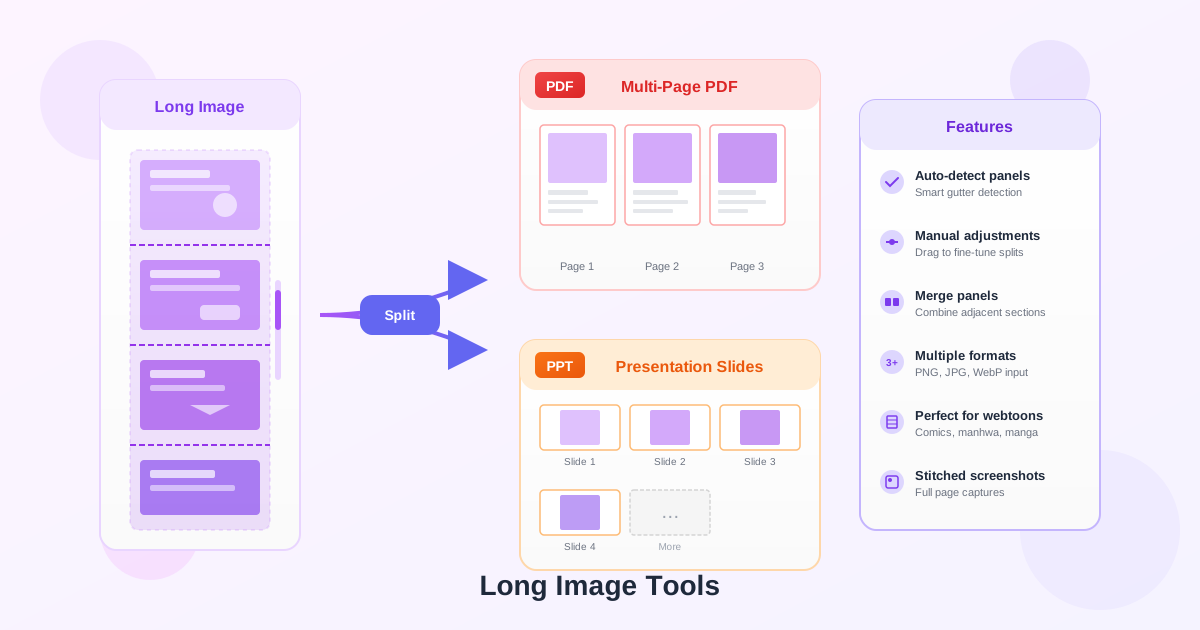

What Are Long Images?
Long images, also known as vertical scrolling images, are commonly used for webtoons, manhwa, webcomics, and stitched screenshots. These images can be thousands of pixels tall while maintaining a standard width, designed to be read by scrolling vertically on mobile devices or web browsers.
Our long image tools help you split these vertical images into multiple pages or slides, making them easier to print, present, or share in document formats like PDF and PowerPoint. Splitting exists because standard page and slide formats assume a fixed aspect ratio — a Letter or A4 page, a 16:9 slide — while a webtoon chapter or a stitched screenshot can run tens of thousands of pixels tall. Importing that as one unsplit page would mean either shrinking the artwork until it's unreadable or generating a page size no printer, reader, or presentation software actually supports, so the image has to be cut into panel-sized pieces first.
How Panel Detection Works
Our intelligent gutter detection algorithm analyzes horizontal bands in your image to find natural separation points between panels. It looks for uniform color regions that typically separate comic panels or webtoon scenes. The algorithm:
- Analyzes pixel variance across each horizontal row
- Identifies consecutive rows with low variance (uniform color gutters)
- Filters out small gaps and keeps significant panel separators
- Returns confidence scores based on spacing regularity
Supported Formats
Upload images in PNG, JPG/JPEG, or WebP format. The tools work best with high-resolution images where panel separators are clearly visible. For best results, ensure your source image has clean gutters between panels with consistent background colors. Very large source files — tens of thousands of pixels tall — can be slow to load and process in a browser, so if detection stalls or the preview lags, try exporting the source at a slightly lower resolution first. There's no hard page-count limit on the output, but a document with several hundred generated pages will naturally take longer to render and download.
Manual Adjustments
After auto-detection, you can fine-tune the split lines manually: this step matters most on art with no clean gutter — continuous backgrounds, gradients, or full-bleed splash pages — where automatic detection has nothing uniform to latch onto.
- Drag lines to adjust their position
- Click the X button on a line handle to remove it
- Click on empty areas to add new split lines
- Use merge buttons to combine adjacent panels
Output Formats
PDF: Each panel becomes a separate page in the PDF document. Page dimensions match the panel dimensions, preserving the original aspect ratio. Ideal for printing or archiving. Because PDF pages aren't locked to one fixed size, a tall panel and a short panel can sit side by side in the same document without either one being cropped or padded — useful when a chapter mixes full-page splash art with a run of smaller sequential panels.
PowerPoint: Panels line up as slides in a 16:9 presentation, one per detected split, ready to open in PowerPoint, Google Slides, or Impress. PowerPoint slides make sense once panels need to be presented rather than just read — critique sessions, pitch decks referencing comic pages, or walkthroughs where someone will add speaker notes and arrows afterward. If you mainly need something to read, print, or archive page by page, the PDF option keeps each panel at its own size instead of fitting every one onto a shared widescreen frame; pick PowerPoint when the destination is a screen and an audience, PDF when it's a page and a reader.