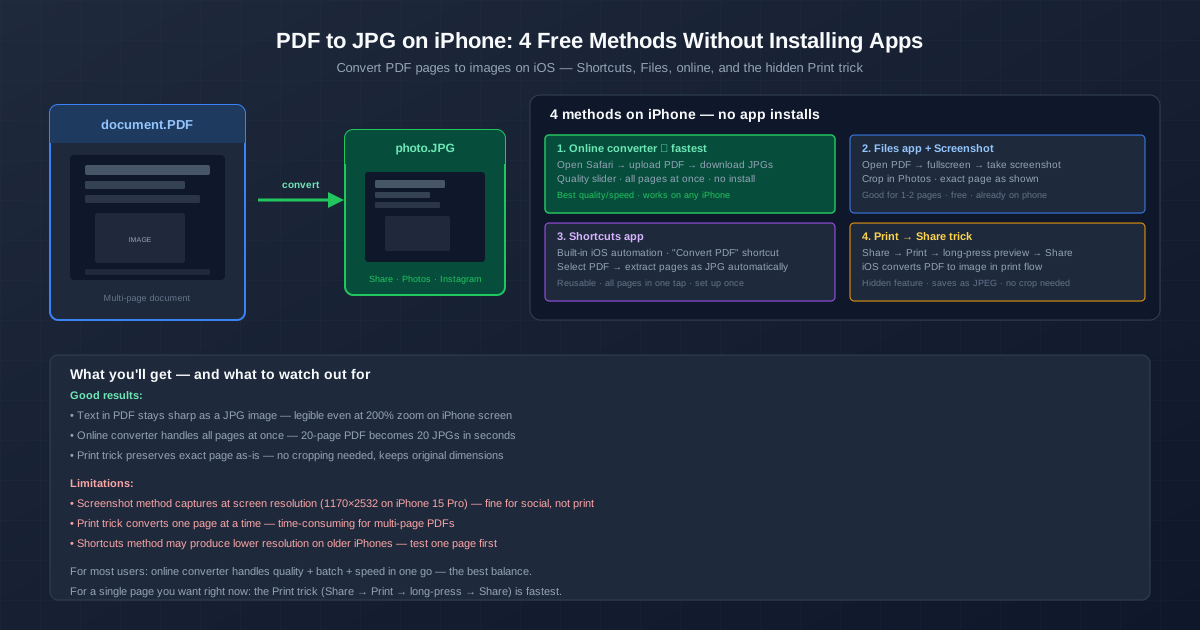
To convert a PDF to JPG on iPhone without installing an app, open the PDF to JPG converter in Safari, upload the PDF and download a ZIP with a JPG of every page. For a single page, a screenshot of the PDF in the Files app works offline; for a reusable one-tap routine, build a Shortcut.
Here are all four methods — online, screenshot, Shortcuts and the Print preview trick — with what each one gives you in resolution and page count.
Method 1: Convert PDF to JPG on iPhone Online — All Pages at Once
The online converter is the best all-around method. It processes the entire PDF on a server, producing one JPG per page, and can also stitch several pages into one image — something the built-in iOS methods lack.
- Open Safari and go to the PDF to JPG converter.
- Tap the upload area and select your PDF from Files, iCloud, or any app that shares to Files.
- Keep "one image per page", or combine 2, 3, 5, 10 or all pages into one tall image.
- Tap Convert. The server renders each page and prepares the JPGs.
- Download the ZIP of all pages to your Files app and tap it to unzip (a one-page PDF comes back as a single JPG)
This handles long PDFs — up to 20 pages as a guest and 100 with a free account. A 20-page PDF becomes 20 JPGs in one ZIP. Pages are rendered at 144 DPI, so an A4 page comes out at about 1190×1680 pixels — crisp on screen and in chats, though not a print-resolution scan.
Method 2: Screenshot a PDF Page in the Files App
No internet needed. Good for extracting a single page you need right now.
- Open the Files app. Find your PDF and tap to open it (iOS renders it in the built-in PDF viewer).
- Tap the page to go fullscreen — hide the toolbar for a clean capture.
- Take a screenshot (Side button + Volume Up on Face ID iPhones; Home + Power on Touch ID).
- Tap the screenshot preview in the corner and crop it to the page (stay on the Screen tab — "Full Page" saves a PDF, not an image)
- Tap Done → Save to Photos
The screenshot has your screen's resolution — 1179×2556 pixels on an iPhone 15 Pro, before cropping — which is plenty for Instagram (feed posts are 1080 pixels wide) or WhatsApp, but not for printing. Note that iOS saves screenshots as PNG; that opens everywhere a JPG does, and the online converter gives you real JPG files if you need them.
Method 3: Convert PDF to JPG with the Shortcuts App
The Shortcuts app, built into iOS, can convert PDF pages to JPG automatically. Set it up once and reuse it any time.
- Open Shortcuts (it is on every iPhone — swipe down and search if you cannot find it).
- Tap + to create a new shortcut. Name it "PDF to JPG".
- Add these actions in order: Select File (filter: PDF), Make Image from PDF Page, Convert Image (set to JPEG), Save to Photo Album.
- For multi-page PDFs, insert Repeat with Each around the "Convert Image" and "Save" actions.
- Run the shortcut, pick a PDF, and the JPGs appear in Photos.
The resolution depends on iOS's own PDF renderer — test with one page before running it on a 50-page document.
Method 4: The Print Preview Trick for One Page
This uses the iOS print preview. Apple didn't design it as a PDF-to-JPG feature, and what the share sheet offers at the end varies between iOS versions — so treat it as a quick option to try, not a guaranteed one.
- Open the PDF in Files (or any app that can view PDFs).
- Tap the Share icon (square with an arrow pointing up).
- Scroll down and tap Print. You'll see a print preview with page thumbnails.
- Long-press (3D Touch or Haptic Touch) on one of the page previews. It zooms in fullscreen — iOS has rendered the page for printing.
- Tap the Share icon in the top-right corner of the zoomed preview.
- Tap Save Image if it's offered — the page lands in Photos as an image. If the share sheet only offers PDF options (Save to Files, Print), your iOS version shares the preview as a PDF; use Method 1 or 3 instead.
When it works, you get the whole page without screen clutter. The catch: one page at a time.
Which PDF to JPG Method to Use on iPhone
| Method | Best for | Pages | Quality | Needs internet |
|---|---|---|---|---|
| Online converter | Any PDF, especially multi-page | All at once | 144 DPI, every page the same | Yes |
| Files + Screenshot | 1 page, social media | One at a time | Screen resolution | No |
| Shortcuts | Frequent PDF→JPG conversions | All — set up once | Varies by iOS version | No |
| Print preview trick | Single page, if your iOS offers Save Image | One at a time | Full page, no screen clutter | No |
Related Tools
For the reverse direction, the JPG to PDF converter turns a photo into a PDF right from your phone. For lossless images instead of JPG, the PDF to PNG converter renders the same pages as PNG. For splitting a PDF before converting specific pages, use Split PDF to extract only the pages you need.
Quick Summary
- Online converter is the best for most cases — handles all pages at once, returns one ZIP, works in Safari with no install.
- Screenshot for one quick page — fullscreen in Files, take a screenshot, crop. No internet; saved as PNG.
- Shortcuts for repeat use — set up once, tap to convert any PDF to JPG automatically.
- Print preview trick for a single page — Share → Print → long-press the preview → Share → Save Image, where your iOS version offers it.
- None of these methods require installing apps. Everything uses built-in iOS features or a browser.