How to Merge PDF Files on iPhone: 4 Methods Without a Computer

By FileConvertLab

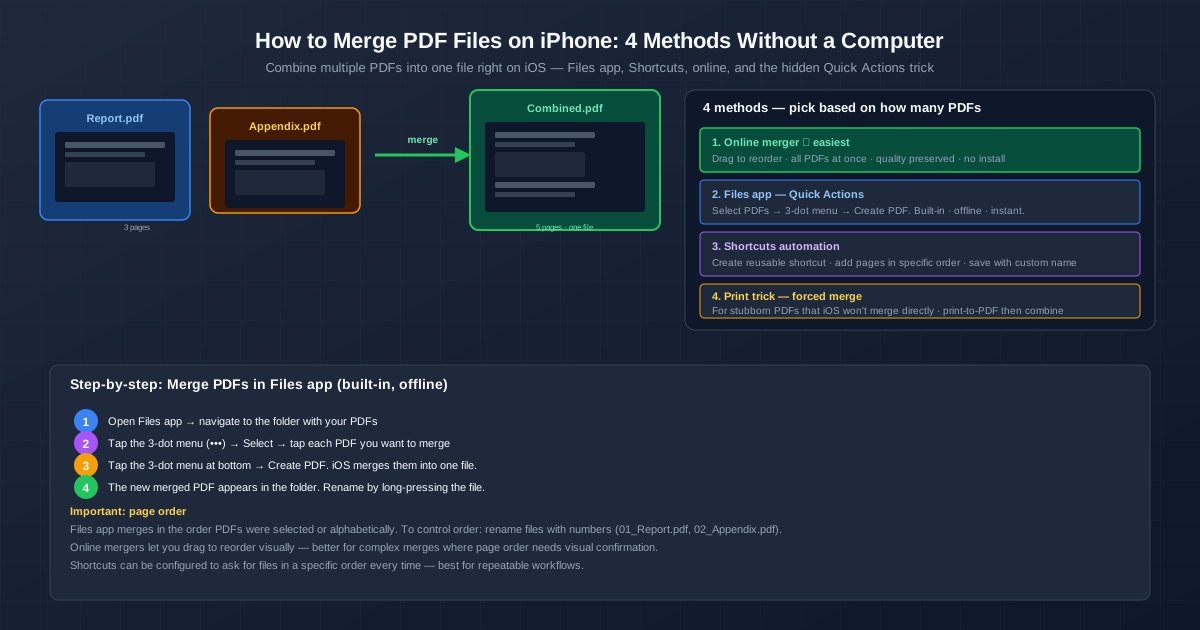
Two source PDF files (a blue Report.pdf with 3 pages and an amber Appendix.pdf) merging into a single green Combined.pdf (5 pages, one file) on iPhone. Four method cards on the right: 1. Online merger (recommended, drag to reorder, all at once), 2. Files app Quick Actions (built-in, Select → Create PDF), 3. Shortcuts automation (reusable, custom name), 4. Print trick (for stubborn PDFs). Bottom shows the 4-step Files app workflow with numbered circles.
Merge PDF on iPhone: A blue Report.pdf (3 pages) and an amber Appendix.pdf merge via green arrow into a green Combined.pdf (5 pages, one file). Four numbered methods: 1. Online merger (green, recommended — drag to reorder, all PDFs at once, quality preserved, no install), 2. Files app Quick Actions (blue, built-in — select PDFs, 3-dot menu, Create PDF, offline, instant), 3. Shortcuts automation (purple, reusable — create shortcut, add pages in order, save with custom name), 4. Print trick (amber, forced merge for stubborn PDFs). Bottom step-by-step: 1. Open Files app, navigate to folder, 2. Tap 3-dot menu → Select → tap each PDF, 3. Tap 3-dot menu at bottom → Create PDF, 4. New merged PDF appears, rename by long-pressing. Important note: Files app merges in selection/alphabetical order — rename files with numbers for control. Online mergers let you drag-to-reorder visually.

You have three PDFs from a client — the proposal, the budget sheet, and the terms document. You need them as one file to send in a single email. You could wait until you are at a computer. Or you could merge them on your iPhone right now, in under 30 seconds, using tools already on the device. Here are four ways to combine PDFs on iOS.

Fastest for most cases: open the PDF merger in Safari, upload your files, drag to reorder, and download one combined PDF.

Method 1: Files App — Merge PDFs with Quick Actions (Built-In, Offline)

The Files app has a built-in "Create PDF" action that combines selected files. It is the fastest offline method — no internet, no configuration.

  1. Open Files and navigate to the folder with your PDFs.
  2. Tap the 3-dot menu (•••) in the top-right → Select.
  3. Tap each PDF you want to merge. A blue checkmark appears on selected files.
  4. Tap the 3-dot menu at the bottomCreate PDF.
  5. iOS instantly creates a merged PDF in the same folder. Long-press to rename it. The files merge in the order you selected them (tap order) or alphabetically if selected from a sorted list. To guarantee order, prefix your file names with numbers before merging: 01_Intro.pdf, 02_Main.pdf, 03_Appendix.pdf.

Method 2: Online Merger — Visual Drag-to-Reorder

For complex merges where page order matters and you want visual confirmation, the online PDF merger is the best tool. Upload your files, see thumbnails of each page, drag pages into the correct sequence, and click Merge.

  1. Open the merger in Safari on your iPhone.
  2. Tap the upload area and select PDFs from Files, iCloud, or any connected cloud storage.
  3. Thumbnails of every page appear. Drag to reorder — put the cover page first, TOC second, content after.
  4. Tap Merge. The combined PDF downloads to Files automatically. The online merger handles large files — a 100 MB PDF with images and charts — because processing happens on a server, not your phone. It also preserves all PDF features: text layers stay searchable, internal links keep working, form fields remain fillable.

Method 3: Shortcuts App — Automated Merge

If you merge PDFs regularly, automate it with the Shortcuts app. Set up once, run anytime.

  1. Open Shortcuts. Tap + to create a new shortcut. Name it "Merge PDFs".
  2. Add the Select Files action. Enable Multiple Selection.
  3. Add the Make PDF action. iOS combines all selected files into one PDF.
  4. Add Save File — pick a destination like iCloud Drive or On My iPhone.
  5. Add Share to immediately email or send the merged PDF. The shortcut also works with photos — change Select Files to Select Photos, and you have a one-tap photo-to-PDF merger. Add the shortcut to your Home Screen for instant access.

Method 4: Print Trick — For Stubborn Files

Some PDFs — particularly those downloaded from email or generated by third-party apps — are flagged by iOS as non-mergeable. The Files app "Create PDF" option does not appear for them. The workaround:

  1. Open the stubborn PDF, tap Share → Print.
  2. In the print preview, long-press a page thumbnail → Share → Save to Files as a new PDF.
  3. Repeat for each stubborn PDF.
  4. Now merge the "cleaned" PDFs using Method 1 (Files app). The Print trick forces iOS to re-render the PDF, stripping whatever metadata was blocking the merge. The output is a clean, mergeable PDF. It is tedious for many files — use an online merger if you have more than 2-3 stubborn PDFs.

Related Tools

After merging, you may need to compress the combined PDF for email — use the PDF compressor to shrink the file without losing quality. To do the reverse (split a merged PDF back into separate files), use Split PDF . For converting images to PDF before merging — JPGs, PNGs, screenshots — the JPG to PDF converter turns photos into PDF pages ready for merging.

Quick Summary

  • Files app is the fastest offline method — select PDFs, tap Create PDF, done. No internet, no install, no cost.
  • Online merger for visual control and large files — drag pages to reorder, see thumbnails before committing.
  • PDF merging is non-destructive — pages are copied, not recompressed. Text stays searchable, images stay original quality.
  • Control page order by renaming files — 01_, 02_, 03_ prefix guarantees order in Files app merge.
  • Use Shortcuts to automate recurring merges — set up once, run in one tap from Home Screen.

Frequently Asked Questions

How do I combine PDFs on my iPhone without installing anything?

Use the Files app — it is built into every iPhone. Open Files, navigate to your PDFs, tap the 3-dot menu (•••) → Select, and tap each PDF you want to merge. Then tap the 3-dot menu at the bottom → Create PDF. iOS merges them into a single PDF file instantly. The files are combined in the order you selected them (or alphabetically if selecting from List view). Rename the result by long-pressing it. This method requires no internet, no apps, no setup — just the Files app that comes with iOS.

Can I control the page order when merging PDFs on iPhone?

The Files app merges PDFs in the order they appear in the folder (alphabetically) or the order you select them. To control order precisely: rename files before merging — 01_Report.pdf, 02_Appendix.pdf, 03_Charts.pdf — and the merged PDF will have them in that order. For visual drag-to-reorder, use an online PDF merger — upload your files, drag the thumbnails into the correct sequence, and download the merged result. The Shortcuts app can also be configured to prompt for files in a specific order.

Will merging PDFs on iPhone reduce the quality?

No. All four methods (Files app, online merger, Shortcuts, Print trick) preserve the original PDF content — text remains searchable and selectable, images stay at their original resolution, and page dimensions are kept. PDF merging is a non-destructive operation: it concatenates the pages from each source PDF into a single file without re-encoding or recompressing the content. The pages are copied, not modified. The resulting file size is roughly the sum of the input file sizes.

How do I merge PDFs on iPhone using the Shortcuts app?

Open Shortcuts, tap + to create a new shortcut. Add these actions: 1. 'Select Files' — enable Multiple Selection. 2. 'Make PDF' — this combines the selected files in order. 3. 'Save File' — choose a destination. Alternatively, add 'Select Photos' before 'Make PDF' to merge photos into a PDF directly. For page-level merging (extracting pages from one PDF and inserting into another), shortcuts get complex — an online merger is simpler for that. The built-in Shortcuts 'Make PDF' action handles file-level merge (combining whole PDFs), not page-level insertion.

Can I merge PDFs on iPhone and send it by email immediately?

Yes. After merging in the Files app, tap the new PDF, then the Share icon → Mail. The merged PDF attaches to a new email automatically. With an online merger, after downloading the merged file, tap it in Safari's download list → Share → Mail. The merged PDF size matters: Gmail limits attachments to 25 MB. If your merged PDF exceeds that, compress it first or use a shareable link instead of attaching.

Why does the Files app 'Create PDF' option not appear on my iPhone?

The 'Create PDF' option only appears when at least two PDF files are selected. If you select only one PDF, iOS considers it already a PDF and won't show the merge option. If you select files that are not PDFs (Word docs, images, web pages), iOS will convert them to PDF and combine them. To ensure the option appears: make sure you're selecting at least two PDF files, and that your iOS is up to date (the feature works on iOS 14 and later).

How many PDFs can I merge at once on iPhone?

The Files app has no explicit limit — practical testing shows it handles 20-30 files without issue. Beyond 30 PDFs, the app may slow down, and the combined file could be very large. An online merger handles higher volume (tested up to 100 PDFs) but the upload may be slow over cellular. For very large merges (50+ files, or total input size over 100 MB), use the online merger — it processes files on a server rather than taxing your iPhone's memory.

How to Merge PDF Files on iPhone: 4 Methods Without a Computer (2026)