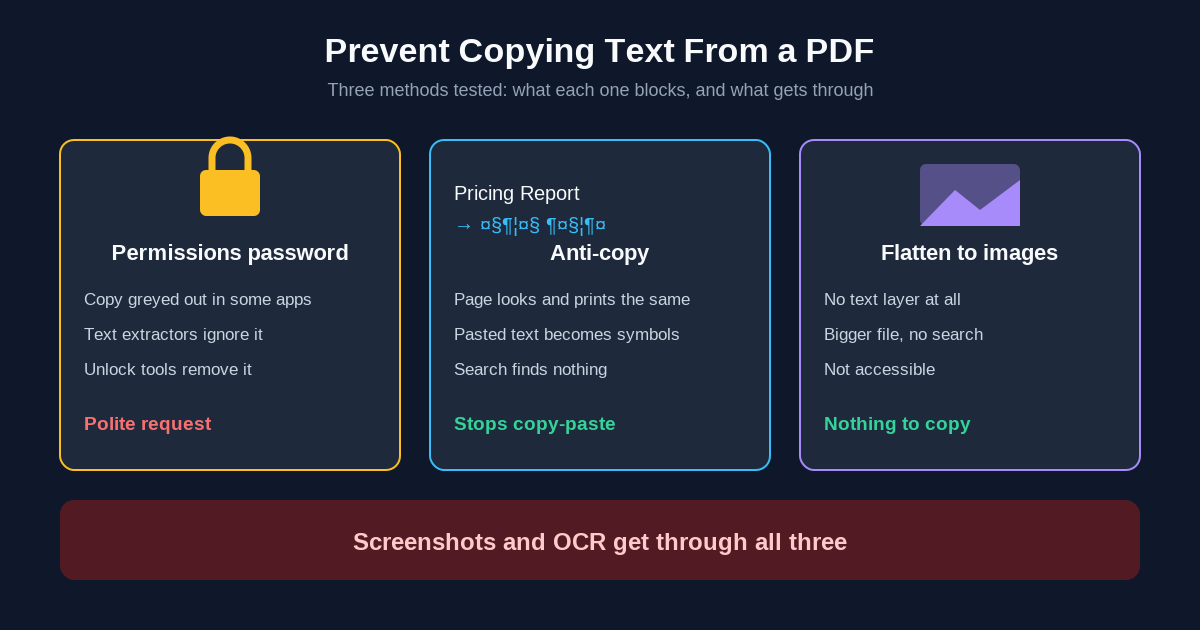
You can't fully prevent someone from copying text out of a PDF — anything that can be displayed can be re-read. What you can do is make copying useless or annoying: a permissions password asks the reader app to block Copy, PDF anti-copy protection turns pasted text into garbage, and flattening pages to images removes the text layer entirely. None of the three stops a screenshot plus OCR, and we tested exactly how far each one goes.
Three Ways to Prevent Copying Text From a PDF
| Method | What the reader sees | What copying gives | Search and screen readers | How easy it is to undo |
|---|---|---|---|---|
| Permissions password | Normal PDF, Copy greyed out in some apps | Normal text in apps that ignore the flag | Work | Seconds, with any unlock tool |
| Anti-copy (scrambled text layer) | Normal PDF, text selectable | Random symbols | Broken | Not reversible; OCR gets the text back |
| Flatten to images | Pages look the same, text not selectable | Nothing | Broken | OCR gets the text back |
The rest of this post goes through each one with a real test file: a one-page A4 price sheet exported from a word processor, with a heading, two paragraphs and a small table.
Method 1: Protect a PDF From Copying With a Permissions Password
A permissions password (also called an owner password) sets flags inside the file: no copying, no printing, no editing. The file isn't locked to open — anyone can read it. The flags are a request to the reader app, and each app decides whether to honour it.
How to set one:
- Adobe Acrobat Pro — File → Properties → Security → Password Security, tick "Restrict editing and printing of the document", set a permissions password and untick "Enable copying of text, images, and other content"
- LibreOffice — File → Export as PDF → Security → Set passwords, fill in only the permission password and untick "Copying of content"
- Mac Preview — File → Export as PDF → Permissions, set an owner password and untick "Copying text and images"
What we found when we restricted the test file this way (AES-256, copy, print and edit all blocked):
- A command-line text extractor pulled out every word anyway — it simply ignores the flag
- Our unlock tool removed all restrictions without asking for the password, because an owner password doesn't encrypt anything you need to open the file
That's by design, not a flaw in one tool. How PDF passwords work covers the owner vs user password difference in detail. A permissions password stops people clicking Copy in Acrobat Reader. It doesn't stop anyone who searches "unlock PDF".
Method 2: Scramble the Text Layer With PDF Anti-Copy
The anti-copy tool leaves the page appearance alone and rewrites the table that maps each glyph to a letter. The reader still sees "Quarterly Pricing Report". The clipboard gets symbols from the Unicode private-use area — boxes or blanks in most apps.
What we measured on the protected copy of the test file:
- Copy and paste — every character came out as a private-use symbol, the heading included
- Text extraction — a command-line extractor produced the same symbols. Nothing readable came through
- Viewing and printing — we rendered the original and the protected page at 150 DPI and compared them pixel by pixel: 0 pixels differed. Printing is untouched
- Search — searching for "wholesale" found 1 match in the original and 0 in the protected copy
- OCR — OCR PDF to text works from how the page looks, and the page still looks normal, so OCR reads it like any scan
- Metadata — the document title in File → Properties stayed readable; only the page text is scrambled
One more honest detail: in our test the same letter always turned into the same symbol within a font. That makes it a substitution code rather than encryption — a patient person with a script could crack it. OCR is simply faster.
The file also doesn't get a password or permission flags, so nothing prompts the reader. It opens like any other PDF.
Method 3: Flatten the PDF to Images
Flattening means turning each page into a picture and putting the pictures back into a PDF. There's no text left to select, copy or extract.
With our tools that's two steps:
- Convert the PDF with PDF to JPG. A multi-page PDF comes back as a ZIP with one JPG per page.
- Turn each JPG back into a page with JPG to PDF, then combine the pages with Merge PDF.
On the test file:
- Size grows, because images weigh more than text
- Page size changed from A4 to a sheet a little larger than A2 (about 17 × 24 in), because the JPG was 1240 × 1753 pixels and each pixel became one point. It prints fine scaled to the paper, but the page properties show the larger size
- Text — the text extractor found nothing
- OCR — the page is now a picture, so OCR reads it like any scan
Don't use a tool that adds OCR while combining images into a PDF. It would write the text layer straight back in.
Flattening also costs sharpness when zoomed in, and it makes the file unreadable for screen readers and invisible to search. Use it for short documents that are meant to be looked at, not read at length.
What No PDF Copy Protection Stops
- Screenshots. Every operating system can capture the screen, and a phone camera can photograph it
- OCR. Scrambled and flattened files still look like normal pages, so OCR reads them like any scan
- Retyping. A short price list or an exam question takes a minute to type out
- Printing and scanning, if printing is allowed — and it's allowed by anti-copy and by flattening
If the content must not leave your hands, don't send the PDF. Share it in a viewer that controls access, or send an excerpt.
Add a Visible Watermark as a Deterrent
A watermark doesn't stop copying either, but it changes what a copied page is worth. A screenshot with "Confidential — prepared for Acme Ltd" across it points back at whoever leaked it.
Add one with the PDF watermark tool before you protect the file. Our watermark guide covers text vs image marks, opacity and placement. Order matters: watermark first, then anti-copy or flatten, so the mark ends up inside the protected file.
The Accessibility Cost of Copy Protection
Screen readers read the same text layer that Copy does. On an anti-copied file they get symbols; on a flattened file they get nothing. Reflow and read-aloud modes in phone and e-reader apps depend on that layer as well, so they break the same way.
If the document goes to a public body, a school or anyone who must meet accessibility rules, a protected PDF may not be acceptable. A permissions password is the gentler option here, since most assistive tools still read the text.
Keep an Unprotected Original
Anti-copy can't be undone — the original letter mapping is replaced, not hidden. Flattening throws the text away. Keep the source file (Word, InDesign, the original PDF) and protect a copy each time you send it out.
Protect after your last edit. Changing a scrambled PDF later with a text editor is painful, since the editor sees symbols too.
Which Method Should You Use?
- Casual copy-paste of a price list or proposal → anti-copy, plus a watermark with the recipient's name
- You want Acrobat users to see "Copy not allowed" → permissions password, knowing it's a polite request
- A handful of pages meant only to be viewed → flatten to images
- Anything that must stay secret → don't send a PDF at all
If you only need one image out of a PDF rather than protecting it, extracting images from a PDF is the opposite job.
Summary
You can't prevent copying text from a PDF completely, but you can make copying pointless for the casual reader. PDF anti-copy keeps the page looking and printing exactly the same while pasted text turns into symbols. OCR and screenshots still get through every method, so pair protection with a watermark and keep your original.
Related Tools
- PDF anti-copy — scramble the text layer so copied text turns into symbols
- PDF watermark — add a visible name or "Confidential" mark
- PDF to JPG — first step of flattening pages to images
- JPG to PDF — turn page images back into a PDF
- Unlock PDF — remove passwords and restrictions from your own files