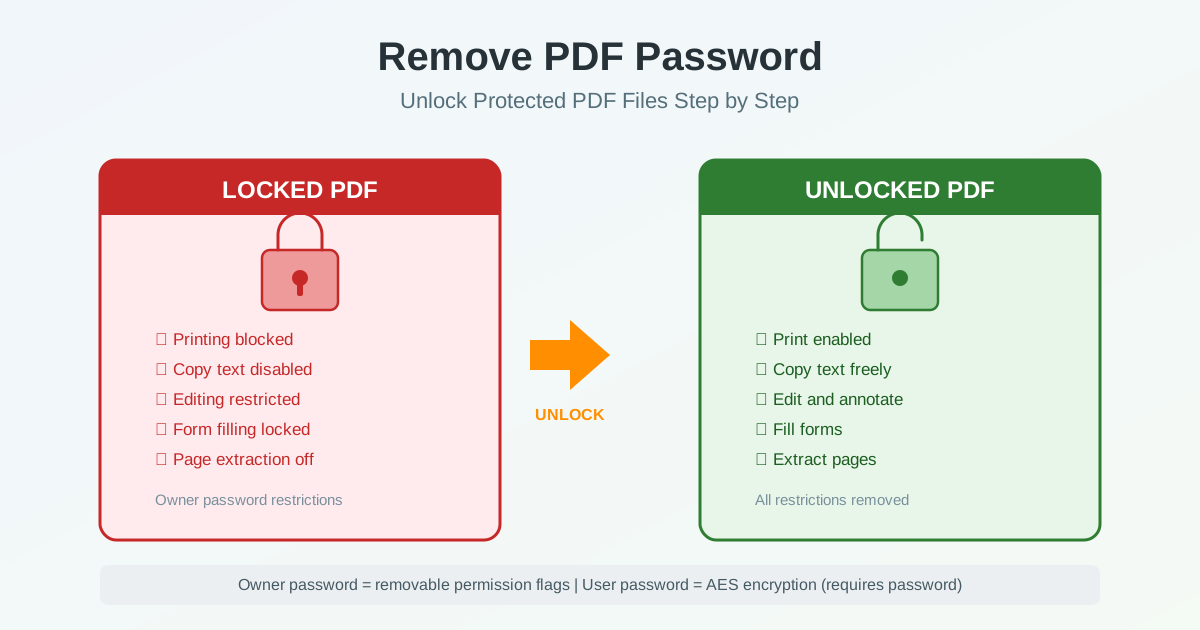
You receive a PDF and discover you cannot print it, copy text from it, or make edits. Or worse — you cannot open it at all because it demands a password you do not have. PDF password protection is one of the most common obstacles people face when working with documents. Whether you need to unlock PDF files, find a PDF password remover, or use a PDF unlock online tool, this guide explains every type of protection, what can be removed, what cannot, and the exact steps.
Understanding PDF Protection: Two Different Passwords
Before you try to remove a PDF password, you need to understand a critical distinction. PDF files support two completely different types of password protection, and they work in fundamentally different ways.
User Password (Open Password)
A user password encrypts the entire PDF document. Without this password, you cannot open the file at all.
The content is scrambled using AES-128 or AES-256 encryption — the same encryption used by banks and governments. No tool can bypass this without the correct password. If you forgot the user password, your only option is to obtain it from the person who created the PDF.
Key characteristics of user password protection:
- Content is encrypted: The file is unreadable without the password
- Cannot be bypassed: Modern AES encryption is computationally unbreakable
- Required to open: PDF readers will prompt for the password before showing any content
- Common use: Confidential documents, financial statements, medical records
Owner Password (Permissions Password)
An owner password is very different. It does not encrypt the content — you can still open and view the PDF. Instead, it sets permission flags that tell PDF readers to restrict certain actions: printing, copying text, editing, form filling, or extracting pages. These restrictions are enforced by the PDF reader software as a courtesy to the document author, not by encryption.
Key characteristics of owner password protection:
- Content is readable: You can view the document without any password
- Restrictions are software-enforced: Not backed by strong encryption
- Can be removed: PDF unlock tools strip the permission flags
- Common use: Preventing unauthorized editing, disabling copy/paste, blocking printing
What Can Be Removed vs What Cannot
This is the most important thing to understand before attempting to unlock a PDF. Not all protection is equal, and making promises about removing encryption would be misleading.
| Protection Type | Can Be Removed? | Notes |
|---|---|---|
| Print restriction (owner password) | Yes | Software-enforced permission flag |
| Copy text restriction | Yes | Software-enforced permission flag |
| Edit restriction | Yes | Software-enforced permission flag |
| Form fill restriction | Yes | Software-enforced permission flag |
| Page extraction restriction | Yes | Software-enforced permission flag |
| User password (open password) | No* | AES encryption — requires the password |
| Digital signature | No | Certificate-based — cannot be forged |
| DRM protection | No | Platform-specific encryption |
| *If you know the user password, you can open the file and save an unprotected copy. Without the password, the encryption cannot be removed. |
How to Remove PDF Password: Step-by-Step
The process for removing a PDF password depends on which type of protection your file has. Follow the steps that match your situation.
Removing Owner Password (Permission Restrictions)
If you can open and view the PDF but cannot print, copy, or edit it, the file has an owner password. Here is how to remove it:
- Go to the PDF Unlock tool
- Upload your password-protected PDF file
- The tool detects the permission restrictions automatically
- Click unlock to remove the owner password and all restrictions
- Download the unlocked PDF — you can now print, copy, and edit freely The unlocked file is identical to the original in every way — same text, same images, same layout. Only the permission flags are removed. No content is altered.
Removing User Password (When You Know the Password)
If the PDF requires a password to open and you know that password, you can create an unprotected copy:
- Open the PDF with the password in any PDF reader
- Upload the file to the PDF Unlock tool and enter the password when prompted
- The tool decrypts the file and produces an unprotected copy
- Download the password-free PDF for easy access going forward This is useful when you receive password-protected documents regularly (like bank statements) and want to store them without needing to remember passwords.
Types of PDF Permission Restrictions
Owner passwords can restrict different combinations of actions. Understanding exactly what is blocked helps you decide whether to unlock the PDF or use an alternative approach.
Printing Restrictions
The document author can disable printing entirely or allow only low-resolution printing. This is common with academic papers, proprietary manuals, and licensed content. When you unlock the PDF, full high-resolution printing is restored.
Copy and Extract Restrictions
When text copying is disabled, you cannot select text, copy it to the clipboard, or use accessibility tools to extract content. This affects screen readers and text-to-speech software as well. Removing this restriction restores full text selection and extraction capabilities.
Editing and Annotation Restrictions
Edit restrictions prevent modifications to the document: adding or deleting pages, filling form fields, adding comments, or signing the document. Some PDFs allow form filling but block everything else. The PDF editor requires an unlocked file to add annotations, text, or images.
Assembly and Page Extraction Restrictions
This restriction prevents extracting individual pages, reordering pages, or inserting pages from other PDFs. It also blocks creating bookmarks or thumbnail images. Removing this restriction lets you freely reorganize the document.
When to Convert to Word Instead of Unlocking
Sometimes unlocking a PDF is not the best approach. Converting the PDF to an editable Word document gives you more flexibility in certain situations.
Convert When You Need Substantial Edits
If you need to restructure paragraphs, change formatting throughout, add new sections, or rewrite significant portions, converting to Word with the PDF to Word converter gives you full editing capabilities in a familiar word processor. Unlocking the PDF only removes restrictions — it does not make the PDF as editable as a Word document.
Convert When You Need to Extract Content
When you need to pull text, tables, or data from a protected PDF into another document, converting to Word creates a clean editable file you can copy from freely. This is especially useful for reports with tables that you need in a spreadsheet or presentation.
Unlock When You Need the Original Layout
If you need to print the document exactly as it appears, add a watermark, or simply copy a few paragraphs, unlocking the PDF preserves the exact original layout. Conversion to Word may alter some formatting, especially for complex layouts with columns, graphics, or precise positioning.
PDF Encryption Standards Explained
PDF has evolved through several encryption standards. Understanding which one your file uses helps set realistic expectations about what can be removed.
RC4 40-bit (PDF 1.1 - 1.3)
The earliest PDF encryption standard, introduced in the 1990s. By modern standards this encryption is weak and can be broken computationally. However, this is primarily of academic interest — most PDF files created today use much stronger encryption.
RC4 128-bit (PDF 1.4 - 1.6)
A significant improvement introduced with Acrobat 5. RC4 128-bit encryption is still used in many existing PDFs. While theoretically stronger than 40-bit, the RC4 cipher itself has known vulnerabilities and is no longer considered secure for new documents.
AES 128-bit and AES 256-bit (PDF 1.7+)
The current standard. AES (Advanced Encryption Standard) is used worldwide for classified government communications, banking, and data protection. AES-256 encryption on a PDF with a strong user password is practically unbreakable with current and foreseeable technology. This is the encryption that protects user passwords on modern PDFs.
Important: owner password restrictions on AES-encrypted PDFs are still removable because the restrictions are implemented as permission flags, not as encryption of the actual content.
Legal Considerations
Removing PDF passwords is a technical capability, but it comes with legal and ethical responsibilities.
Understanding the boundaries keeps you on the right side of the law.
When Removing Passwords Is Acceptable
- Your own documents: You created the PDF and forgot the password or need to share it without protection
- Documents you have authorization to access: Your employer shared a protected file and gave you permission to modify it
- Archival purposes: Removing passwords from your own files for long-term storage
- Accessibility needs: Removing copy restrictions so screen readers can access the text
- Academic use: Unlocking papers you have legitimate access to for annotation and study
When Removing Passwords May Be Illegal
- Copyrighted e-books: DRM-protected publications are covered by copyright law
- Confidential third-party documents: Files you do not have permission to access or modify
- Contractual obligations: Documents where you agreed to specific usage terms
- Government classified materials: Protected under national security laws Laws vary by jurisdiction. In the United States, the Digital Millennium Copyright Act (DMCA) prohibits circumventing technological protection measures on copyrighted works. In the EU, the Copyright Directive has similar provisions. Always ensure you have the legal right to remove protection from a file before proceeding.
Common Scenarios and Solutions
Here are the most frequent situations people encounter with password-protected PDFs and the recommended approach for each.
Bank Statements and Financial Documents
Banks often send monthly statements as password-protected PDFs, typically using your date of birth or account number as the password. Once you open the file, use the PDF unlock tool to save an unprotected copy for your records. This makes searching, printing, and organizing your statements much easier.
Government and Tax Forms
Tax documents and official forms sometimes have edit restrictions to prevent modification of the form structure. If you need to fill in fields that are locked, removing the owner password unlocks the form. If the form has fillable fields that work but you cannot print the result, removing the print restriction solves the problem.
Academic Papers and Research
Research papers from journals sometimes disable text copying. This makes it difficult to cite passages or use text-to-speech for accessibility. Removing the copy restriction lets you select and copy text normally. If you need to heavily annotate the paper, you might prefer converting it to Word format for inline comments.
Contracts and Legal Documents
Contracts are typically locked to prevent unauthorized changes. If you need to review and annotate a contract, remove the edit restriction first. For adding signatures, the PDF editor lets you add signature images once the file is unlocked. Never modify the actual terms of a contract without all parties agreeing — removing the password does not grant you legal permission to alter the agreement.
Manuals and Documentation
Technical manuals from equipment manufacturers are sometimes restricted to prevent redistribution. If you need to print sections for workshop reference or extract diagrams for internal training materials, removing the print and copy restrictions gives you what you need. For large manuals, consider compressing the PDF after unlocking to reduce storage space.
How to Check What Restrictions a PDF Has
Before attempting to remove a password, identify exactly what restrictions are in place. This helps you choose the right approach.
In Adobe Acrobat Reader
- Open the PDF file
- Go to File → Properties (or press Ctrl+D / Cmd+D)
- Click the Security tab
- Under “Document Restrictions Summary” you will see each permission listed as Allowed or Not Allowed
In Any PDF Reader
Try these quick tests to identify restrictions:
- Cannot open at all: User password (encryption) is set
- Opens but print is grayed out: Owner password with print restriction
- Cannot select text: Owner password with copy restriction
- Cannot add comments or annotations: Owner password with edit restriction
- Print works but output is low quality: Low-resolution printing is allowed, high-resolution is blocked
Best Practices for PDF Password Security
If you create password-protected PDFs for others, these guidelines help you apply the right level of protection without frustrating legitimate users.
- Use user passwords sparingly: Only for truly confidential documents. User passwords create friction for every recipient
- Communicate passwords securely: Never send the password in the same email as the PDF
- Allow printing when possible: Blocking printing frustrates users and rarely prevents leaks
- Consider accessibility: Disabling text copying breaks screen readers and assistive technology
- Use AES-256 encryption: If you need real security, use the strongest available encryption
- Keep unprotected copies: Store your own copy without passwords in case you forget them
Related Tools
- PDF Unlock Tool — Remove passwords and permission restrictions from PDF files
- PDF Editor — Add text, annotations, images, and signatures to unlocked PDFs
- PDF to Word Converter — Convert PDF to editable DOCX when you need full editing capabilities
- PDF Compressor — Reduce file size of unlocked PDFs for storage and sharing
- PDF Watermark — Add watermarks to protect your own PDF documents
Conclusion
Removing a PDF password is straightforward when you understand what type of protection you are dealing with. Owner passwords that restrict printing, copying, and editing can be removed quickly with a PDF unlock tool. User passwords that encrypt the entire document require the actual password to decrypt.
Knowing the difference saves time and sets the right expectations. For documents you need to edit extensively, consider converting to Word instead. For files you just need to print or annotate, unlocking the PDF is the fastest path. Whatever your situation, always ensure you have the legal right to remove protection before proceeding.