To add a watermark to a PDF, upload it to the PDF watermark tool, type the text (CONFIDENTIAL, DRAFT, your company name), choose a single, diagonal or grid layout, set the opacity and download the stamped copy. A watermark is semi-transparent text or an image over the page, used to mark status, signal confidentiality or brand a document. This guide covers everything you need to know about PDF watermarks — from choosing between text and image types to positioning, opacity, batch processing, and removal.
Why Add a Watermark to PDF Documents
Watermarks have been used on paper documents for centuries. Digital PDF watermarks serve the same fundamental purposes, adapted for electronic workflows. Here are the most common reasons to add a watermark to a PDF file.
Confidentiality and Document Control
Adding a confidential watermark to a PDF signals that the document contains sensitive information and is not intended for public distribution. Legal firms, healthcare organizations, financial institutions, and government agencies use confidential watermarks on contracts, patient records, financial statements, and classified reports. The watermark serves as a constant visual reminder to every person who views the document.
- CONFIDENTIAL: Restricts distribution to authorized personnel
- INTERNAL USE ONLY: Limits the document to employees within the organization
- PRIVILEGED: Marks attorney-client or similar protected communications
- DO NOT COPY: Discourages unauthorized reproduction
Draft and Review Status
A draft watermark on a PDF prevents confusion between preliminary and final versions of a document. When teams share documents for review, a visible DRAFT stamp ensures that no one mistakes an unfinished version for the approved final copy. This is especially important for contracts, policies, and published reports where acting on a draft version could have consequences.
- DRAFT: Document is not yet approved or finalized
- FOR REVIEW: Distributed specifically for feedback and comments
- SAMPLE: Example or demonstration version, not the real deliverable
- VOID: Document is no longer valid or has been superseded
Branding and Ownership
PDF branding through watermarks establishes ownership and reinforces company identity across every page of a document. Photographers watermark portfolio PDFs with their logo. Consulting firms add their brand mark to deliverables. Publishers watermark advance review copies. Branding watermarks are typically more subtle than security watermarks — a light logo in the corner or a faint company name across the center.
Copyright Protection
While a watermark does not provide legal copyright protection on its own, it serves as a visible claim of ownership. If someone redistributes your document without permission, the watermark makes it clear that the content originated from you. This is particularly valuable for creative work, research papers, and proprietary training materials distributed electronically.
Text Watermarks vs Image Watermarks
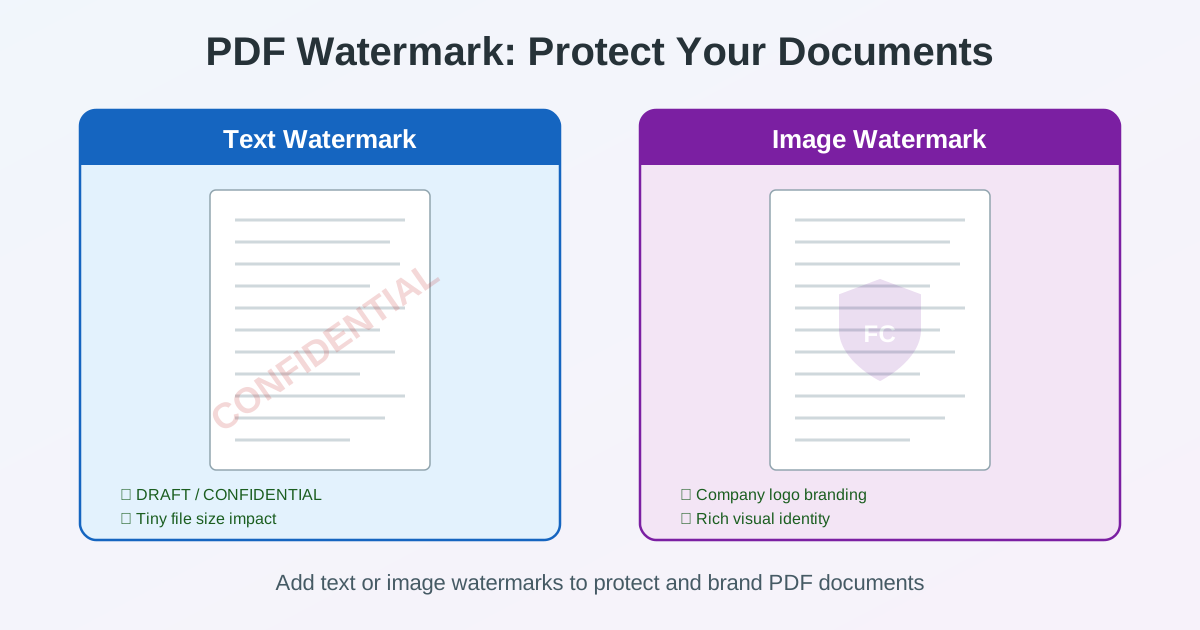
There are two main types of PDF watermarks: text-based and image-based. Each has distinct strengths, and the choice depends on your specific use case.
Text Watermarks
A text watermark renders typed characters directly onto the PDF page. You specify the text content, font, size, color, rotation angle, and opacity. Text watermarks are the most common type because they are simple to create and universally understood.
- Fast to create: Type your text and apply — no graphic design needed
- Small file size: Text adds only a few kilobytes to the PDF
- Scalable: Text renders sharply at any zoom level or print resolution
- Customizable: Font, size, color, angle, and opacity are all adjustable
- Best for: Status labels (DRAFT, CONFIDENTIAL), date stamps, copyright notices
Image Watermarks
An image watermark places a graphic file — such as a company logo, signature, seal, or custom design — onto the PDF page. The image is typically a PNG with transparency so the document content shows through. Image watermarks provide richer visual branding than text alone.
- Brand identity: Use your actual logo, not just text
- Visual impact: Graphics communicate branding more effectively than words
- Complex designs: Seals, badges, signatures, and multi-element marks
- Larger file size: the image is embedded in the PDF, so a high-resolution logo adds noticeably more than text
- Best for: Company logos, certification seals, photographer watermarks, custom stamps
Choosing Between Text and Image
| Criteria | Text Watermark | Image Watermark |
|---|---|---|
| Setup speed | Instant — type and apply | Requires prepared graphic |
| File size impact | Negligible | Depends on the image resolution |
| Brand recognition | Company name only | Full logo and visual identity |
| Print quality | Vector — sharp at any size | Depends on source resolution |
| Common use | DRAFT, CONFIDENTIAL labels | Logos, seals, signatures |
How to Add a Watermark to PDF Without Acrobat
Adobe Acrobat is the traditional tool for adding watermarks to PDF, but it requires an expensive subscription.
An online watermark tool does the common jobs without installing anything. Here's how to watermark a PDF online with ours.
- Upload your PDF: Open the PDF watermark tool and select your file
- Type your watermark text: e.g., CONFIDENTIAL, DRAFT, or your company name (the tool stamps text; to place a logo, insert it page by page in the PDF editor)
- Choose a layout: a single stamp, a diagonal, or a grid of repeated text
- Adjust position: Shift it with the X/Y offsets and set rotation, font size, and color
- Set opacity: Typically 20-40% for readability — preview the result
- Pages: The watermark is applied to every page of the document
- Apply and download: Process the watermark and download the stamped PDF
The live preview shows the watermark on your first page; the watermark itself is applied on our servers when you click apply. Your original file stays as it is — you download a new watermarked copy.
What kind of watermark this makes: the text is written into each page's content, not added as a separate layer or comment. Nobody can switch it off in a viewer, but it stays real text — it shows up when someone searches or copies text from the page.
Watermark Positioning and Layout
Where you place a watermark on the page affects both its visibility and how much it interferes with document readability. The right position depends on the watermark purpose.
Center Diagonal (Most Common)
A large text watermark placed in the center of the page and rotated 45 degrees is the most widely used layout. This position covers the maximum content area, making it impossible to crop out. It is the standard for CONFIDENTIAL, DRAFT, and COPY stamps. The diagonal angle ensures the watermark does not align with text lines, reducing visual interference.
Header or Footer Position
Placing a watermark in the header or footer area works well for branding logos and copyright notices. This position does not overlay document content, making the text fully readable. However, it is easier to crop out and provides less security than center placement. Use this for branding purposes where security is not the primary concern.
Corner Position
A small logo or stamp in one corner of the page provides subtle branding without distracting from the content. Common placements include bottom-right for logos and top-right for page stamps. Corner watermarks are the least intrusive but also the easiest to remove.
Tiled (Repeated) Pattern
For maximum security, a tiled watermark repeats the text or image in a grid across the entire page. This makes it much harder to crop out than a single stamp. Tiled watermarks are common on financial documents, architectural plans, and preview copies of paid content.
Opacity: Finding the Right Balance
Watermark opacity determines how transparent or visible the watermark appears over the document content.
Getting the opacity right is critical — too faint and the watermark is invisible on printouts, too strong and it obscures the document text.
- 10-15% opacity: Very subtle. Visible only at close inspection. Suits branding logos on clean documents
- 20-30% opacity: The sweet spot for most use cases. Clearly visible without blocking text. Recommended for CONFIDENTIAL and DRAFT stamps
- 30-40% opacity: Strong visibility. Good for documents that need an unmistakable status indicator or for image-heavy pages where lighter watermarks disappear
- 50%+ opacity: Rarely used on production documents. Makes underlying text hard to read. Suitable only for preview copies or samples where content should not be fully usable
Tip: Always preview your watermarked PDF on screen and in print. Watermarks appear differently on screens versus paper, and what looks perfect on a monitor may be invisible on a laser print.
Batch Watermarking: Stamp Multiple PDFs at Once
When you need to add the same watermark to dozens or hundreds of PDF files, processing them one at a time is impractical. Batch watermarking applies a single watermark configuration to multiple files in one operation. This is essential for business workflows where consistency and speed matter.
Common Batch Watermarking Scenarios
- Legal discovery: Stamping thousands of documents as CONFIDENTIAL before sharing with opposing counsel
- Brand consistency: Adding a company logo to all client deliverables in a project folder
- Document archiving: Marking archived documents with dates and status labels
- Publishing previews: Adding SAMPLE watermarks to preview copies of books or reports
- Compliance labeling: Stamping classification levels on regulated documents
How Batch Processing Works
Batch tools apply one watermark configuration — text, position, opacity — to every file in a folder. Our watermark page takes one PDF per upload. For a folder of files, the fcl command-line tool runs the same job from a script, one command per file:
fcl convert report.pdf --to watermark --text DRAFT --option opacity=0.2
Put that in a loop over your folder and every PDF gets the identical stamp. Desktop editors such as Adobe Acrobat also have batch actions for watermarks.
PDF Watermark Use Cases by Industry
Different industries use PDF stamps and watermarks for different purposes. Here are the most common applications.
Legal and Compliance
Law firms add CONFIDENTIAL, PRIVILEGED, or ATTORNEY-CLIENT PRIVILEGE watermarks to sensitive legal documents. During discovery, produced documents are stamped with Bates numbers and confidentiality designations. Compliance departments use watermarks to indicate classification levels: PUBLIC, INTERNAL, CONFIDENTIAL, RESTRICTED.
Real Estate and Architecture
Architectural firms watermark blueprints and floor plans with FOR REVIEW or PRELIMINARY stamps to prevent construction teams from building from unapproved drawings. Real estate agents watermark listing photos and property documents with their brokerage logo for branding.
Education and Publishing
Publishers watermark advance review copies of books with UNCORRECTED PROOF to prevent early leaks.
Universities watermark exam papers and course materials. Researchers watermark pre-print papers with DRAFT status. Educational content creators watermark preview versions of paid materials.
Photography and Creative Work
Photographers add semi-transparent logo watermarks to portfolio PDFs and proof sheets. Graphic designers watermark client proposals with PROOF or COMP labels. Illustrators watermark preview catalogs to protect their work before purchase. These watermarks typically use image-based logos rather than text.
Custom Watermark PDF: Advanced Options
Beyond the basics, desktop tools such as Adobe Acrobat offer more options for a custom watermark PDF. Our online tool covers the text, layout (single, diagonal, grid), position offsets, rotation, font size, color and opacity; the options below need a desktop editor.
- Font selection: Choose from system fonts or upload custom fonts for brand consistency
- Color matching: Specify exact RGB or hex color values to match corporate brand colors
- Rotation angle: Set any angle from 0 to 360 degrees — not limited to diagonal
- Layer order: Place watermark behind content (background) or on top of content (foreground)
- Page selection: Apply to all pages, first page only, specific ranges, or even/odd pages
- Dynamic text: Include variables like date, page number, or file name in the watermark
- Multiple watermarks: Combine a corner logo with a center text stamp on the same document
Removing Watermarks from PDF
Sometimes you need to remove a watermark from a PDF — perhaps you received a draft that is now approved, or you need to update a document with a new watermark. The difficulty of removing a watermark depends on how it was added.
Removable Watermarks (Layered)
Watermarks added as a separate layer (optional content) or as an annotation can usually be removed in a desktop PDF editor that can select page objects, such as Adobe Acrobat (Edit PDF → Watermark → Remove). The watermark is a distinct element, so it can be selected and deleted.
Difficult Watermarks (In the Page Content)
Watermarks written into the page content — like the ones our tool makes — are part of the page drawing itself. Removing them means editing the page content object by object, and if the page was flattened to an image, pixel-level retouching or recreating the document.
The Word Conversion Approach
Converting the PDF to Word with PDF to Word sometimes turns a watermark into a separate text box or image you can delete before saving back to PDF. Whether it does depends on how the watermark was built, so check the result — this is a workaround, not a guaranteed method.
Only remove watermarks from documents you own or are authorised to change.
PDF Watermark Best Practices
Follow these guidelines to create effective watermarks that protect your documents without compromising readability.
- Keep opacity between 20-35%: Visible enough to serve its purpose, light enough to read through
- Use uppercase for status labels: CONFIDENTIAL, DRAFT, and SAMPLE are immediately recognizable in all-caps
- Choose gray or light colors: Gray watermarks interfere less with colored document content than red or blue
- Test on printed copies: Watermarks display differently on paper versus screens — always print a test page
- Keep logo images high-resolution: A blurry logo watermark looks unprofessional — use at least 300 DPI source images
- Apply before distribution, not after: Add watermarks as the last step before sharing to avoid re-processing
- Flatten for security, layer for flexibility: Flatten watermarks when protection matters most. Keep them layered if you might need to update or remove them later
- Combine with other protections: A watermark alone does not prevent copying. Pair it with PDF password protection, print restrictions, and encrypted distribution for sensitive documents
After adding a watermark, you can further reduce the file size with PDF compression — watermarks add minimal overhead, and compression keeps your documents email-friendly.
Watermark vs Header/Footer vs Stamp
PDF watermarks, headers/footers, and stamps serve related but different purposes. Understanding the distinction helps you choose the right approach.
| Feature | Watermark | Header/Footer | Stamp |
|---|---|---|---|
| Position | Overlay on content area | Top or bottom margin | Anywhere — user-placed |
| Transparency | Semi-transparent (10-50%) | Fully opaque | Varies |
| Purpose | Status, protection, branding | Page info, dates, titles | Approval marks, signatures |
| Applied to | All pages (usually) | All pages | Specific pages |
| Interferes with text | Slightly (by design) | No — uses margin space | Depends on placement |
Troubleshooting Common Watermark Issues
Even with the right settings, watermarks can sometimes produce unexpected results. Here are the most common issues and how to fix them.
- Watermark not visible on dark pages: Switch to a light-colored watermark (white or light gray) or increase opacity. Dark watermarks disappear on image-heavy or dark-background pages
- Watermark obscures important content: Reduce opacity to 15-20%, switch to a smaller font size, or move the watermark to a corner position
- Watermark looks blurry when printed: If using an image watermark, increase the source image resolution to at least 300 DPI. Text watermarks should never appear blurry
- Watermark is cropped on some pages: Pages with different dimensions (mixed portrait/landscape) may crop center-positioned watermarks. Use relative positioning (percentage-based) instead of fixed coordinates
- File size increased significantly: Large image watermarks or high-resolution logos add file weight. Compress the PDF after watermarking, or switch to a text watermark
Related Tools
- PDF Watermark Tool — Add text watermarks to every page of a PDF online
- PDF Editor — Add text, annotations, highlights, and stamps to PDF files
- PDF to Word Converter — Convert PDF to editable DOCX for watermark removal or editing
- PDF Compressor — Reduce watermarked PDF file size for email and web distribution
- PDF Conversion Hub — All PDF tools and converters in one place
Conclusion
PDF watermarks are a simple yet effective way to protect, label, and brand your documents. Whether you are stamping a contract as CONFIDENTIAL, marking a proposal as DRAFT, or adding your company logo to client deliverables, the process takes seconds with the right tool. Choose text watermarks for quick status labels, image watermarks for brand identity, and combine both for maximum impact. Keep opacity between 20-35%, position strategically based on purpose, and test on print before distributing.
For documents that need ongoing revision, keep watermarks layered so they can be updated later.
For sensitive documents that must not be tampered with, flatten the watermark and combine it with password protection. The PDF watermark tool stamps one PDF at a time; for whole folders, script the same settings with the fcl command-line tool.