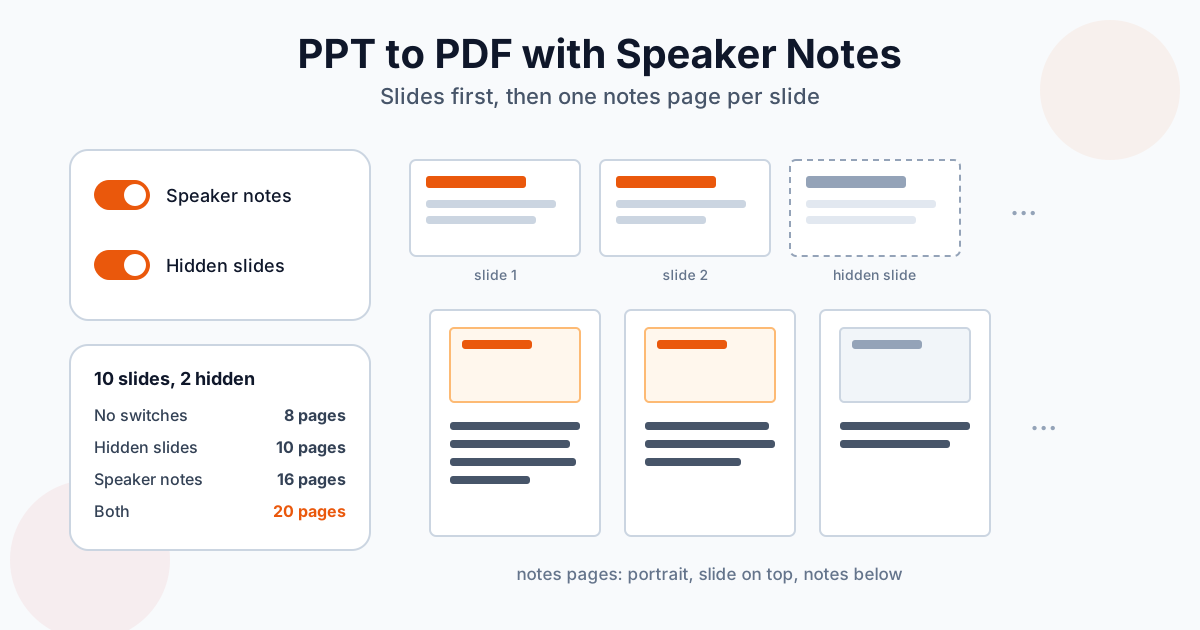
To export PowerPoint to PDF with speaker notes on Windows, go to File → Export → Create PDF/XPS → Options and set Publish what to Notes pages; tick Include hidden slides in the same dialog if you need them. On a Mac, use File → Print → Layout: Notes → Save as PDF. No PowerPoint at hand? The PowerPoint to PDF converter has two switches, Include speaker notes and Include hidden slides, both off by default. Below: exactly what each route produces, with page counts from a test deck.
PowerPoint to PDF With Speaker Notes Online
- Open the PowerPoint to PDF converter
- Turn on Include speaker notes, Include hidden slides, or both
- Drop your .pptx, .ppt or .odp file — several decks at once is fine, they queue up
- Download the PDF, or all of them as a ZIP
We built a 10-slide 16:9 deck with speaker notes on every slide and slides 4 and 8 hidden, then converted it four times:
| Switches on | PDF pages | What's in the PDF |
|---|---|---|
| None (default) | 8 | The 8 visible slides |
| Include hidden slides | 10 | All 10 slides, hidden ones in their normal place |
| Include speaker notes | 16 | 8 slides, then 8 notes pages |
| Both | 20 | 10 slides, then 10 notes pages |
What the pages look like:
- Slide pages keep the deck's shape — landscape 16:9 here
- Notes pages are portrait, 7.5 × 10 inches, with the slide image at the top and the notes text below
- Notes pages come as a block after all the slides, not one after each slide: page 9 is the notes page for slide 1
- Every exported slide gets a notes page, even one with empty notes — a 3-slide deck with notes on one slide came back as 6 pages
- The old .ppt format behaves the same: the .ppt version of our deck gave the same 20 pages with both switches on
Hidden slides appear in the PDF without any marker, so a reader can't tell which ones you had hidden.
Notes Pages Only, for the Presenter
Each notes page already carries a picture of its slide, so for a speaker script you usually want only the notes pages. Take the PDF with notes and remove the slide pages with Delete PDF pages: in our 16-page file, deleting pages 1-8 left exactly the 8 notes pages.
Long Notes Get Cut Off
A notes page is one page. In our test, a slide with a 900-word note showed only its first hundred words or so; the rest ran past the bottom edge. PowerPoint's own Notes Pages layout does the same. If you write full scripts in the notes pane, shorten them, or lower the notes font size in View → Notes Master before exporting.
How to Save PowerPoint as PDF With Notes on Windows
Export route (keeps links clickable):
- File → Export → Create PDF/XPS Document → Create PDF/XPS
- Click Options…
- Under Publish what, choose Notes pages
- Tick Include hidden slides if you want them
- OK → Publish
PowerPoint's notes-page export gives one notes page per slide, in slide order, and no separate full-size slide pages — the notes page already shows the slide.
Print route:
- File → Print, printer Microsoft Print to PDF
- Change Full Page Slides to Notes Pages
- For hidden slides, open the first drop-down (Print All Slides) and tick Print Hidden Slides — the option is only available when the deck has hidden slides
- Print, then choose where to save the PDF
Use Export when the PDF will be read on screen: printing to PDF produces a flat printout where hyperlinks no longer work.
How to Print PowerPoint Slides With Notes to PDF on Mac
- File → Print, then Show Details if the dialog is collapsed
- Set Layout to Notes
- Tick Print hidden slides if needed
- Open the PDF menu at the bottom left → Save as PDF
File → Export → PDF on the Mac saves slides only, with no notes option, so the print dialog is the way to go.
Handouts: Several Slides per Page
Handouts are the other thing people mean by "PDF with notes": two, three, four, six or nine slide thumbnails per page. In PowerPoint, choose Handouts under Publish what (Windows Export) or as the print layout, then the number of slides per page. The three-per-page layout adds ruled lines next to each slide for handwritten notes.
Keep in mind that handouts don't contain your speaker notes — only the slides, small. If the audience should get your commentary, use notes pages. Besides PowerPoint, Keynote and Impress, the online PPT to PDF converter makes handouts too: pick 2, 3, 4, 6 or 9 under Slides per page, and each A4 page gets that many framed slides.
Google Slides: Download a PDF With Speaker Notes
- File → Print settings and preview
- In the layout drop-down, choose 1 slide with notes
- Turn on Include skipped slides if you need the slides you skipped
- Click Download as PDF
The regular File → Download → PDF document gives slides only.
Keynote: Presenter Notes and Skipped Slides
File → Export To → PDF, then tick Include presenter notes and, if needed, Include skipped slides. Keynote also offers the notes layout in File → Print. For moving a Keynote deck to PowerPoint first, there's Keynote to PPTX.
LibreOffice Impress: Notes Pages and Hidden Pages
File → Export as → Export as PDF, General tab:
- Export notes pages — slides first, then the notes pages, like our converter's output
- Export only notes pages — just the notes pages; on our deck with both hidden slides left out, that gave 8 portrait pages
- Export hidden pages — includes hidden slides
PowerPoint for the Web and Phones
PowerPoint for the web and the mobile apps offer far fewer print and PDF layouts than the desktop app; if you don't see a notes page option there, you can't get one from them. From a phone or a browser-only laptop, either open the deck in Google Slides or use the online PPT to PDF converter with Include speaker notes switched on.
Which Route Does What
| Route | Speaker notes | Hidden slides | Handouts |
|---|---|---|---|
| PowerPoint Windows, Export | Notes pages | Checkbox | 1–9 per page |
| PowerPoint Windows, Print to PDF | Notes pages | Checkbox | 1–9 per page |
| PowerPoint Mac, Print | Notes layout | Checkbox | Yes |
| Google Slides, Print preview | 1 slide with notes | Include skipped slides | Several per page |
| Keynote, Export | Presenter notes | Skipped slides | Via Print |
| Impress, Export as PDF | Notes pages or notes only | Hidden pages | Via Print |
| FileConvertLab online | Slides + notes pages | Switch | 2, 3, 4, 6 or 9 per page |
Tips Before You Send the PDF
- Check the page count. With notes on, you should see twice the number of exported slides. If it's off, a hidden slide slipped in or out
- Decide on hidden slides deliberately. Backup slides with raw numbers are often hidden for a reason
- Expect a bigger file. Every notes page repeats its slide; our text-only deck grew from 25.6 KB to 51.5 KB with notes. For photo-heavy decks, run the result through Compress PDF
- Combine with other material — agenda, reading list — using Merge PDF
- Handing in coursework? Check whether the course wants slides only or notes pages; converting documents for school covers typical submission formats
For fonts, image quality, animations and other general PowerPoint-to-PDF questions, see the PowerPoint to PDF guide. If you ever need to go back from a PDF to editable slides, read PDF to PowerPoint first — notes pages don't turn back into speaker notes.
Summary
Speaker notes need a notes-page layout, and every tool hides it in a different place: Publish what in PowerPoint's Export options on Windows, the Layout menu in the Mac print dialog, "1 slide with notes" in Google Slides. Hidden slides are always a separate checkbox. Without any of those apps, the PowerPoint to PDF converter does both with two switches; notes pages arrive after the slides, one per slide.
Related Tools
- PowerPoint to PDF converter — slides, with optional notes pages and hidden slides
- Delete PDF pages — keep only the notes pages
- Merge PDF — add an agenda or handout material
- Compress PDF — shrink a PDF that doubled with notes
- PPT to PPTX — update an old .ppt deck first