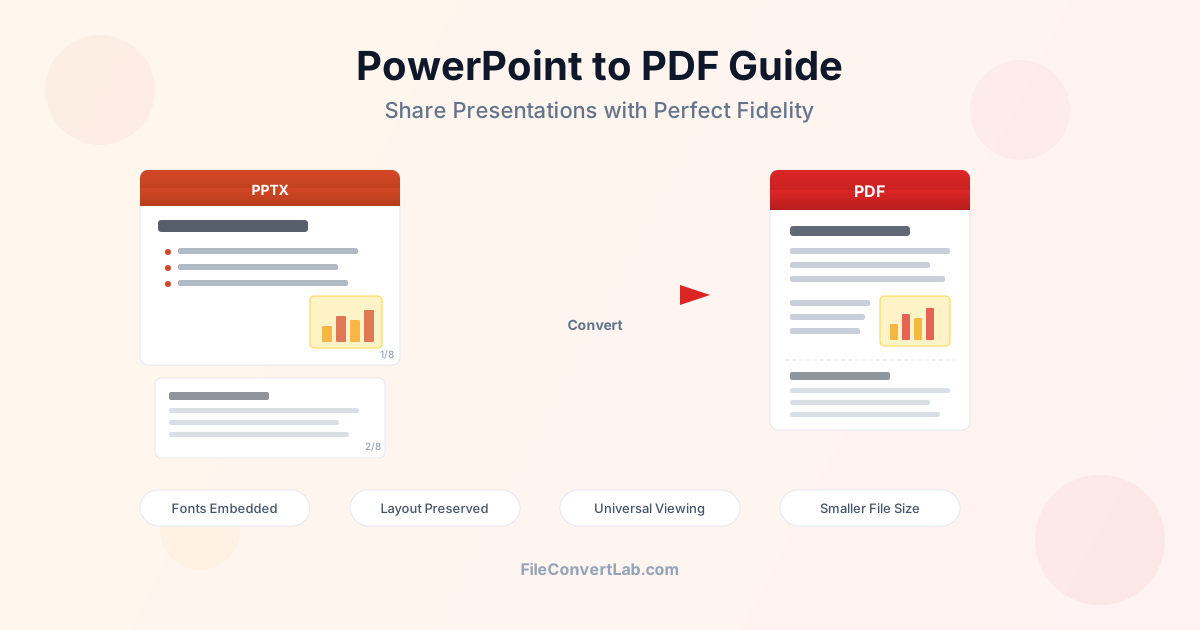
Converting PowerPoint to PDF is the most reliable way to share presentations without worrying about font issues, layout shifts, or software compatibility. Whether you are sending a pitch deck to a client, submitting a class assignment, or distributing meeting slides to colleagues, PDF ensures every recipient sees exactly the same content — regardless of their device, operating system, or installed software. This guide covers how to convert PPT to PDF effectively, what transfers from PPTX to PDF, what gets lost in the process, and practical tips for getting the best results when you save PowerPoint as PDF.
Why Convert PowerPoint to PDF for Sharing
PowerPoint files require specific software to open correctly. Recipients without Microsoft PowerPoint, Google Slides, or Keynote cannot view your PPTX file at all. Even when they have compatible software, different versions render slides differently — fonts get substituted, layouts shift, and embedded objects break. Converting your presentation to PDF eliminates these problems:
- Universal viewing — every computer, phone, and tablet can open PDF files natively. No special software required
- No font substitution — fonts are embedded in the PDF, so text looks identical on every device. No more "missing font" warnings
- Fixed layout — slide elements stay exactly where you placed them. No accidental repositioning from different screen sizes or software versions
- Smaller file size — PDF files are typically 30-50% smaller than the equivalent PPTX, especially for text-heavy presentations
- Content protection — recipients cannot easily modify your slides. The content is locked in a read-only format that preserves your design intent
- Email-friendly — PDF is the most widely accepted attachment format. No email provider blocks PDF files, and recipients can preview them inline
How to Convert PPT to PDF
There are several ways to convert PowerPoint to PDF, each with different advantages depending on your situation and what you need from the output.
Method 1: Online Converter
The fastest approach when you do not have PowerPoint installed or need a quick conversion.
Upload your PPT or PPTX file to the PowerPoint to PDF converter , wait for processing, and download the result. This method handles both legacy .ppt and modern .pptx formats and produces a high-quality PDF with fonts embedded automatically.
Method 2: Save As PDF in PowerPoint
If you have PowerPoint installed, go to File > Save As and select PDF from the format dropdown. This method gives you the most control over output settings. You can choose which slides to include, set quality options, and decide whether to include document properties and accessibility tags. The shortcut to convert PPT to PDF quickly: press Ctrl+Shift+S (Windows) or Cmd+Shift+S (Mac), then pick PDF as the format.
Method 3: Export as PDF
PowerPoint's File > Export > Create PDF/XPS option provides additional settings not available in Save As. You can optimize for standard quality (for printing) or minimum size (for online sharing). The export dialog also lets you choose between publishing the full presentation, specific slide ranges, or handouts with multiple slides per page.
Method 4: Google Slides
Upload your PPTX to Google Drive, open it in Google Slides, then go to File > Download
PDF Document. This is useful when you are working on a shared presentation and want to generate a PDF snapshot. Note that Google Slides may render some formatting differently than PowerPoint before converting to PDF.
What Transfers from PowerPoint to PDF
Most visual elements in your presentation survive the conversion to PDF without any issues.
Here is what you can count on transferring reliably when you convert PPTX to PDF:
Slides and Layout
Each slide becomes one page in the PDF. The slide dimensions, background colors, background images, and overall layout are preserved exactly. A 20-slide presentation produces a 20-page PDF with each page matching the slide dimensions (typically 16:9 or 4:3 aspect ratio).
Text and Formatting
All text content transfers: titles, body text, bullet points, numbered lists, and text inside shapes. Font styles (bold, italic, underline), font sizes, text colors, and text alignment are preserved. Fonts are embedded in the PDF, which is why the text looks correct even on devices without the original fonts installed.
Images, Shapes, and Graphics
Photographs, icons, logos, SmartArt diagrams, and drawn shapes all transfer at their original resolution. Charts created in PowerPoint render as static images in the PDF — they look identical but are no longer editable. Grouped objects, shadows, reflections, and 3D effects are flattened into the PDF page.
Hyperlinks and Bookmarks
Clickable hyperlinks in your slides (URLs, email links) remain active in the PDF when you use Save As or Export. Internal slide-to-slide links may or may not convert depending on the tool. If preserving links matters for your document, test the PDF output by clicking each link.
What Does Not Transfer from PPT to PDF
PDF is a static page format. It cannot reproduce dynamic or interactive PowerPoint features.
Knowing what gets lost helps you prepare your presentation before conversion and set the right expectations for your audience.
- Animations and transitions — all slide transitions (fade, push, morph) and object animations (fly in, appear, path) are removed. Each slide is captured as a single static image in its final state. If your presentation relies on build-up animations, consider duplicating slides at each step before converting so viewers see the progression
- Speaker notes — by default, converting PPT to PDF produces slides only. Speaker notes are not included unless you specifically choose the Notes Pages layout (more on this below)
- Audio and video — embedded media files do not play in a PDF. Slides with video will show a static thumbnail. If your presentation includes important audio narration, share the original PPTX alongside the PDF
- Editable charts and tables — Excel-linked charts and tables become static images. You cannot edit the data or change chart types after conversion
- Interactive elements — action buttons, trigger-based animations, and embedded interactive content do not function in PDF
- Slide master editing — the visual output of slide masters is preserved, but the PDF does not contain editable master slides or themes
PowerPoint to PDF: Element Comparison
This table summarizes what survives the conversion from PowerPoint to PDF:
| PowerPoint Element | PDF Result | Quality |
|---|---|---|
| Text and fonts | Embedded text with fonts | Excellent |
| Images and photos | Preserved at original resolution | Excellent |
| Shapes and SmartArt | Flattened vector/raster graphics | Excellent |
| Charts | Static image (not editable) | Good |
| Hyperlinks | Active clickable links | Good |
| Slide layout | Exact page reproduction | Excellent |
| Animations | Removed (final state only) | N/A |
| Transitions | Removed | N/A |
| Speaker notes | Not included (unless Notes Pages) | N/A |
| Embedded audio/video | Static thumbnail only | N/A |
How to Convert PowerPoint to PDF Without Losing Formatting
Formatting issues in PPT to PDF conversion usually come from font problems, image compression, or incorrect export settings. Follow these steps to convert PowerPoint to PDF without losing formatting:
- Embed fonts — in PowerPoint, go to File > Options > Save and check "Embed fonts in the file." This prevents font substitution during conversion
- Use standard quality — when exporting, select "Standard (publishing online and printing)" rather than "Minimum size." The file will be slightly larger but images stay sharp
- Check slide dimensions — if your slides use a custom size, verify that the PDF pages match. Non-standard dimensions occasionally cause cropping
- Avoid system-dependent fonts — fonts like Calibri, Arial, and Times New Roman convert reliably. Decorative or downloaded fonts may render differently
- Test with a single slide — convert one complex slide first to check quality before processing the full presentation
Multiple Slides per Page: Handout Layouts
Sometimes you need more than one slide per PDF page — for printed handouts, study materials, or compact reference documents. PowerPoint to PDF conversion supports several multi-slide layouts:
- 2 slides per page — good for review documents where each slide needs to be clearly readable. Produces a PDF roughly half the page count of the presentation
- 3 slides per page with lines — the classic handout format with space for note-taking beside each slide. Ideal for meetings and workshops
- 4 slides per page — balanced between readability and compactness. Works well for technical presentations where viewers need to reference specific slides
- 6 or 9 slides per page — maximum density. Useful for visual overviews and thumbnail-style reference sheets, but small text may be hard to read
To create a multi-slide PDF, use PowerPoint's print settings: File > Print > Settings
Full Page Slides > change to Handouts and select the desired number. Then print to PDF or use an online PPT to PDF converter that supports handout layouts. For the standard one slide per page output, the default conversion settings work without any changes.
Converting PPT to PDF with Speaker Notes
By default, converting PPT to PDF includes only the slides. Speaker notes — the text you write in the notes pane below each slide — are not part of the standard PDF output. To include them, you need to change the print layout before saving:
- Open your presentation in PowerPoint
- Go to File > Print
- Under Settings, change "Full Page Slides" to "Notes Pages"
- Each page now shows the slide on top and the speaker notes below
- Print to PDF or save as PDF from this view The Notes Pages layout produces a portrait-oriented PDF with a smaller slide image and your notes text below. This is useful for presenter preparation documents and for sharing detailed context alongside the visual slides. Keep in mind that the slide image will be smaller than in a standard full-slide PDF.
Quality Settings: Standard vs Minimum Size
PowerPoint offers two quality levels when exporting to PDF, and the choice affects both file size and visual quality:
- Standard quality — preserves images at high resolution (typically 220 DPI). Best for printing and professional distribution. Text is always crisp regardless of setting
- Minimum size — compresses images more aggressively (typically 150 DPI). Produces smaller files suitable for email attachments and online viewing. Acceptable for most presentations, but image-heavy slides may show compression artifacts
For presentations with charts, photographs, or detailed diagrams, use Standard quality.
For text-heavy slides where images are secondary, Minimum size saves space without noticeable quality loss. If the resulting PDF is still too large, you can compress the PDF after conversion for further size reduction.
PPT vs PPTX: Which Format Converts Better
Both PPT (legacy binary format, PowerPoint 97-2003) and PPTX (modern Open XML format, PowerPoint 2007+) can be converted to PDF, but PPTX produces more reliable results:
- PPTX — modern format with better font embedding, more consistent rendering, and support for features like SmartArt, 3D effects, and high-resolution images. Always prefer PPTX for conversion when possible
- PPT — legacy format that may use older font references and simpler graphics. Converts adequately but complex layouts may shift slightly. If you receive a .ppt file, consider opening it in PowerPoint and resaving as .pptx before converting to PDF
If you need to go in the opposite direction — converting PDF back to PowerPoint — the process extracts content from the PDF and reconstructs editable slides. This is useful when you have a PDF of a presentation and need to modify it.
Tips for Better PowerPoint to PDF Results
Follow these practical tips to get the best quality when you save PowerPoint as PDF:
Before Conversion
- Finalize all content — complete all edits, check spelling, and verify that all images display correctly before converting. Changes after conversion require reconverting the entire presentation
- Handle animations — if build-up animations are important for understanding, duplicate slides to show each animation step as a separate slide in the PDF
- Check hidden slides — hidden slides are excluded from PDF by default in most converters. Unhide any slides you want included, or verify your converter's settings
- Compress images in PowerPoint first — if the presentation contains very large images, use PowerPoint's Compress Pictures tool (Format > Compress Pictures) before converting to control the final PDF size
After Conversion
- Verify page count — confirm the PDF has the expected number of pages matching your slide count (excluding any hidden slides)
- Check fonts and text — scroll through the PDF and verify that text renders correctly, especially for non-Latin characters or decorative fonts
- Test hyperlinks — click each link in the PDF to verify they work. Links to external websites and email addresses should remain functional
- Review image quality — zoom in on charts and photographs to check for compression artifacts, especially if you used the minimum size option
- Reduce size if needed — if the PDF is too large for email, compress the PDF to reduce file size while keeping visual quality acceptable
Common Use Cases for PPT to PDF
Different situations call for different conversion approaches. Here are the most common scenarios and how to handle each:
- Client presentations — convert to standard quality PDF for professional appearance. Clients can view on any device without needing PowerPoint
- Meeting handouts — use the 3-per-page handout layout with note lines. Attendees get a compact printed reference they can annotate during the meeting
- Course materials — include speaker notes using Notes Pages layout so students get both the slides and the instructor's commentary
- Portfolio submissions — use standard quality to preserve image detail. Verify that all graphics and typography render correctly
- Email attachments — use minimum size quality. Most email providers limit attachments to 25 MB, and compressed PDFs usually fit within this limit
- Archival — use PDF/A format if available (some converters support this) for long-term preservation with fonts and colors guaranteed to display correctly years later
PPT to PDF vs Other Sharing Options
PDF is not the only way to share presentations. Consider these alternatives depending on your specific needs:
- Need recipients to edit? — share the original PPTX file or use collaborative tools like Google Slides. PDF is read-only
- Need to share as a document? — convert PowerPoint to other formats like Word if the content works better as a written document than as slides
- Need individual slide images? — export slides as JPG or PNG instead of PDF if you need separate image files for each slide
- Need to convert the PDF back later? — use a PDF converter to extract content from the PDF into editable formats when you need to make changes
Summary
Converting PowerPoint to PDF is the standard approach for sharing presentations reliably.
Text, images, shapes, and layout transfer with excellent fidelity, while animations, transitions, speaker notes, and embedded media do not survive the conversion. For best results, embed fonts before converting, choose the right quality setting for your audience, and use handout layouts when you need multiple slides per page. Whether you use an online converter or PowerPoint's built-in export, the process takes seconds and produces a document that every recipient can open, view, and print — exactly as you intended.