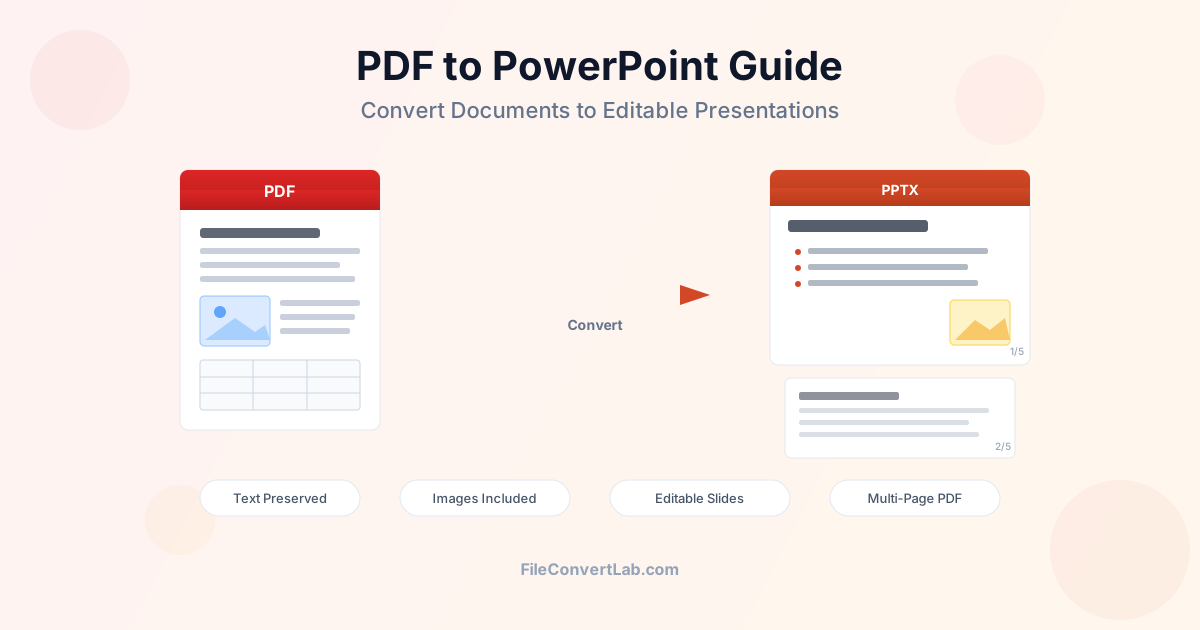
Need to turn a PDF into an editable presentation? Converting a PDF to PowerPoint lets you transform static documents into slide decks you can customize, present, and share. Whether you have a report, proposal, or training manual locked in PDF format, converting it to PPTX saves hours compared to rebuilding slides from scratch. This guide covers how to convert PDF to PPT effectively, what transfers well, what to watch out for, and practical tips for getting the best results from your PDF to PowerPoint conversion.
When to Convert PDF to PowerPoint
Not every PDF needs to become a presentation, but there are clear situations where converting a PDF file to a PowerPoint presentation saves significant time and effort:
- Repurposing reports — transform a quarterly report or research paper into a slide deck for meetings without retyping content
- Editing received presentations — a colleague sends you a PDF of their slides and you need to modify or add content
- Training materials — convert PDF manuals or guides into presentation format for workshops and onboarding sessions
- Proposal customization — take a standard PDF proposal and adapt it for different clients by changing details in PowerPoint
- Archival content — bring old PDF presentations back to life when the original PPTX file is lost or unavailable
- Content extraction — pull specific charts, diagrams, or text blocks from a PDF into a new presentation
How to Convert PDF File to PowerPoint Slides
The conversion process is straightforward. Upload your PDF, select PowerPoint as the output format, and download the result. Here is how to get the best outcome:
Step 1: Prepare Your PDF
Before converting, check whether your PDF is text-based or scanned. Try selecting text with your cursor. If you can highlight and copy words, the PDF contains real text and will convert well. If text cannot be selected, the PDF is a scanned image and will need OCR processing first. Text-based PDFs produce far better PowerPoint results because the converter can extract actual text, fonts, and structure rather than working with flat images.
Step 2: Upload and Convert
Use the PDF to PowerPoint converter to upload your file. Each page of the PDF becomes a separate slide in the output PPTX file.
The converter analyzes the layout of each page — identifying headings, body text, images, and tables — and places them onto editable slide elements.
Step 3: Review and Refine
Open the converted PPTX in PowerPoint, Google Slides, or Keynote. Check text accuracy, image placement, and table structure. Most conversions need minor adjustments: aligning text boxes, tweaking font sizes, or repositioning images. This cleanup takes minutes compared to the hours of rebuilding slides manually.
What Transfers Well from PDF to PowerPoint
Understanding what converts reliably helps you set realistic expectations and plan your workflow. Here is what you can count on:
Text Content
Body text, headings, and bullet points from text-based PDFs convert accurately. The converter preserves font sizes, bold and italic styling, and text color. Paragraph structure and reading order are maintained. You get editable text boxes on each slide that you can modify, reformat, or restyle as needed.
Images and Graphics
Embedded photographs, logos, charts, and diagrams transfer to the PowerPoint slides with their original resolution. Images are placed on the corresponding slide in approximately the same position as in the PDF. You can resize, crop, or replace them in PowerPoint after conversion.
Simple Tables
Tables with clear borders and regular grid structures become editable PowerPoint tables.
Cell content, column widths, and basic formatting transfer. Simple data tables with consistent rows and columns produce the best results.
Page Layout
The overall arrangement of elements on each page — where text sits relative to images, the position of headers, and general spacing — is preserved in the slide layout. Each PDF page maps to one PowerPoint slide, maintaining the visual structure of the original document.
What Does Not Transfer from PDF to PPT
Some elements cannot survive the conversion because PDF and PowerPoint handle content differently. Knowing these limitations prevents surprises:
- Animations and transitions — PDFs do not contain slide animations. If the original presentation had animations before being saved as PDF, those are permanently lost
- Speaker notes — PDF format does not store presenter notes. They are stripped when saving to PDF and cannot be recovered
- Editable charts — charts in PDFs are flattened into images. The converted PowerPoint will show the chart as a picture, not as an editable data chart you can modify
- Slide master and themes — PowerPoint themes, color schemes, and slide master layouts do not exist in PDFs. The conversion creates a generic slide layout
- Complex merged tables — tables with irregular merged cells, nested tables, or invisible borders may break into separate text boxes
- Embedded fonts — if the PDF uses fonts not installed on your system, the converter substitutes similar fonts, which may alter spacing and appearance
- Interactive elements — form fields, hyperlink actions, and embedded multimedia from the PDF do not transfer to the PowerPoint slides
PDF to PowerPoint: Element Comparison
This table summarizes how different PDF elements convert to PowerPoint format:
| PDF Element | PowerPoint Result | Quality |
|---|---|---|
| Body text | Editable text boxes | Excellent |
| Headings | Styled text (size, bold preserved) | Excellent |
| Bullet lists | Slide bullet points | Good |
| Photographs | Embedded images | Excellent |
| Vector graphics | Rasterized images | Good |
| Simple tables | Editable tables | Good |
| Complex tables | Text boxes (may need fixing) | Fair |
| Charts | Static images (not editable data) | Fair |
| Animations | Not available | N/A |
| Speaker notes | Not available | N/A |
Converting Multi-Page PDF to Presentation
Multi-page PDFs convert naturally to PowerPoint because the page-to-slide mapping is one-to-one. A 30-page PDF becomes a 30-slide presentation. However, long documents require extra attention:
- Content density — PDF pages often contain more text than a typical slide. After conversion, consider splitting dense slides into multiple slides for better readability
- Page orientation — landscape PDF pages map better to slides than portrait pages. If your PDF is portrait-oriented, expect wider margins and smaller content on landscape slides
- Section breaks — add section dividers in PowerPoint after conversion to organize a long slide deck into logical chapters
- Consistent styling — apply a PowerPoint theme after conversion to give all slides a unified look, since PDF conversion produces generic layouts
For very large PDFs, consider splitting the document into sections first using a PDF tool and converting each section separately. This gives you more control over the final presentation structure.
Tips for Better PDF to PowerPoint Results
Follow these practical tips to get the best quality when you convert PDF to PPTX:
Before Conversion
- Use the original source — if you have the original Word or PowerPoint file, use that instead. Converting from the source format always produces better results than converting from PDF
- Check PDF quality — higher resolution PDFs with embedded text produce better conversions. Low-resolution or scanned PDFs yield poorer results
- Reduce complexity — if possible, simplify the PDF before conversion. Remove unnecessary pages, ensure text is not layered on top of images
- Compress images — if the PDF is very large due to high-resolution images, compress the PDF first to speed up conversion without significant quality loss
After Conversion
- Apply a slide theme — the converted presentation uses a blank theme. Apply your company template or a built-in theme to give it a polished look
- Check font substitutions — if fonts look different, install the original fonts or replace them with suitable alternatives
- Adjust text boxes — text boxes may need resizing or repositioning. Check that no text is cut off or overlapping
- Rebuild charts — if you need editable charts, recreate them in PowerPoint using the data visible in the converted image charts
- Add animations — if the presentation needs animations or transitions, add them manually after conversion. These cannot be recovered from a PDF
PDF to PowerPoint with Images
Image-heavy PDFs like photo albums, portfolios, or visual reports convert well to PowerPoint because images transfer at their original resolution. Here are specific considerations for PDFs with lots of images:
- File size — the resulting PPTX file will be similar in size to the PDF because images account for most of the data. A 50 MB PDF with many photos produces a roughly 50 MB PPTX
- Image positioning — images appear on the corresponding slide in approximately the same position as in the PDF. Fine-tune placement in PowerPoint if needed
- Background images — full-page background images from the PDF become slide background images. You can set them as actual slide backgrounds in PowerPoint for cleaner editing
- Overlaid text — text placed on top of images in the PDF becomes a text box layered above the image on the slide, preserving the visual effect
PDF to PPT vs Other Conversion Options
Depending on your goal, converting to PowerPoint might not be the best option. Consider these alternatives:
- Need to edit text? — PDF to Word is better for document editing. Word handles long-form text, complex formatting, and multi-column layouts more naturally than PowerPoint
- Need a reverse conversion? — use PowerPoint to PDF to lock your presentation into a fixed format for sharing
- Need to annotate without editing? — use a PDF editor to add comments, highlights, and annotations directly to the PDF
- Need individual page images? — convert PDF pages to JPG or PNG instead of PowerPoint. This is simpler if you just need visual content without editing
Common Issues and How to Fix Them
Text Appears as Images
If you cannot edit text on the converted slides, the PDF was likely scanned or exported as images. Solution: run OCR on the PDF first to extract text, then convert the OCR result to PowerPoint. For text-based PDFs where text still shows as images, try re-exporting the original document as a new PDF with embedded text.
Fonts Look Different
Font substitution occurs when the PDF uses fonts not available on your system. The converter replaces them with visually similar fonts, but spacing and kerning may differ. Install the original fonts if you have them, or manually replace fonts in PowerPoint with ones that match the original appearance.
Layout Shifts on Slides
PDFs use fixed coordinates while PowerPoint uses relative positioning. Elements may shift slightly, especially near slide edges. Zoom out to see the full slide, then drag elements into the correct positions. Using PowerPoint's alignment and distribution tools speeds up this process.
Large File Size After Conversion
Image-heavy PDFs produce large PPTX files. Use PowerPoint's built-in "Compress Pictures" feature (File > Info > Compress Pictures) to reduce image resolution. For web or email sharing, 150 DPI is usually sufficient. You can also compress the PDF before conversion to start with smaller images.
Best Practices for PDF Slides
Whether you are converting a report into presentation slides or recovering a lost PowerPoint file from its PDF export, these best practices ensure a smooth workflow:
- Start with quality source material — high-resolution, text-based PDFs with clear structure produce the best conversions
- Convert first, design second — get the content into PowerPoint, then apply themes, animations, and design elements. Do not try to preserve the PDF look exactly
- Keep the original PDF — always save your original PDF as reference. You may need to check specific details or run the conversion again with different settings
- Review every slide — automated conversion is good but not perfect. A quick review of each slide catches issues before your audience does
- Use slide sorter view — view all slides at once in PowerPoint's slide sorter to check consistency and identify slides that need the most cleanup
Summary
Converting PDF to PowerPoint is a practical way to turn static documents into editable presentations. Text, images, and basic tables transfer well, while animations, speaker notes, and editable charts do not survive the conversion. For best results, start with a text-based PDF, use a reliable converter , and plan to spend a few minutes on post-conversion cleanup. The time investment is minimal compared to rebuilding a presentation from scratch — and you get editable PPTX slides ready for your next meeting, training session, or client presentation.