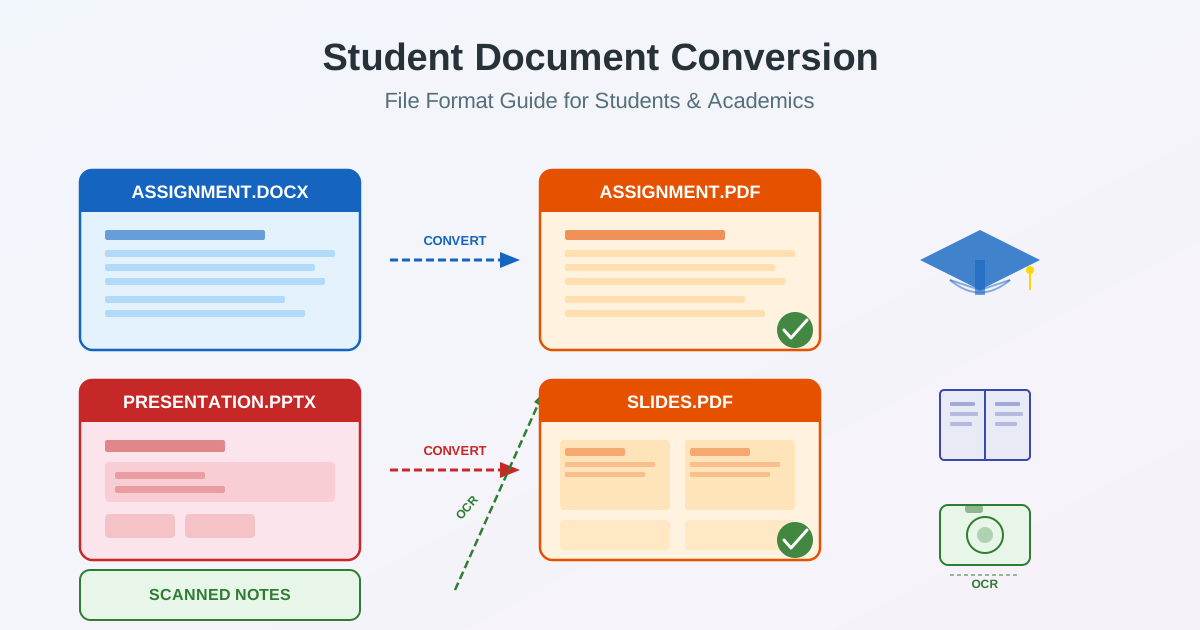
Every semester brings the same challenge: your professor wants a PDF, the journal requires a Word document, your group project lives in PowerPoint, and your handwritten lecture notes exist only on paper. Student file conversion is a skill you use constantly but rarely think about — until something goes wrong. A misformatted assignment, a file too large to upload, or a scanned page that nobody can search through. This guide covers every document conversion scenario students and academics face, from converting assignments to PDF for submission to digitizing handwritten notes with OCR.
Why PDF Is the Standard for Assignment Submission
Most universities require students to submit homework as PDF, and there is a practical reason for this.
PDF files look identical on every device — your professor sees the exact same layout whether they open it on Windows, Mac, iPad, or a Chromebook. Word documents, by contrast, can shift formatting depending on which version of Word (or alternative word processor) the reader uses. Fonts substitute, margins adjust, page breaks move, and suddenly your carefully formatted essay looks different from what you intended.
PDF also prevents accidental edits. When you submit a DOCX file, anyone who opens it can inadvertently modify the content by clicking into the text. PDF preserves your work as a finished document. Learning management systems like Canvas, Blackboard, Moodle, and Google Classroom all handle PDF files reliably, rendering them in their built-in document viewers without requiring students or instructors to install additional software.
Turnitin and other plagiarism detection tools also work best with PDF submissions. The text layer in a properly converted PDF is fully searchable and parseable, which means your submission gets processed correctly. Submitting a scanned image-based PDF without OCR, on the other hand, can cause Turnitin to flag your work as unreadable.
How to Convert Word to PDF for Submission
Converting a Word document to PDF is the single most common student file conversion. Whether it is an essay, a lab report, or a thesis chapter, the process is the same: take your finished DOCX file and produce a PDF that preserves every detail of your formatting.
What Transfers Perfectly
- Text and headings — fonts, sizes, bold, italic, underline, and colors
- Page layout — margins, headers, footers, page numbers, and page breaks
- Tables — cell content, borders, merged cells, and shading
- Images and charts — embedded photos, diagrams, and Excel charts
- Hyperlinks — clickable URLs and cross-references remain functional
- Citations and footnotes — reference numbers and footnote text at the bottom of each page
What to Check After Converting
Always open the PDF and scroll through every page before submitting. Check that page breaks fall where you expect them, that images have not shifted, and that any special characters (mathematical symbols, accented letters, non-Latin scripts) display correctly. Equations created in Word's equation editor sometimes render differently in PDF — verify them visually.
Use our Word to PDF converter to convert your assignment to PDF with preserved formatting. The conversion handles fonts, tables, images, and page layout automatically.
Best Format for Academic Papers and Research
Academic writing involves multiple stages, and the best format for academic papers depends on where you are in the process. Understanding which format to use at each stage saves time and avoids formatting headaches.
Drafting and Collaboration: DOCX
Write your paper in DOCX format. Microsoft Word and Google Docs both support track changes, comments, and real-time collaboration — features that are essential during the drafting and revision process. Your advisor can leave inline comments, your co-author can suggest edits with track changes, and you can accept or reject modifications one by one. None of this works in PDF, which is a viewing format, not an editing format.
If your professor provides a template (common for thesis formatting or conference submissions), it will almost always be a DOCX or DOC file. Work within that template to ensure your margins, heading styles, font choices, and spacing match the required specification.
Final Submission: PDF
Convert to PDF for final submission. Journals, conferences, and university portals expect PDF because it guarantees consistent rendering. A PDF created from a properly formatted Word document embeds the fonts, locks the layout, and produces a document that looks identical on any screen or printer.
For LaTeX users, the workflow is even more direct — compiling a LaTeX document produces PDF natively. If you receive a PDF from a LaTeX source and need to edit it, convert it to Word using our PDF to Word converter, make your changes, and re-export to PDF.
Converting Research Papers to Word
Sometimes you need to convert a research paper to Word — for example, when you download a PDF paper from a journal and want to annotate it heavily, extract specific sections for your literature review, or reformat content for a different submission. PDF to Word conversion extracts the text, tables, and images into an editable document. Text-based PDFs (the majority of published papers) convert with high accuracy. Papers that are essentially scanned images require OCR before the text becomes editable.
Converting Presentations to PDF for Class
Presentations create unique student document format challenges. You build slides in PowerPoint or Google Slides, but your professor may want a PDF version, your classmates may not have PowerPoint, or you need to submit slides alongside a written report.
When to Convert to PDF
- Submission for grading — PDF ensures the professor sees your slide layout correctly
- Sharing with classmates — PDF opens on any device without compatibility issues
- Archiving completed projects — PDF is a stable long-term format
- Printing handouts — PDF produces consistent print output with predictable page breaks
When to Keep PPTX
- Live presentations — you need animations, transitions, and presenter view
- Group collaboration — team members need to edit different sections
- Speaker notes — the professor specifically asks for notes with the slides
Use our PowerPoint to PDF converter to convert presentation to PDF for class with preserved slide layouts, fonts, and images. Each slide becomes a page in the resulting PDF.
Scanning Handwritten Notes with OCR
Handwritten notes are valuable study material, but they are hard to search, organize, and share in paper form. OCR (Optical Character Recognition) lets you scan notes to text — converting photos of your handwriting into editable, searchable digital documents.
How to Get the Best OCR Results
- Good lighting — even, bright lighting without shadows across the page
- Flat surface — press the notebook flat to avoid curved text near the binding
- High resolution — use your phone camera at maximum resolution, or scan at 300+ DPI
- Contrast — dark ink on white paper produces the best recognition accuracy
- Neat handwriting — print letters convert more accurately than cursive
After capturing your notes, use our image to text OCR tool to extract the text. The output is a Word document that you can edit, search through, and reorganize. This is especially useful for consolidating lecture notes from multiple classes into a single searchable study guide before exams.
Digitizing Textbook Pages and Handouts
The same OCR workflow applies to printed handouts, textbook excerpts, and photocopied materials that your professors distribute. Scan or photograph the page, run it through OCR, and you have searchable text that you can highlight, annotate, and include in your study notes. This is particularly helpful for older textbooks or materials that are not available digitally.
Collaboration and Group Projects
Group projects introduce additional document conversion challenges. Team members use different operating systems, different software versions, and different default file formats. One person writes in Google Docs, another in Microsoft Word, and a third submits handwritten diagrams.
Standardizing on One Format
Agree on a single working format at the start of the project. DOCX is the safest choice for written reports because both Microsoft Word and Google Docs handle it well. Google Docs can import and export DOCX natively, so team members can use whichever editor they prefer while maintaining format compatibility.
For the final submission, designate one person to compile all sections, apply consistent formatting, and convert the finished document to PDF. This avoids the common problem where different sections have slightly different fonts, heading sizes, or margin settings because each team member formatted independently.
Merging Multiple Files
If team members submit separate files for different sections, you may need to combine them. Convert each file to PDF first, then merge the PDFs into a single document. This approach works well when sections include different content types — a written report from Word, data tables from Excel, and diagrams from PowerPoint can all become PDF pages that merge into one cohesive submission.
File Size and Email Submission
Email attachment limits remain a real constraint for students. Most university email systems cap attachments at 10-25 MB, and some learning management systems impose even stricter limits. A Word document with high-resolution images, embedded charts, or scanned content can easily exceed these limits.
Reducing File Size
- Convert to PDF first — PDF files are typically smaller than the source DOCX because PDF compression is more efficient for mixed content
- Compress the PDF — PDF compression can reduce file size by 70-90% for image-heavy documents while maintaining readable quality
- Resize images before inserting — a 12-megapixel phone photo embedded in a Word document adds 3-5 MB per image. Resize to 1-2 megapixels before inserting
- Use JPG for photos, PNG for diagrams — JPG compression works well for photographs, while PNG is better for charts and screenshots with sharp edges and text
If your file is still too large after compression, consider uploading it to your university's cloud storage (Google Drive, OneDrive, or a shared course folder) and submitting a link instead of an attachment.
Quick Reference: Student Document Format Guide
| Scenario | Best Format | Why |
|---|---|---|
| Essay submission | Consistent formatting, accepted everywhere | |
| Drafting a paper | DOCX | Track changes, comments, collaboration |
| Group report writing | DOCX (Google Docs) | Real-time editing by multiple people |
| Slides for grading | No software dependency for the viewer | |
| Live presentation | PPTX | Animations, transitions, presenter view |
| Handwritten notes | JPG/PNG then OCR to DOCX | Searchable, editable digital text |
| Journal submission | PDF (from DOCX or LaTeX) | Industry standard for academic publishing |
| Data and spreadsheets | XLSX, then PDF for sharing | Editable data in Excel, fixed layout in PDF |
Common Conversion Mistakes Students Make
Knowing what not to do is as important as knowing the right workflow. These are the most common conversion mistakes students make and how to avoid them.
- Submitting DOCX instead of PDF. The formatting you see on your screen may not match what the grader sees. Always convert to PDF unless the assignment specifically requests DOCX.
- Scanning notes as image-only PDF. A photo saved as PDF is just an image wrapped in a PDF container — it is not searchable or selectable. Run OCR on scanned documents to make the text layer accessible.
- Ignoring file size limits. A 50 MB file will not upload to most LMS portals. Compress your PDF or resize images before submission.
- Using Print to PDF with wrong settings. Some Print to PDF methods crop margins or scale content incorrectly. Use a dedicated converter for reliable results.
- Not checking the output. Every conversion deserves a quick visual check. Open the PDF, scroll through each page, and confirm that nothing is missing or misaligned.
All Conversion Tools for Students
Here are the conversion tools most relevant to student and academic workflows:
- Word to PDF — convert essays, reports, and papers to PDF for submission
- PDF to Word — edit PDF documents, extract content from research papers
- PowerPoint to PDF — convert slides for sharing and grading
- Image to Text (OCR) — scan handwritten notes and printed pages to editable text
- All conversion tools — browse every format converter available