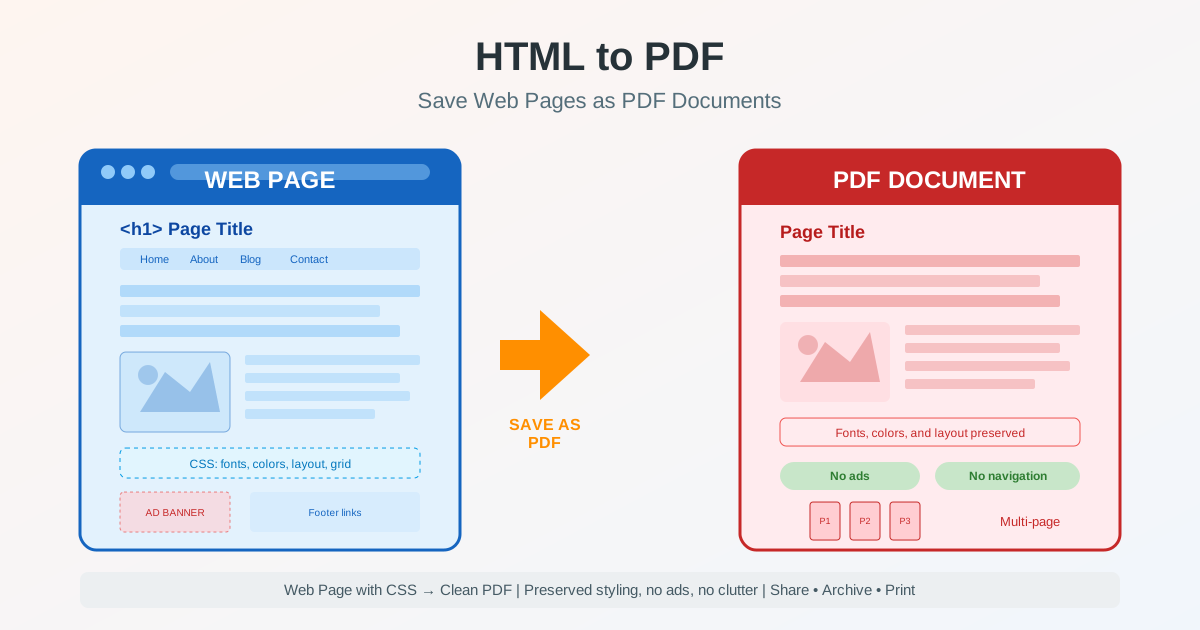
You found an article, a recipe, a research paper, or an invoice online — and you need to keep it. Maybe you want to read it offline, share it with someone who prefers documents over links, or archive it before the page disappears. Converting HTML to PDF solves all of these problems.
Whether you use browser print-to-PDF, a dedicated HTML to PDF converter , or a command-line tool, the goal is the same: turn a web page into a portable, self-contained document that looks the way you expect it to.
Why Save a Web Page as PDF
Web pages are ephemeral. Content gets updated, paywalls appear, sites go offline, and URLs break. A PDF snapshot captures the page at a specific point in time — text, images, layout, and all — in a format that works everywhere without a browser or internet connection.
Offline reading. Save articles, tutorials, or documentation as PDF to read on a flight, commute, or anywhere without connectivity. The PDF retains the full content and visual structure of the original page.
Archiving web content. Research sources, legal evidence, price quotes, order confirmations, and policy documents all benefit from PDF archiving. The saved file serves as a timestamped record that cannot be altered by the website owner after the fact.
Sharing and distribution. Sending a link requires the recipient to have internet access and assumes the page will still exist when they click it. A PDF attachment is self-contained — it works on any device, any operating system, and any email client. For formal sharing — contracts, proposals, reports — PDF is the expected format.
Printing. Web pages rarely print well directly. CSS print stylesheets are inconsistent across browsers, and most pages are designed for screens, not paper. Converting to PDF first gives you control over margins, page breaks, and layout before sending to a printer.
How to Print a Web Page to PDF in Your Browser
Every modern browser includes a built-in print-to-PDF function. This is the fastest way to save a webpage as PDF, though the results vary depending on the page design and browser.
Chrome and Edge
Press Ctrl+P (or Cmd+P on Mac). In the print dialog, change the Destination to Save as PDF. You can adjust the layout (portrait or landscape), paper size, margins, and scale. Enable Background graphics under More Settings if you want to preserve background colors and images — browsers disable these by default to save ink. Click Save and choose a file name and location.
Firefox
Press Ctrl+P and select Save to PDF from the printer list.
Firefox applies the page's print stylesheet, which may change the layout significantly.
If the result looks different from the screen version, try using Reader View (click the book icon in the address bar) before printing — this strips the page to essential content and produces a cleaner PDF.
Safari
On macOS, press Cmd+P, then click the PDF dropdown in the bottom-left corner and select Save as PDF. Safari generally preserves web fonts and layout well. On iOS, use the Share button, scroll down to Print, then pinch outward on the preview to create a PDF that you can save to Files.
Limitations of Browser Print-to-PDF
Browser print-to-PDF applies the CSS print stylesheet, which often removes background colors, changes fonts, hides navigation and sidebars, and reformats content for paper. This is not always what you want. If you need the page to look exactly as it appears on screen — with colors, backgrounds, and the visual design intact — a dedicated converter produces better results.
Using a Dedicated HTML to PDF Converter
When browser print-to-PDF does not give you the results you need, a dedicated HTML to PDF conversion tool offers more control over the output.
Screen-accurate rendering. Dedicated converters use a full browser rendering engine to capture the page as it appears on screen, not as the print stylesheet dictates.
Background colors, gradients, custom fonts, and CSS effects are preserved in the PDF output.
CSS styling preservation. Converting HTML to PDF with CSS styling intact means your Flexbox layouts, Grid designs, custom typography, and responsive breakpoints render correctly. The converter processes the CSS just as a browser would, then maps the result to PDF page coordinates.
Page break control. Dedicated converters respect CSS page-break properties (page-break-before, page-break-after, page-break-inside) and their modern equivalents, letting you control where content splits across pages. This prevents tables from being cut in half or headings from appearing orphaned at the bottom of a page.
Headers and footers. Add custom headers with the document title and footers with page numbers — something browser print-to-PDF does only with limited built-in options.
How to Save a Web Page as PDF Without Ads
Ads, pop-ups, cookie banners, and navigation menus clutter the PDF when you convert a webpage directly. Here are practical methods to get a clean document.
Use Reader Mode
Most browsers include a Reader Mode (or Reader View) that strips the page to its main content — article text and images only. In Firefox, click the book icon in the address bar. In Chrome and Edge, look for the Reader Mode option in the address bar or three-dot menu. Activate Reader Mode first, then print to PDF for a clean result without ads, navigation bars, or sidebar widgets.
Ad Blockers Before Conversion
If you have an ad blocker extension installed, it removes ads from the rendered page before you print to PDF. This works with both browser print-to-PDF and dedicated converters. The ads never appear in the page layout, so they do not appear in the PDF output.
Select Specific Content
Some converters let you select a specific area of the page to convert, ignoring everything outside the selection. This is effective for pages with heavy sidebar content, multiple ad placements, or complex layouts where Reader Mode does not work well.
Preserving CSS and Layout in PDF Output
One of the biggest challenges when converting HTML to PDF is maintaining the visual design.
CSS was designed for screen rendering, and mapping it to fixed PDF pages requires careful handling.
Fonts. Web fonts loaded via @font-face or Google Fonts need to be embedded in the PDF for the document to display correctly on any device. Dedicated converters typically embed fonts automatically. Browser print-to-PDF may substitute system fonts if web fonts fail to load in the print context.
Colors and backgrounds. By default, browsers strip background colors and images when printing to save ink. Enable the "Background graphics" option in the print dialog to include them. Dedicated converters preserve backgrounds by default since they capture the screen rendering.
Responsive layouts. If a page uses responsive CSS, the PDF output depends on the viewport width used during conversion. A converter set to a wide viewport produces a desktop-style PDF. A narrow viewport produces a mobile-style layout. Choose the viewport width that matches your intended output.
Tables. Wide HTML tables may overflow the PDF page width. Use CSS table-layout: fixed and word-wrap: break-word to prevent overflow, or adjust the page orientation to landscape for data-heavy tables. If you need to extract table data for further editing, consider converting the PDF to Word after saving.
Handling Dynamic and JavaScript-Heavy Pages
Modern web pages load content dynamically — images appear as you scroll, sections expand on click, and data loads from APIs after the initial page render. This creates challenges for HTML to PDF conversion.
Lazy-loaded images. Scroll through the entire page before converting to trigger all lazy-loaded images. If images still appear as placeholders in the PDF, the converter did not wait long enough for them to load. Dedicated converters with browser engine rendering handle this better than simple HTML parsers.
Single-page applications (SPAs). React, Vue, and Angular apps render content client-side with JavaScript. Simple HTML scrapers see an empty shell. You need a converter that executes JavaScript and waits for the DOM to be fully rendered before capturing the page.
Expandable sections and tabs. Accordion menus, tabbed interfaces, and collapsible sections hide content by default. Expand all sections before converting, or the hidden content will not appear in the PDF. Some converters offer a "print all" option that expands collapsed elements automatically.
Infinite scroll. Pages with infinite scroll (social media feeds, search results) have no natural end. Scroll to load the content you need, then convert. The PDF will capture whatever content is rendered at the time of conversion.
Converting HTML Emails to PDF
HTML emails — receipts, newsletters, booking confirmations, invoices — are common candidates for PDF conversion. The process differs slightly from web pages because emails use inline CSS and table-based layouts.
From Gmail. Open the email, click the three-dot menu in the top right, and select Print. Change the destination to Save as PDF. Gmail's print view produces clean output with the email content only.
From Outlook. Open the email, go to File > Print, and select Microsoft Print to PDF as the printer. Alternatively, open the email in a browser using "View in browser" and use the browser print-to-PDF method.
Preserving email formatting. HTML emails rely on inline styles and nested tables for layout. These convert to PDF reliably since the styling is embedded directly in the HTML rather than loaded from external stylesheets. Images in emails may be hosted remotely — ensure they load completely before converting.
Common Use Cases for Web Page to PDF Conversion
Research and Academic Work
Save online sources as PDF to create a permanent reference library. Academic papers, news articles, and statistical reports change or disappear over time. A PDF archive ensures your citations remain verifiable. Include the URL and date of capture in the file name for proper attribution.
Legal Documentation and Compliance
Terms of service, privacy policies, and regulatory notices change without notification. Saving these pages as PDF creates a timestamped record of what was published at a specific date. This is relevant for compliance audits, legal disputes, and contract negotiations where the exact wording of a web-published document matters.
Receipts and Order Confirmations
Online order confirmations, booking receipts, and transaction records are often displayed as web pages that may not be accessible later. Convert them to PDF immediately for your records.
This is especially important for expense reporting and tax documentation.
Content Sharing in Teams
When sharing web content with colleagues or clients who may not have access to the original URL (behind a paywall, VPN, or authentication), a PDF provides a portable snapshot. It works in email attachments, shared drives, and document management systems without requiring the recipient to log in anywhere.
Tips for Better HTML to PDF Results
Check the page before converting. Scroll through the entire page to load all lazy content. Close pop-ups and cookie banners. Expand collapsed sections. Dismiss notification prompts. The converter captures exactly what is rendered — prepare the page first.
Choose the right viewport width. If the converter allows setting a viewport width, use 1280px for a desktop layout or 768px for a tablet-friendly layout. Narrow viewports trigger mobile styles that may stack content vertically, producing a very long PDF.
Use landscape for wide content. Tables, dashboards, and data-heavy pages often look better in landscape orientation. Switch from portrait to landscape in the print settings or converter options to give wide content more horizontal space.
Reduce file size after conversion. PDFs generated from web pages with many images can be large. Use a PDF compression tool to reduce the file size without visible quality loss — especially useful for email attachments with size limits.
Verify links in the output. If preserving hyperlinks matters, open the PDF and test a few links to confirm they are clickable and point to the correct URLs. Not all conversion methods preserve links equally.
HTML to PDF vs PDF to HTML
These are opposite workflows that serve different purposes.
HTML to PDF takes web content and creates a portable document for sharing, printing, and archiving. The reverse — PDF to HTML — takes a PDF document and makes it web-publishable with responsive layout, search engine indexing, and accessibility benefits.
Use HTML to PDF when you want to preserve a web page as a fixed document. Use PDF to HTML when you want to publish existing PDF content on the web. Both directions are common in document workflows — you might convert a web report to PDF for distribution, then later convert that same PDF back to HTML for your company knowledge base.
When PDF Is Not the Right Format
PDF is ideal for fixed-layout documents you want to share, print, or archive. But not every web page conversion needs PDF as the output.
Need to edit the content? Convert the web page to PDF first, then use PDF to Word conversion to get an editable document. Or save the page HTML source and edit it directly in a text or HTML editor.
Saving images from a page? PDF embeds images within the document. If you need the images separately, right-click and save them individually, or use a PDF conversion tool to extract images from the PDF after saving.
Collecting data from tables? If the web page contains tabular data you need in a spreadsheet, copy the table directly into Excel or Google Sheets rather than going through PDF as an intermediate format. The direct copy preserves the data structure better.