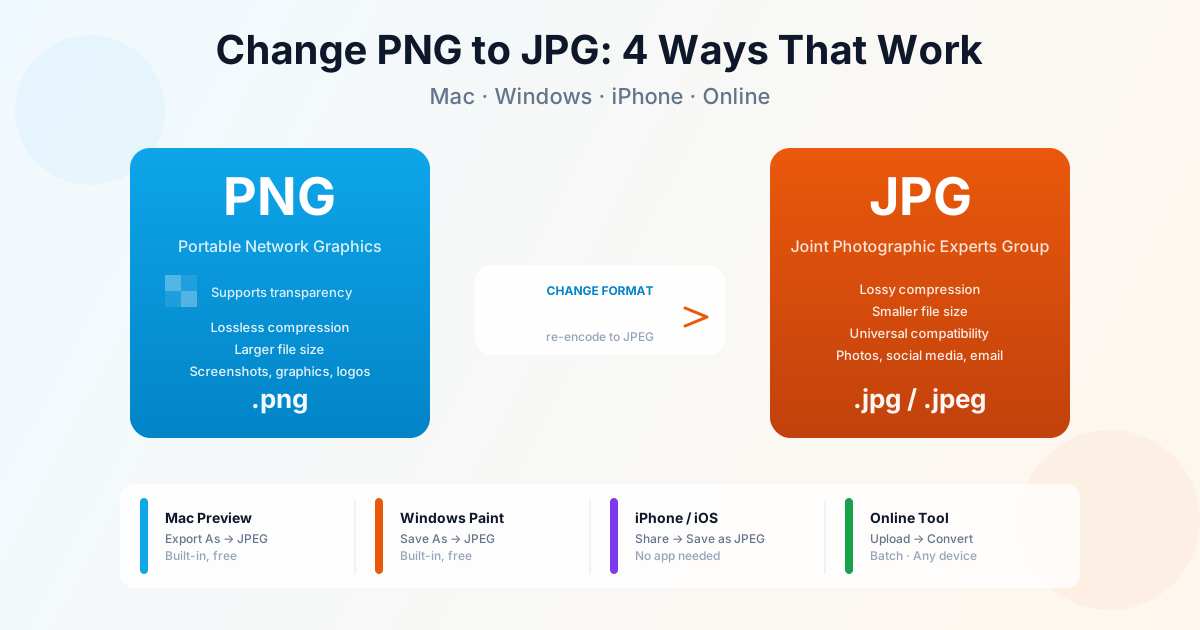
Changing a PNG to JPG takes under a minute on any device — no software download required.
Mac has Preview, Windows has Paint, and iPhones have a built-in share menu that handles it.
For batches of files, an online converter is faster than doing them one by one.
Jump to the method for your device, or use our PNG to JPG converter to convert files online — works on any browser, including Safari on iPhone.
PNG vs JPG: When to Switch
Before converting, it's worth knowing when the switch makes sense — and when it doesn't.
| Situation | Use PNG | Use JPG |
|---|---|---|
| Photo or realistic image | — | ✓ Smaller, looks identical |
| Screenshot with text | ✓ Sharper text | Blurry around edges |
| Logo with transparent background | ✓ Keeps transparency | White background added |
| Email attachment or upload | Larger size | ✓ Much smaller |
| Social media post | — | ✓ Faster upload |
| Image you plan to edit again | ✓ No quality loss on re-save | Degrades each save |
Method 1: Mac Preview (Built-in, Free)
Preview is the fastest way to change PNG to JPG on a Mac. No downloads, no accounts.
- Double-click the PNG file to open it in Preview
- Go to File → Export (not "Save As" — that keeps the same format)
- In the Format dropdown, select JPEG
- Drag the Quality slider — 85% gives excellent quality at a much smaller size
- Choose where to save and click Save The original PNG file is untouched. Preview saves a new JPEG alongside it.
Batch convert PNG to JPG on Mac
To convert multiple PNGs at once without opening each one:
- Select all PNG files in Finder (click the first, Shift-click the last)
- Right-click the selection → Quick Actions → Convert Image
- Choose JPEG and the desired size
- Click Convert to JPEG Quick Actions creates JPG copies next to the originals. The PNGs are not deleted.
Method 2: Windows Paint (Built-in, Free)
Paint is included in every Windows installation and handles simple format changes well.
- Right-click the PNG → Open with → Paint
- In Paint, go to File → Save As → JPEG Picture
- Choose a filename and location, then click Save Paint doesn't let you set JPEG quality. It uses a fixed compression level that works fine for photos. For quality control or batch conversion, use the online converter.
Method 3: iPhone and iPad
iOS doesn't have a built-in format converter, but the online approach works directly in Safari:
- Open Safari and go to our PNG to JPG converter
- Tap Choose File and select the PNG from your Photos or Files
- Tap Convert
- Tap the download link — the JPG saves to your Files app No app installation needed. Works on iPhone and iPad running Safari or Chrome.
Method 4: Online Converter (Batch, Any Device)
For converting multiple PNG files at once — or when you're on a device without built-in tools — the online converter is the fastest path:
- Open the PNG to JPG converter
- Upload one or multiple PNG files
- Download the converted JPG files Files are processed and then deleted from the server. Nothing is stored permanently.
What Happens to PNG Transparency in JPG
JPG does not support transparency — it's a hard limitation of the format, not a converter issue. When you convert a PNG with transparent areas to JPG, those areas become a solid color, usually white.
If you need to preserve transparency, use PNG to WebP instead. WebP supports transparency, produces smaller files than PNG, and is supported in all modern browsers.
PNG to JPG File Size Difference
The size reduction from PNG to JPG depends heavily on the image content:
- Photos: 60–80% smaller as JPG. A 3 MB PNG photo typically becomes 300–600 KB JPG.
- Screenshots with mixed content: 30–60% smaller.
- Screenshots with mostly text: sometimes PNG is already smaller, and JPG adds visible blur around text edges without size benefit.
- Solid-color graphics (logos, illustrations): PNG is usually smaller. For these, consider PNG to WebP — WebP compresses flat graphics better than JPG.
Summary
JPG is the right format for photos and web uploads where file size matters; PNG stays better for screenshots with text and any image that needs transparency. Use the PNG to JPG converter for batch jobs, or Preview on Mac and Paint on Windows for a single file — no extra software required.
Related Tools
- JPG to PNG — convert back if you need transparency
- PNG to WebP — smaller than JPG with transparency support
- JPG to PNG guide — when and why to convert in the other direction
- PNG vs JPG vs WebP — full format comparison