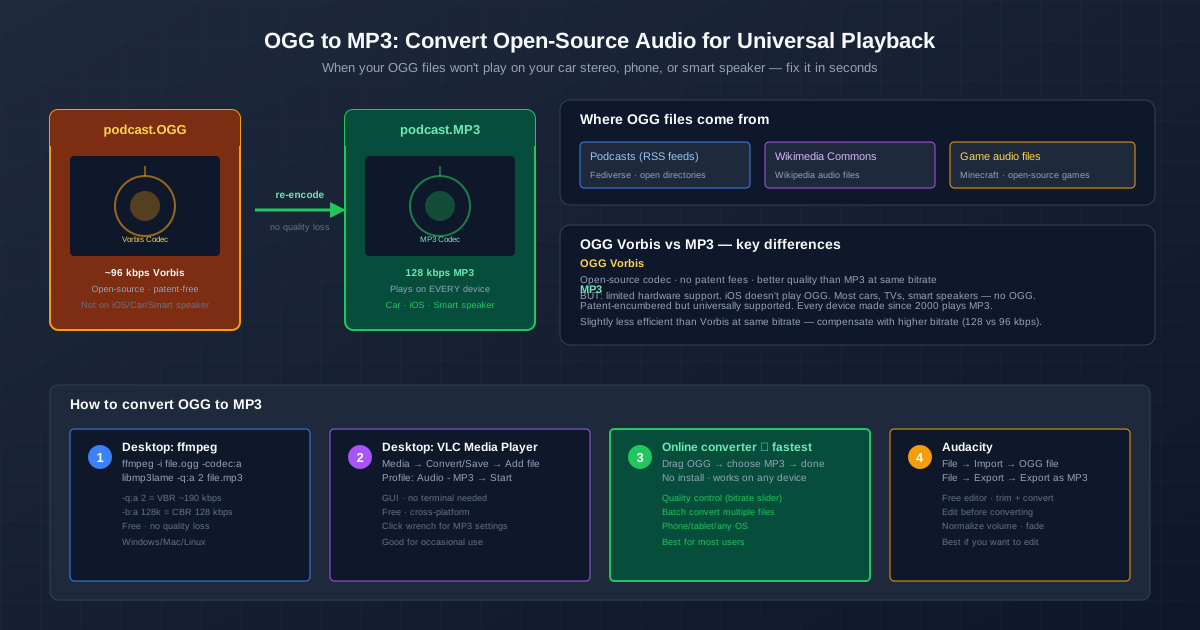
OGG is the open-source audio format that sounds better than MP3 at the same file size. It is patent-free, ethically clean, and the default format for Wikipedia audio, many podcasts, and open-source games. The problem: iPhones do not play OGG. Most car stereos do not play OGG. Smart speakers do not play OGG. Here is how to convert OGG to MP3 — preserving quality — so your audio works everywhere.
Use the OGG to MP3 converter for the fastest method: drag and drop your file, pick MP3 quality, and download in seconds.
Why OGG Will Not Play on Many Devices
OGG Vorbis came out in 2000 as an open alternative to MP3. It was technically superior — better compression, no patent royalties, completely free to implement. But by the time Vorbis was ready, MP3 had already won. Every device on the market had an MP3 decoder. MP3 was good enough, and adding OGG support meant paying engineers to implement a codec that offered no sales advantage.
Apple never added OGG support to iOS or macOS's core audio stack — they pushed their own AAC format instead. Car manufacturers buy audio chips with hardware MP3 decoders built in; adding OGG means a different chip or software decoding, both of which cost money. Smart speakers from Amazon, Google, and Apple all skip OGG. The result: OGG files work on Linux, Android (with the right app), and desktop media players like VLC, but fail on the most common playback devices. Converting to MP3 fixes this instantly.
What OGG Vorbis Is (and Is Not)
OGG is a container, not a codec. The .ogg extension means the file uses the OGG container format, but the audio inside can be Vorbis, Opus, FLAC, or even Speex (a voice codec). In practice, 95% of .ogg files contain Vorbis audio. The rest are mostly Opus (.opus files sometimes use .ogg) or FLAC-in-OGG.
Vorbis is a lossy codec — it compresses audio by discarding data the human ear cannot hear, just like MP3 and AAC. At 96 kbps, Vorbis sounds better than 128 kbps MP3. At 128 kbps Vorbis, it is essentially transparent (indistinguishable from the original CD) for most music. This efficiency is why Wikipedia, the Fediverse, and open-source games adopted it — more quality per megabyte, and zero licence fees.
Method 1: FFmpeg (Fastest, Most Control)
FFmpeg is the Swiss Army knife of audio and video conversion. It is free, open-source, and available on every platform. The command to convert a single OGG file to MP3 is:
ffmpeg -i podcast.ogg -codec:a libmp3lame -b:a 128k podcast.mp3 What the flags mean: -i specifies the input file. -codec:a libmp3lame tells FFmpeg to use the LAME MP3 encoder (the best MP3 encoder available). -b:a 128k sets the audio bitrate to 128 kbps constant bitrate. For variable bitrate, replace -b:a 128k with -q:a 2 — this produces VBR around 190 kbps, suitable for music.
Batch conversion — convert every OGG file in a folder:
for f in *.ogg; do ffmpeg -i "$f" -codec:a libmp3lame -b:a 128k "${f%.ogg}.mp3"; done FFmpeg preserves metadata (title, artist, album) automatically. It handles Vorbis, Opus, and FLAC in OGG containers without extra configuration.
Method 2: VLC Media Player (GUI, No Terminal)
If you prefer clicking buttons over typing commands, VLC does the job. VLC is free, installed on millions of computers, and its converter uses the same FFmpeg libraries under the hood:
- Open VLC. Go to Media → Convert/Save (or press Ctrl+R).
- Click Add and select your OGG file. Click Convert/Save.
- In the Profile dropdown, choose Audio - MP3.
- Click the wrench icon next to the profile to set bitrate (128 kbps recommended), channels (stereo), and sample rate (44100 Hz).
- Choose a destination file name and click Start. VLC is good for occasional conversions. For batch processing, FFmpeg or an online converter is faster.
Method 3: Online Converter (No Install, Any Device)
The online OGG to MP3 converter is the simplest option: upload your OGG file, choose MP3 bitrate, and download the result. No software to install, works on any device with a browser (phone, tablet, Chromebook, any OS).
This is the best choice for most people. It handles batch conversion (drag multiple files), preserves file names, and lets you control quality with a bitrate slider. The conversion happens on a remote server, so it does not use your device's battery or processing power — useful for phones and low-powered laptops.
Method 4: Audacity (Edit Before Converting)
Audacity is a free audio editor. Use it when you want to trim silence from the beginning, normalise volume, apply a fade-out, or join multiple OGG files before converting:
- File → Import → Audio, select your OGG file.
- Make edits: trim (select + Delete), normalise (Effect → Normalise), fade (Effect → Fade Out).
- File → Export → Export as MP3.
- Choose bitrate in the options dialog. Click Save. Audacity requires the LAME MP3 encoder to be installed separately (it prompts you on first MP3 export). On Linux: apt install lame. On Mac with Homebrew: brew install lame. On Windows, Audacity's website links to the LAME installer.
Quality: How to Avoid Generation Loss
OGG Vorbis and MP3 are both lossy formats. Converting from one lossy format to another means the audio is compressed twice — once by the Vorbis encoder, then again by the MP3 encoder. This is called generation loss. At reasonable bitrates, it is usually inaudible. But you can minimise it:
- Use a higher MP3 bitrate than the OGG source. If the OGG is 96 kbps, encode MP3 at 128 kbps. The extra bandwidth absorbs artefacts from the re-encode.
- Do not convert back and forth. OGG → MP3 is fine. OGG → MP3 → OGG → MP3 creates cumulative damage.
- Keep the original OGG files. Treat OGG as the archive master. Convert to MP3 for playback. If you ever need better quality, re-convert from the original OGG, not from the MP3.
- Use the LAME encoder. All the tools above (FFmpeg, VLC, Audacity, online converters) use LAME under the hood — it is the best MP3 encoder and minimises quality loss.
OGG Container Codec Detection
If your OGG file produces silence, static, or an error after conversion, it may not contain Vorbis audio. OGG is a container that can hold Opus, FLAC, or Speex. Check what is inside:
ffprobe -v error -show_entries stream=codec_name -of default=noprint_wrappers=1 file.ogg Output like codec_name=vorbis means standard Vorbis — convert normally. codec_name=opus means Opus audio — FFmpeg handles it, but some tools may not. codec_name=flac means lossless audio — convert at maximum MP3 bitrate (320 kbps) or to a lossless format if you do not want any quality loss.
Related Tools and Formats
If you are dealing with other audio formats that need conversion, use the M4A to MP3 converter for Apple-encoded audio files. For audiobooks locked to a specific platform, see the AAX to MP3 guide for Audible DRM removal. To understand the technical differences between audio codecs, read MP3 vs AAC — it explains why Vorbis is more efficient than both but hardware support matters more than efficiency.
Quick Summary
- OGG is a container for Vorbis audio — technically better than MP3 but not supported on iOS, cars, or smart speakers.
- FFmpeg for power users — ffmpeg -i file.ogg -codec:a libmp3lame -b:a 128k file.mp3. Batch-capable, free, cross-platform.
- VLC for GUI preference — Media → Convert/Save, built into the player you already have.
- Online converter for simplicity — no install, works on phones, batch conversion, bitrate control.
- Audacity for editing first — trim, normalise, fade, then export as MP3.
- Use 128 kbps MP3 for 96 kbps OGG — compensates for the re-encode and matches or exceeds Vorbis quality.
- Keep OGG originals as archive masters. Convert to MP3 for playback only.